

Canary Analysis Report, Approval and Rollback #
This document covers what you do after a canary phase has been deployed and analyzed. It is organized in three parts: reading the Canary Analysis Report, giving the Approval to move to the next phase (including Exceptional Approval when the analysis fails), and running a Rollback when the canary is unhealthy. For the canary concept, phases and pod shift, see Canary Deployment.
| Part | Use It To |
|---|---|
| 1. Canary Analysis Report | See whether the canary phase passed or failed, compare the canary with the baseline metric by metric, and confirm which pods run which version. |
| 2. Approval | Approve the move to the next phase, or override a failed analysis with an Exceptional Approval. |
| 3. Rollback | Restore every service in the pipeline to the baseline version and mark the pipeline as Revoked. |
Part 1: Canary Analysis Report #
After each canary phase is deployed, the Canary Analysis job in the pipeline evaluates the canary against the metrics, thresholds and success criteria defined in the canary analysis template. To review or change them, see Canary Analysis Template.
1.1 Analysis Result in the Pipeline #
The Canary Analysis job shows one result per configured metric. In the example below, the 25% phase (prod-canary-25p-deployment) has been deployed with a 25% pod shift. Of the two metrics, ram_memory_victoria_metric passed and cpu_victoria_metric failed, so the job waits with the message Manual approval is required, Click on manage.
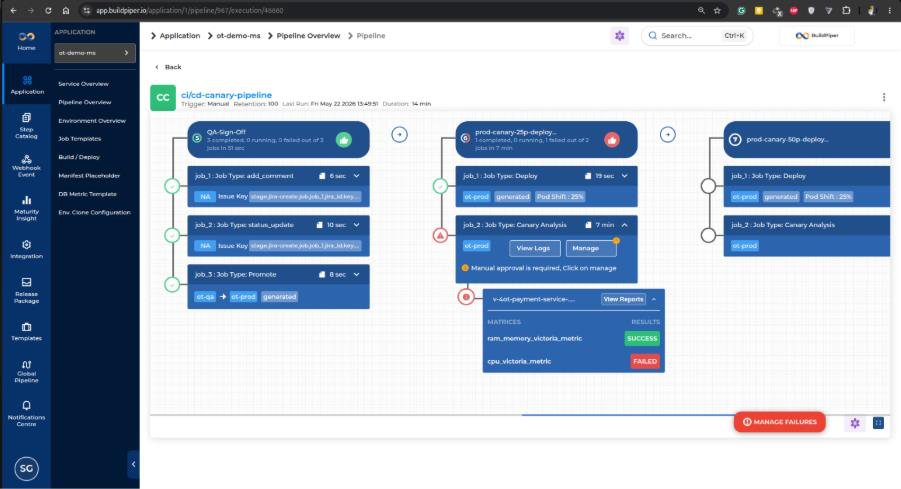
Figure 1: Canary Analysis job with one passed and one failed metric
How the overall result is decided depends on the operator in the template. With the AND operator, every configured metric must meet its threshold for the analysis to succeed. If any single metric misses its threshold, the whole canary analysis is marked FAILED, as in the example above.
Click View Reports on the job to open the detailed report.
1.2 Reading the Report #
The report compares the Baseline deployment (the stable version currently running) with the Canary deployment (the new version under validation), one metric at a time.
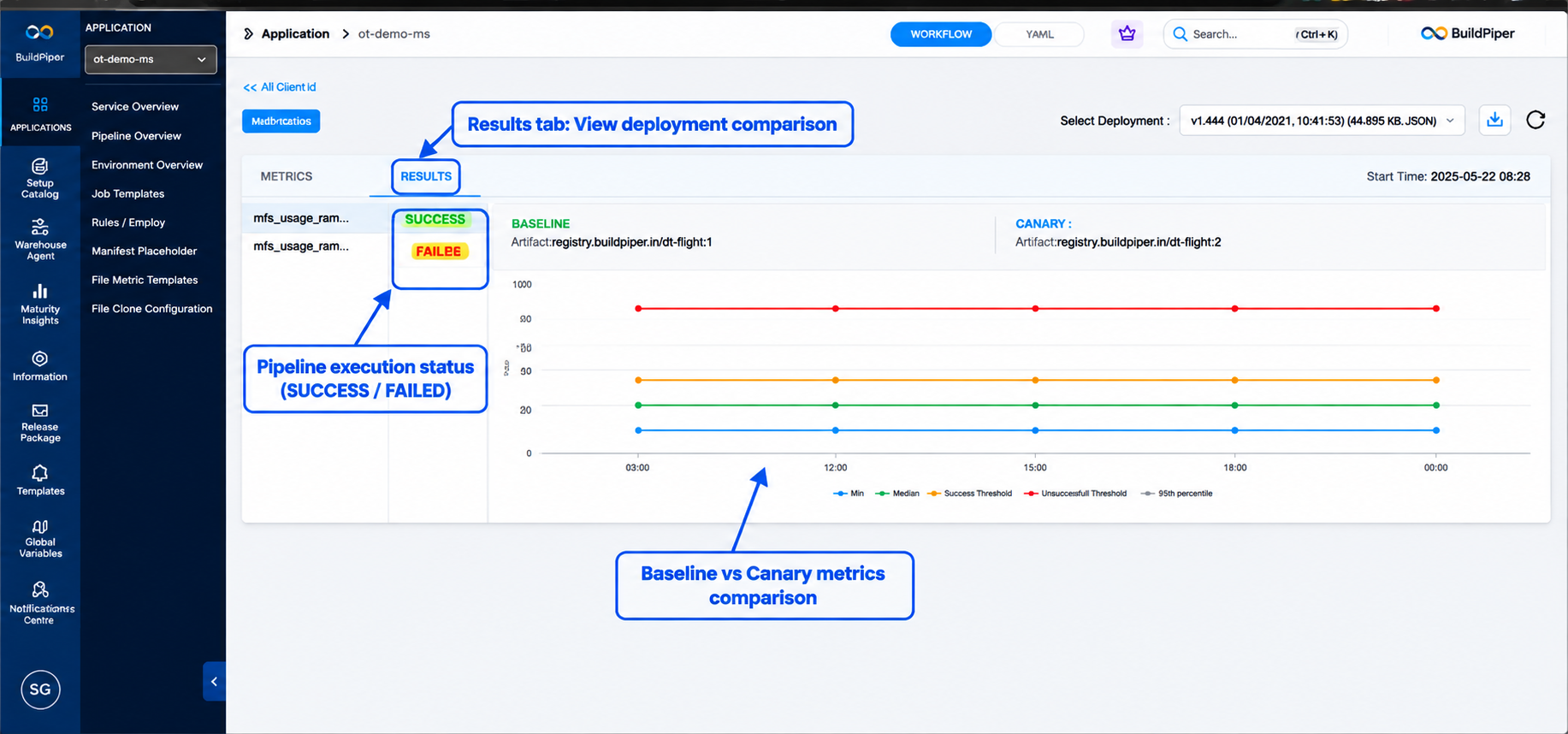
Figure 2: Canary Analysis Report: baseline vs canary metrics
Header #
• Baseline Artifact Deployed: the stable version, for example registry.buildpiper.in/ot-light:1.
• Canary Artifact Deployed: the new version under evaluation, for example registry.buildpiper.in/ot-light:2.
Trend graph #
The graph plots each metric over the analysis duration. The X-axis shows the times at which BuildPiper collected the metric, and the Y-axis shows the metric value. The lines on the graph are:
| Line | What It Shows | Role in the Analysis |
|---|---|---|
| Canary | Metric values collected from the canary deployment at each analysis interval. | The values being evaluated. They are compared against the thresholds to decide whether the new version is healthy enough to continue. |
| Baseline | Metric values collected from the baseline (stable) deployment. | The reference for comparison: the expected behavior of the current version. |
| Baseline Threshold | The warning threshold calculated from the baseline metric. | The acceptable deviation from the baseline. A canary value above it shows the canary is starting to drift from expected behavior. |
| Baseline Critical Threshold | The critical threshold for the metric. | The maximum acceptable deviation. A canary value above it fails the metric, and with the AND operator, fails the analysis. |
1.3 Confirming the Pod Shift #
The Pod Shift step of the Deploy job log shows how the pods were split between the two versions in the current phase.
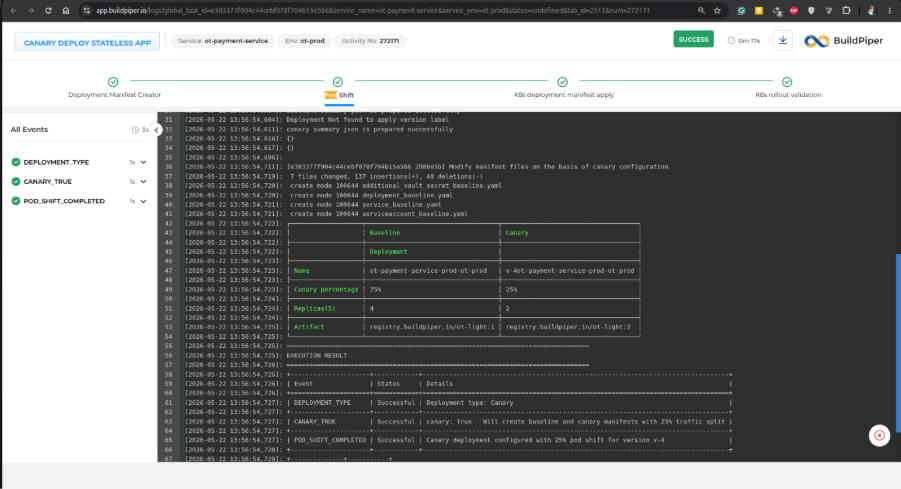
Figure 3: Pod Shift log for the 25% phase
From this log:
• The 25% canary phase was created and applied, and BuildPiper is analyzing both the Baseline and Canary Kubernetes deployments.
• The Baseline deployment (ot-light:1) runs 4 replicas, set to 75%.
• The Canary deployment (ot-light:2) runs 2 replicas, set to 25%.
BuildPiper shifts pods, not traffic. The Kubernetes Service sends traffic to all available pods, so each version receives roughly its share of the pods. The log calls this the “traffic split”.
Note: The service is configured with 5 replicas, but 6 pods run during this phase. BuildPiper rounds both counts up (ceiling): 75% of 5 is 3.75, so 4 baseline pods, and 25% of 5 is 1.25, so 2 canary pods. The extra pod stays for the whole phase.
1.4 Checking Pods in Deployment Analytics #
While the canary runs, you can use the Deployment Analytics page to view and troubleshoot the pods of each version. Open the PODS STATUS tab and pick a deployment from the Deployment drop-down:
• The canary deployment carries a version prefix, for example v1-ot-payment-service-prod-ot-prod.
• The baseline deployment keeps the original service name, for example ot-payment-service-prod-ot-prod.
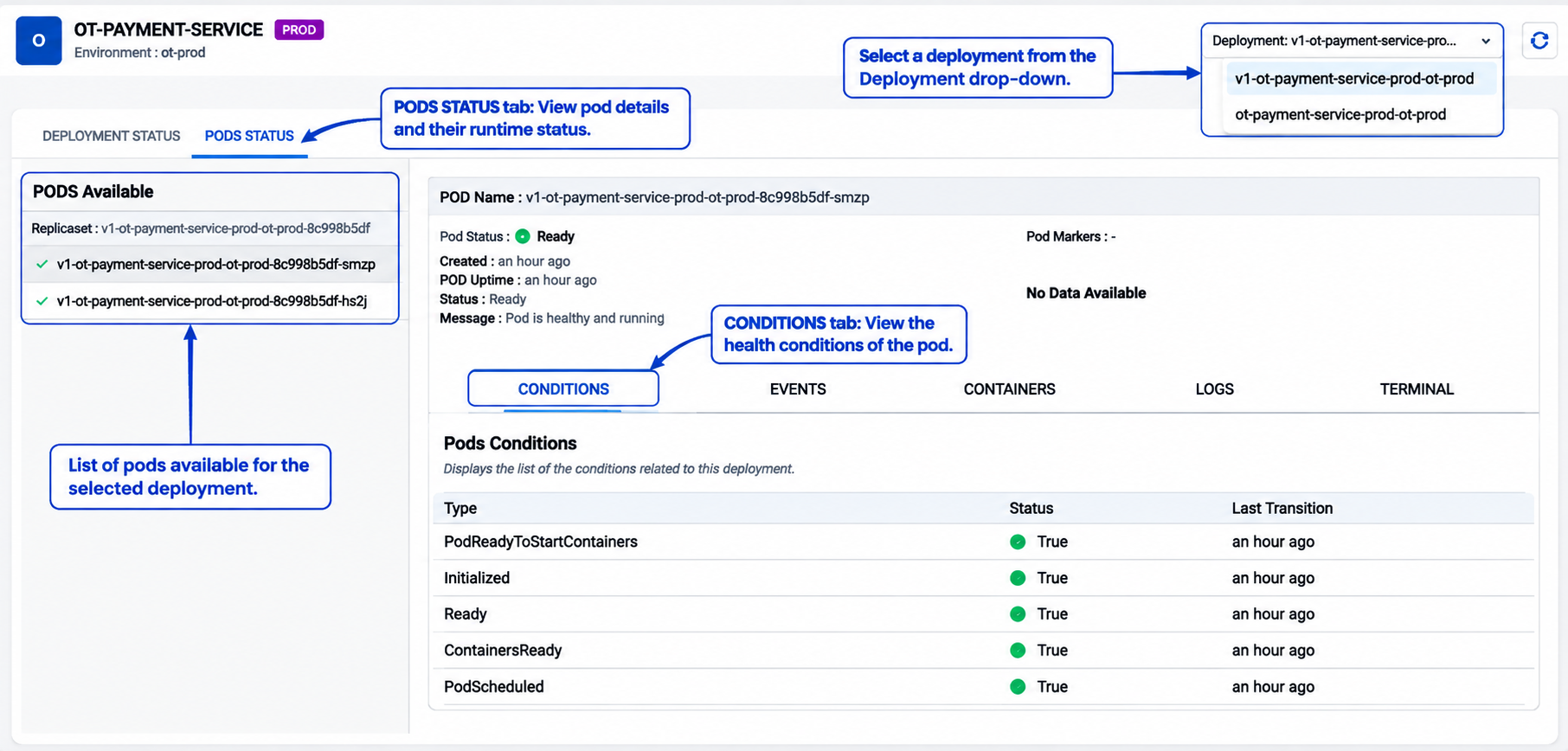
Figure 4: Deployment Analytics: canary deployment selected
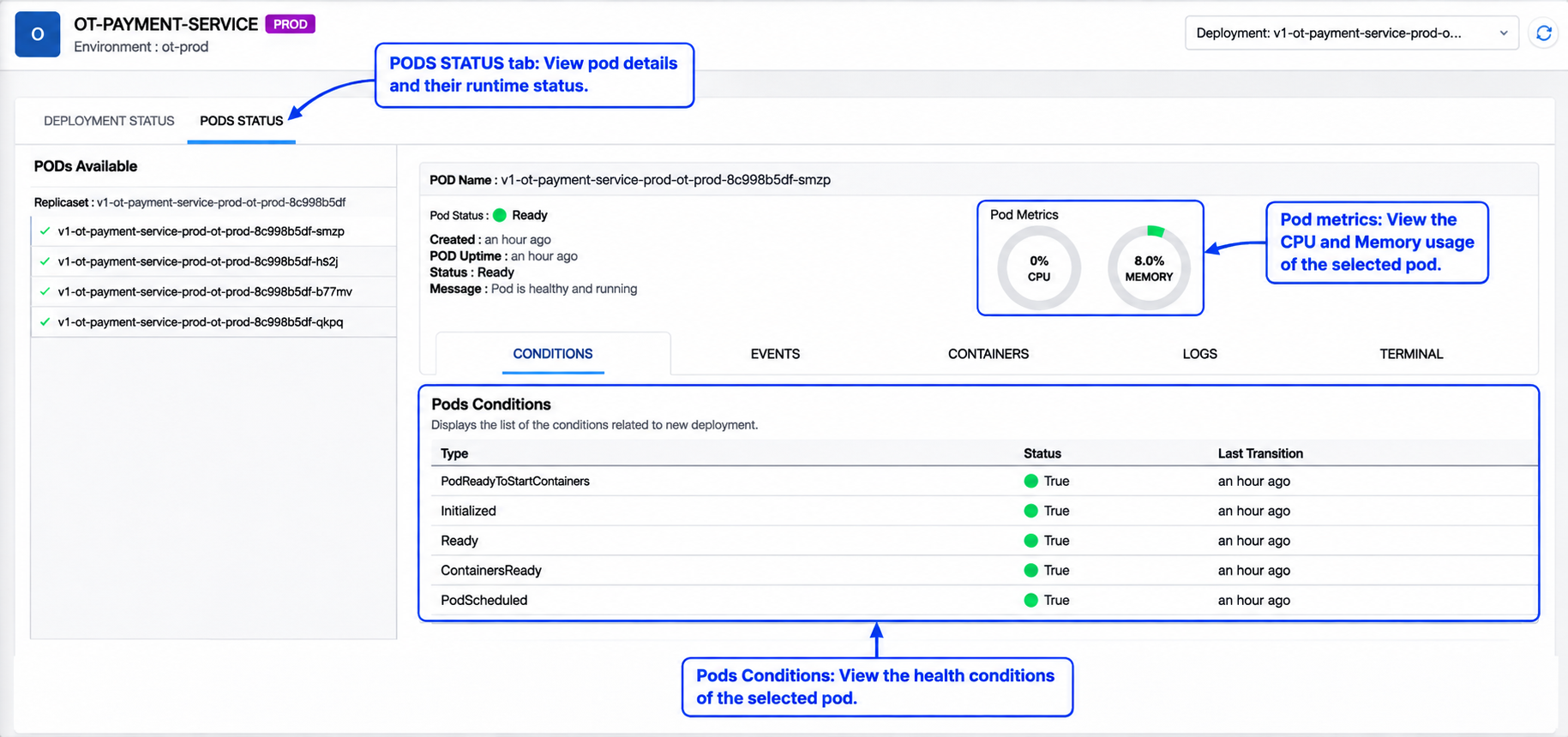
Figure 5: Deployment Analytics: baseline deployment selected
Part 2: Approval #
Each canary phase starts only after the previous phase has passed its validation and received its approval. Approvals are given from the Manage option on the Canary Analysis job, which opens the Manually Approve Canary Analysis to continue Pipeline for next Phase panel.
2.1 The Approval Panel #
The panel shows the canary analysis template, the Analysis Duration and Analysis Frequency (in minutes), and under Manage Services for Next Phase, each service in the phase with its analysis result.
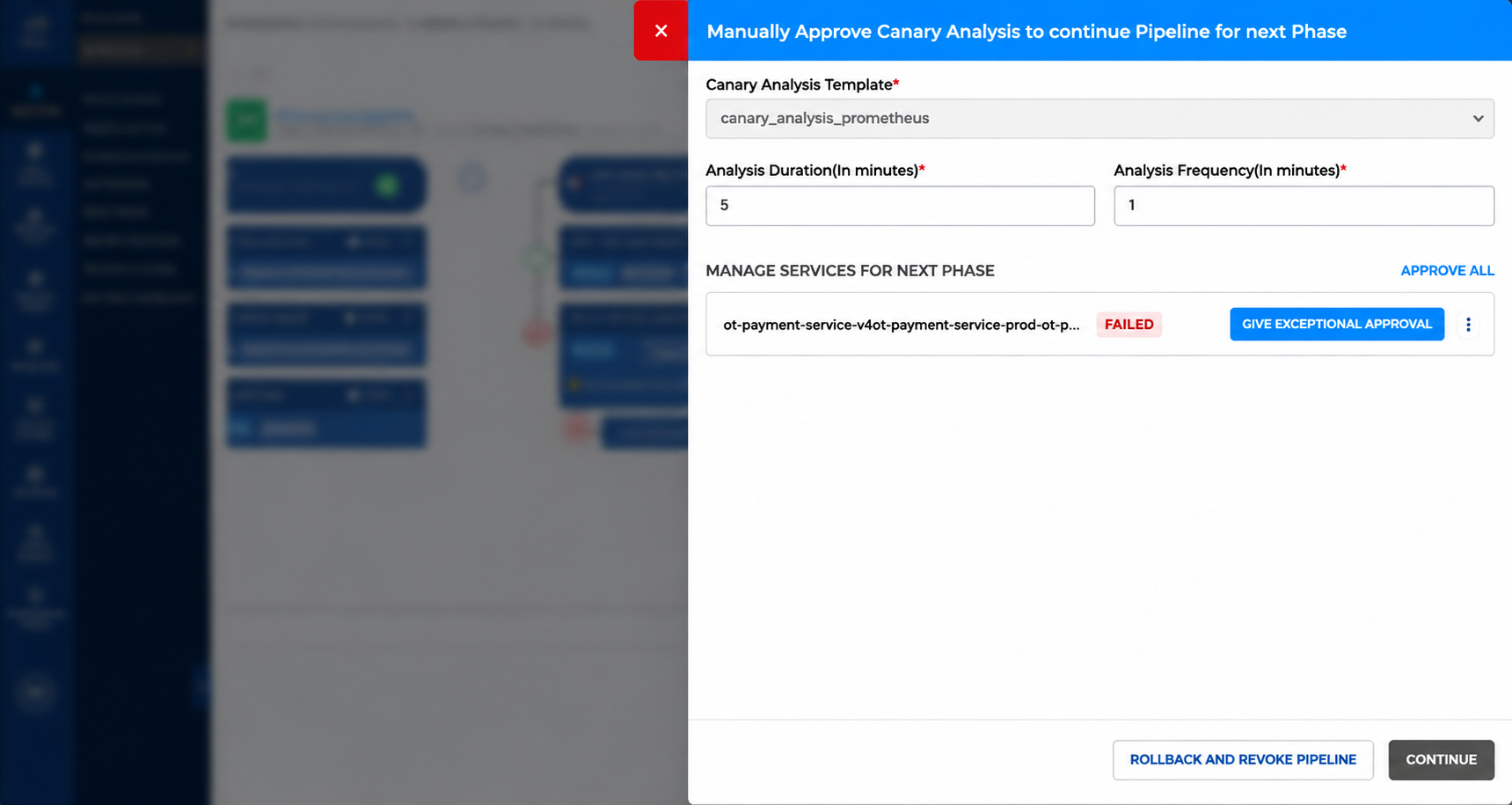
Figure 6: Approval panel for a service whose analysis failed
| Option | What It Does |
|---|---|
| Approve All | Approves every service listed for the next phase. |
| Give Exceptional Approval | Overrides a failed analysis for one service so it can move to the next phase. See 2.3. |
| Rollback and Revoke Pipeline | Rolls all services back to the baseline version and revokes the pipeline. See Part 3. |
| Continue | Moves on with the services marked for the next phase. |
Note: When the analysis passes and the phase uses automatic approval, BuildPiper starts the next phase without this panel. For the approval modes, see Canary Deployment.
2.2 When the Analysis Fails #
A failed canary analysis halts the rollout. BuildPiper does not roll back on its own at this point. The pipeline waits for a person to decide what happens next. (To roll back without waiting, see 3.4 Automatic Rollback.)
The development or application team reviews the metric data in the report and decides whether the failure is genuine (a real issue with the code or its performance) or an exception (expected behavior or a false positive):
| Decision | When to Use It |
|---|---|
| Exceptional Approval | The failure is non-critical or expected, for example a false positive or a metric anomaly while the application is healthy. The failure is overridden and the pipeline moves to the next phase. |
| Rollback | The failure is genuine. Further progress is stopped and the services are restored to the stable baseline version. |
2.3 Giving Exceptional Approval #
- 1
On the failed Canary Analysis job, click Manage.
- 2
Under Manage Services for Next Phase, click Give Exceptional Approval next to the failed service.
- 3
In the Caution dialog, enter a comment that explains why the failure is acceptable, and click Yes, Approve!
- 4
The service is listed under Services Marked For Next Phase. Click Proceed to start the next phase.
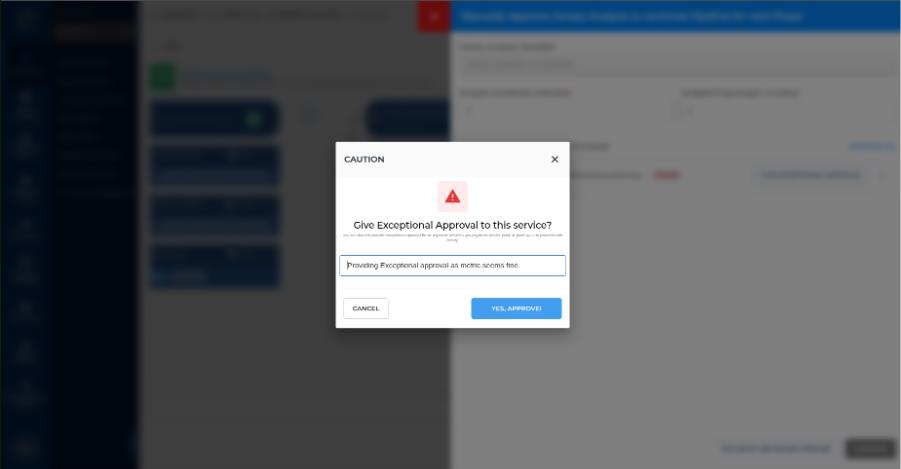
Figure 7: Exceptional Approval with a comment
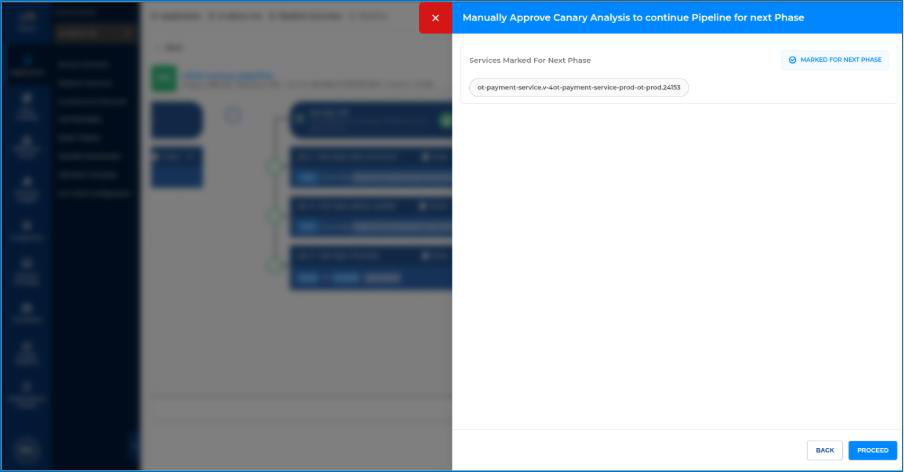
Figure 8: Service marked for the next phase
Part 3: Rollback #
Canary rollback reverts the application to the last stable (baseline) version when the canary release is found to be unhealthy. It removes the canary pods, restores the baseline to its full replica count, and marks the pipeline Revoked.
3.1 When to Roll Back #
A canary moves forward on two checks: the automated canary analysis defined in the canary analysis template, and manual validation by the development or operations team. Roll back when either check shows real impact:
• The canary analysis failed and the review confirms the failure is genuine.
• The analysis passed, but manual validation finds an actual application impact.
If the analysis failed only because of a false positive or a non-critical metric anomaly and the application is healthy, use Exceptional Approval instead (see 2.3).
3.2 Rolling Back a Canary #
- 1
On the Canary Analysis job, click Manage.
- 2
In the approval panel, click Rollback and Revoke Pipeline.
- 3
In the Caution dialog, enter a comment, and click Yes! Rollback and Revoke. All services in the pipeline are rolled back to the baseline and the pipeline is revoked.
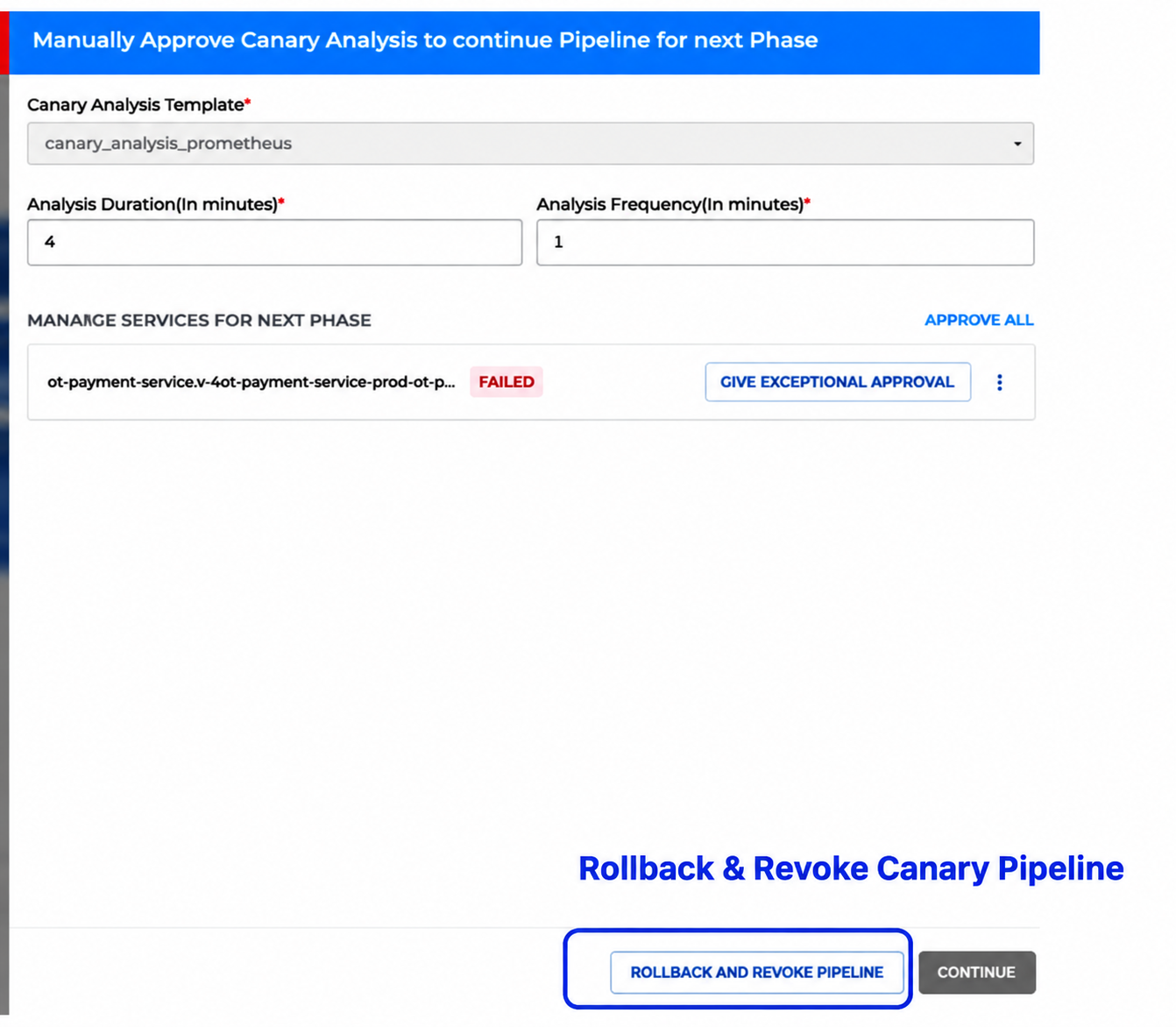
Figure 9: Rollback and Revoke Pipeline in the approval panel
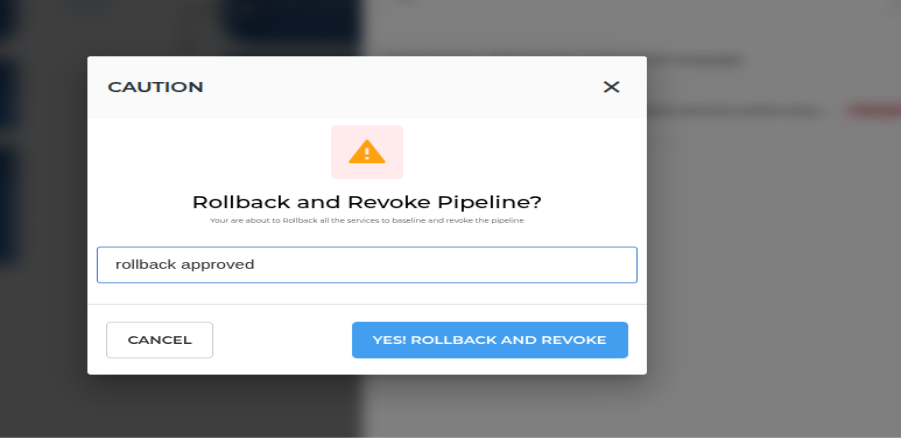
Figure 10: Confirming the rollback
3.3 After the Rollback #
On Pipeline Overview, the pipeline run is marked REVOKED at the stage where it stopped.
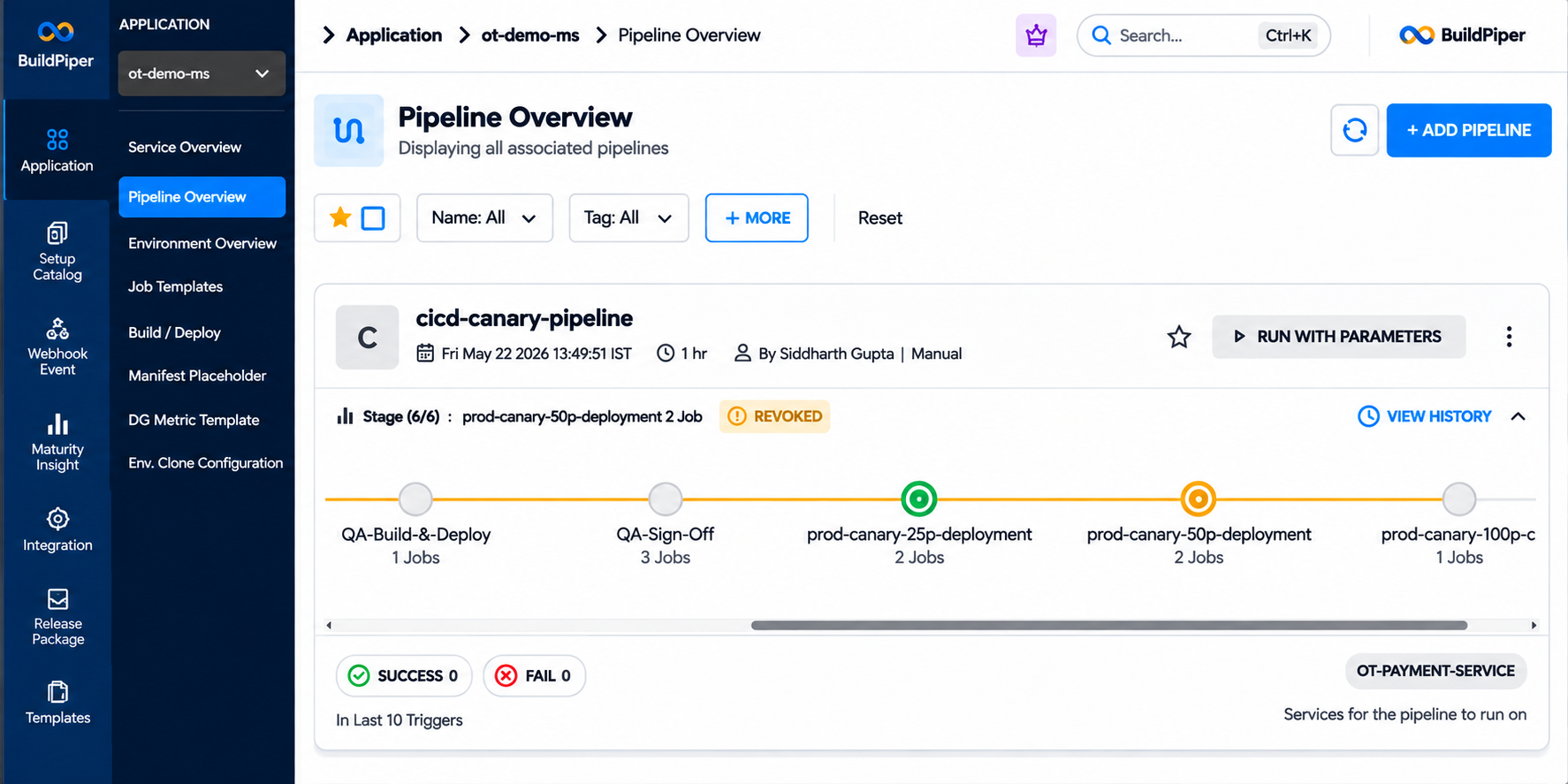
Figure 11: Pipeline marked as Revoked
In Deployment Analytics, only the baseline deployment (ot-payment-service-prod-ot-prod) remains, with all its pods back on the baseline version.
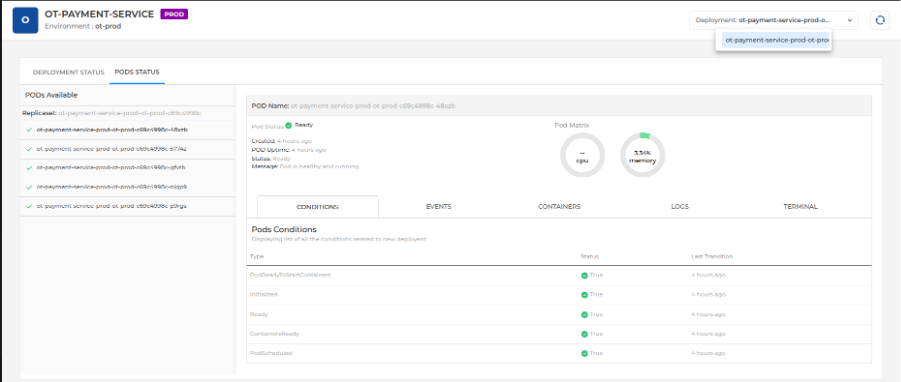
Figure 12: Deployment Analytics after rollback: baseline pods only
Note: A canary pipeline must always reach a terminal state: it either completes all its phases and is marked Success, or it is rolled back and marked Revoked. A pipeline left Running blocks later canary deployments.
3.4 Automatic Rollback #
To roll back without manual action when the release fails, add a job of type Rollback to the pipeline, in its own stage after the production deployment. If the canary release fails, the Rollback job restores the services to the previous stable version. For details, see Auto Rollback in Deployment Strategies.
Related Documents #
For more information, refer to the following documents.
| Document | What It Covers |
|---|---|
| Canary Deployment | Concept, pod shift rollout and canary analysis overview |
| Canary Approval and Rollback | Failed analysis, Exceptional Approval and canary rollback |
| Monitoring Source | Adding a metrics endpoint as a monitoring source |
| Stability Matrix | Stability metrics and Stability Matrix Group |
| Canary Analysis Template | Mapping metrics into a canary analysis template |
| Deployment Strategies | Overview of deployment strategies and the job form |