

Extensive CI Pipeline Definition #
1. Extensive CI Pipeline Overview #
In BuildPiper, you can create an extensive CI pipeline for a service and configure the number of stages and jobs as per your process. A single pipeline can cover the full path of a release: ticket creation, build, deployment, approvals, sign-offs, promotion across environments, rollback and status updates.
| What you can configure | Description |
|---|---|
| Number of stages | Add as many stages as your release process needs. |
| Jobs in a stage | Add one or more jobs in each stage, such as Build, Deploy, Promote, Rollback, add_comment and status_update. |
| Environments | Promote and deploy the same artifact across environments, for example bp-dev, bp-qa and bp-prod. |
| Trigger | Run the pipeline manually, as shown in the example below. |
Read more: Application Pipeline
Pipeline Configuration
Stage Configuration
Job Definitions
2. Example: extensive-ci-pipeline #
The following pipeline, extensive-ci-pipeline, is an example of an extensive CI pipeline. It has 7 stages and is triggered manually.
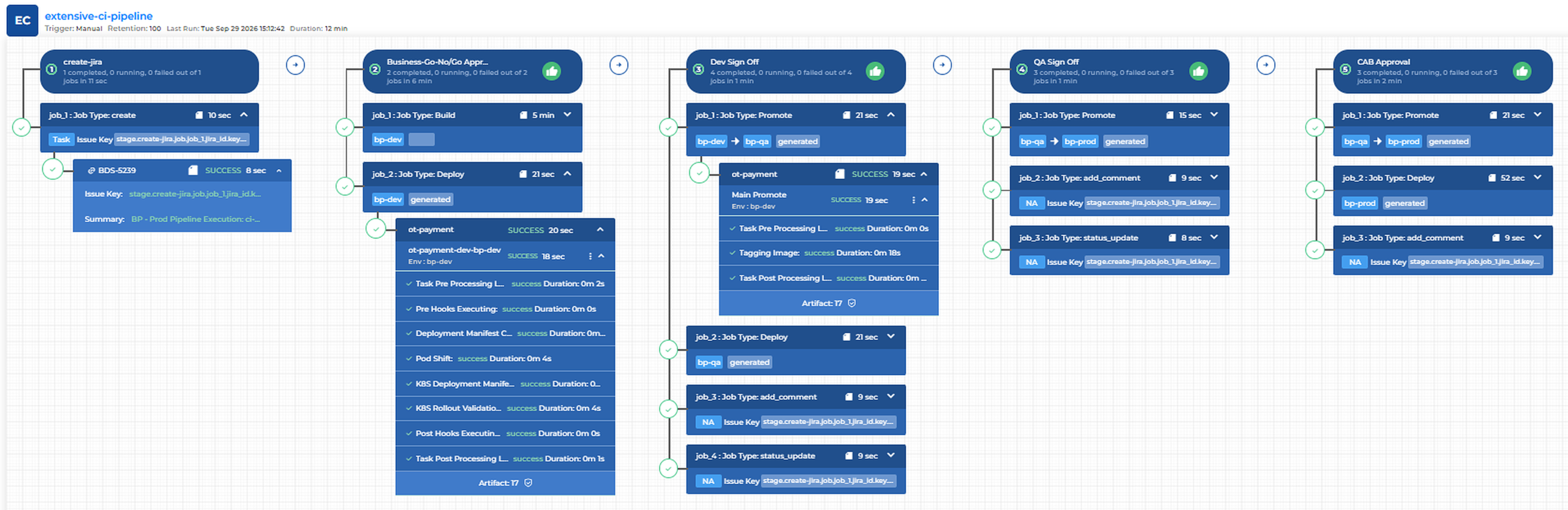
Figure 1: extensive-ci-pipeline
| No. | Stage | Jobs |
|---|---|---|
| 1 | Create-jira | create |
| 2 | Business-Go-No/Go Approval | Build, Deploy |
| 3 | Dev Sign Off | Promote (bp-dev to bp-qa), Deploy, add_comment, status_update |
| 4 | QA Sign Off | Promote (bp-qa to bp-prod), add_comment, status_update |
| 5 | CAB Approval | Promote (bp-qa to bp-prod), Deploy, add_comment |
| 6 | Production-Rollback | Rollback, add_comment |
| 7 | Prod-Deploy-Success-Jira | status_update |
3. Stage-by-Stage Walkthrough #
The sections below describe each stage of the example, based on what the pipeline execution screen shows.
Stage 1: Create-jira #
| Job | Type | What the screen shows |
|---|---|---|
| Job-1 | create | Creates a Jira issue. The result shows the issue key (for example BDS-5229), a SUCCESS status and the issue summary. |
Stage 2: Business-Go-No/Go Approval #
| Job | Type | What the screen shows |
|---|---|---|
| Job_1 | Build | Builds the service for the bp-dev environment. The build runs as a series of steps, listed below. |
| Job_2 | Deploy | Deploys the built artifact. |
Steps of the Build job in this example:
- 1
Workspace Cleanup
- 2
Cloning Repository
- 3
Trivy-Fs-Scan
- 4
Sonar Scanning
- 5
Build Docker Image
- 6
Push Docker Image
- 7
Trivy Image Scanning
- 8
Image Layer Validator
- 9
Image Size Validator
- 10
Image Cleanup Step
Note: The build in the example has more steps than listed here, such as pre-hook and post-hook steps, external clone configuration and SBOM scans. You can configure the steps to match your own build.
Stage 3: Dev Sign Off #
| Job | Type | What the screen shows |
|---|---|---|
| job_1 | Promote | Promotes the artifact from bp-dev to bp-qa. Steps: Task Pre Processing, Tagging Image, Task Post Processing. |
| job_2 | Deploy | Deploys to bp-qa. Steps include Pre Hook, Deployment Manifest, KBS Deployment Manifest, KBS Rollout Validation and Post-Hook. |
| job_3 | add_comment | Adds a comment to the Jira issue (BDS-5229). |
| job_4 | status_update | Updates the status of the Jira issue. |
Stage 4: QA Sign Off #
| Job | Type | What the screen shows |
|---|---|---|
| job_1 | Promote | Promotes the artifact from bp-qa to bp-prod. Steps: Task Pre Processing, Tagging Image, Task Post Processing. |
| job_2 | add_comment | Adds a comment to the Jira issue. |
| job_3 | status_update | Updates the status of the Jira issue. |
Stage 5: CAB Approval #
| Job | Type | What the screen shows |
|---|---|---|
| job_1 | Promote | Promotes the artifact from bp-qa to bp-prod. |
| job_2 | Deploy | Deploys to bp-prod. |
| job_3 | add_comment | Adds a comment to the Jira issue. |
Stage 6: Production-Rollback #
| Job | Type | What the screen shows |
|---|---|---|
| job_1 | Rollback | Rolls back the bp-prod deployment. In this execution the stage shows as skipped. |
| job_2 | add_comment | Adds a comment to the Jira issue. |
Stage 7: Prod-Deploy-Success-Jira #
| Job | Type | What the screen shows |
|---|---|---|
| job_1 | status_update | Updates the status of the Jira issue after the production deployment succeeds. |
Note: This is only an example. You can add, remove or reorder stages and jobs to match your own release process.