

System Settings: Notifications, Pipelines and Workers #
This document covers six categories: Notifications & Alerts (5 settings), Pipeline Execution & Workflow Control (5), Streaming Configuration (3), Task Queue & Routing (1), Time & Timezone (1) and Worker & Queue Monitoring (4).
1. Notifications & Alerts #
The notifications that the Notification Center sends by email depend on SMTP Details.
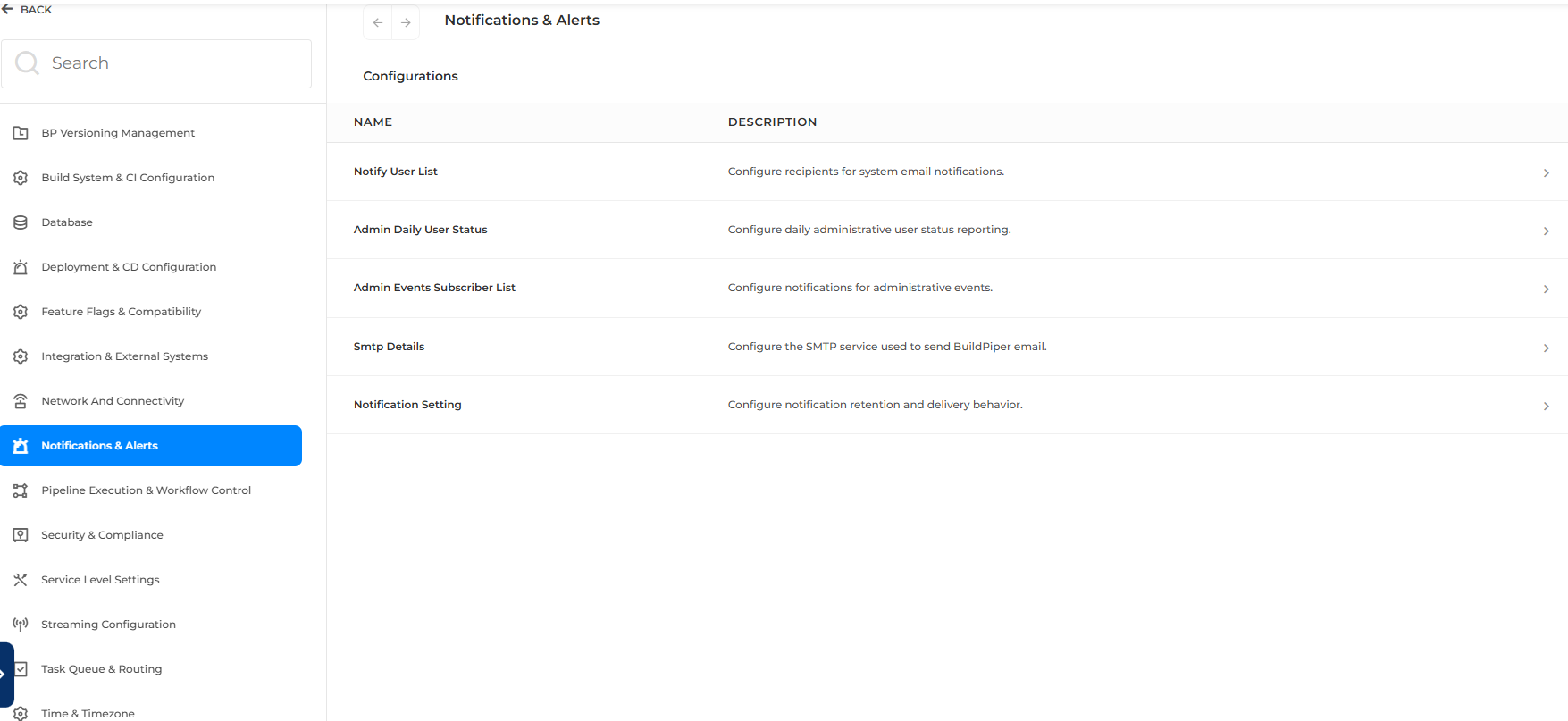
Figure 1: Notifications & Alerts, Configurations table
Notify User List #
Sets who receives pipeline and build event emails.
| Field | What it does |
|---|---|
| Email Notify User List | A comma-separated list of emails that receive pipeline and build event notifications. |
Read more: Pipeline Notification
Admin Daily User Status #
Sets who receives the daily user status reports, which monitor platform activity.
| Field | What it does |
|---|---|
| Daily Status Email Notify User List | The emails that receive the daily user activity report. |
Admin Events Subscriber List #
Sets who is told about platform-level admin events.
| Field | What it does |
|---|---|
| Admin Events Subscriber List | The emails or webhook endpoints that are notified of platform-level admin events. |
Read more: Notification Events
SMTP Details #
Sets the SMTP service that BuildPiper uses to send email.
| Field | What it does |
|---|---|
| Host | The SMTP server. |
| User | The SMTP user, usually the sender address. |
| Password | The SMTP password. |
| Port | The SMTP port: 587 for STARTTLS, 465 for SSL. |
| Use TLS | Uses TLS for the connection, normally with port 587. Do not turn on Use TLS and Use SSL together. |
| Pass Unverified Context | Allows self-signed certificates. |
| Use SSL | Uses SSL for the connection, normally with port 465. Do not turn on Use TLS and Use SSL together. |
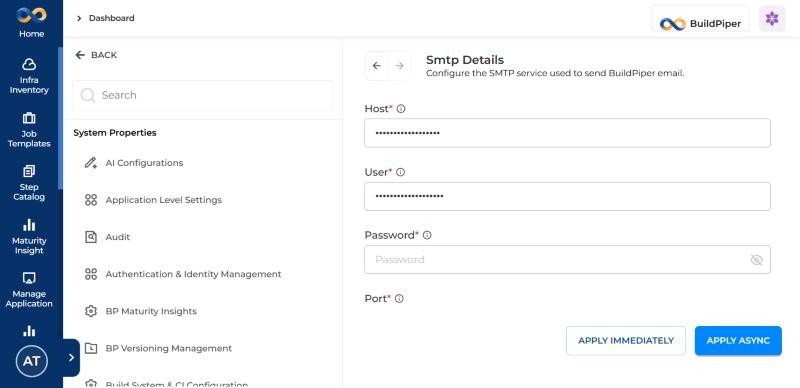
Figure 2: SMTP Details setting
Read more: Notification Channels
Notification Setting #
Sets how long notification history is kept, and the retry limit.
| Field | What it does |
|---|---|
| Auto Cleanup Will Execute in Number of Days | How long the notification history is kept before it is cleaned up. |
| Retry Count | The maximum number of delivery retries. |
Read more: Notification History
2. Pipeline Execution & Workflow Control #
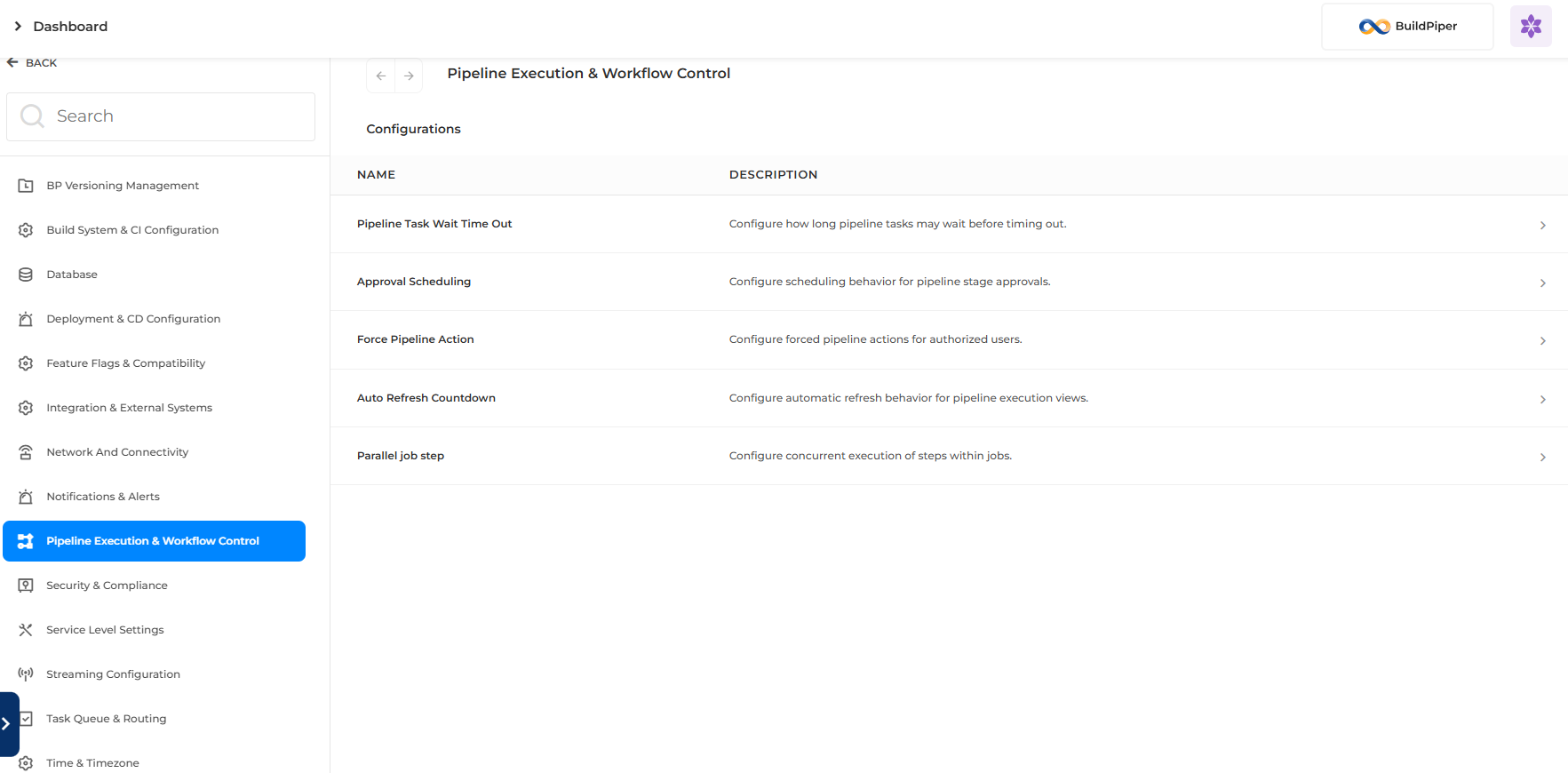
Figure 3: Pipeline Execution & Workflow Control, Configurations table
Pipeline Task Wait Time Out #
Sets how long a task can wait before it is marked as failed.
| Field | What it does |
|---|---|
| Pipeline Task Wait Time Out | The number of hours that a stage waits for a pending task before it times out. |
Read more: Pipeline Configuration
Approval Scheduling #
Schedules stage approvals, to control when approvals can be actioned within a pipeline.
| Field | What it does |
|---|---|
| Enable Stage Approval Scheduling | Sends approval requests only within the configured time windows. |
Read more: Pipeline Approval
Force Pipeline Action #
Controls forced pipeline actions.
| Field | What it does |
|---|---|
| Enable Force Pipeline Action | Lets authorized users force-approve or force-decline a pipeline. |
Read more: Pipeline Operations
Auto Refresh Countdown #
Sets the default interval, in seconds, after which the pipeline execution view refreshes automatically.
| Field | What it does |
|---|---|
| Auto Refresh Countdown | The default auto-refresh interval, in seconds, of the execution view. |
| Maximum Polling Interval | The upper limit to which the polling interval can grow when polling is slowed down, to reduce the load. |
Parallel Job Step #
Controls parallel steps in a job.
| Field | What it does |
|---|---|
| Step Maximum Parallelism | The number of steps that can run in parallel. |
| Enable Step Parallelism | Runs independent steps of a job at the same time. |
Read more: Step Catalog
3. Streaming Configuration #
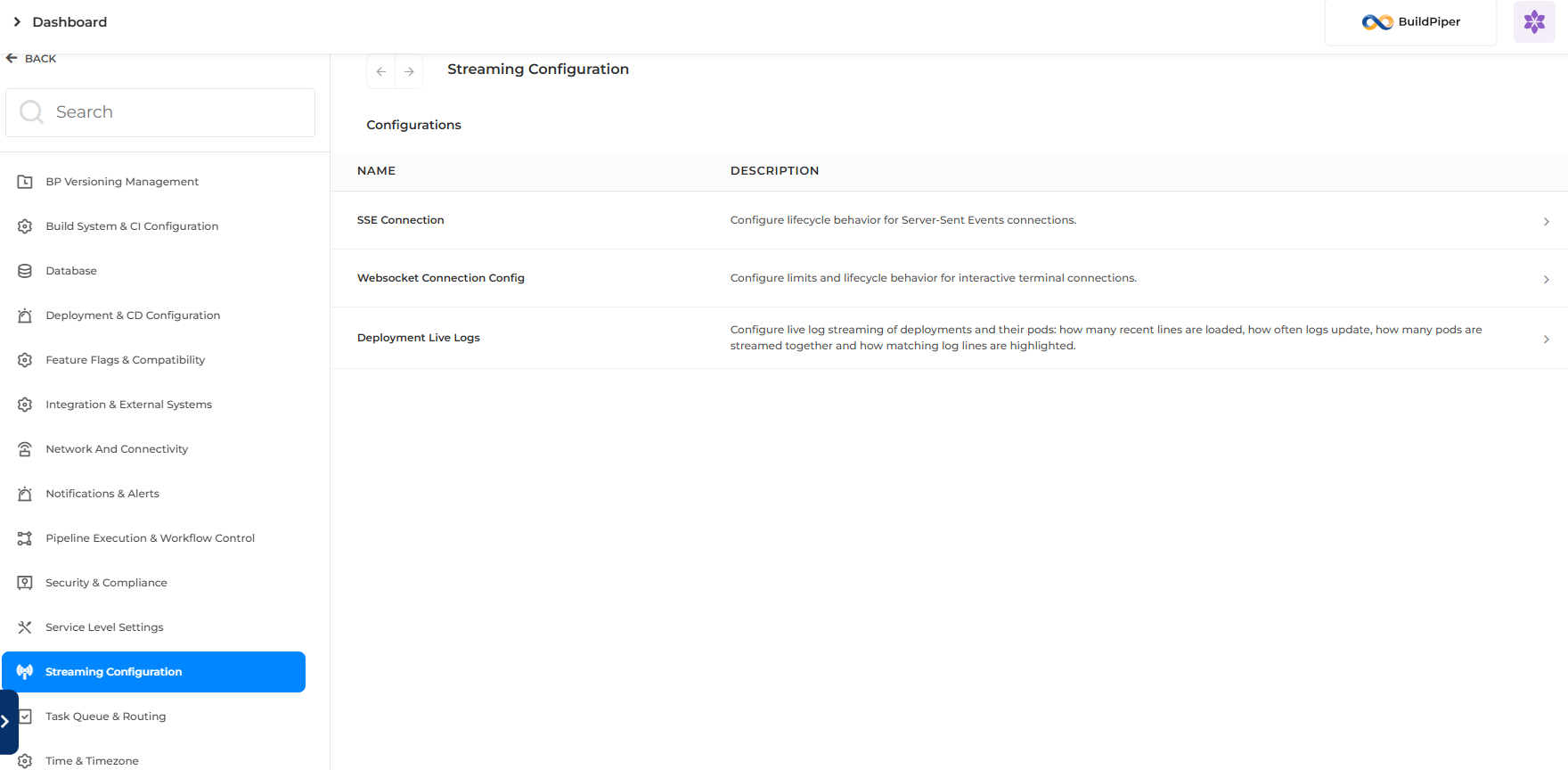
Figure 4: Streaming Configuration, Configurations table
SSE Connection #
Sets the timeout of Server-Sent Events (SSE) connections.
| Field | What it does |
|---|---|
| SSE Connection Timeout | The number of seconds that an SSE connection can stay idle before it reconnects. |
Websocket Connection Config #
Sets the limits of interactive terminal connections.
| Field | What it does |
|---|---|
| Terminal Idle Timeout | The idle timeout, in seconds, of an interactive terminal connection. |
| Maximum Sessions Per User | The maximum number of terminal sessions for each user. |
| Maximum Global Sessions | The maximum number of terminal sessions for all users together. |
Read more: Service Monitoring
Deployment Live Logs #
Sets how live deployment logs are shown.
| Field | What it does |
|---|---|
| Initial Lines | The number of log lines shown when live logs open. The minimum is 50. |
| Update Interval (s) | How often new lines appear. |
| Pod Refresh Interval (s) | How often new or removed pods are picked up. |
| Maximum Pods | The number of pods that are streamed together. |
| Maximum Line Length | Longer lines are cut. The minimum is 100. |
| Highlight Colors | JSON, for example {“#FF0000”: [“error”, “failed”]}, that sets the highlight color for words. |
| Highlight Colors (Full Line) | Highlights the whole line instead of only the word. |
Read more: Service Monitoring
4. Task Queue & Routing #
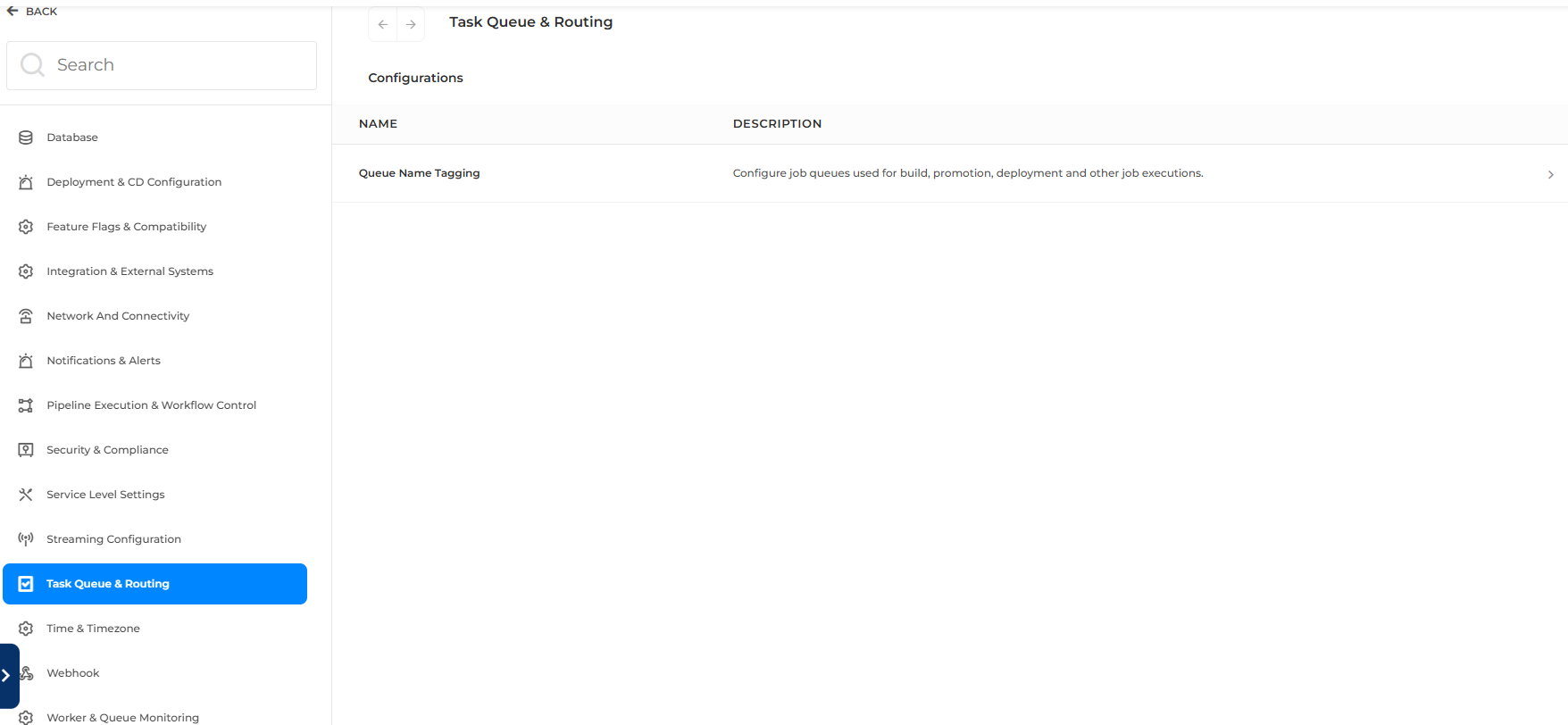
Figure 5: Task Queue & Routing, Configurations table
Queue Name Tagging #
Sets the task queues that BuildPiper routes work to, for build, promote and deploy operations (targeted task routing).
| Field | What it does |
|---|---|
| Extra Queues Exist | Turns on custom queue routing beyond the defaults. |
| Celery Queue Name List | The queues for build, deploy, promote and other tasks. |
| Dynamic Job Queue Name List | The queues that are available for runtime routing of dynamic tasks. |
5. Time & Timezone #
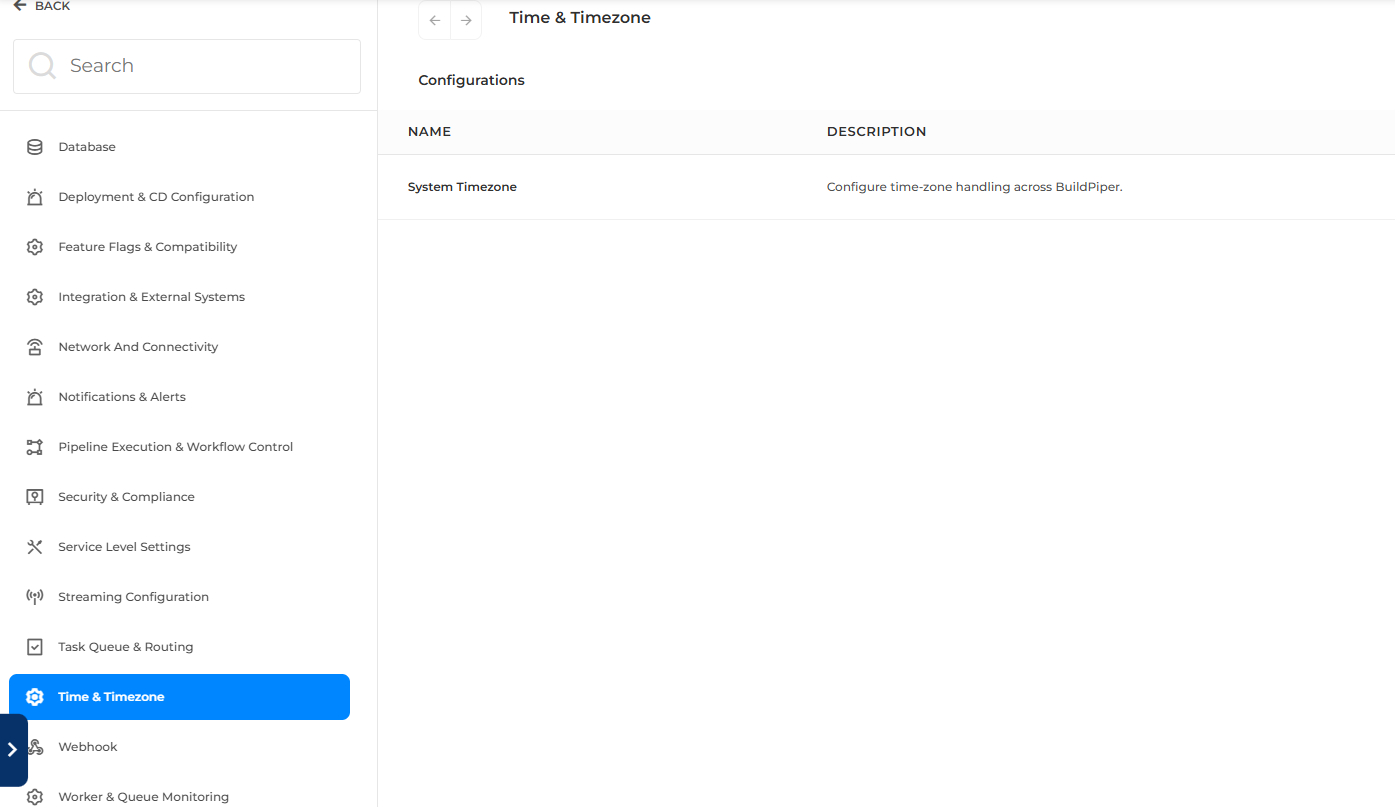
Figure 6: Time & Timezone, Configurations table
System Timezone #
Sets the time zone of the platform.
| Field | What it does |
|---|---|
| Define Timezone for Frontend | The system-wide time zone for scheduling and timestamps. |
| Timezone of System of Logs | The time zone of log timestamps. It can differ from the system time zone. Enter it as free text in IANA format, for example Asia/Kolkata. |
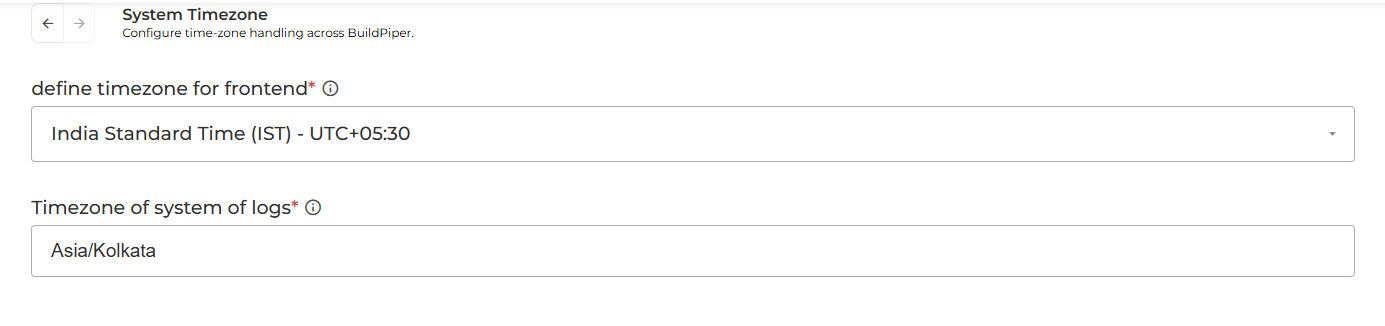
Figure 7: System Timezone setting
Timezone options #
The Define Timezone for Frontend dropdown lists these time zones.
| Time zone | UTC offset |
|---|---|
| UTC | UTC |
| GMT | UTC+00:00 |
| BST | UTC+01:00 |
| EST | UTC-05:00 |
| EDT | UTC-04:00 |
| CST | UTC-06:00 |
| CDT | UTC-05:00 |
| MST | UTC-07:00 |
| MDT | UTC-06:00 |
| PST | UTC-08:00 |
| PDT | UTC-07:00 |
| IST | UTC+05:30 |
| China CST | UTC+08:00 |
| JST | UTC+09:00 |
| AEST | UTC+10:00 |
| AEDT | UTC+11:00 |
| NZST | UTC+12:00 |
| NZDT | UTC+13:00 |
| Gulf GST | UTC+04:00 |
| SAST | UTC+02:00 |
Note: Options such as EST and PST are fixed offsets, so they do not change to daylight saving time by themselves. Pick EDT or PDT in summer. The Timezone of System of Logs field takes IANA names, such as America/New_York, which follow daylight saving time automatically.
6. Worker & Queue Monitoring #
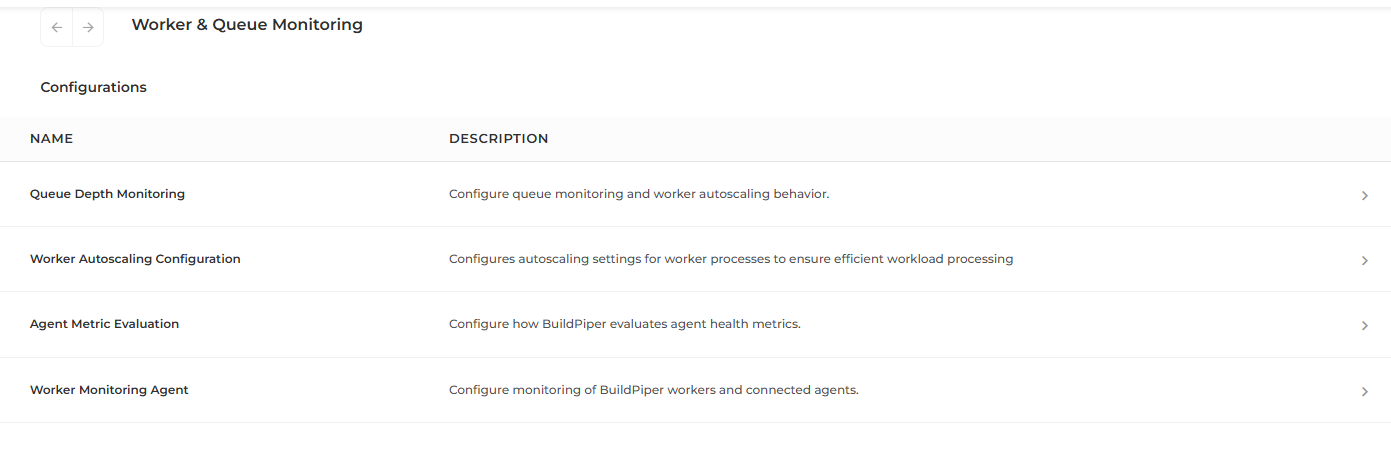
Figure 8: Worker & Queue Monitoring, Configurations table
Queue Depth Monitoring #
Sets how BuildPiper watches the depth of the task queues and scales workers.
| Field | What it does |
|---|---|
| Queue Depth Max Threshold | The queue depth that triggers a scale-up. |
| Queue Depth Warning Threshold | The queue depth that raises a warning. |
| Concurrency | The number of tasks for each worker. |
| Scale Up Instance Count | The number of workers that are added in one scale-up. |
| Autoscaling Instance Max Threshold | The maximum number of workers. |
| Scaling Up / Down Cooldown | The wait, in minutes, between scaling actions. |
| Queue Depth | The value that is used for scaling decisions. |
| Pre Defined Workers | The minimum number of workers that are kept running. |
| Enable Autoscaling | Turns on autoscaling of workers. |
| Scale Up / Scale Down Pipeline Name | The BuildPiper pipelines that add or remove workers. |
| Scale Check Frequency in Seconds | How often the scaling check runs. |
| Scale Down Timeout in Minutes | The idle time before a worker can be removed. |
Worker Autoscaling Configuration #
Shows the worker autoscaling setting.
No editable fields are shown here. Autoscaling is configured in Queue Depth Monitoring.
Agent Metric Evaluation #
Sets how the health of agents is rated.
| Field | What it does |
|---|---|
| Agent Low / Medium / High Evaluation | The thresholds for rating agent health metrics. |
Read more: Job Executors and Agent Monitoring
Worker Monitoring Agent #
Sets the monitoring agent for the workers.
| Field | What it does |
|---|---|
| Worker Monitoring Agent | The monitoring-agent configuration that collects health and operational metrics from the BuildPiper Celery workers. |