Admin PortalDay 0System Settings
BP Login & SSO #
In addition to the standard email and password login, BuildPiper supports several Single Sign-On (SSO) and social authentication providers to streamline access and maintain security.
SSO configuration is centralised within the System Settings dashboard and is accessible exclusively via Admin credentials.
Supported SSO & Social Login Providers #
BP SSO — Login Method Matrix #
BP SSOAll Supported Login Methods
Git Login
🪣Bitbucket
🦊GitLab
🐙GitHub
Important Note on SSO Configuration #
📌
- BuildPiper offers a seamless, plug-and-play SSO configuration for standard providers like Okta, LDAP, and major Git platforms.
- If your organisation uses a unique or non-standard authentication stack, BP’s extensible architecture allows your team to easily integrate it via custom step configuration — ensuring complete flexibility without being restricted by out-of-the-box plugins.
Configuring SSO #
BuildPiper SSO Setup (Day 0) supports major enterprise SSO and social authentication. Configuration is centralised within the System Settings dashboard and is accessible exclusively via Admin credentials.
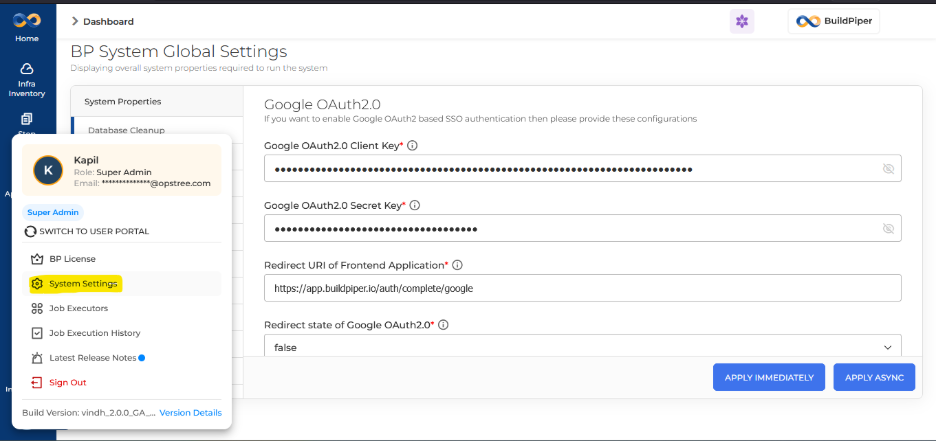
Navigation PathHow to Access System Settings
Login to BP
→
Bottom User Panel
→
System Settings
🔒 Admin credentials are required. Only Super Admin users can access and configure SSO settings.
ℹ️
SOP Reference Note
Refer to SSO – Google Configuration (page 39) of the SOP document for detailed setup steps.
The SPOC installing BP on the client’s end must update the env.json with the relevant configuration once SSO is enabled.
Google OAuth2.0 Configuration #
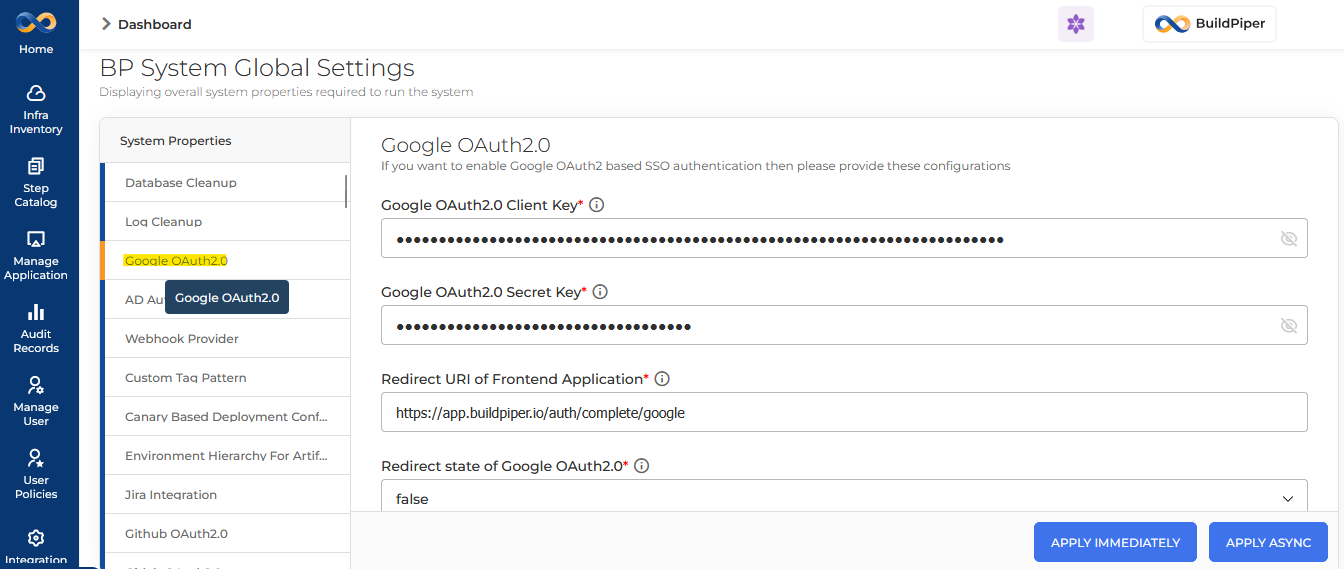
To use Google OAuth2.0 you need to create a Client ID and Secret from your Google OAuth2.0 provider, then configure the values in BuildPiper System Settings.
Google OAuth2.0 — System Settings Fields
Admin → System Settings → Google OAuth2.0
Field
Google OAuth2.0 Client Key*Your Google OAuth2.0 Client ID used for authentication.
Google OAuth2.0 Secret Key*The Google OAuth2.0 Secret Key used for authentication.
Redirect URI of Frontend App*Example: https://app.buildpiper.io/auth/complete/google
Redirect State of Google OAuth2.0*Set to false unless your setup requires state validation.
✅
After saving System Settings:Update the SSO URL for Google in runtime-env.js (non-root setup) or env.json (root setup). The Google SSO Link URL must include the Client ID unique to each client.
GitLab OAuth2.0 Configuration #
Configure GitLab OAuth2.0 within BuildPiper System Settings. The following fields and environment variables are required.
🦊
GitLab OAuth2.0 — System Settings Fields
Admin → System Settings → GitLab
| Field Label |
Env Variable |
Example Value |
| GitLab OAuth2.0 Client ID |
SOCIAL_AUTH_GITLAB_KEY |
fa33aaf1d2df9dca10fb129cd6xxx… |
| GitLab OAuth2.0 Secret ID |
SOCIAL_AUTH_GITLAB_SECRET |
752f1b02b8a92abd9477xxx… |
| Redirect URI of Frontend App |
SOCIAL_AUTH_GITLAB_REDIRECT_URI |
https://buildpiper.xxxx.com/auth/complete/gitlab |
| Authorization URL |
SOCIAL_AUTH_GITLAB_AUTHORIZATION_URL |
https://buildpiper.xxxx.com/auth/complete/gitlab |
| Access Token URL |
SOCIAL_AUTH_GITLAB_ACCESS_TOKEN_URL |
http://gitlab.xxxxx.net/oauth/token |
| Access Token Request Method |
SOCIAL_AUTH_GITLAB_ACCESS_TOKEN_METHOD |
POST |
| GitLab REST API URL |
SOCIAL_AUTH_GITLAB_API_URL |
http://gitlab.lenskartserver.net |
📘 BuildPiper Documentation · BP Login & SSO
Last updated: March 2026