

Overview #
The Global Pipeline provides an organisation-wide pipeline configuration that is not limited to a single application/team. It allows services across the entire BuildPiper platform to be referenced and managed for CI/CD operations.
Global Pipelines are particularly valuable when releases span multiple applications, teams, or business domains and require coordinated execution as part of a consolidated release. They provide a centralised mechanism for orchestrating cross-application dependencies, approvals, deployments, database changes, and operational activities while maintaining end-to-end visibility and governance.
Additionally, organisations seeking to establish standardised and homogeneous delivery practices can leverage Global Pipelines to enforce common workflows, security controls, compliance gates, approval processes, and release policies across all teams, ensuring consistency, scalability, and operational excellence throughout the software delivery lifecycle.
Key Capabilities #
01
Configure and execute CI/CD workflows across multiple applications and services.
02
Centralise common pipeline definitions that can be reused across teams or projects.
03
Useful for implementing standardised build, security scan, compliance, or deployment workflows across the organisation.
04
Enables broader operational control beyond application boundaries.
Sample Global Pipeline #
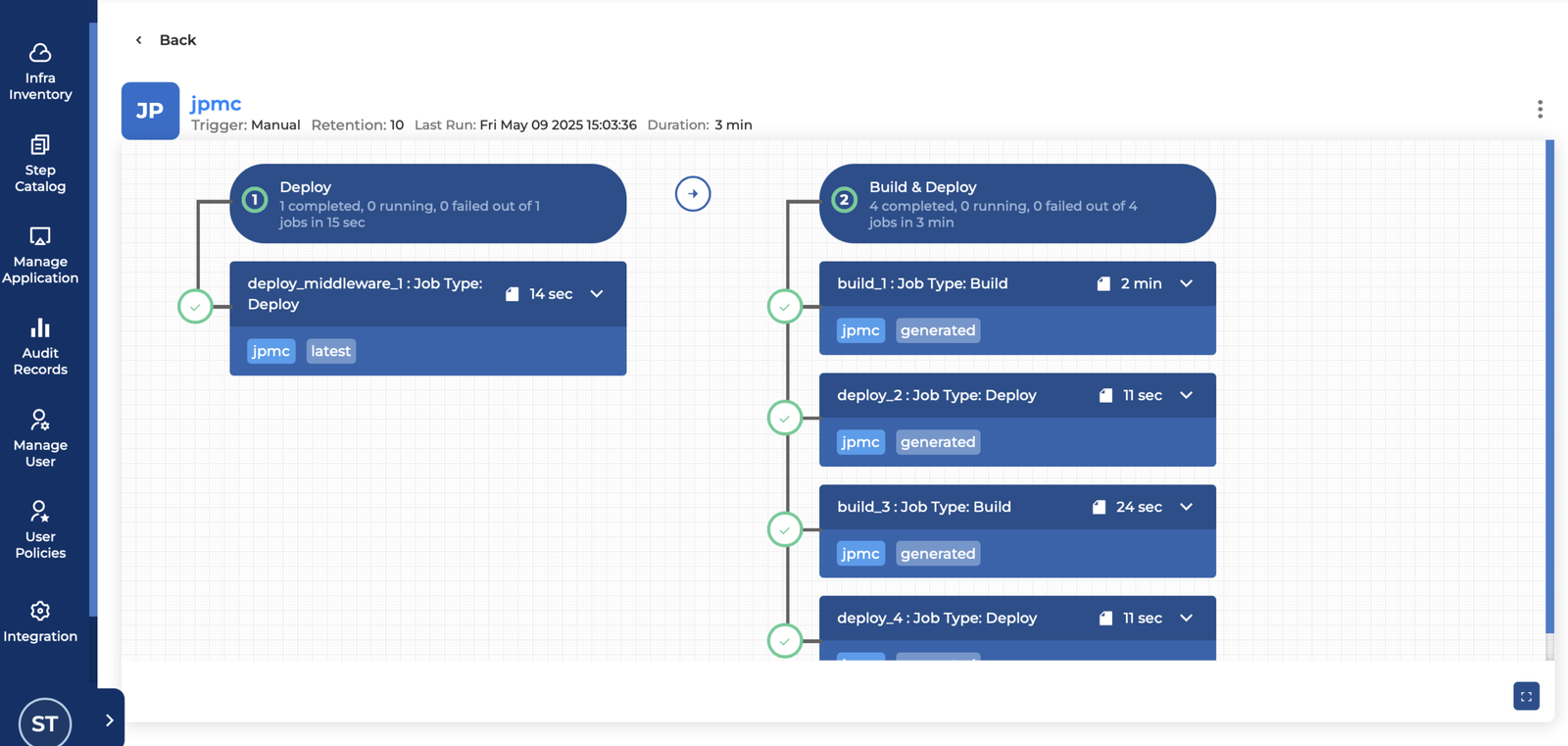
Application Pipeline vs Global Pipeline #
BP Pipeline Execution #
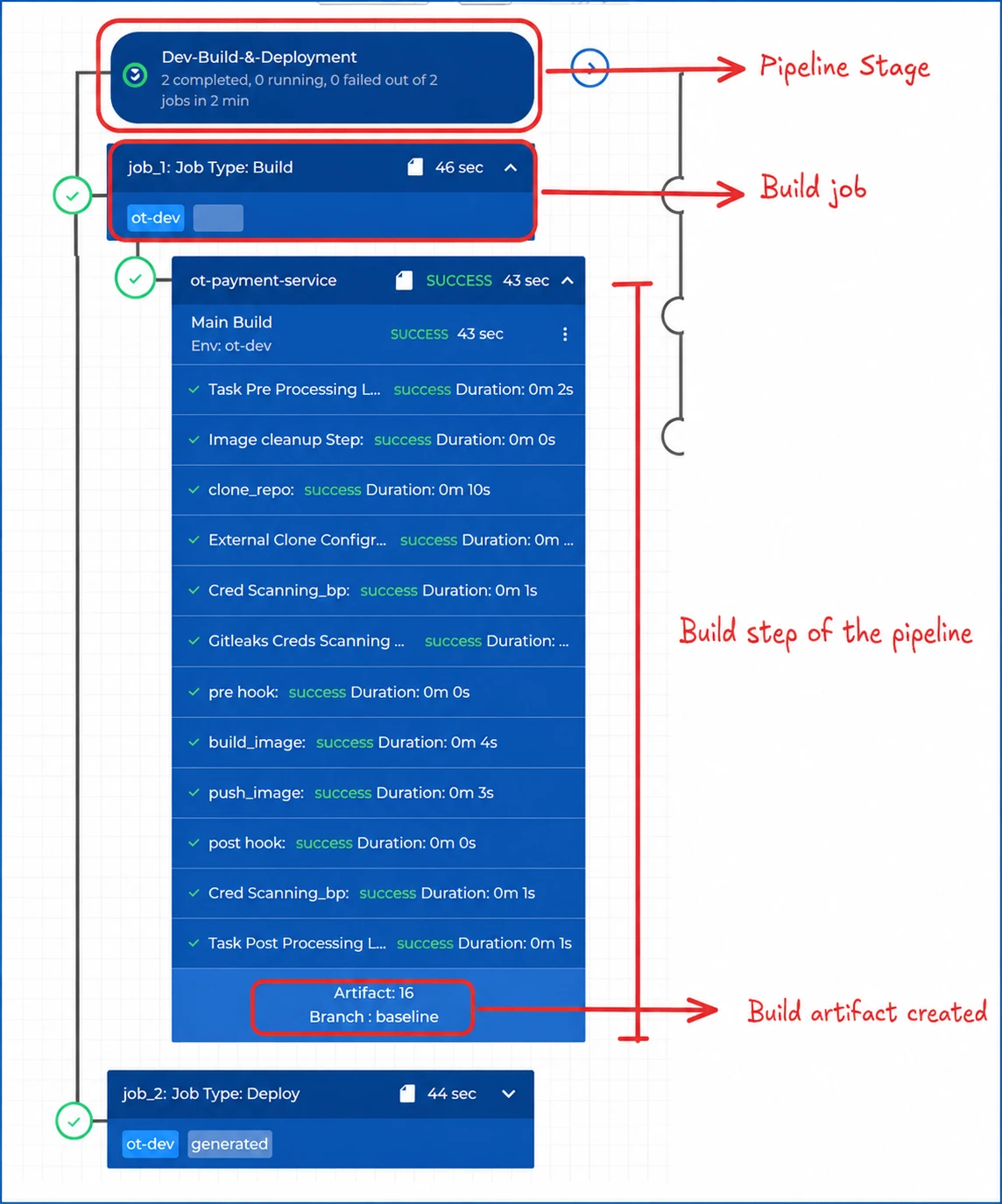
A BuildPiper pipeline orchestrates various workflows through a structured hierarchy of Stages, Jobs, and Steps.
Core Component Hierarchy #
Stage
A logical grouping of jobs within a pipeline (e.g., QA-Build-&-Deploy).
Job
A series of steps that run sequentially as a unit (e.g., Job Type: Deploy).
Step
The smallest unit of work in a BuildPiper pipeline that executes a specific task (e.g., K8s rollout validation).
Execution Flow and Rules #
The pipeline follows a strict, predictable execution lifecycle from start to finish:
1
Pipeline Initialization
The pipeline execution begins automatically when triggered and starts with the first configured stage in the workflow.
2
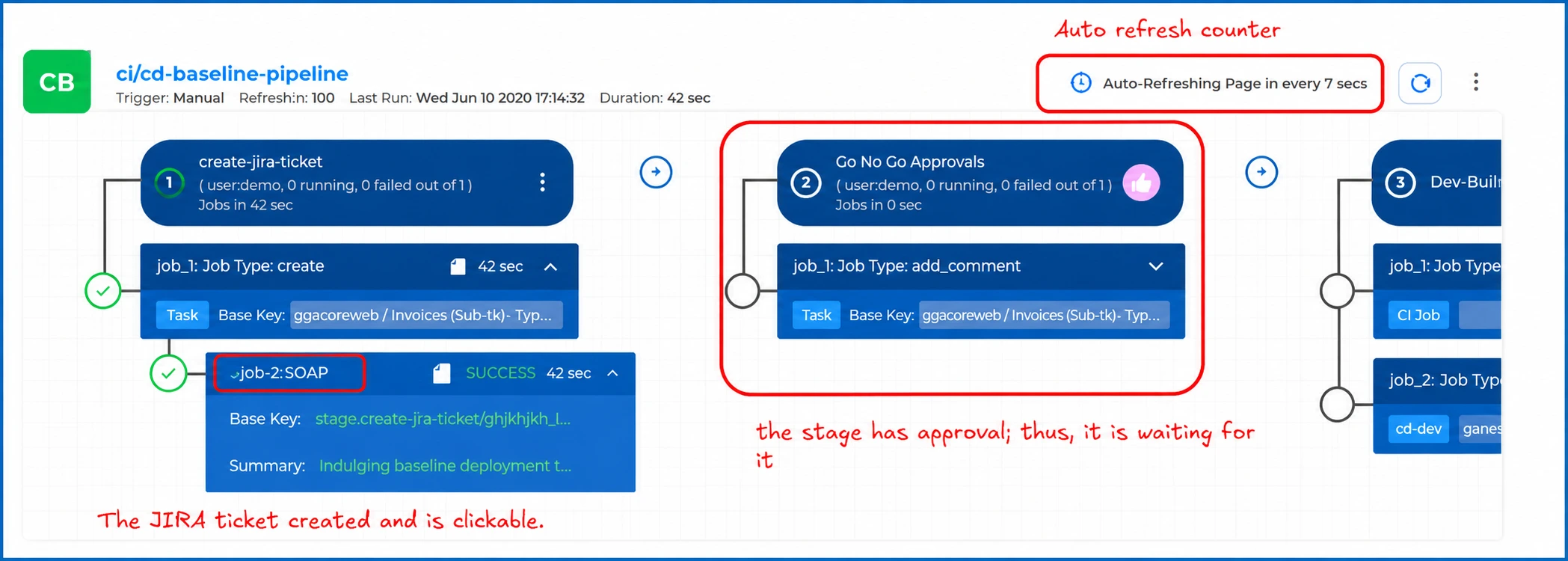
Governance Gates (Approvals & Questions)
Before a stage is allowed to execute or before it starts, BuildPiper can enforce configurable governance gates to ensure organisational controls and compliance requirements are met. These gates can include:
Questionnaires & Approvals — Prior to the execution of a stage, BuildPiper can enforce configurable questionnaires and approval gates to ensure that organisational, quality, security, and compliance requirements have been satisfied before delivery activities commence.
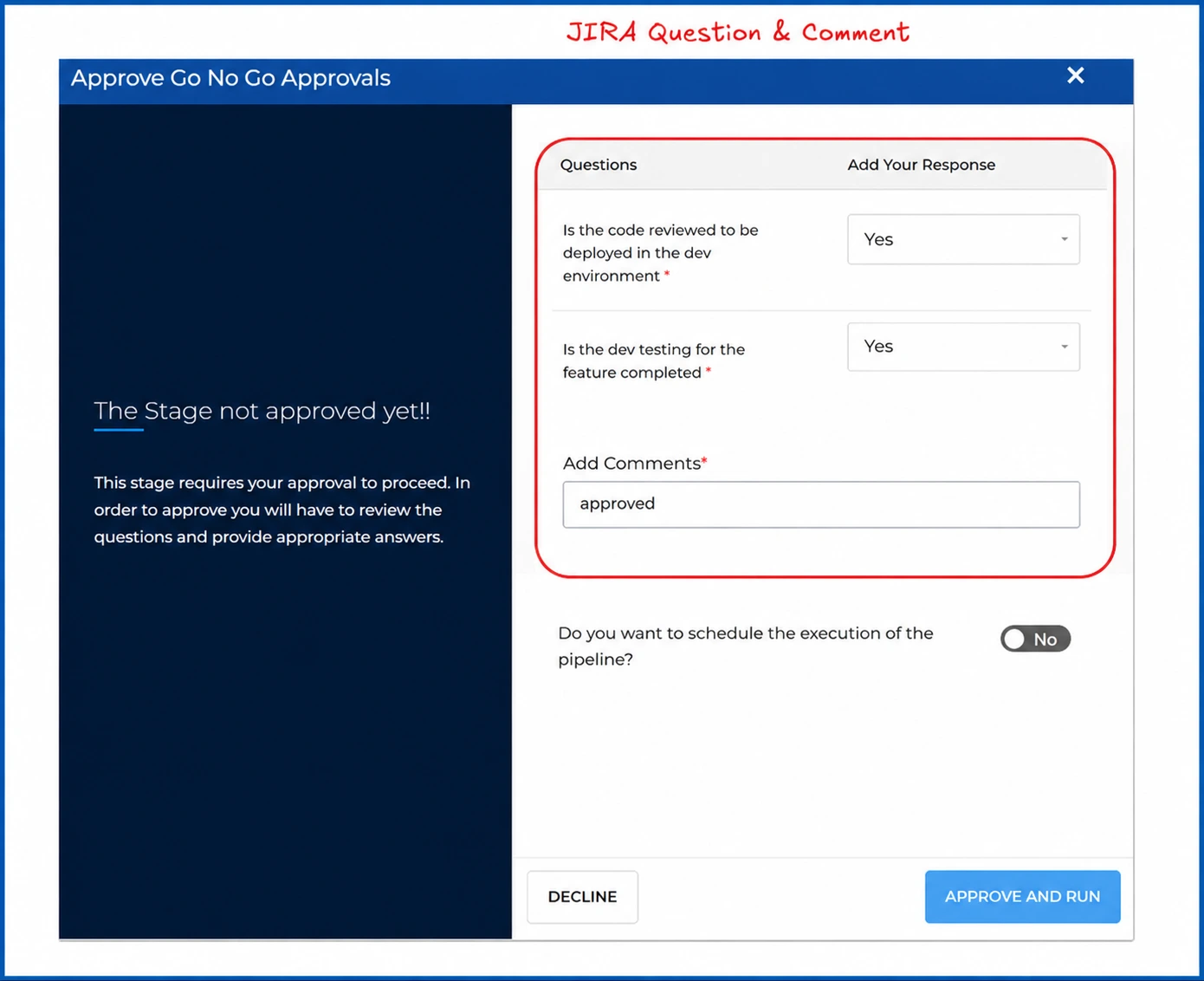
Questionnaires can be designed to capture critical release readiness information, such as:
- Has the code review been completed?
- Have test cases been created and successfully executed?
- Has developer sign-off been provided?
- Have security vulnerabilities been reviewed and addressed?
- Has the release documentation been updated?
- Has the deployment and rollback plan been validated?
Based on the stage and the nature of the release, Pipeline can be configured to route approval requests to the appropriate stakeholders, including developers, QA leads, product owners, security teams, release managers, operations teams, or CAB members.
Pipeline execution remains paused until all mandatory questionnaire responses are provided and the required approvals are granted. This ensures that releases progress only after predefined governance, quality, and compliance criteria have been met, providing greater control, traceability, and accountability throughout the delivery lifecycle.
During this period, the pipeline remains in a Pending Approval state until all governance requirements are satisfied.
3
Stage Execution
Once all governance gates have been successfully cleared, the stage becomes active and initiates execution of its configured jobs.
4
Job Execution
Each stage may contain one or more jobs. Based on the stage configuration, jobs get executed sequentially (one after another). Each job represents a distinct unit of work within the stage.
5
Step-Level Execution
Every job is composed of one or multiple steps, which represent the smallest executable units within the pipeline. Steps are always executed in a predefined sequence, ensuring predictable and repeatable workflow execution. A few examples include:
- Source Code Checkout
- Docker Image Build
- Deployment Manifest Generation
- Kubernetes Deployment
- Rollout Validation
- Slack notifications, etc.
6
Success Criteria
Job Success — A job is marked as Successful only when all configured steps complete successfully without any errors.
Stage Success — A stage is marked as Successful only when all jobs within the stage have completed successfully.
7
Automatic Progression
Upon successful completion of a stage, BuildPiper automatically advances execution to the next configured stage in the pipeline. This process continues until all stages in the pipeline have been successfully executed.
8
Failure Handling & Control Mechanisms
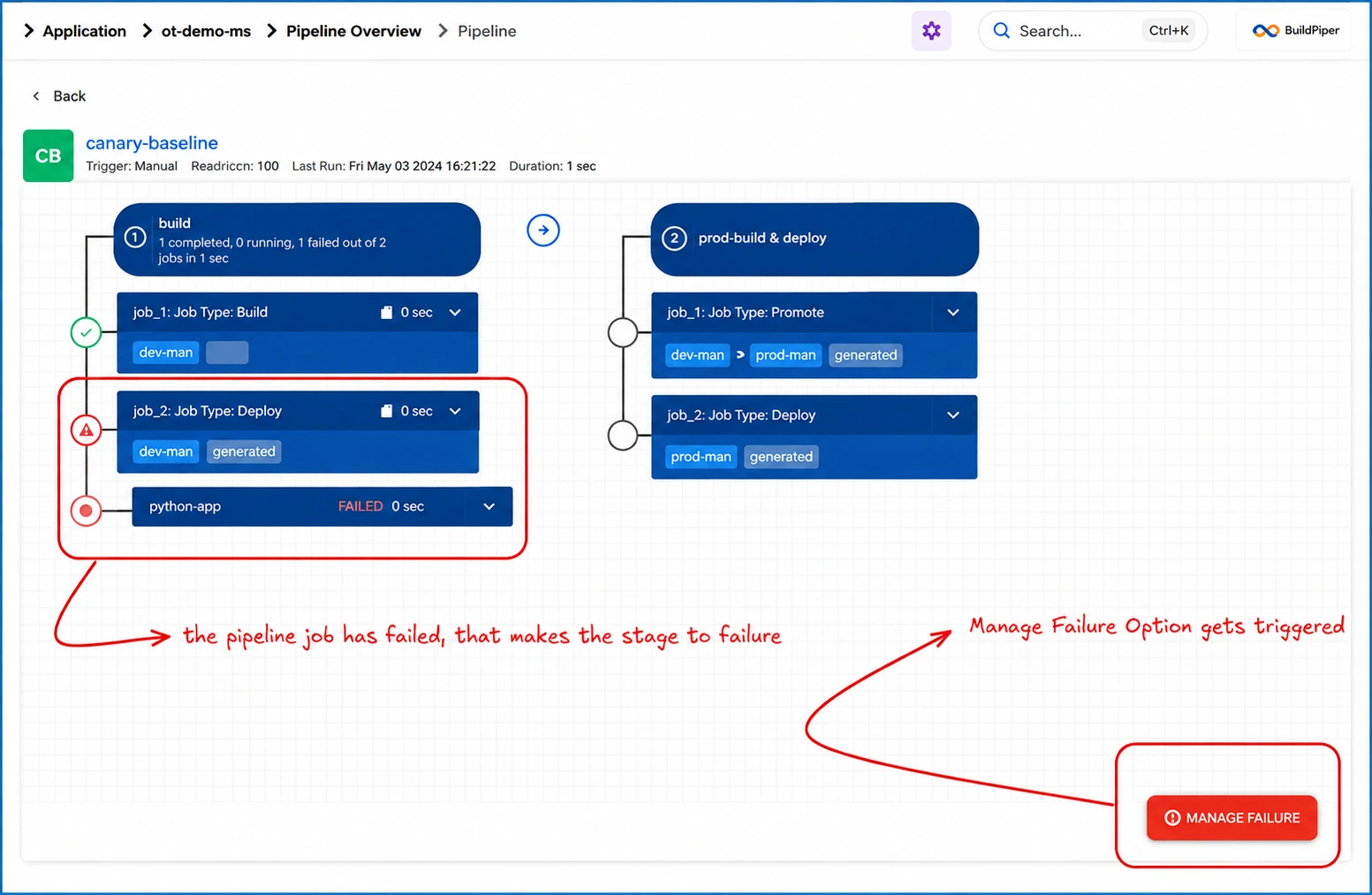
Step Failure — If any step encounters an error, execution of the current job is immediately halted. The affected job is marked as Failed.
Job Failure — A failed job causes the parent stage to be evaluated as unsuccessful and marked as Failed.
Stage Failure — A stage is marked as Failed when one or more jobs fail.
9
Manage Failure Policy
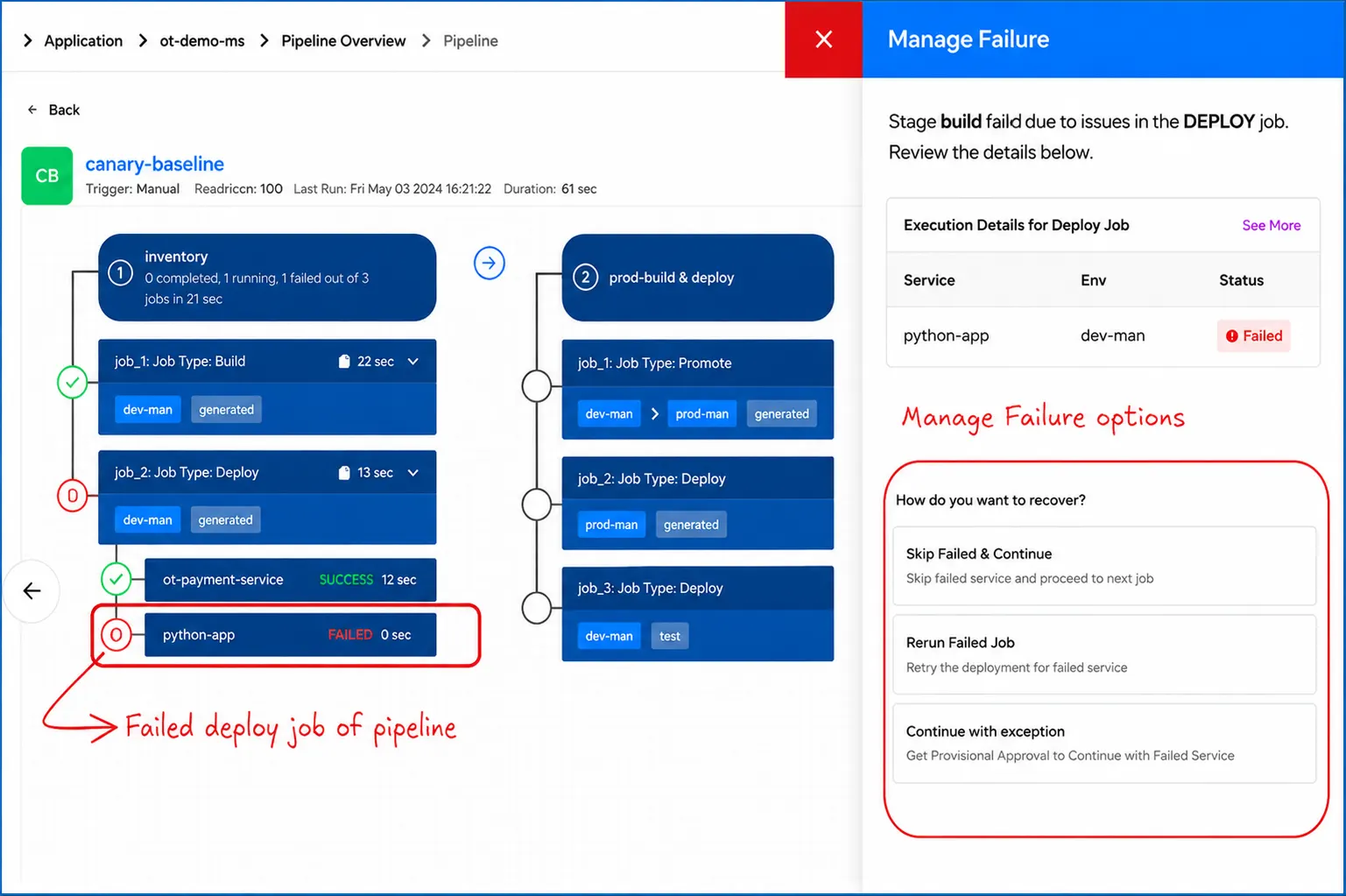
When a stage encounters a failure, normal pipeline progression is halted, and BuildPiper activates the configured Manage Failure mechanism. At this point, the Manage Failure button becomes available within the BuildPiper UI, allowing authorised users to review the failure and determine the appropriate recovery action.
The Manage Failure Panel provides detailed context about the failure, including:
- Failed Stage and Job details
- Associated application/service information
- Target environment details
- Failure logs and error messages
- Execution timestamps
- Deployment and release context
Based on the nature of the failure, users can choose from the following recovery actions:
Continue with Failure — Allows the pipeline to ignore the failed job and proceed with the execution of the subsequent jobs or stages. This option is typically used for non-critical failures where the remaining workflow can continue safely. For example — Job failed to update the Jira comment.
Rerun Failed Job — Re-executes only the failed job without restarting the entire pipeline. This is useful for transient failures such as infrastructure issues, network interruptions, or temporary environmental problems.
By providing controlled failure-handling capabilities directly within the UI, BuildPiper enables operators and release managers to make informed recovery decisions while maintaining complete auditability and governance over the release process.
Pipeline and Parallel Execution Concurrency #
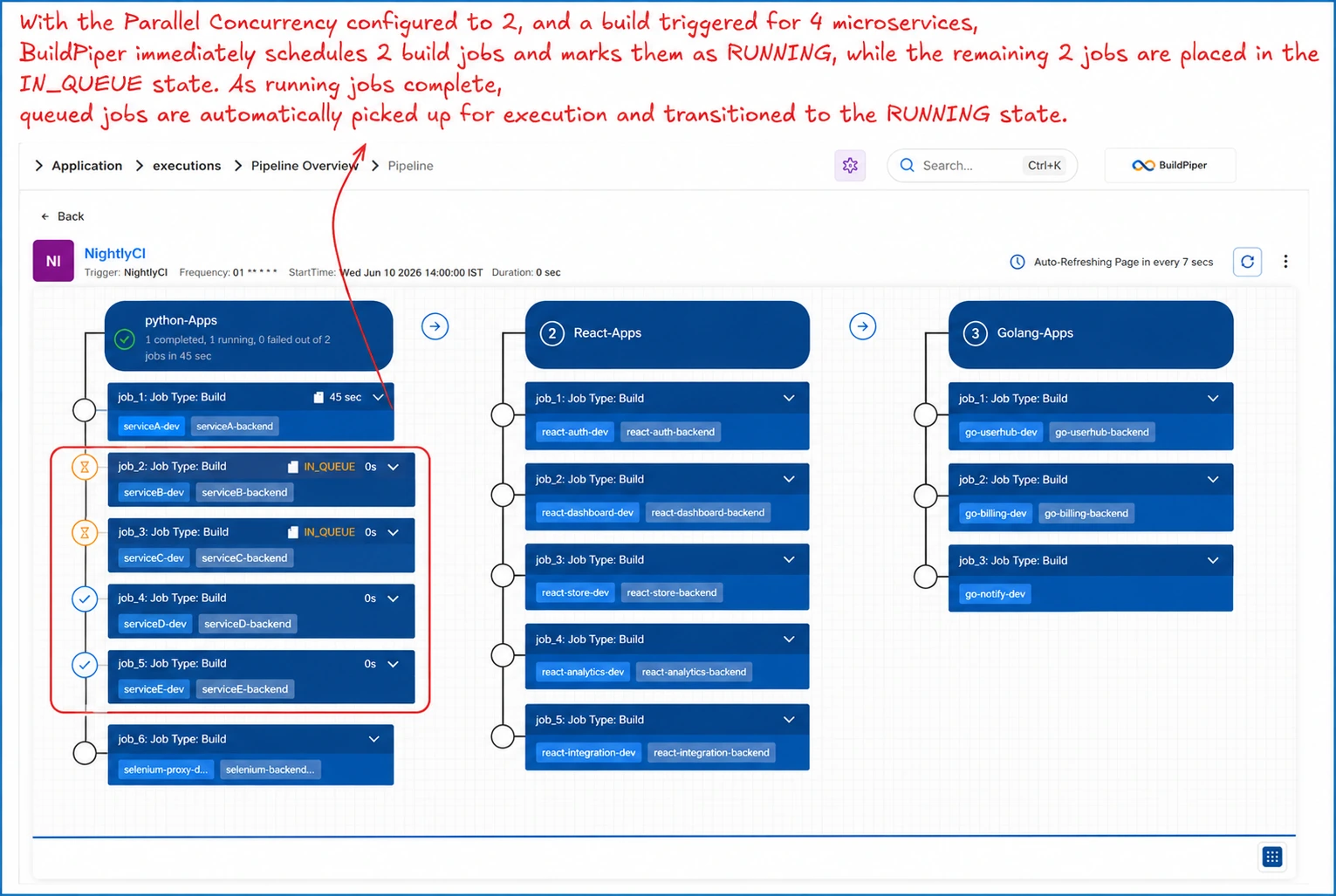
BuildPiper provides a configurable Parallel Execution Concurrency setting that controls the maximum number of jobs that can be executed simultaneously within a pipeline.
For example, if the Parallel Execution Concurrency is configured as 4, BuildPiper will allow a maximum of 4 jobs to run concurrently at any given time. Consider a scenario where a build stage contains 16 microservices, with each microservice represented as an independent build job.
When the pipeline is triggered:
- The first 4 jobs are immediately picked up for execution and move to the RUNNING state.
- The remaining 12 jobs are placed in the IN-QUEUED state.
- As soon as any running job completes — regardless of whether it finishes with a Success or Failure status — BuildPiper automatically picks the next queued job and moves it to the RUNNING state.
- This process continues until all queued jobs have been executed.
This concurrency model ensures optimal utilisation of available build and deployment infrastructure while preventing resource exhaustion. It also enables organisations to efficiently process large-scale workloads involving hundreds of microservices, applications, or deployment jobs without overwhelming the underlying execution environment.
Production-Grade CI/CD Pipeline Execution #
BP Screenshot: Triggering a CI/CD pipeline
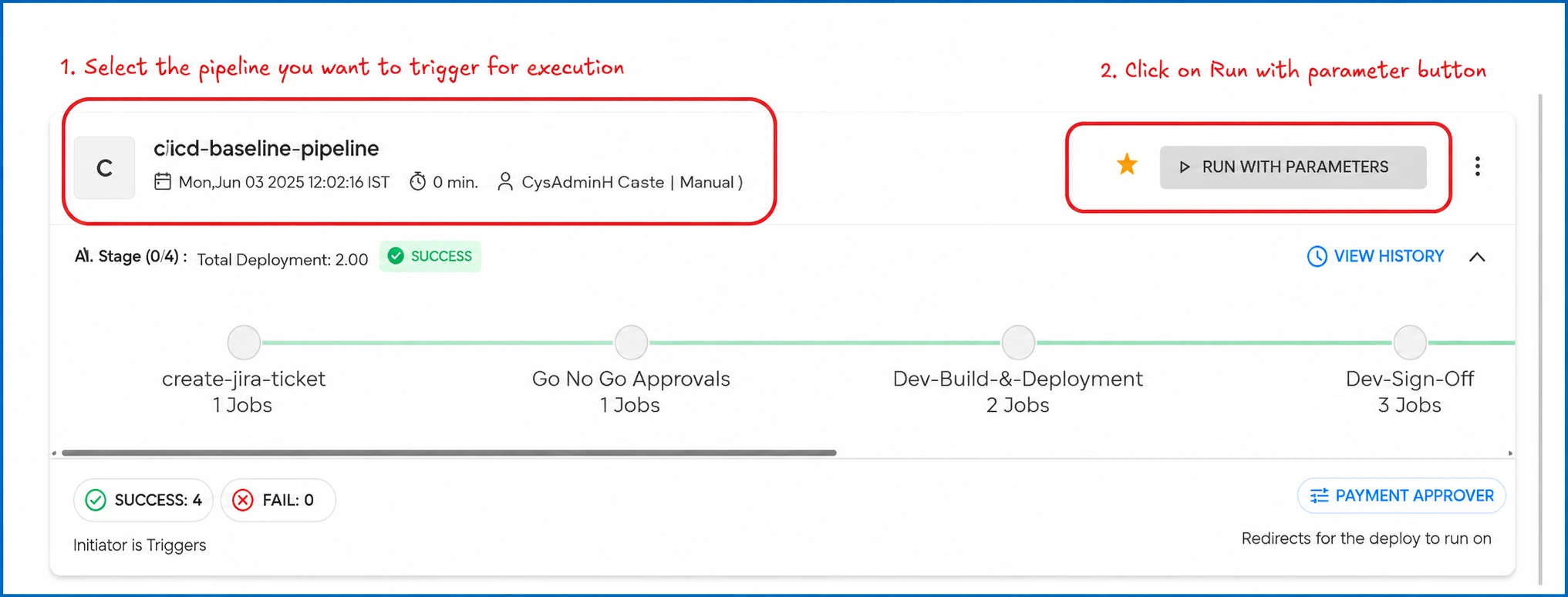
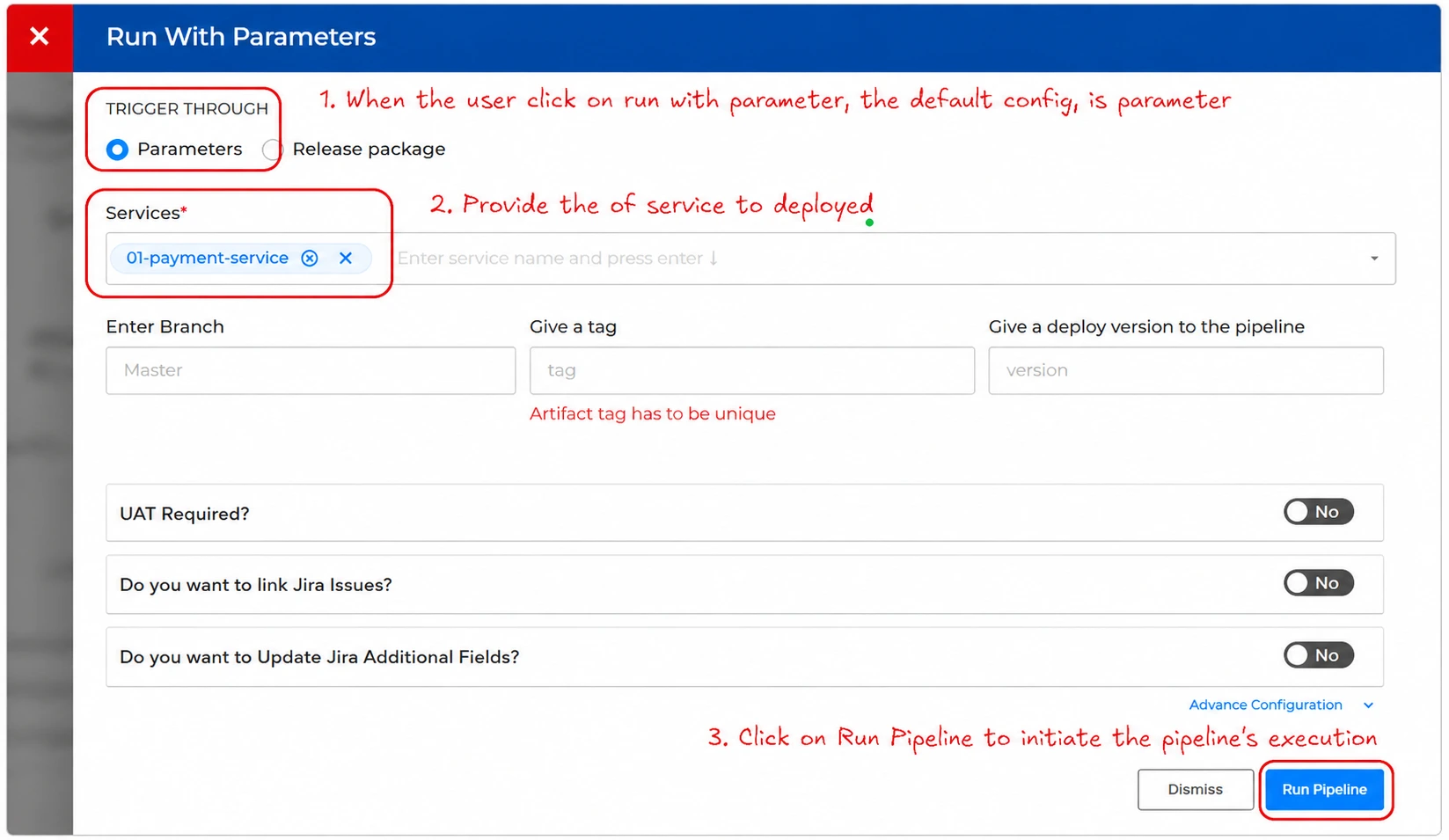
BP Screenshot: Run-with-parameter workflow of pipeline
BP Screenshot: Pipeline card has been updated
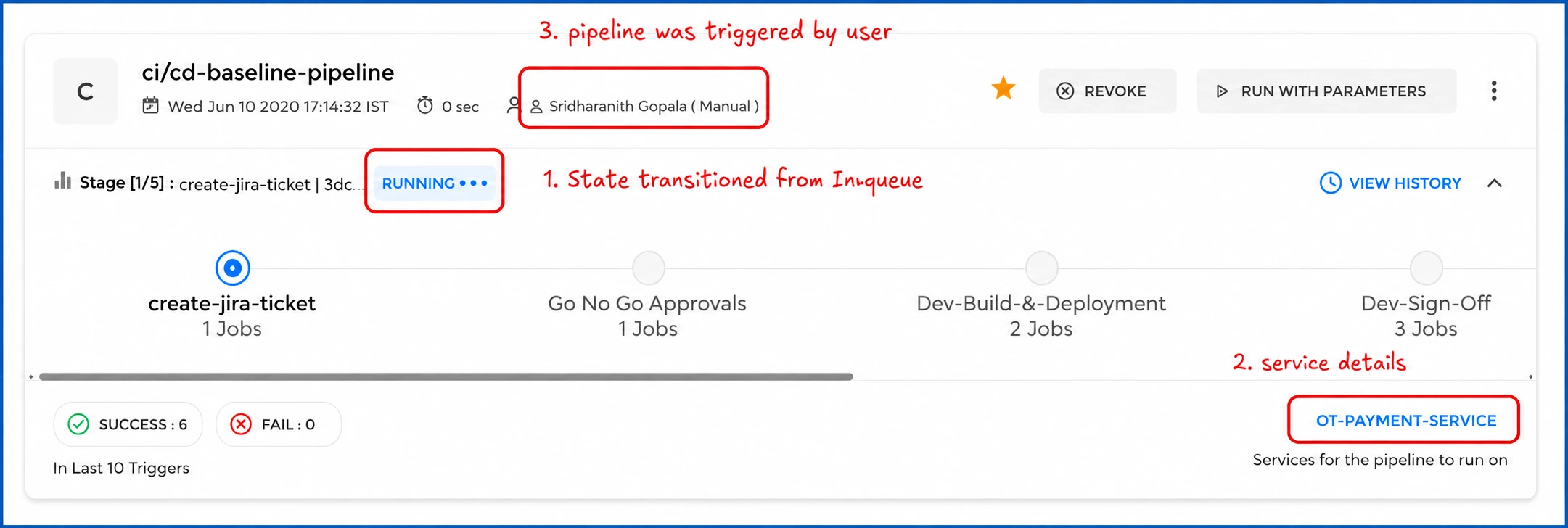
BP Screenshot: Pipeline with JIRA ticket creation followed via stage approval questionnaires
BP Screenshot: Jira mandatory questions for approval
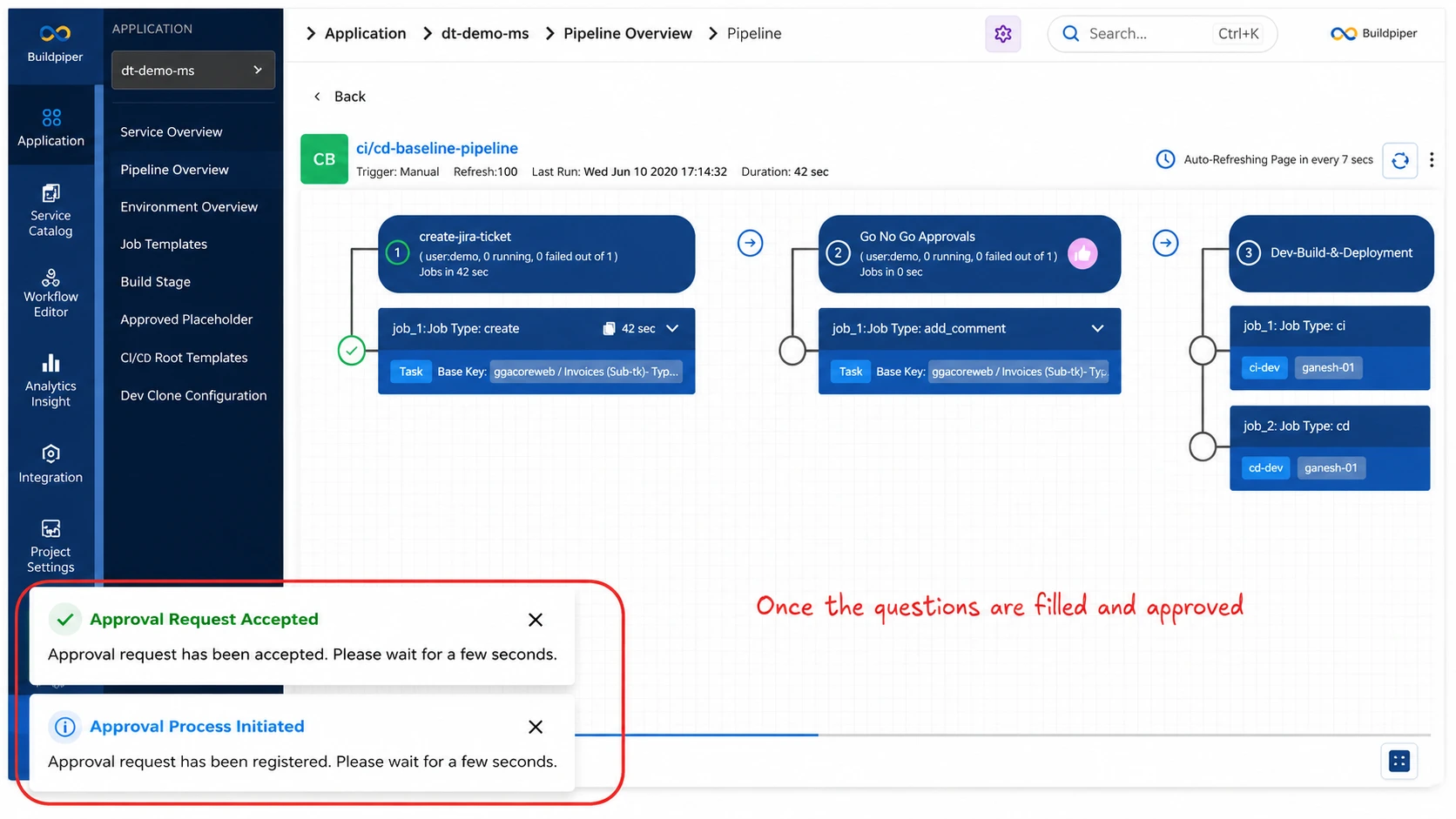
BP Screenshot: Pop-up messages after the approval
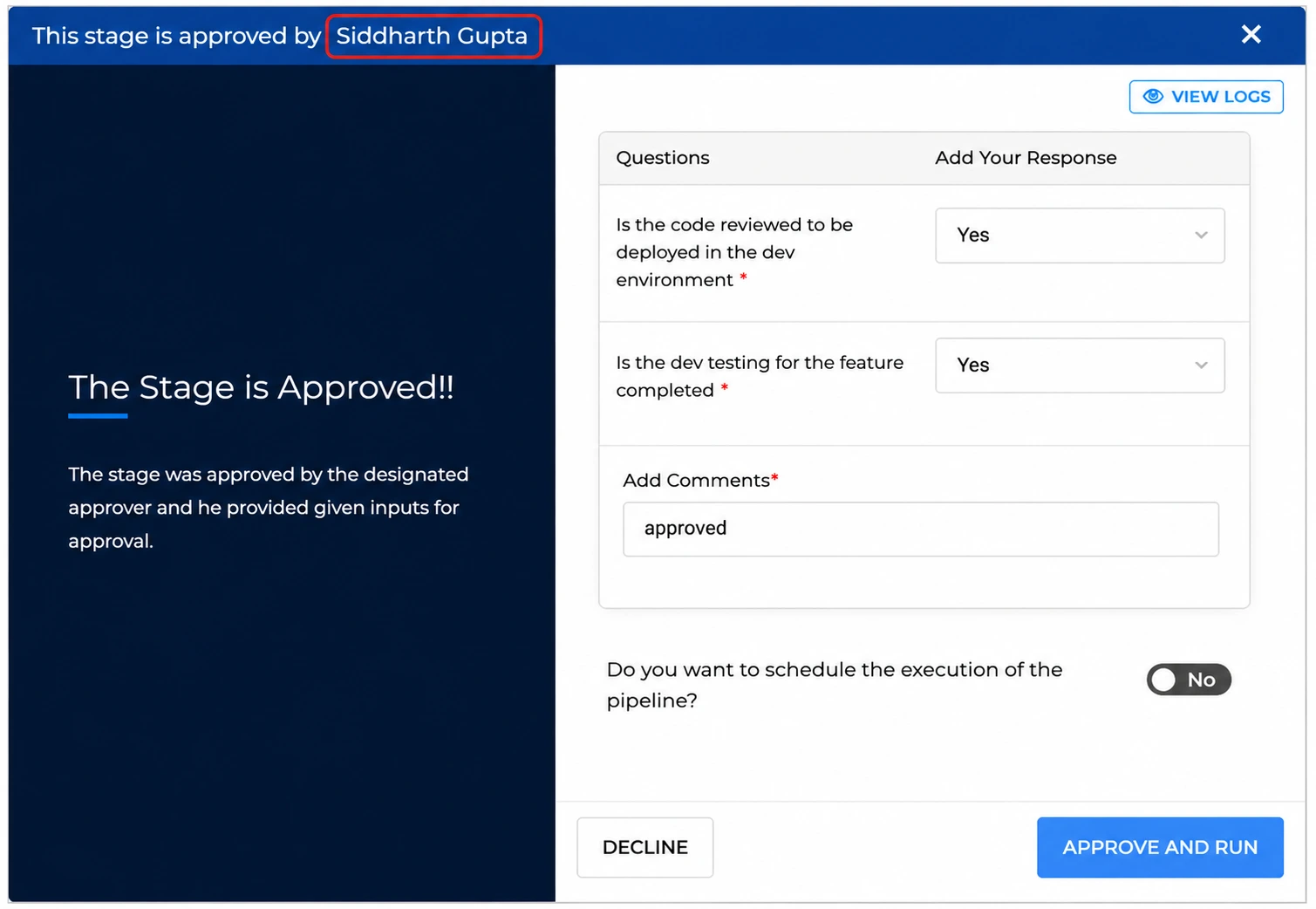
BP Screenshot: BI UI capturing the user approval details and questionnaires
BP Screenshot: BI pipeline’s anatomy of build job
BP Screenshot: BI pipeline failure and manage failure option pops up on screen
BP Screenshot: Manage Failure breaks the deadlock and initiates the pipeline execution
BuildPiper Documentation · Global Pipeline
Last updated: July 2026