KubeOps
Day 0
Onboarding
Container Registry Onboarding #
A Container Registry is where container artifacts (images) are stored. It can be hosted either in the cloud or within an LDC (Local Data Center). BuildPiper provides out-of-the-box support for major container registries.
Registry configuration is centralised within the BuildPiper admin portal and accessible via Admin credentials.
Supported Container Registries #
BuildPiper provides out-of-the-box support for the following container registries:
Sonatype Nexus Repository
Alibaba Cloud Container Registry
GitHub Container Registry
Elastic Container Registry
Google Container / Artifact Registry
JFrog Artifactory Registry
Custom / additional registries
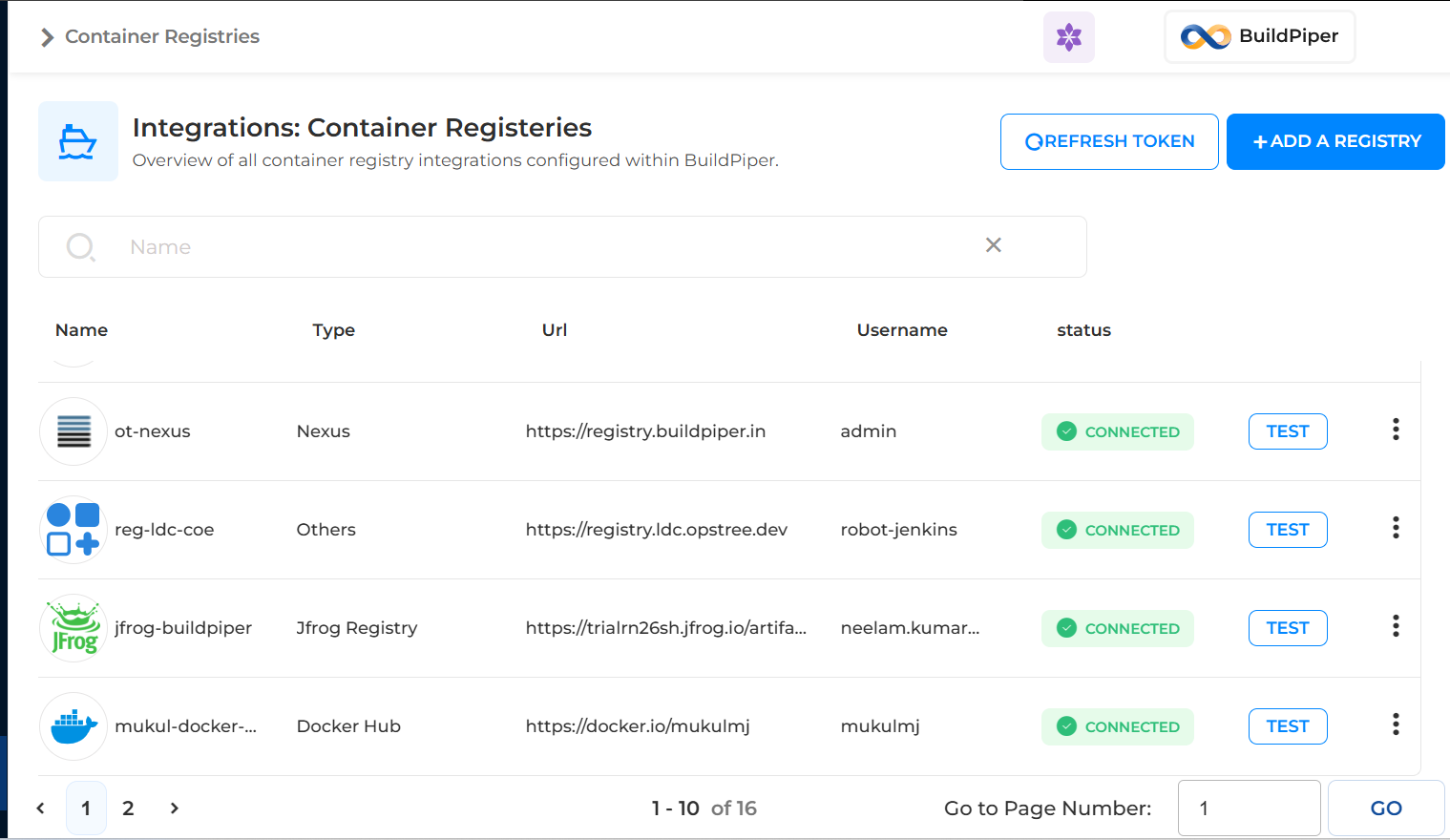
Container Registry-UI Overview
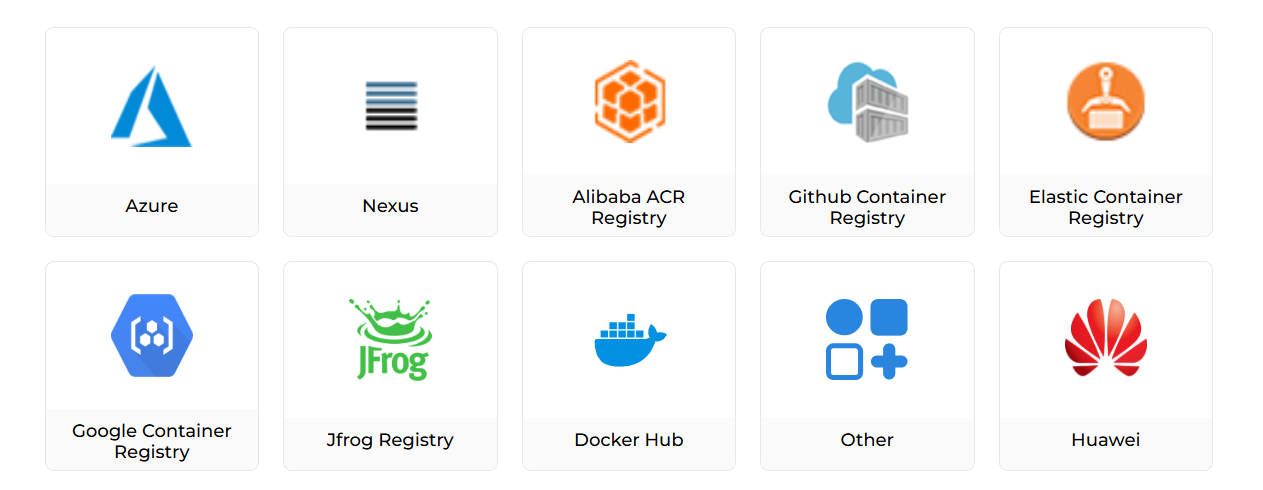
Container Registry – Provider Selection
Configuring Container Registry #
Each registry provider requires specific credentials and endpoint details. Select the appropriate provider tile in the BuildPiper UI and fill in the fields as described below.
Microsoft Azure Container Registry #
☁️
Azure Container Registry-Configuration Fields
Select the Azure tile in the registry provider screen
| Field |
Configuration Guide |
| Registry Provider |
Select the Azure tile to ensure the platform uses Azure-compatible authentication protocols. |
| Give a name to the Registry |
Create a unique alias (e.g., Azure_Prod_Registry). Spaces and special characters are not allowed. |
| Registry URL |
Enter the Azure Container Registry (ACR) server URL, typically formatted as your-registry-name.azurecr.io. |
| Username |
Use the Admin username or the Service Principal ID associated with your ACR instance. |
| Password |
Provide the Access Key or the Secret corresponding to the username / Service Principal used above. |
Nexus #
For configuring a Sonatype Nexus repository as your container registry, enter the specific details below.
🗄️
Nexus-Configuration Fields
Select the Nexus tile in the registry provider screen
| Field |
Configuration Guide |
| Registry Provider |
Ensure the Nexus tile is selected. |
| Give a name to the Registry |
Assign a unique identifier like Nexus_Docker_Repo (no spaces allowed). |
| Registry URL |
Enter the specific URL for your Nexus Docker connector (e.g., https://nexus.buildpiper.com). |
| Username |
Use the Nexus account name that has view and push permissions. |
| Password |
Provide the corresponding password or user token for the Nexus account. |
Alibaba Container Registry #
🏮
Alibaba ACR-Configuration Fields
Select the Alibaba ACR Registry tile in the registry provider screen
| Field |
Configuration Guide |
| Registry Provider |
Select the Alibaba ACR Registry tile. |
| Give a name to the Registry |
Provide a unique identifier, such as Alibaba_ACR_Main. |
| Registry URL |
Enter your ACR instance endpoint (e.g., registry.cn-hangzhou.aliyuncs.com). |
| Username |
Use your Alibaba Cloud account name or the specific RAM username. |
| Password |
Use the Registry Login Password (set specifically for ACR in the Alibaba console). |
| Access Key |
Enter the AccessKey ID from your Alibaba Cloud RAM user credentials. |
| Access Secret Key |
Enter the AccessKey Secret corresponding to the Access Key ID above. |
| Region |
Specify the Alibaba Cloud region ID where your registry is located (e.g., cn-hangzhou). |
GitHub Container Registry (GHCR) #
🐙
GitHub Container Registry-Configuration Fields
Select the GitHub Container Registry tile in the registry provider screen
| Field |
Configuration Guide (GitHub Specific) |
| Repo Type |
Select whether the registry belongs to a user account or an organization. |
| Give a name to the Registry |
Enter a logical name like GitHub_GHCR_Prod (no spaces allowed). |
| Registry URL |
Use the standard GitHub Container Registry endpoint: ghcr.io. |
| Username |
Enter your GitHub username or the name of the GitHub Organization. |
| Password |
Provide a Personal Access Token (PAT) with read:packages or write:packages scopes. |
Google Artifact Repository #
For the Google Artifact Registry (GAR), which has replaced the older Google Container Registry (GCR), the configuration requires your GCP Project ID and a Service Account key.
🔵
Google Artifact Registry-Configuration Fields
Select the Google Container Registry tile in the registry provider screen
| Field |
Configuration Guide |
| Registry Provider |
Select the Google Container Registry tile (handles both GCR and GAR). |
| Give a name to the Registry |
Create a unique name like GCP_Artifact_Prod (no spaces allowed). |
| Registry URL |
Enter your regional GAR endpoint (e.g., https://us-central1-docker.pkg.dev). |
| Username |
Use the literal string _json_key for the username when using a service account. |
| Password |
Leave blank or enter a placeholder-the actual auth happens via the JSON key below. |
| Project Name |
Enter your GCP Project ID (e.g., my-cloud-project-123). |
| Enter JSON key |
Paste the entire content of your downloaded Service Account JSON key file. |
JFrog #
For configuring JFrog Artifactory as your container registry, the setup requires specific URL formats depending on whether you are using a local, remote, or virtual repository.
🐸
JFrog Artifactory-Configuration Fields
Select the JFrog tile in the registry provider screen
| Field |
Configuration Guide (JFrog Specific) |
| Registry Provider |
Select the JFrog tile to enable compatibility with Artifactory’s Docker V2 API. |
| Give a name to the Registry |
Enter a descriptive name like JFrog_Docker_Main (no spaces). |
| Registry URL |
Enter the repository-specific URL (e.g., https://my-company.jfrog.io/artifactory/api/docker/my-repo). |
| Username |
Use your JFrog account username or a dedicated Service Account name. |
| Password |
Provide the user password or, preferably, an Identity Token / API Key generated in JFrog. |
Docker Hub #
For Docker Hub, the configuration is straightforward as it is the default public registry for most container operations.
🐳
Docker Hub-Configuration Fields
Select the Docker Hub tile in the registry provider screen
| Field |
Configuration Guide |
| Registry Provider |
Select the Docker Hub tile to use standard Docker V2 API authentication. |
| Give a name to the Registry |
Create a unique label like DockerHub_Official (no spaces allowed). |
| Registry URL |
Enter the standard URL: https://index.docker.io/v1/. |
| Username |
Enter your Docker Hub ID (not your email address, unless they are identical). |
| Password |
Use your Docker Hub password or a Personal Access Token (PAT) for better security. |
📘 BuildPiper Documentation · Container Registry Onboarding
Last updated: March 2026