BuildPiper
Container Registry
Image Artifacts
Container Registry Onboarding #
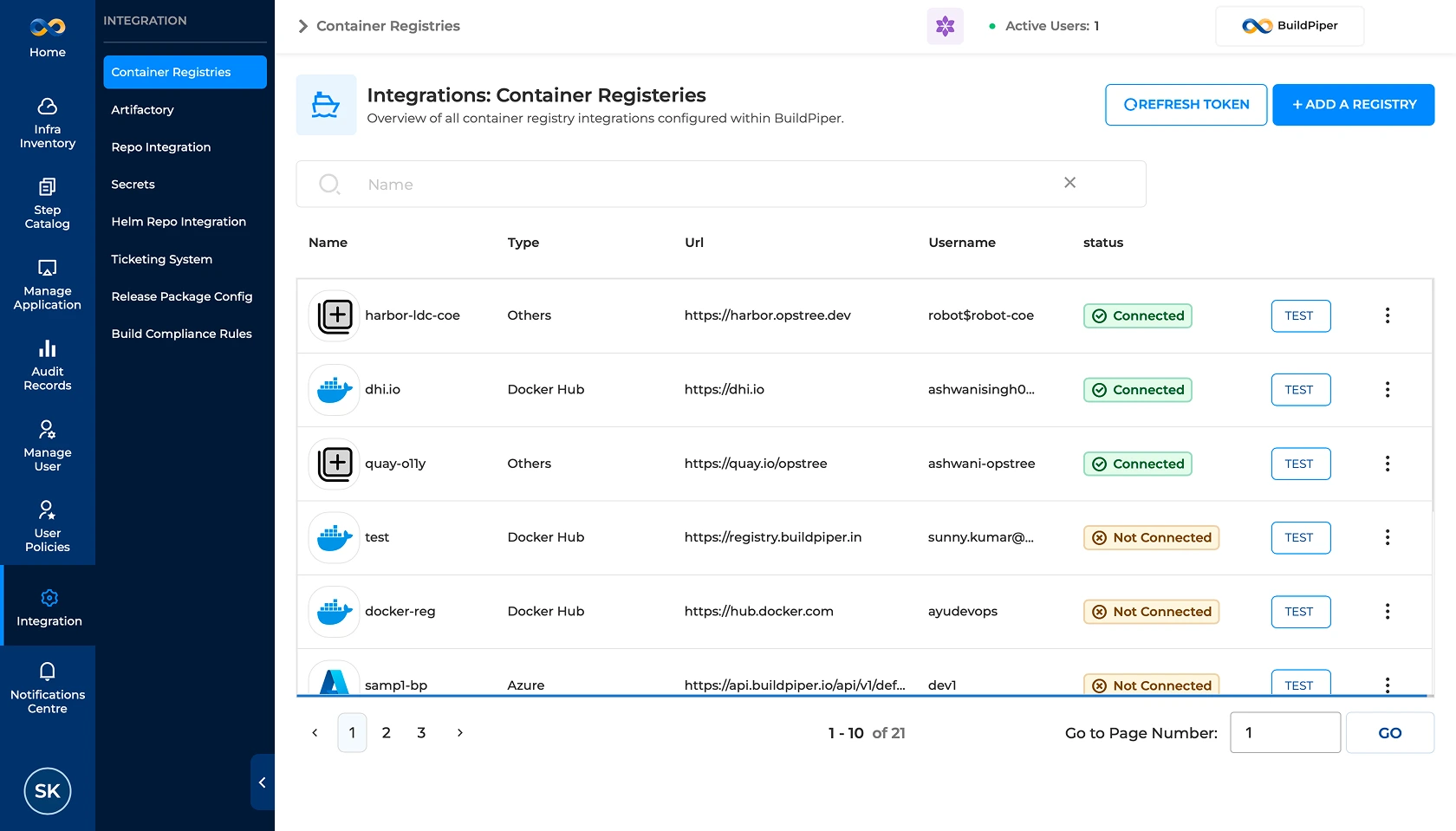
A Container Registry is where container artifacts and images are stored. It can be hosted either in the cloud or within an LDC. BuildPiper provides out-of-the-box support for major container registries.
Supported Container Registry #
The supported container registries are defined below:

Configuring Container Registry #
The supported container registries are defined below. Select the relevant registry provider and provide the required configuration details based on the registry type.
Registry Configuration Note
The source document provides detailed configuration fields for Microsoft Azure Container Registry, Nexus, Alibaba ACR Registry, GitHub Container Registry, Google Artifact Registry, JFrog, and Docker Hub.
Microsoft Azure Container Registry #
| Field |
Configuration Guide |
| Registry Provider |
Select the Azure tile to ensure the platform uses Azure-compatible authentication protocols. |
| Give a name to the Registry |
Create a unique alias, such as Azure_Prod_Registry. Spaces and special characters are not allowed. |
| Registry URL |
Enter the Azure Container Registry server URL, typically formatted as your-registry-name.azurecr.io. |
| Username |
Use the Admin username or the Service Principal ID associated with your ACR instance. |
| Password |
Provide the Access Key or Secret corresponding to the username or Service Principal used above. |
Nexus #
For configuring a Sonatype Nexus repository as your container registry, here are the specific details you’ll need to enter into the form:
| Field |
Configuration Guide |
| Registry Provider |
Ensure the Nexus tile is selected. |
| Give a name to the Registry |
Assign a unique identifier like Nexus_Docker_Repo. No spaces allowed. |
| Registry URL |
Enter the specific URL for your Nexus Docker connector, such as https://nexus.buildpiper.com. |
| Username |
Use the Nexus account name that has view and push permissions. |
| Password |
Provide the corresponding password or user token for the Nexus account. |
Alibaba Container Registry #
| Field |
Configuration Guide |
| Registry Provider |
Select the Alibaba ACR Registry tile. |
| Give a name to the Registry |
Provide a unique identifier, such as Alibaba_ACR_Main. |
| Registry URL |
Enter your ACR instance endpoint, such as registry.cn-hangzhou.aliyuncs.com. |
| Username |
Use your Alibaba Cloud account name or the specific RAM username. |
| Password |
Use the Registry Login Password set specifically for ACR in the Alibaba console. |
| Access Key |
Enter the AccessKey ID from your Alibaba Cloud RAM user credentials. |
| Access Secret Key |
Enter the AccessKey Secret corresponding to the Access Key ID above. |
| Region |
Specify the Alibaba Cloud region ID where your registry is located, such as cn-hangzhou. |
GitHub Container Registry #
| Field |
Configuration Guide |
| Repo Type |
Select whether the registry belongs to a user account or an organization. |
| Give a name to the Registry |
Enter a logical name like GitHub_GHCR_Prod. No spaces allowed. |
| Registry URL |
Use the standard GitHub Container Registry endpoint: ghcr.io. |
| Username |
Enter your GitHub username or the name of the GitHub organization. |
| Password |
Provide a Personal Access Token with read:packages or write:packages scopes. |
Google Artifact Repository #
For the Google Artifact Registry (GAR), which has replaced the older Google Container Registry (GCR), the configuration requires your GCP Project ID and a Service Account key. Here is the configuration table:
| Field |
Configuration Guide |
| Registry Provider |
Select the Google Container Registry tile, which typically handles both GCR and GAR. |
| Give a name to the Registry |
Create a unique name like GCP_Artifact_Prod. No spaces allowed. |
| Registry URL |
Enter your regional GAR endpoint, such as https://us-central1-docker.pkg.dev. |
| Username |
Use the literal string _json_key for the username when using a service account. |
| Password |
Leave this blank or enter a placeholder. Actual authentication happens via the JSON key below. |
| Project Name |
Enter your GCP Project ID, such as my-cloud-project-123. |
| Enter JSON key |
Paste the entire content of your downloaded Service Account JSON key file. |
JFrog #
For configuring JFrog Artifactory as your container registry, the setup requires specific URL formats depending on whether you are using a local, remote, or virtual repository.
| Field |
Configuration Guide |
| Registry Provider |
Select the JFrog tile to enable compatibility with Artifactory’s Docker V2 API. |
| Give a name to the Registry |
Enter a descriptive name like JFrog_Docker_Main. Ensure there are no spaces. |
| Registry URL |
Enter the repository-specific URL, such as https://my-company.jfrog.io/artifactory/api/docker/my-repo. |
| Username |
Use your JFrog account username or a dedicated Service Account name. |
| Password |
Provide the user password or, preferably, an Identity Token or API Key generated in JFrog. |

Docker Hub #
For Docker Hub, the configuration is straightforward, as it is the default public registry for most container operations.
| Field |
Configuration Guide |
| Registry Provider |
Select the Docker Hub tile to use standard Docker V2 API authentication. |
| Give a name to the Registry |
Create a unique label like DockerHub_Official. No spaces allowed. |
| Registry URL |
Enter the standard URL: https://index.docker.io/v1/. |
| Username |
Enter your Docker Hub ID, not your email address unless they are identical. |
| Password |
Use your Docker Hub password or a Personal Access Token for better security. |
BuildPiper Documentation · Container Registry Onboarding
Last updated: May 2026