

Environment Controls #
Environment Controls let you control a particular environment of an application. You can start or stop the complete environment, or start or stop a single service of the environment.
Environment-Level Controls #
These controls act on the complete environment.
| Control | What It Does |
|---|---|
| Stop Environment | Scales down the entire environment in bulk. All active service replicas are reduced to zero at the same time. This suspends all processing and traffic routing and removes the compute overhead during extended maintenance windows or off-hours, while the persistent data and deployment configurations are preserved. |
| Start Environment | Restores an offline environment to operational status. BuildPiper re-deploys all services in bulk and automatically pulls the last successful image tag of every configured service, so that the whole environment starts together in a verified, stable state. |
Service-Level Controls #
These controls act on a single service in the environment.
| Control | What It Does |
|---|---|
| Stop Service | Isolates a specific workload by scaling its replica count to zero. This lets you halt a single failing application, debug a component, or reduce compute cost, without interrupting the other services in the environment. |
| Start Service | Reactivates a stopped workload. BuildPiper provisions new replicas based on the last successful deployment tag of that service and safely brings it back into the active environment. |
1. Open Environment Controls #
- 1
Log in to BuildPiper.
- 2
Click Application.
- 3
Click Environment Overview.
- 4
Select the environment.
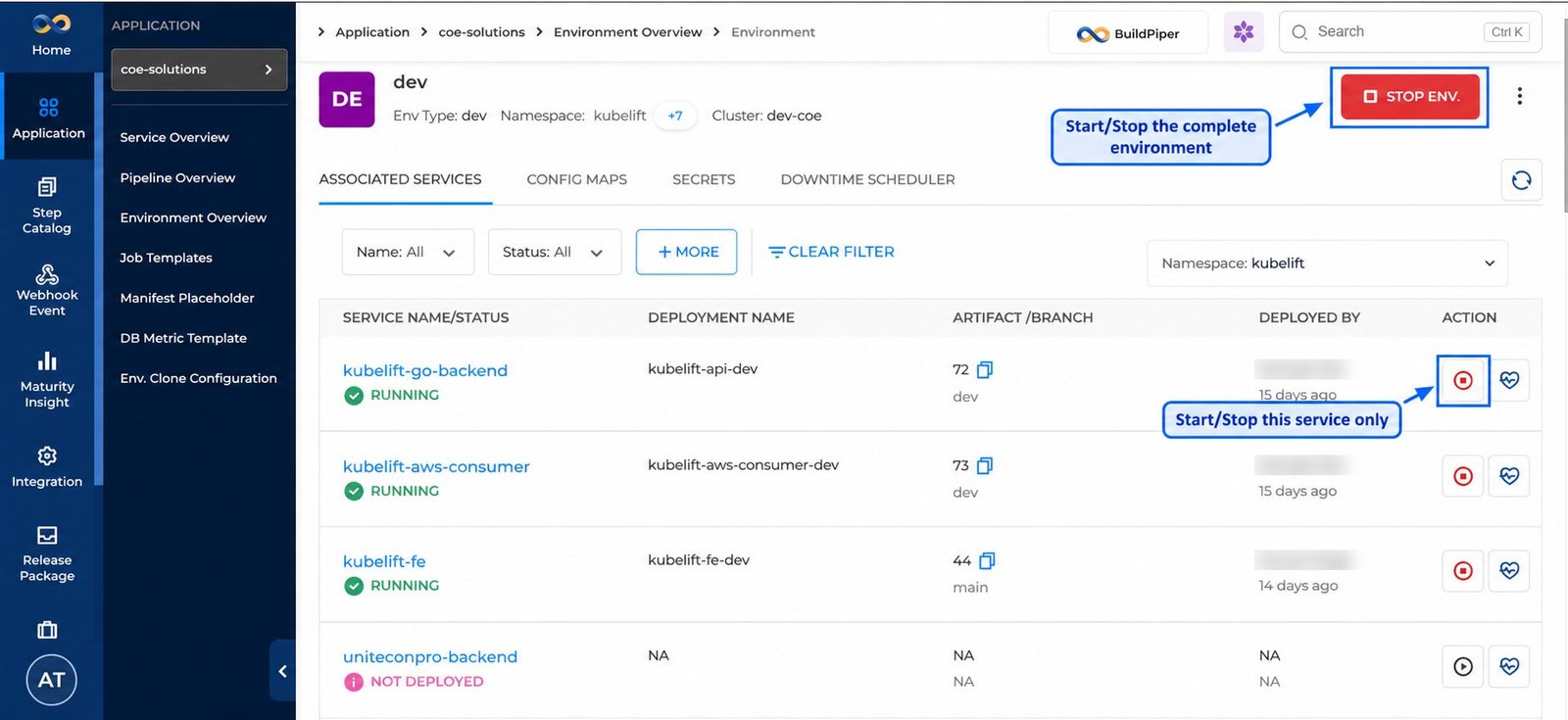
Figure 1: Environment controls on the environment page
| Control | Where |
|---|---|
| Start / Stop Env. | Top right of the environment page |
| Start / Stop button | Action column of a service on the Associated Services tab |
2. Stop a Service #
- 1
Open the environment and click the Associated Services tab.
- 2
In the Action column, click the stop button of the service.
- 3
In the CAUTION window, click Yes, Stop This Service. Click Cancel to close the window without stopping the service.
Stopping a service can take up to 10 seconds.
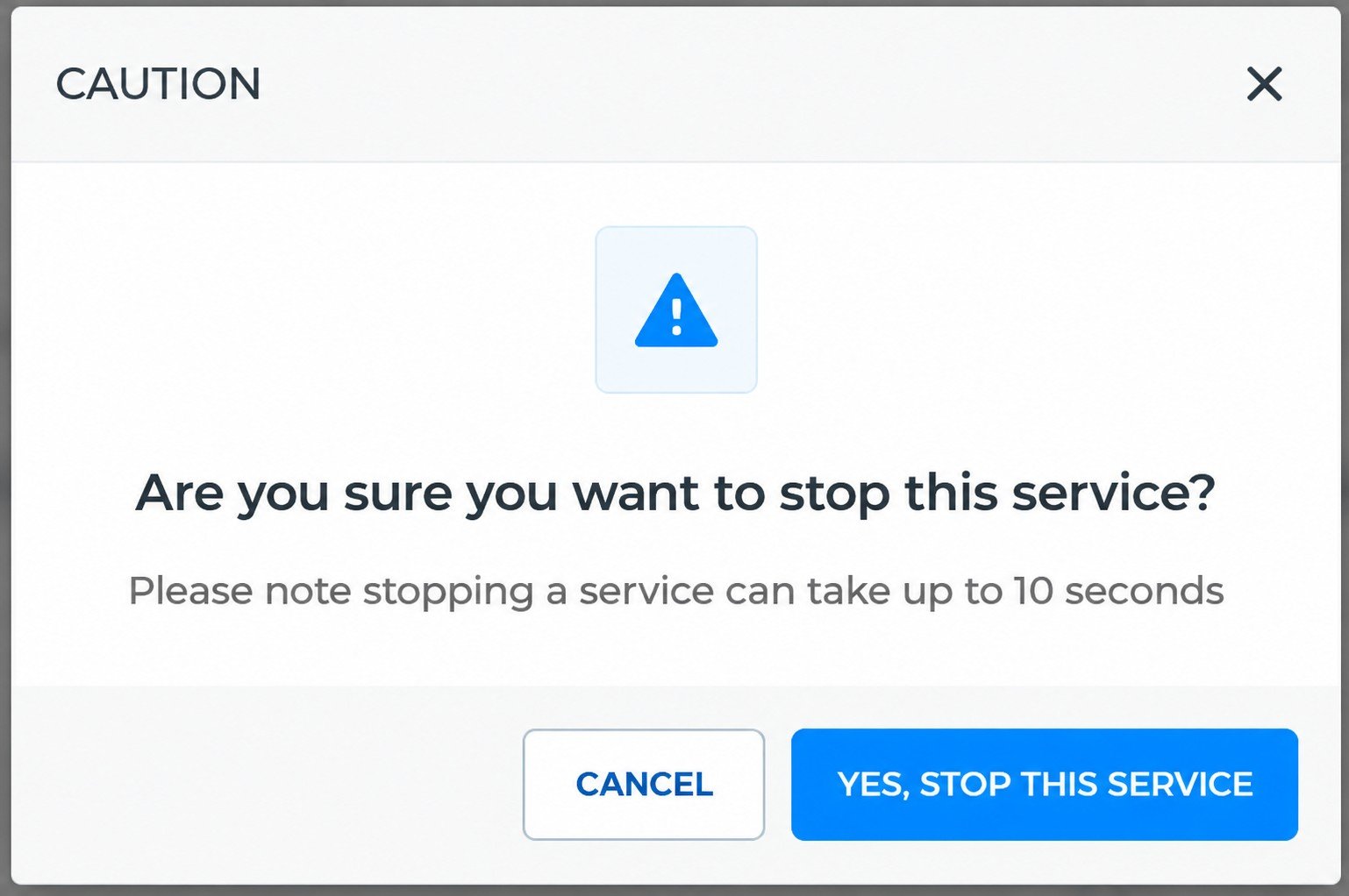
Figure 2: Stop service confirmation
3. Stop the Complete Environment #
- 1
Open the environment.
- 2
Click Stop Env. at the top right.
- 3
In the confirmation window, click Confirm. Click Cancel to close the window without stopping the environment.
Stopping an environment can take up to 30 seconds.
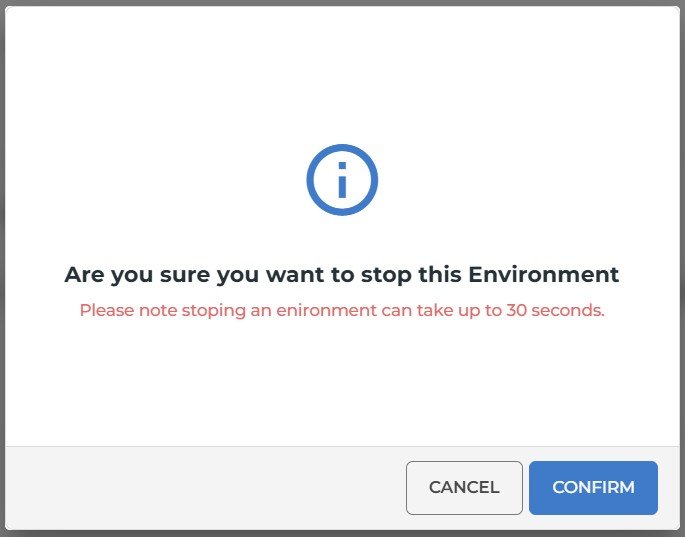
Figure 3: Stop environment confirmation
4. Start the Complete Environment #
- 1
Open the stopped environment.
- 2
Click Start Env. at the top right.
- 3
In the confirmation window, click Confirm. Click Cancel to close the window without starting the environment.
Starting an environment can take up to 30 seconds.
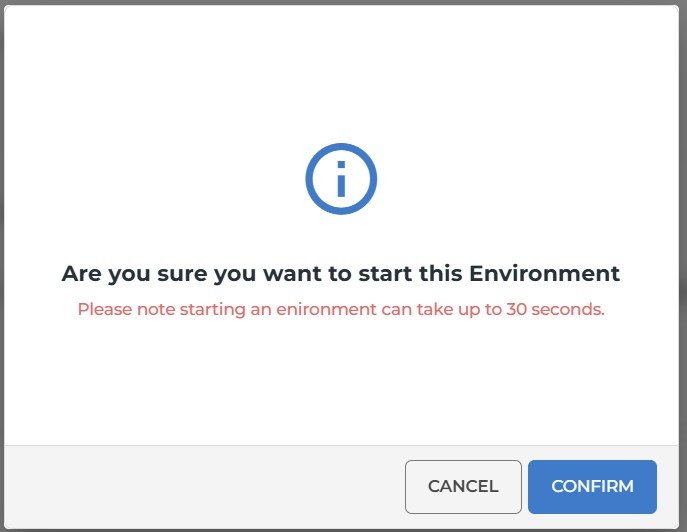
Figure 4: Start environment confirmation
5. Start a Service #
- 1
Open the environment and click the Associated Services tab.
- 2
In the Action column, click the start button of the service.
- 3
In the CAUTION window, click Yes, Start This Service. Click Cancel to close the window without starting the service.
Starting a service can take up to 10 seconds.
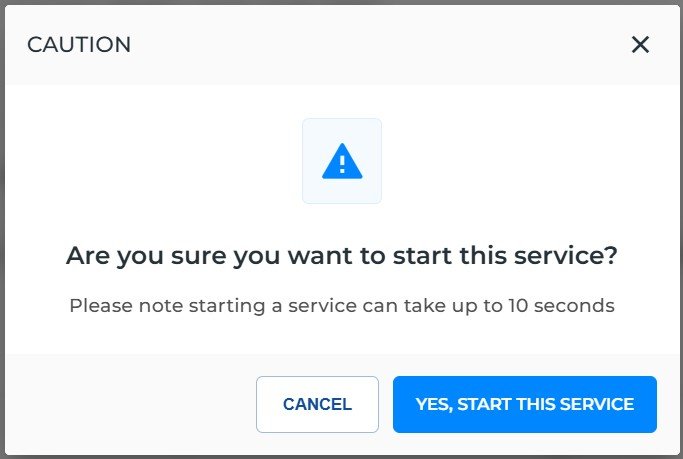
Figure 5: Start service confirmation