

Application Configuration #
An application represents a team that manages a group of microservices, non-microservices, mobile apps, databases or similar workloads to deliver a logically independent functionality. BuildPiper provides a simple workflow to onboard a new application.
1. Application Overview #
Logical Ownership #
Applications group services and workloads under a team or functional boundary.
Platform Workflow #
Platform users can onboard application metadata, policy templates, job templates, VM groups, credentials, regions and clusters.
2. Navigation #
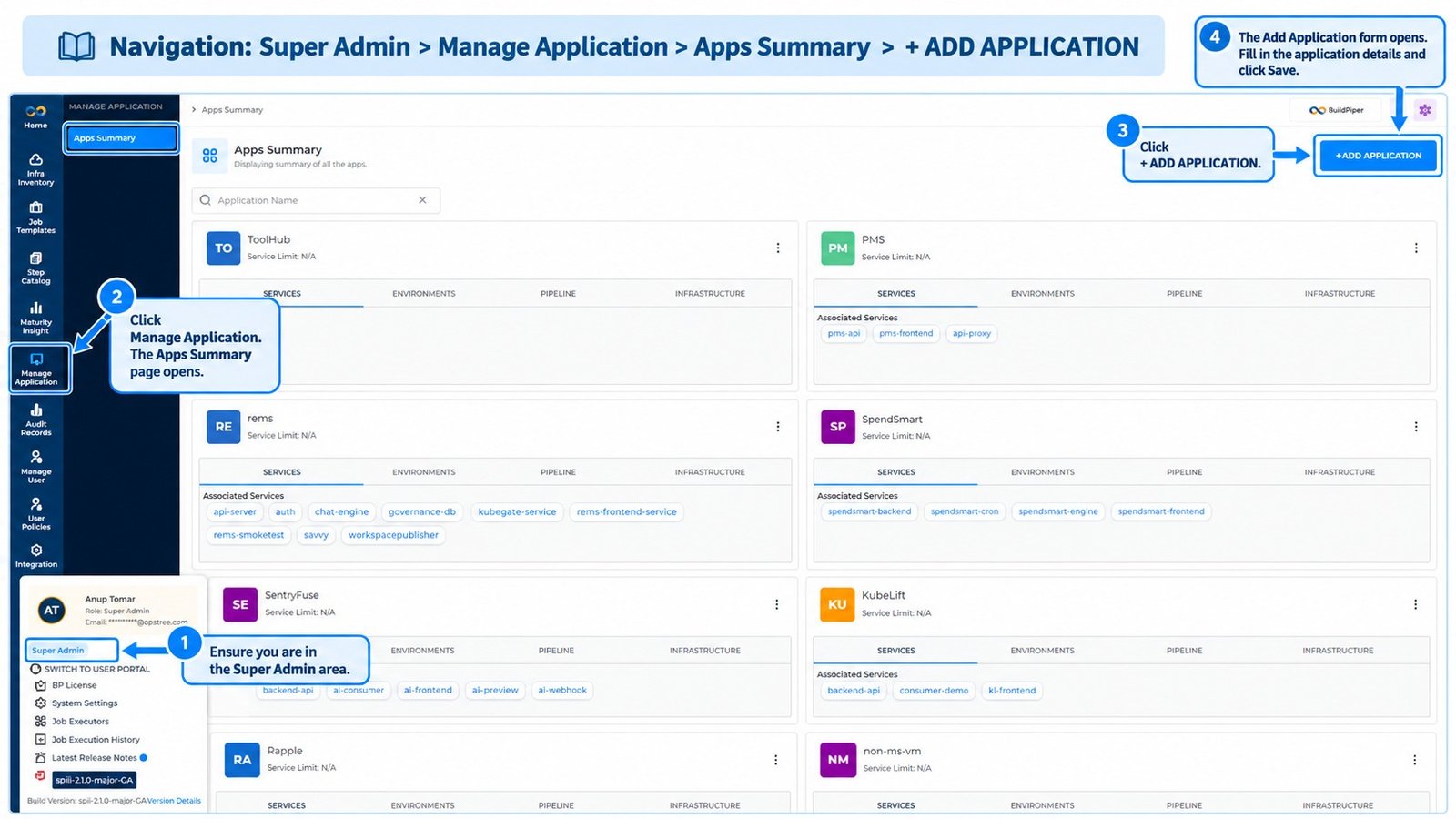
Figure 1: Navigation to Add Application
- 1
Login to BuildPiper and make sure you are in the Super Admin area.
- 2
Click Manage Application in the left navigation. The Apps Summary page opens.
- 3
Click + ADD APPLICATION.
- 4
The Add Application form opens. Fill in the application details and click Save.
Note: The Manage Application page is only accessible through the admin portal.
3. Add Application #
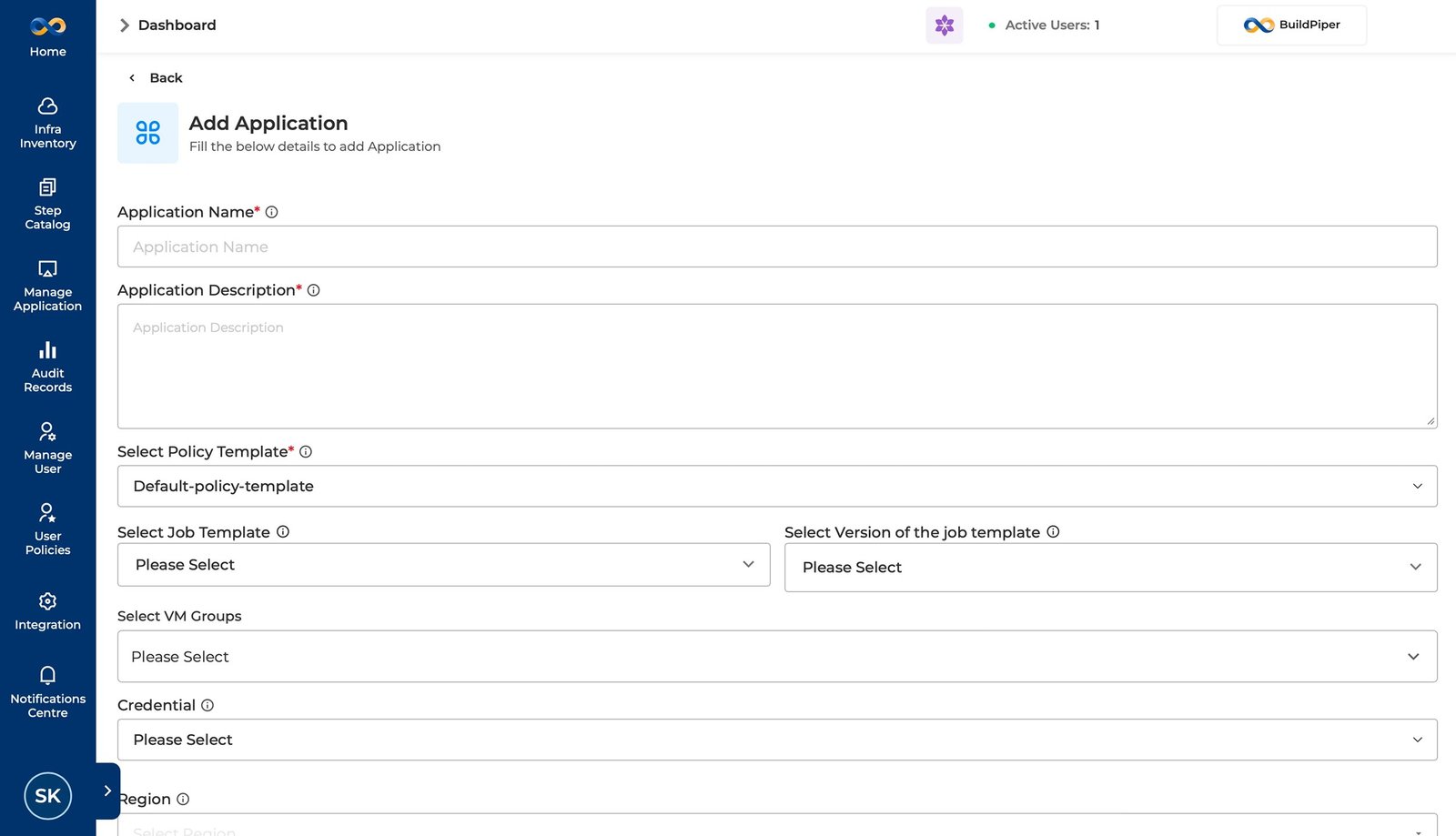
Figure 2: Add Application form
| Field Name | Description |
|---|---|
| Application Name | A unique identifier for the application or team within the platform. |
| Application Description | A brief description of the application or team. |
| Select Policy Template | Defines the access control rules and permissions for BuildPiper. The default template typically creates a set of environment-specific policies. These policies determine who can access, manage, and modify various BuildPiper resources, such as applications and environments, as well as perform actions like enabling or disabling features. |
| Select Job Template | A Global Job Template is a reusable workflow blueprint for executing jobs across multiple applications. This field is optional and allows you to associate a single Global Job Template with multiple applications, eliminating the need to create and maintain separate Job Templates for each application. This promotes consistency, simplifies job configuration, and enables teams to reuse workflows across applications. |
| Select Version of the Job Template | Select the job template version, for example v1-stable or v2-test. |
| Select VM Groups | Defines the VM infrastructure boundary for this application or team. The selected VM groups become available to the team for configuring and managing deployments. The teams cannot go beyond the assigned infra boundary within the context BuildPiper. |
| Credential | The SSH keys and credentials needed to access cloud provider or LDC resources. Used in non-microservice application onboarding. |
| Region | The geographic location, for example us-east-1 or eu-central-1, where resources will be provisioned in AWS. This is AWS specific field. |
| Cluster | Choose from the Kubernetes clusters already onboarded in BuildPiper. You can allocate a dedicated cluster, where all namespaces are mapped automatically, or map only specific namespaces. |
4. Bulk Onboarding with BPCTL #
To onboard many applications at once, use the BPCTL command-line utility.
- 1
Prepare the CSV file. Put all the application metadata in the required CSV format.
- 2
Run BPCTL via SSH. Run the BPCTL onboarding process through SSH to create the applications in bulk.