

Environment Configuration #
An environment is a dedicated workspace associated with one or more namespaces where teams build and deploy their services. This document explains what an environment is, what each field means, and how to add a new environment in BuildPiper.
1. Environment Overview #
Technology teams usually need a set of environments for a structured release process:
| Environment type | Used for |
|---|---|
| DEV | Development |
| QA | Quality assurance testing |
| STAGING | Staging before release |
| UAT | User acceptance testing |
| PROD | Production, used by end users |
Project administrators create the environments at the application level. BuildPiper supports more than one environment of the same type. For example, you can create two QA environments, one to test Feature 1 and another to test Feature 2.
1.1 Logical and Physical Construct #
An environment is both a logical and a physical construct in BuildPiper.
| Type | What it means |
|---|---|
| Physical | Defines the infrastructure and deployment target associated with an environment. For Microservices (MS) applications, this includes the Kubernetes cluster and one or more namespaces where services are deployed. For Virtual Machine (VM) applications, it includes the target virtual machines and their associated deployment configuration. For Mobile applications, it includes the build and distribution targets used to generate and deliver mobile application packages, such as Android APK/AAB or iOS IPA files. |
| Logical | Builds created for an environment can be deployed only to that environment. To deploy the same build to a higher environment, you must first promote it to the target environment. The environment also serves as a logical reference for the team, representing the underlying infrastructure and deployment configuration associated with that stage. |
2. Environment Configuration Details #
A platform team user needs the details below to add a new environment.
| Field | Required | Default | What to do |
|---|---|---|---|
| Choose Environment Type | Yes | DEV | Select the type: DEV, QA, STAGING, UAT or PROD. |
| Environment Name | Yes | — | Give the environment a name, for example ot-dev or ot-prod. |
| Enable Hyper Build | Yes | No | Select Yes to use parallel processing for faster Docker image creation. |
| Allow Manual Build | Yes | Yes | This option should ideally be disabled for higher environments, such as UAT and Production. Deployments to these environments should be performed exclusively through managed pipelines to ensure controlled, consistent and traceable releases. |
| Allow Manual Deploy | Yes | Yes | Select Yes to let users start a deployment manually for this environment. |
| VM Groups | No | — | Select VM Groups: Choose the virtual machine group(s) where the application’s VM-based services will be built and deployed. This field is available only when VM groups are configured during application creation and is not required for microservices or mobile applications. |
| Deploy to Playstore | No | No | Select Yes for the Production (Prod) environment when automatic release to the Google Play Store is required. In the QA environment, this option may also be enabled for testing through the internal testing track. For other environments or services, select No unless applicable. |
| Deploy to AppStore | No | No | Select Yes only for mobile app services that need automatic release to the Apple App Store. |
| Select Artifactory | No | — | Choose the binary repository where build artifacts (for example .jar or .npm files) are stored. It is used for services that are not microservice based. |
| Select Cluster | Yes | — | Map the environment to a Kubernetes cluster from the list. |
| Select Namespace | Yes | — | Map each environment to a namespace in the selected cluster. The namespace is retrieved from the selected cluster and serves as the logical boundary for deployments. |
| Select Database | No | — | Tick the databases. The Select Database option allows users to associate one or more databases with an application environment. This helps maintain environment-specific database configurations and keeps dev, QA and production data separate. It also provides visibility into the databases associated with each environment and supports database-related operations where applicable. |
2.1 Multi-Namespace Environments #
Deploying the same service to different namespaces would normally require a separate environment for each deployment, which adds administrative overhead. BuildPiper avoids this by allowing a single environment to map to multiple namespaces of the selected Kubernetes cluster. Applications and services can then be distributed across distinct namespaces and still be managed centrally under one environment.
Key benefits
| Benefit | Description |
|---|---|
| Workload isolation | Separates workloads and dependencies logically, which limits the blast radius and prevents conflicts. |
| Logical organisation | Groups services by functional component, owning team or domain. |
| Granular access control | Applies distinct Role-Based Access Control (RBAC) and network policies at the namespace level. |
| Resource management | Applies resource quotas and limit ranges per namespace, which controls compute consumption and prevents resource starvation. |
Example: The frontend services of an application are deployed to the namespace frontend-ns and the backend services to backend-ns. Both namespaces are in the same Kubernetes cluster, and both are managed in the context of the same environment.
To map an environment to multiple namespaces
- 1
On the Add Environments page, select the Cluster.
- 2
In Select Namespace, click Select multiple namespace.
- 3
Select the namespaces that the environment must use.
- 4
Click Save Changes.

Figure 2: Select Namespace with the Select multiple namespace option
Important: You can select either a single namespace or multiple namespaces. Once an environment is associated with a service, you cannot switch between the single and multiple namespace modes. Decide the mode before you add services to the environment.
Note: The namespaces are retrieved from the cluster that you select. To make a new namespace available, create or onboard it first. See the Namespace document.
View resources by namespace
After you configure multiple namespaces in an environment, select a namespace from the drop-down list to see what is associated with it. This applies to the following pages of the environment.
| Page | What you can view for the selected namespace |
|---|---|
| Associated Services | The services that are associated with the namespace. |
| ConfigMaps | The ConfigMaps that are associated with the namespace. |
| Secrets | The Secrets that are associated with the namespace. |
Read more: Namespace
ConfigMaps
Secrets
3. Environment Overview Page #
The Environment Overview page lists all the environments of the application. Open it from the application menu on the left: Application > your application > Environment Overview.
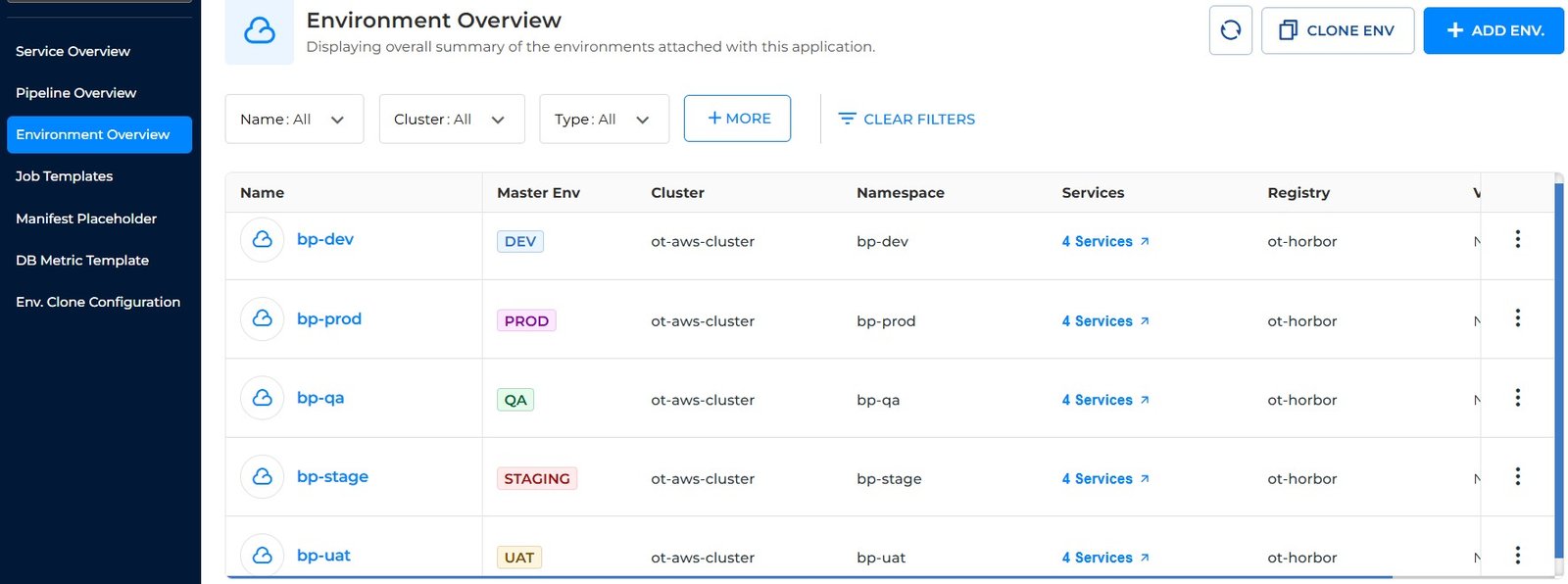
Figure 1: Environment Overview listing page
3.1 Columns in the List #
| Column | What it shows |
|---|---|
| Name | The environment name. Click it to open the environment. |
| Master Env | The environment type, for example DEV, PROD, QA, STAGING or UAT. |
| Cluster | The Kubernetes cluster the environment is mapped to. |
| Namespace | The namespace in that cluster. |
| Services | The number of services in the environment, for example 4 Services. Click it to see them. |
| Registry | The registry the environment uses, for example ot-horbor. |
| 3-dot menu | You can edit or delete the environment. |
4. Add an Environment #
Use the BuildPiper UI to add an environment. The environment page is available in the User Portal.
4.1 Navigation Path #
- 1
Log in to BuildPiper.
- 2
Open the User Portal.
- 3
Click Application.
- 4
Select your application.
- 5
Click Environment Overview.
- 6
Click Add Environment.
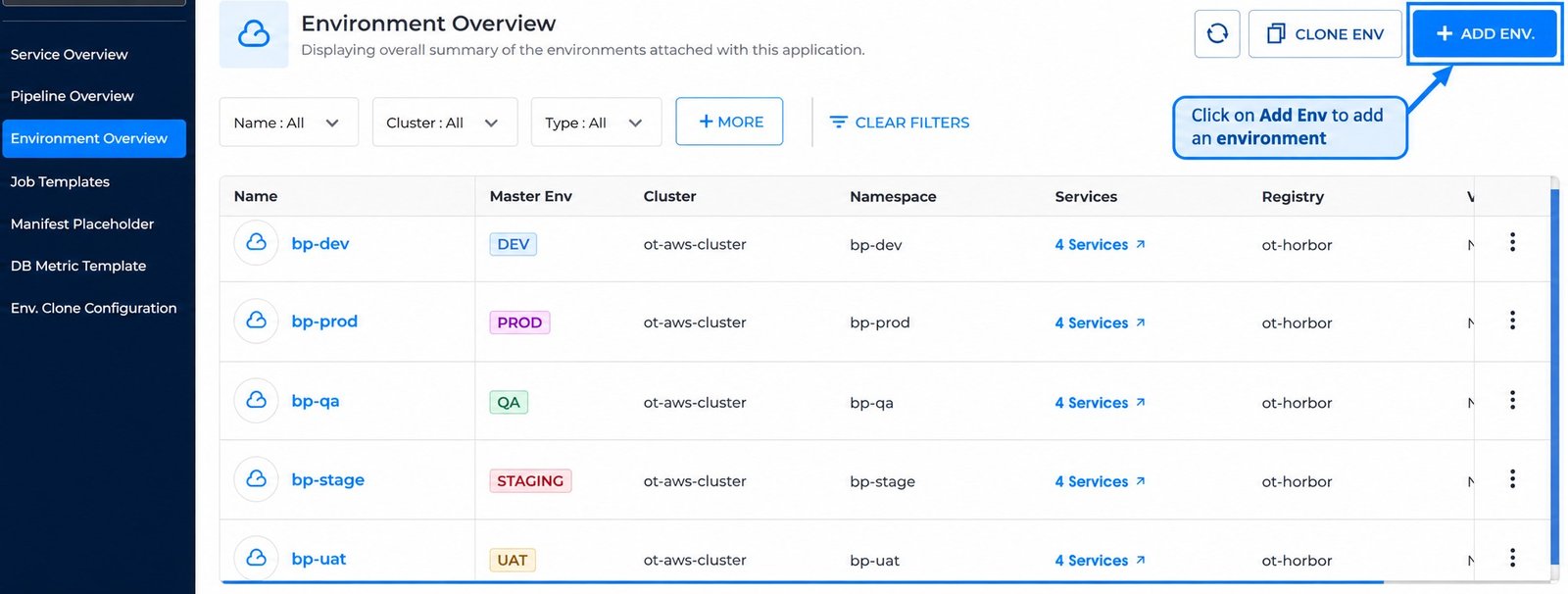
Figure 3: Click Add Env. to add an environment
4.2 Fill In the Details #
- 1
On the Add Environments page, select the Environment Type.
- 2
Enter the Environment Name.
- 3
Set Enable Hyper Build, Allow Manual Build, Allow Manual Deploy, Deploy to playstore and Deploy to AppStore as needed.
- 4
Select the Artifactory and Cluster, then the Namespace. In Select Database, tick the databases the environment needs, or tick All.
- 5
Click Save Changes to add the environment. Click Close to leave without saving.
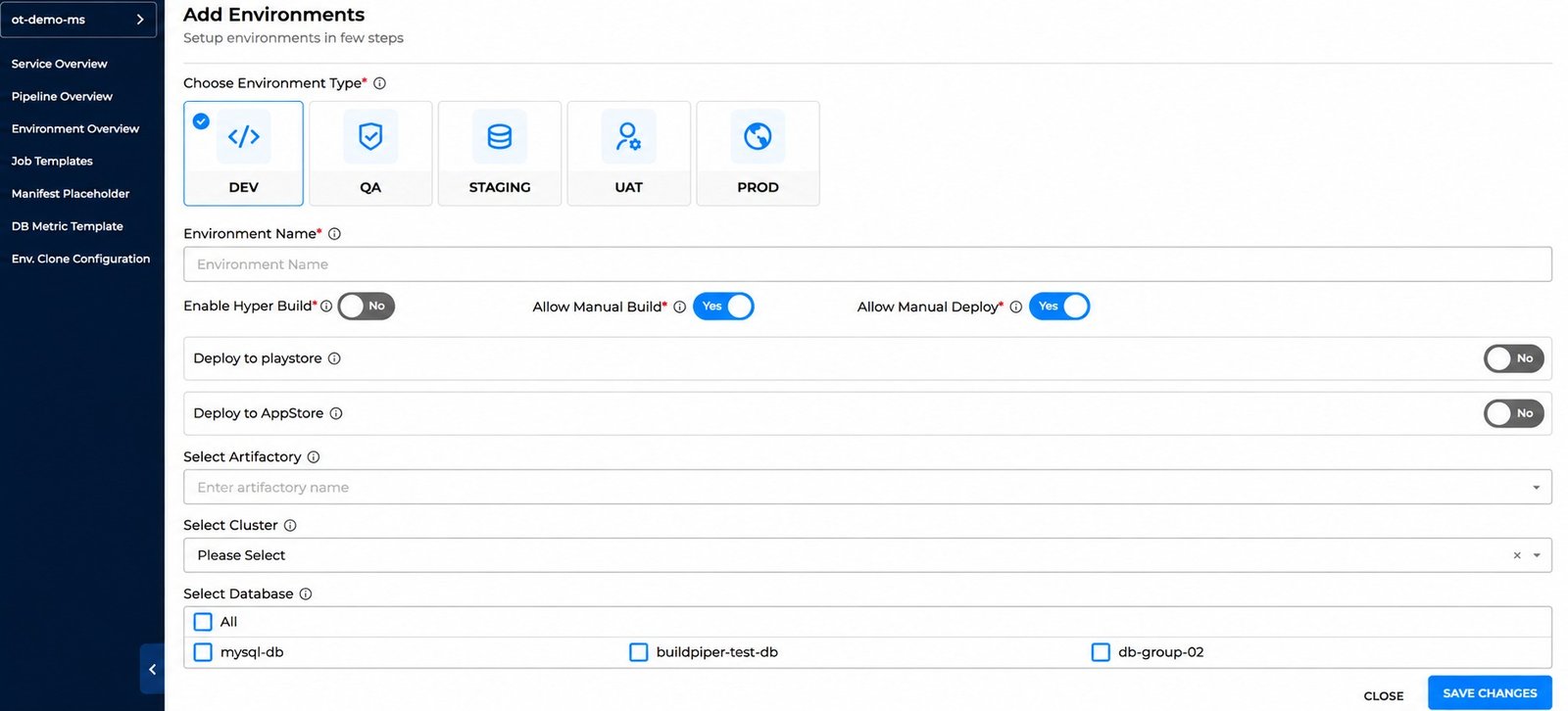
Figure 4: Add Environments page
Tip: To change an environment you already added, click the edit (pencil) icon on its card in Environment Overview.