

Canary Deployment #
This document explains the BuildPiper canary approach, the pod shift rollout and the canary analysis modes. To configure and run a canary, see Canary Setup and Pipeline.
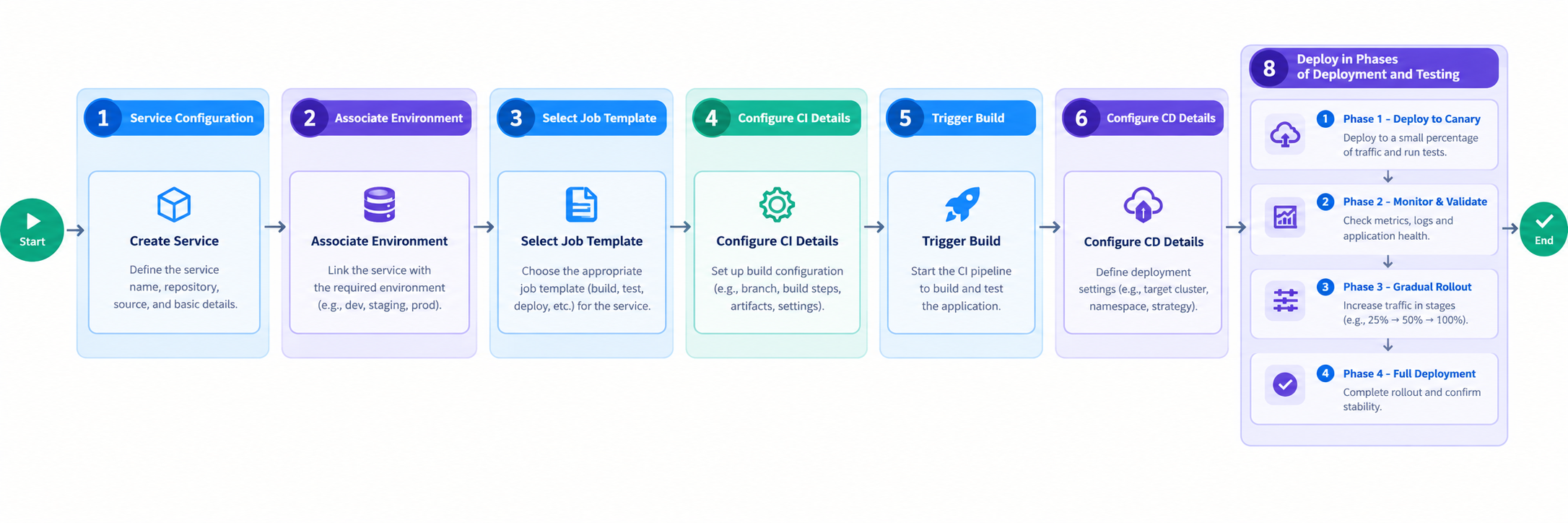
Figure 1: Canary deployment workflow
1. What Is a Canary Deployment? #
A canary deployment is a release strategy in which a new version of an application is rolled out to a small share of the pods first, while the rest keep running the existing version.
The goal is to catch issues such as bugs, performance problems or rising error rates in a limited part of production before the new version reaches everyone. The new version is monitored for health, performance and errors at each stage, and the rollout expands in predefined phases, for example 25%, 50% and 100%. If an issue is found, the rollout is halted and can be rolled back, which limits the business impact.
This reduces release risk, surfaces defects early and builds confidence in production releases through controlled validation and gradual adoption.
In BuildPiper, you can select Canary for both static and dynamic Deploy jobs, under Deployment Strategy in the Job Form. For details, see Deployment Strategies.
2. How BuildPiper Runs a Canary #
2.1 Pipeline-Driven Deployment #
All canary deployments run through BuildPiper pipelines. The pipeline orchestrates the full canary lifecycle: the rollout phases, validation checkpoints, approval gates, canary analysis, exceptional approvals and rollback. A phase starts only after the previous phase has passed its validations and received its approvals. This gives every production release the same consistency, audit trail and central governance.
Note: A canary pipeline must always reach a terminal state. It either completes all its rollout phases and is marked Success, or it is rolled back and marked Revoked. A pipeline left in the Running state blocks later canary deployments until it is completed or rolled back.
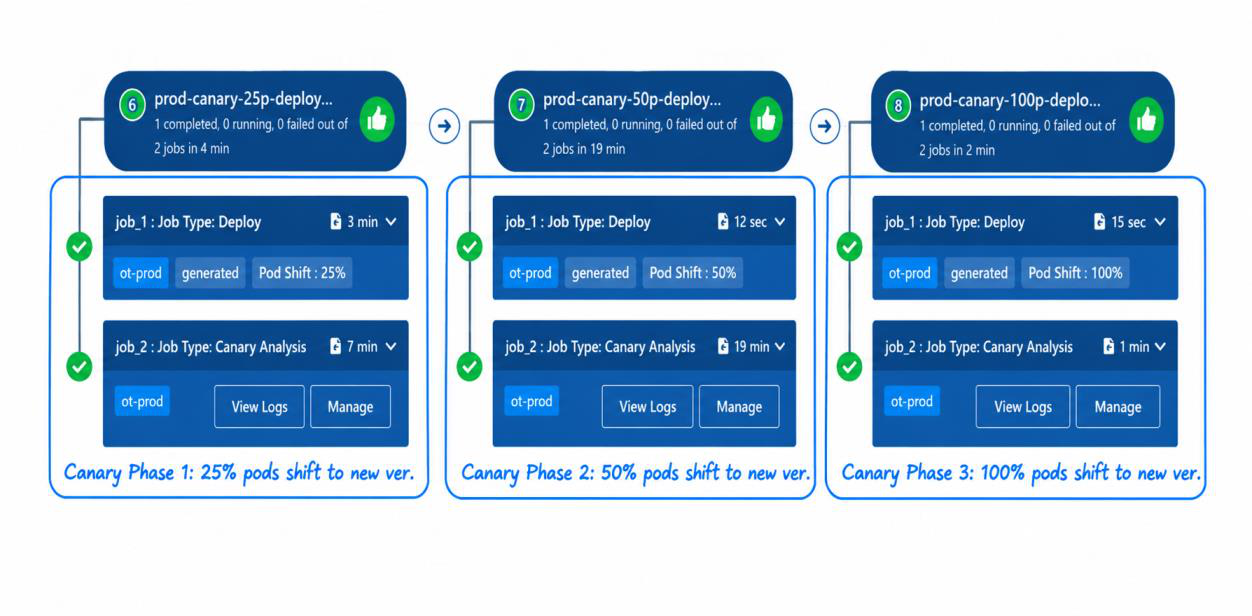
Figure 2: Canary pipeline with three phases: 25%, 50% and 100% pod shift
2.2 Phased Release #
Instead of replacing all pods at once, a canary deployment moves a share of the pods to the new version in each phase, for example Phase 1 at 25%, Phase 2 at 50% and Phase 3 at 100%. You define the phases when you set up the canary pipeline.
After each phase, the following validations can be enforced:
| Validation | What It Checks |
|---|---|
| Default validation (always on) | Kubernetes rollout status, deployment health checks and cluster events. |
| Metric-based canary analysis (optional) | Metrics from a monitoring source, such as error rate, latency or CPU utilization, compared for baseline and canary pods against the thresholds you define. |
The rollout moves to the next phase only after all validations pass and the required approvals are given. If an issue is found at any phase, the rollout halts and the previous stable version can be restored with a rollback.
2.3 Pod Shift Rollout #
BuildPiper uses a pod shift strategy for canary deployments, not traffic routing. In each phase, part of the pods running the stable (baseline) version are replaced by pods running the new (canary) version. The Kubernetes Service keeps sending traffic to all available pods, so the share of traffic each version receives roughly follows its share of pods. The Pod Shift log describes this as the “traffic split”.
For a service with 10 replicas, the phases look like this:
| Phase | Canary Share | Baseline Pods | Canary Pods | Total Pods |
|---|---|---|---|---|
| Before the canary | 0% | 10 | 0 | 10 |
| Phase 1 | 25% | 8 | 3 | 11 |
| Phase 2 | 50% | 5 | 5 | 10 |
| Phase 3 | 100% | 0 | 10 | 10 |
How Pod Shift Works #
When a 25% canary phase runs on a service with 10 replicas:
- 1
BuildPiper creates a separate Kubernetes deployment for the new version (the canary deployment).
- 2
The replica count is split between the baseline deployment (current version) and the canary deployment (new version).
- 3
The Kubernetes Service keeps routing traffic to all available pods of both deployments.
Calculating the Pod Counts #
BuildPiper rounds both pod counts up to the next whole pod (ceiling rounding), so the canary always gets enough pods to be tested:
Canary pods = Ceiling(10 × 25%) = Ceiling(2.5) = 3Baseline pods = Ceiling(10 × 75%) = Ceiling(7.5) = 8Total pods = 3 + 8 = 11Because both counts are rounded up, the total can be one pod higher than the configured replica count while the phase runs. In this example, 11 pods run instead of 10. This way the canary is never under-sized, and total capacity never drops below the configured replica count. At 50% and 100% the split is exact, so the total returns to 10.
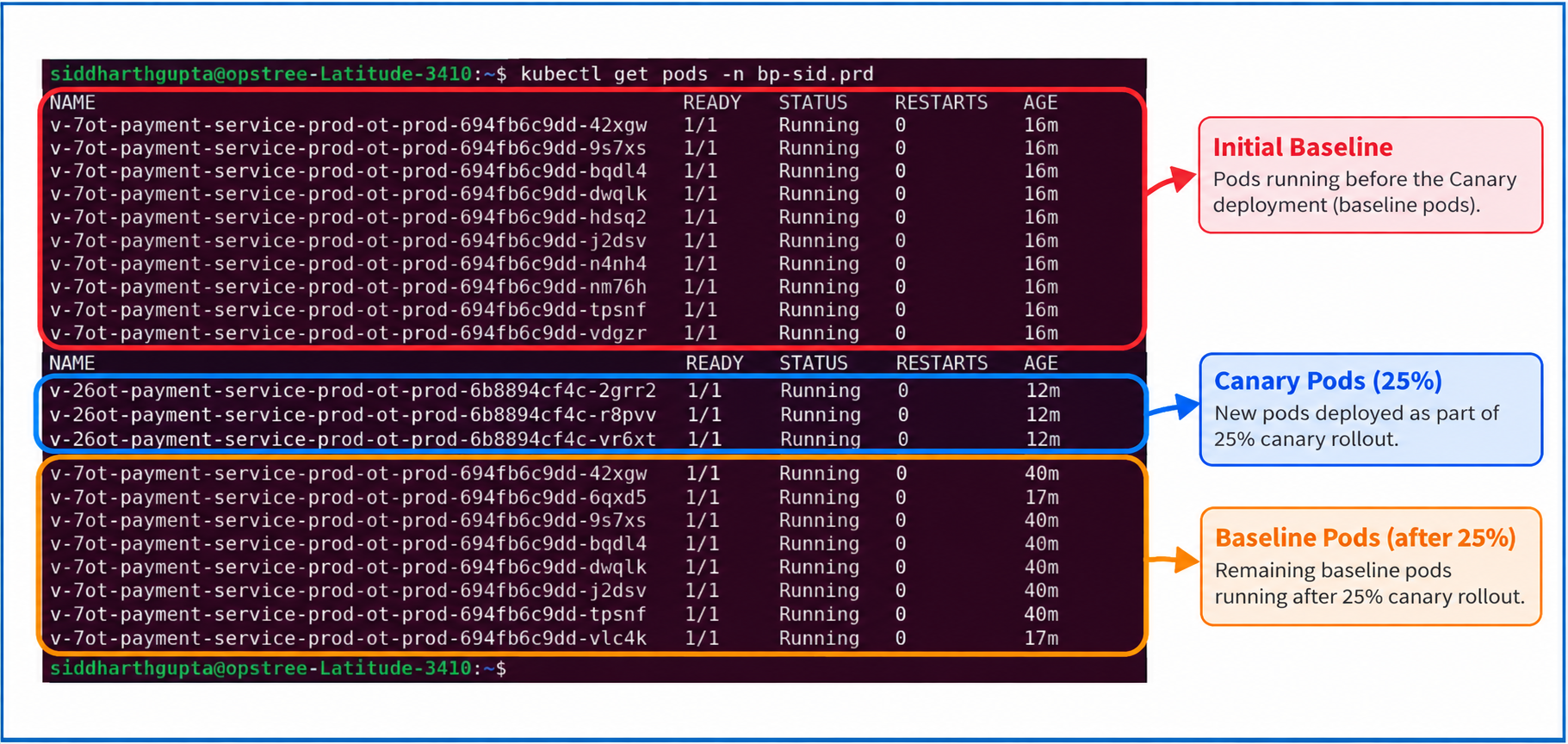
Figure 3: Pods before and after the 25% phase: 10 baseline pods become 8 baseline and 3 canary pods
Steps of a Canary Deploy Job #
Each canary phase runs as a Deploy job with the following steps, which you can follow in the job logs:
| Step | What Happens |
|---|---|
| pre hook | Runs any configured pre-deployment hooks. |
| Deployment Manifest Creator | Generates the Kubernetes manifests for the service. |
| Pod Shift | Creates the baseline and canary manifests and calculates the replica split for the phase. |
| K8s deployment manifest apply | Applies the manifests to the cluster. |
| K8s rollout validation | Confirms the rollout reached a healthy state (the default validation). |
| post hook | Runs any configured post-deployment hooks. |
3. Example: Canary Release from Artifact 19 to 21 #
This example follows a canary release of ot-payment-service in the ot-prod environment, from artifact ot-heavy:19 (baseline) to ot-heavy:21 (canary), on 10 replicas. The baseline deployment is v-7ot-payment-service-prod-ot-prod and the canary deployment is v-26ot-payment-service-prod-ot-prod.
3.1 Current Baseline #
Before the canary starts, the baseline artifact runs on all pods.
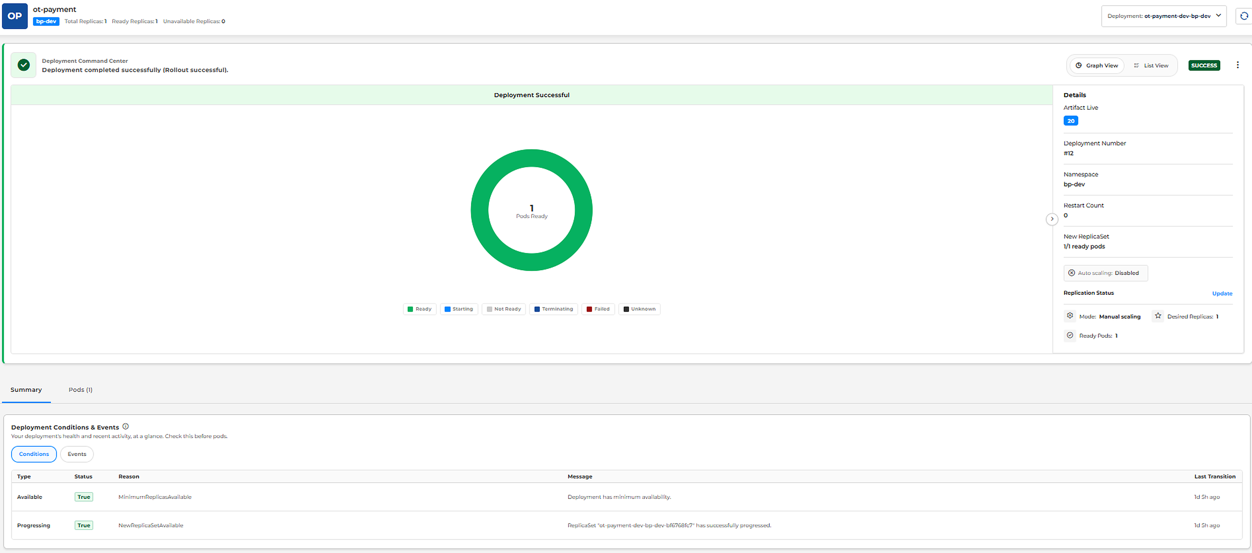
Figure 4: Deployment Command Center showing the baseline deployment

Figure 5: BuildPiper view of the baseline pods
3.2 Phase 1: 25% #
Phase 1 shifts 25% of the pods. The Pod Shift log shows the split: 8 baseline pods on ot-heavy:19 and 3 canary pods on ot-heavy:21, 11 pods in total.
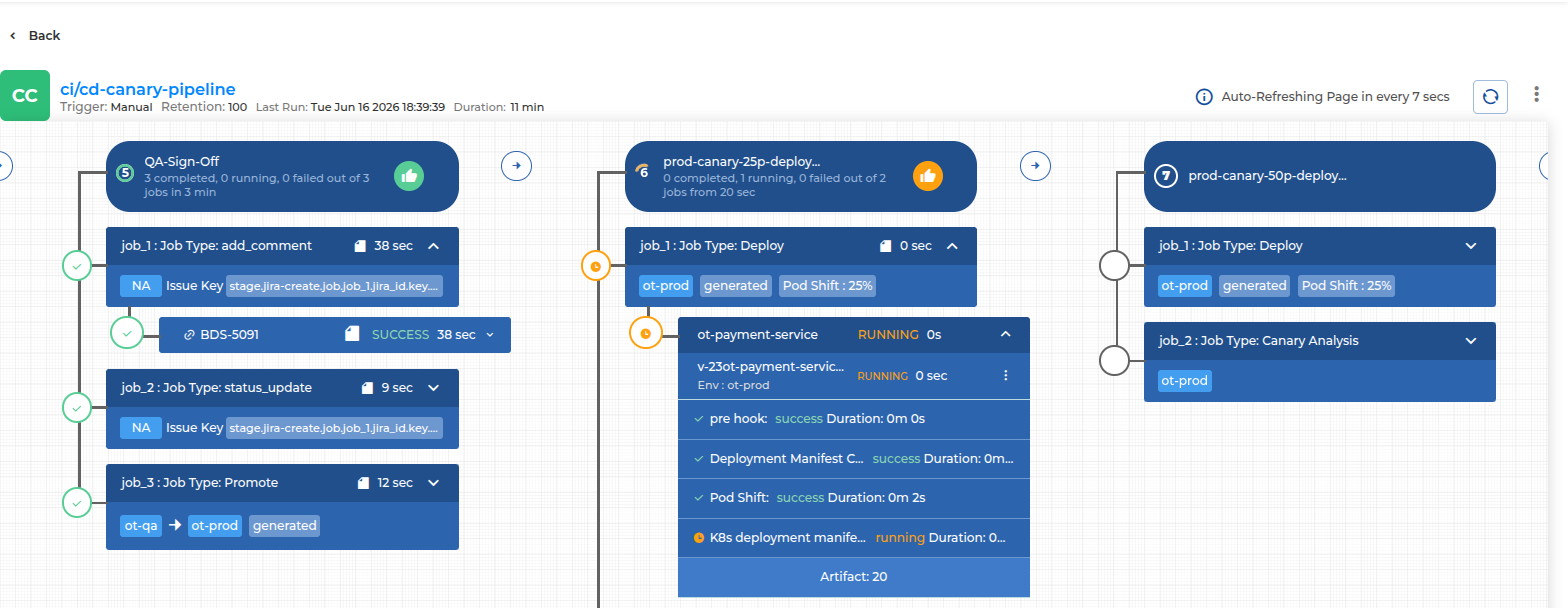
Figure 6: Canary pipeline with Phase 1 (25%) completed
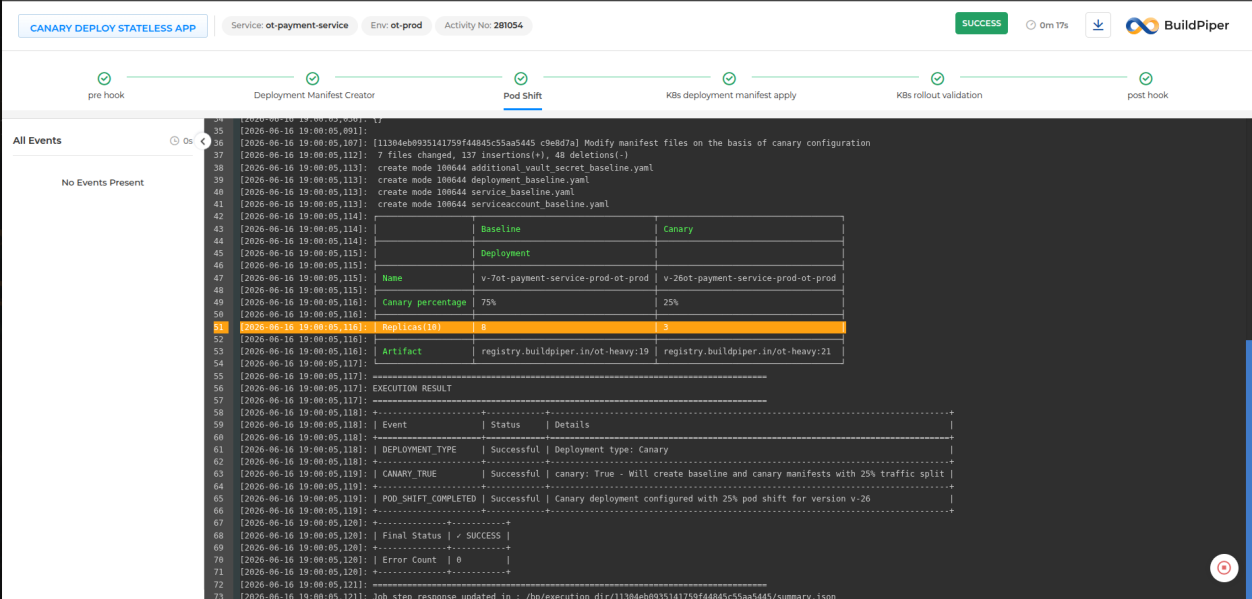
Figure 7: Pod Shift log for the 25% phase
3.3 Phase 2: 50% #
Phase 2 shifts 50% of the pods: 5 baseline pods and 5 canary pods, 10 pods in total. You can see the pods of each deployment by selecting it from the Deployment list on the service page.
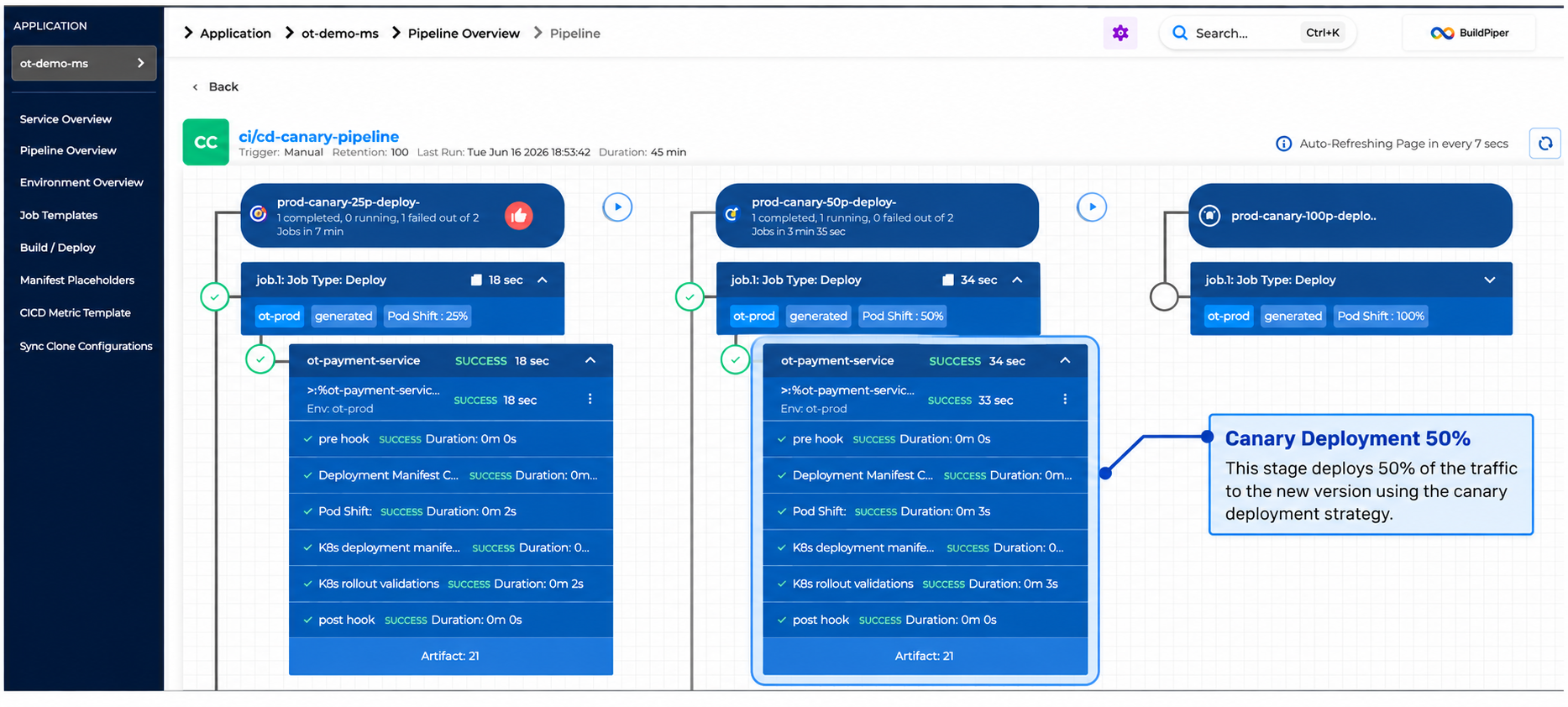
Figure 8: Canary pipeline with Phase 2 (50%) completed
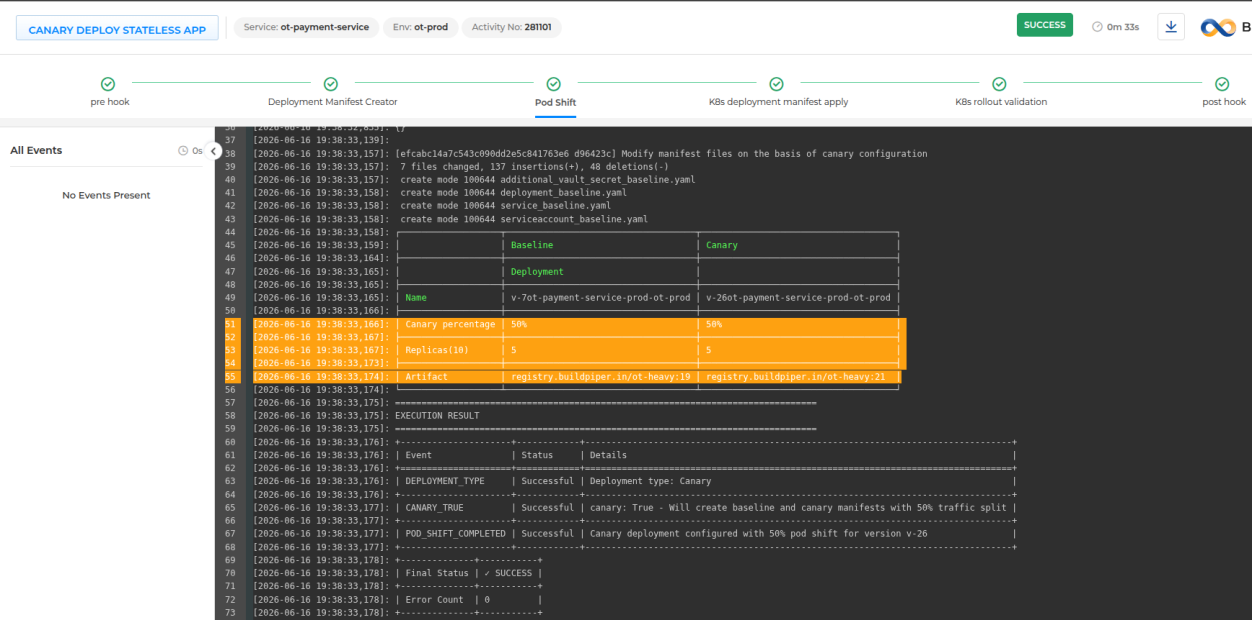
Figure 9: Pod Shift log for the 50% phase
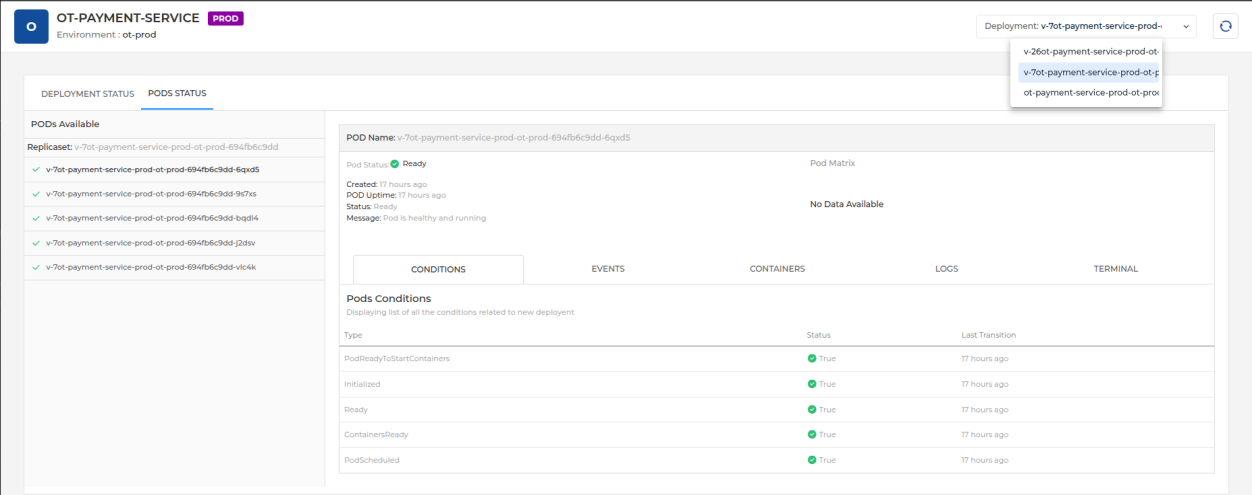
Figure 10: Baseline pods (v-7ot deployment) at 50%
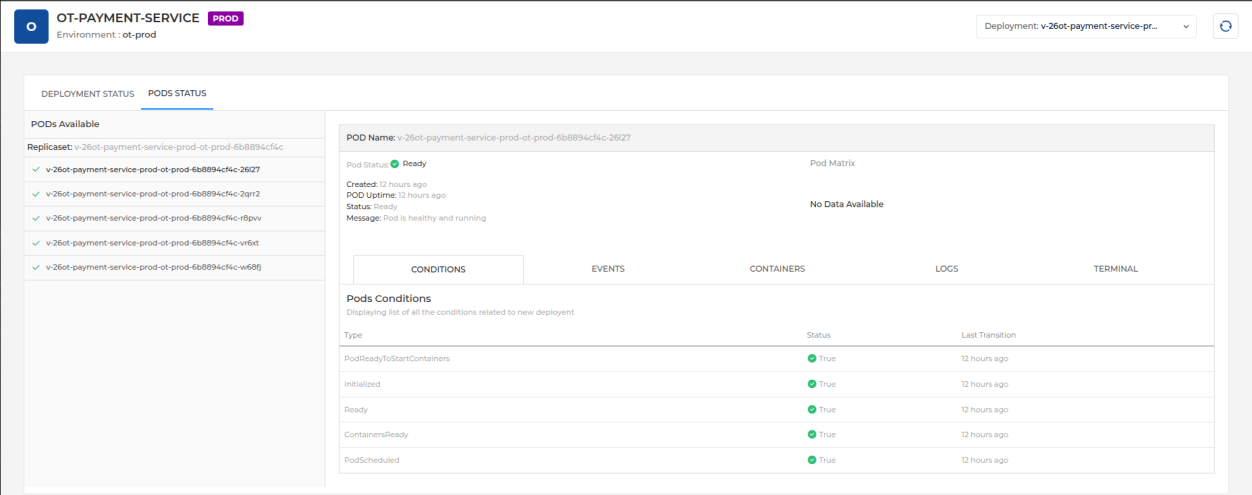
Figure 11: Canary pods (v-26ot deployment) at 50%
3.4 Phase 3: 100% #
Phase 3 moves all 10 pods to the new version. The baseline deployment is scaled to 0 and the canary deployment runs all 10 replicas.
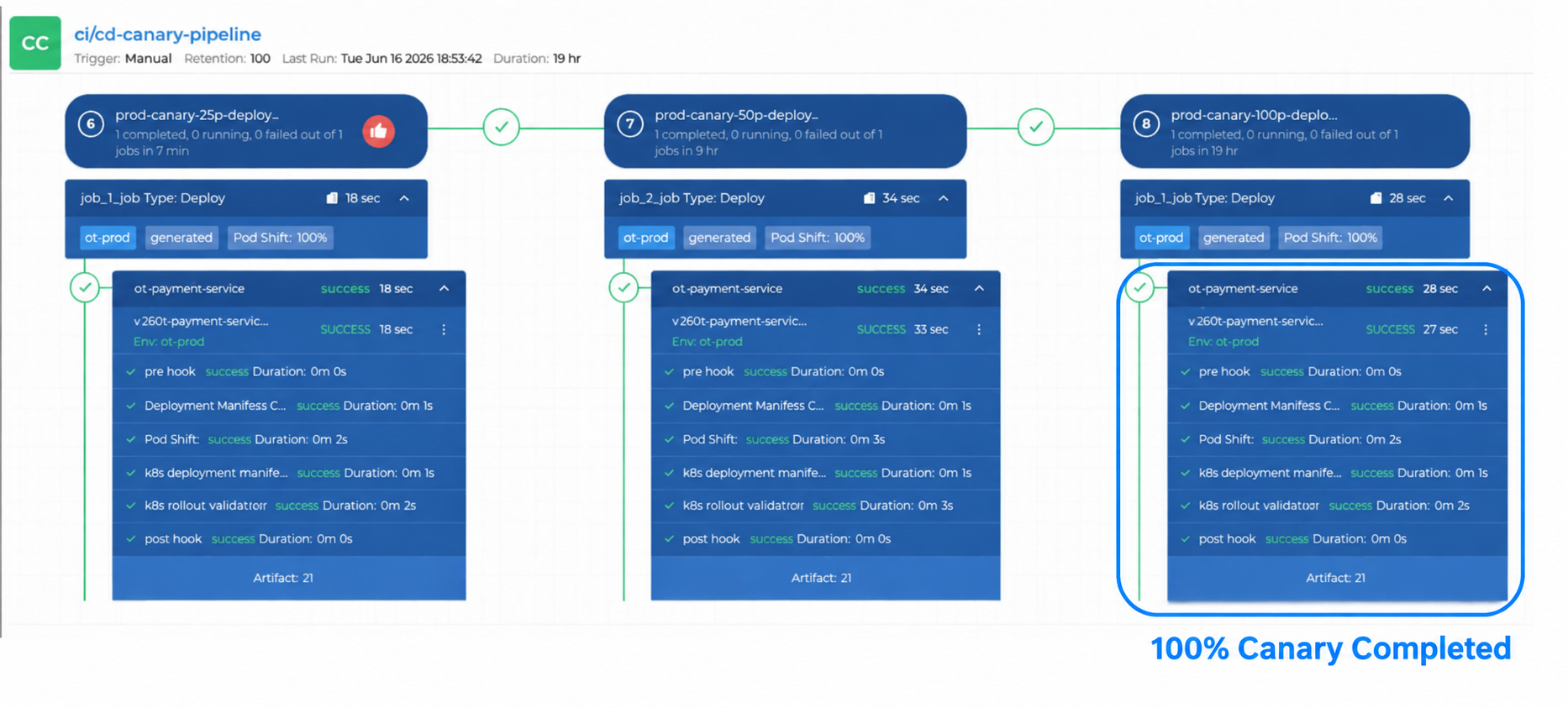
Figure 12: Canary pipeline with Phase 3 (100%) completed
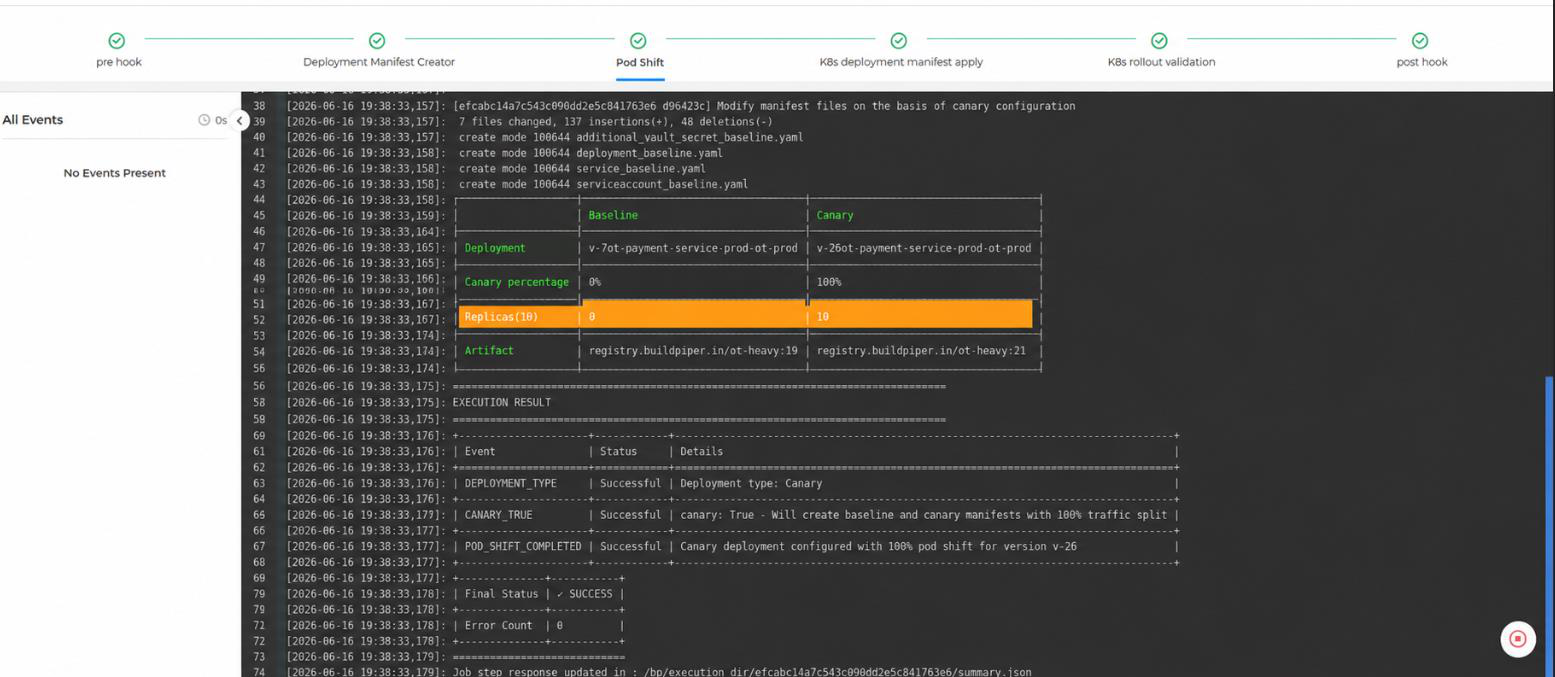
Figure 13: Pod Shift log for the 100% phase
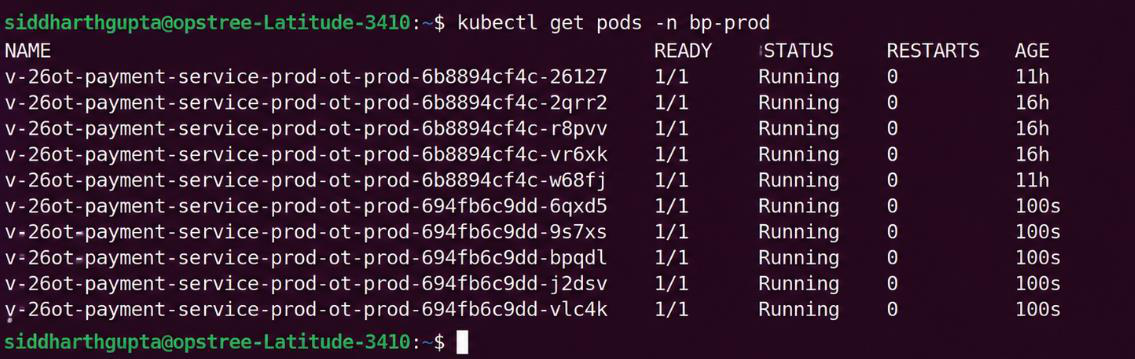
Figure 14: All pods running the new version after the 100% phase
3.5 Pod Counts by Phase #
| Phase | Canary Share | Baseline Pods (v-7ot) | Canary Pods (v-26ot) | Total Pods |
|---|---|---|---|---|
| Before the canary | 0% | 10 | 0 | 10 |
| Phase 1 | 25% | 8 | 3 | 11 |
| Phase 2 | 50% | 5 | 5 | 10 |
| Phase 3 | 100% | 0 | 10 | 10 |
4. Canary Analysis and Approval #
BuildPiper offers two modes of canary analysis to validate a canary phase before the rollout moves on.
| Mode | How It Works |
|---|---|
| Default canary analysis | Available out of the box. Checks the Kubernetes rollout status, health checks and cluster events. If the rollout completes and no critical errors or failure events are found, the phase is marked healthy. |
| Metric-based canary analysis | Extends the default analysis with metrics from a monitoring source, such as Prometheus or Victoria Metrics. In each phase, the canary metrics are compared with the baseline and with the thresholds you define. If any metric breaches its threshold, the analysis fails and the rollout stops. |
4.1 Approval #
Before the next phase starts, BuildPiper enforces one of the following approvals:
| Approval | How It Works |
|---|---|
| Manual approval | A designated approver, such as a release manager, product owner or operations team, reviews the canary analysis and deployment health, and approves the move to the next phase. |
| Automatic approval | Used with metric-based canary analysis. If the canary analysis template finds no anomalies and the canary meets all criteria, BuildPiper approves the phase and starts the next one without manual intervention. |
If no monitoring source is configured, a phase is marked successful once the rollout validation passes and the user gives the final approval.
4.2 Metrics You Can Analyze #
Metric-based canary analysis can use metrics from monitoring platforms such as Prometheus and Victoria Metrics. It adds application, infrastructure and business KPIs to the native Kubernetes health checks, including:
• Error rate
• Response time (latency)
• Request success rate
• Application availability
• CPU utilization
• Memory utilization
• Custom business KPIs, or any user-defined Prometheus-compatible metric
4.3 When the Analysis Fails #
If one or more metrics breach their thresholds, the rollout halts and the phase is marked as failed. From there, the release can be rolled back to the baseline version, or a failed analysis can be overridden through Exceptional Approval. For details, see Canary Approval and Rollback. To roll back automatically, add a Rollback job to the pipeline, as described under Auto Rollback in Deployment Strategies.
4.4 Setting Up Metric-Based Analysis #
Metric-based canary analysis needs three things: a monitoring source, a stability metric group and a canary analysis template. To set them up, see Monitoring Source, Stability Matrix and Canary Analysis Template. To configure the canary pipeline itself, see Canary Setup and Pipeline.
Related Documents #
| Document | What It Covers |
|---|---|
| Canary Setup and Pipeline | System settings, canary pipeline and job configuration |
| Canary Approval and Rollback | Failed analysis, Exceptional Approval and canary rollback |
| Monitoring Source | Adding a metrics endpoint as a monitoring source |
| Stability Matrix | Stability metrics and Stability Matrix Group |
| Canary Analysis Template | Mapping metrics into a canary analysis template |
| Deployment Strategies | Overview of deployment strategies, the Job Form and auto rollback |
| Rolling Deployment | How the Rolling strategy works and where its settings live |