

Container Registries #
1. Container Registry #
A Container Registry is where container artifacts (images) are stored. It can be hosted either in the cloud or within an LDC (Local Data Center). BuildPiper provides out-of-the-box support for major container registries.
Registry configuration is centralised within the BuildPiper admin portal and is accessible with Admin credentials.
| Item | Details |
|---|---|
| Registries | 10 supported registry types |
| Hosting | Cloud and on-premises |
| Support | Out of the box |
| Setup | Admin only |
2. Supported Container Registries #
BuildPiper provides out-of-the-box support for the following container registries.
| Registry | Provider |
|---|---|
| Azure Container Registry | Microsoft Azure ACR |
| Nexus | Sonatype Nexus Repository |
| Alibaba ACR | Alibaba Cloud Container Registry |
| GitHub GHCR | GitHub Container Registry |
| AWS ECR | Elastic Container Registry |
| Google GCR / GAR | Google Container Registry / Artifact Registry |
| JFrog | JFrog Artifactory Registry |
| Docker Hub | Official Docker Registry |
| Huawei | Huawei Cloud Registry |
| Others | Custom or additional registries |
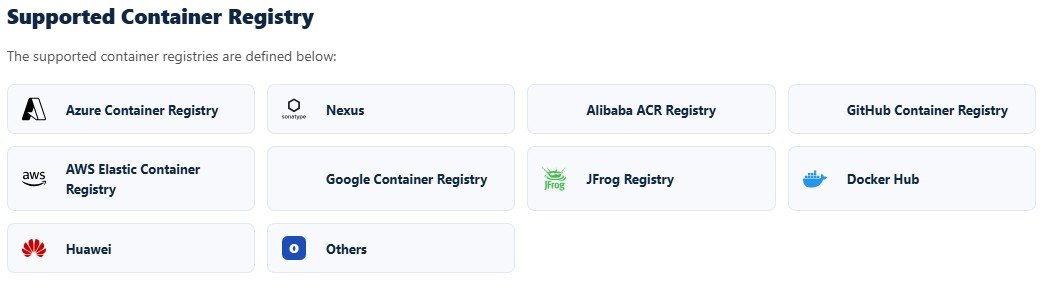
Figure 1: Supported container registries
3. Container Registry UI Overview #
The Container Registries page lists the registries that are configured in BuildPiper, with their type, URL, username and connection status.
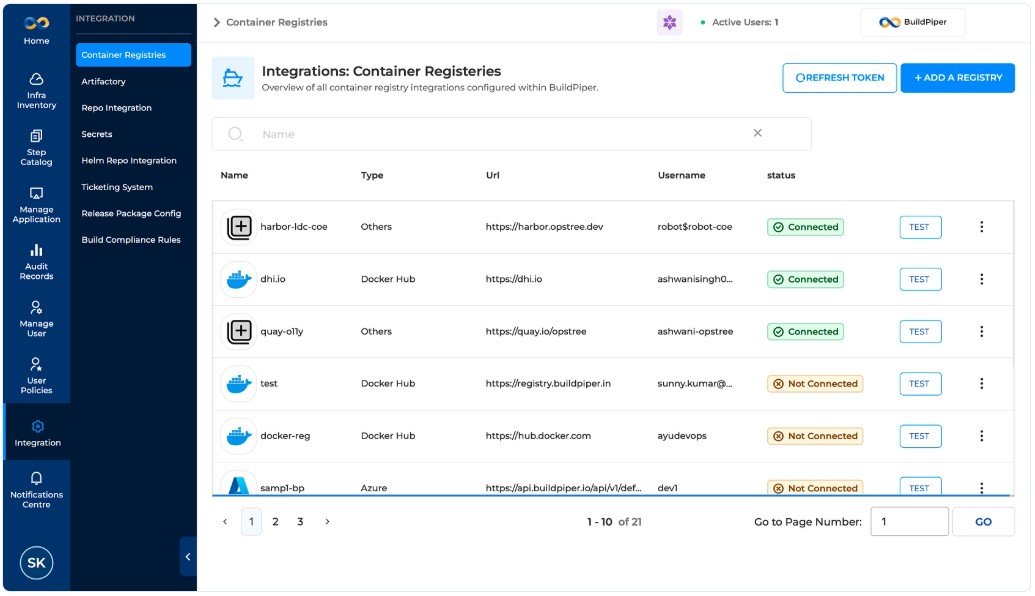
Figure 2: Container Registries page
When you click + ADD A REGISTRY, select the registry provider tile to open its configuration fields.
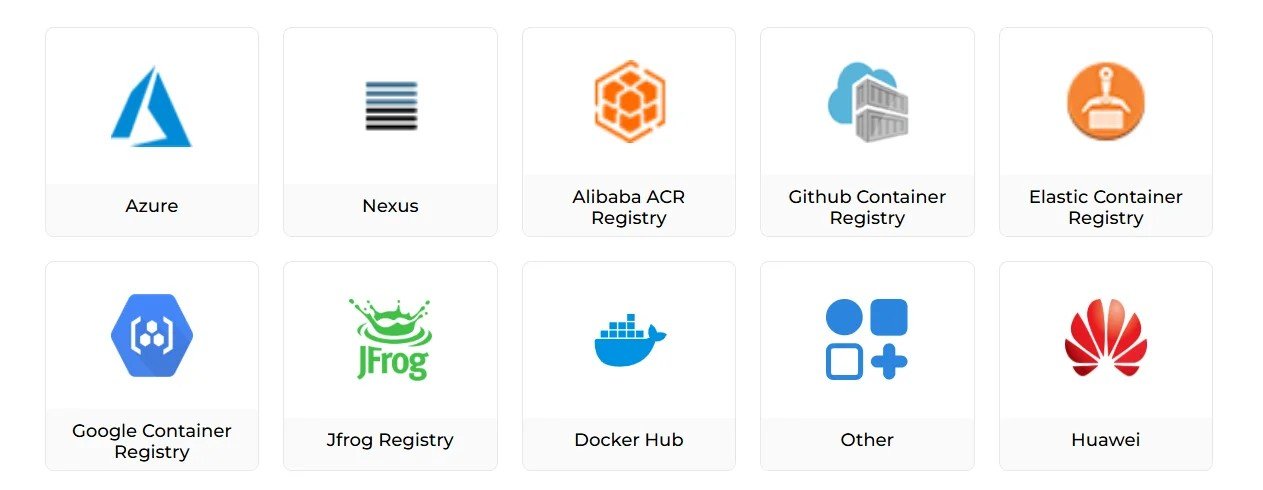
Figure 3: Container registry provider selection
4. Configuring a Container Registry #
Each registry provider requires specific credentials and endpoint details. Select the appropriate provider tile in the BuildPiper UI and fill in the fields as described below.
4.1 Microsoft Azure Container Registry #
Select the Azure tile on the registry provider screen.
| Field | Configuration Guide |
|---|---|
| Registry Provider | Select the Azure tile to ensure that the platform uses Azure-compatible authentication protocols. |
| Give a name to the Registry | Create a unique alias, for example Azure_Prod_Registry. Spaces and special characters are not allowed. |
| Registry URL | Enter the Azure Container Registry (ACR) server URL, typically in the format your-registry-name.azurecr.io. |
| Username | Use the Admin username or the Service Principal ID that is associated with your ACR instance. |
| Password | Provide the Access Key or the Secret that corresponds to the username or Service Principal used above. |
4.2 Nexus #
To configure a Sonatype Nexus repository as your container registry, select the Nexus tile on the registry provider screen and enter the following details.
| Field | Configuration Guide |
|---|---|
| Registry Provider | Ensure that the Nexus tile is selected. |
| Give a name to the Registry | Assign a unique identifier, for example Nexus_Docker_Repo. Spaces are not allowed. |
| Registry URL | Enter the URL of your Nexus Docker connector, for example https://nexus.buildpiper.com. |
| Username | Use the Nexus account name that has view and push permissions. |
| Password | Provide the corresponding password or user token for the Nexus account. |
4.3 Alibaba Container Registry #
Select the Alibaba ACR Registry tile on the registry provider screen.
| Field | Configuration Guide |
|---|---|
| Registry Provider | Select the Alibaba ACR Registry tile. |
| Give a name to the Registry | Provide a unique identifier, for example Alibaba_ACR_Main. |
| Registry URL | Enter your ACR instance endpoint, for example registry.cn-hangzhou.aliyuncs.com. |
| Username | Use your Alibaba Cloud account name or the specific RAM username. |
| Password | Use the Registry Login Password that is set specifically for ACR in the Alibaba console. |
| Access Key | Enter the AccessKey ID from your Alibaba Cloud RAM user credentials. |
| Access Secret Key | Enter the AccessKey Secret that corresponds to the Access Key ID above. |
| Region | Specify the Alibaba Cloud region ID where your registry is located, for example cn-hangzhou. |
4.4 GitHub Container Registry (GHCR) #
Select the GitHub Container Registry tile on the registry provider screen.
| Field | Configuration Guide |
|---|---|
| Repo Type | Select whether the registry belongs to a user account or an organization. |
| Give a name to the Registry | Enter a logical name, for example GitHub_GHCR_Prod. Spaces are not allowed. |
| Registry URL | Use the standard GitHub Container Registry endpoint, ghcr.io. |
| Username | Enter your GitHub username or the name of the GitHub organization. |
| Password | Provide a Personal Access Token (PAT) with the read:packages or write:packages scope. |
4.5 Google Artifact Registry #
Google Artifact Registry (GAR) has replaced the older Google Container Registry (GCR). To configure it, you need your GCP Project ID and a Service Account key. Select the Google Container Registry tile on the registry provider screen.
| Field | Configuration Guide |
|---|---|
| Registry Provider | Select the Google Container Registry tile. It handles both GCR and GAR. |
| Give a name to the Registry | Create a unique name, for example GCP_Artifact_Prod. Spaces are not allowed. |
| Registry URL | Enter your regional GAR endpoint, for example https://us-central1-docker.pkg.dev. |
| Username | When you use a service account, enter the literal string _json_key. |
| Password | Leave this blank or enter a placeholder. The actual authentication uses the JSON key below. |
| Project Name | Enter your GCP Project ID, for example my-cloud-project-123. |
| Enter JSON key | Paste the entire content of your downloaded Service Account JSON key file. |
4.6 JFrog #
To configure JFrog Artifactory as your container registry, the URL format depends on whether you use a local, remote or virtual repository. Select the JFrog tile on the registry provider screen.
| Field | Configuration Guide |
|---|---|
| Registry Provider | Select the JFrog tile to enable compatibility with the Artifactory Docker V2 API. |
| Give a name to the Registry | Enter a descriptive name, for example JFrog_Docker_Main. Spaces are not allowed. |
| Registry URL | Enter the repository-specific URL, for example https://my-company.jfrog.io/artifactory/api/docker/my-repo. |
| Username | Use your JFrog account username or a dedicated Service Account name. |
| Password | Provide the user password or, preferably, an Identity Token or API Key that is generated in JFrog. |
4.7 Docker Hub #
Docker Hub is the default public registry for most container operations, so its configuration is straightforward. Select the Docker Hub tile on the registry provider screen.
| Field | Configuration Guide |
|---|---|
| Registry Provider | Select the Docker Hub tile to use standard Docker V2 API authentication. |
| Give a name to the Registry | Create a unique label, for example DockerHub_Official. Spaces are not allowed. |
| Registry URL | Enter the standard URL, https://index.docker.io/v1/. |
| Username | Enter your Docker Hub ID. Use your email address only if it is identical to your Docker Hub ID. |
| Password | Use your Docker Hub password or, for better security, a Personal Access Token (PAT). |