

Android Actions #
Actions let you build an Android app and deploy an existing artifact manually, without running a pipeline.
1. Before You Trigger an Action #
Check your execution permissions and the Allow Manual Build and Allow Manual Deploy settings at both the Application Environment and the Service Environment level. If a manual action is not available, check these first.
2. Trigger a Manual Build #
Navigation: Open the service, select the environment and open the build action from App Packaging.
- 1
In Trigger a new Build, choose the Branch Name. Use Provide Custom Branch when the branch is not listed.
- 2
Review the Version Code. Click Edit if you need to override it.
- 3
Check the environment shown in the drawer.
- 4
Click Trigger Build to build the app. Click Trigger Build & Deploy to also publish it, when deployment is configured.
- 5
Monitor Last Builds Details, Activity Steps Status and View Logs.
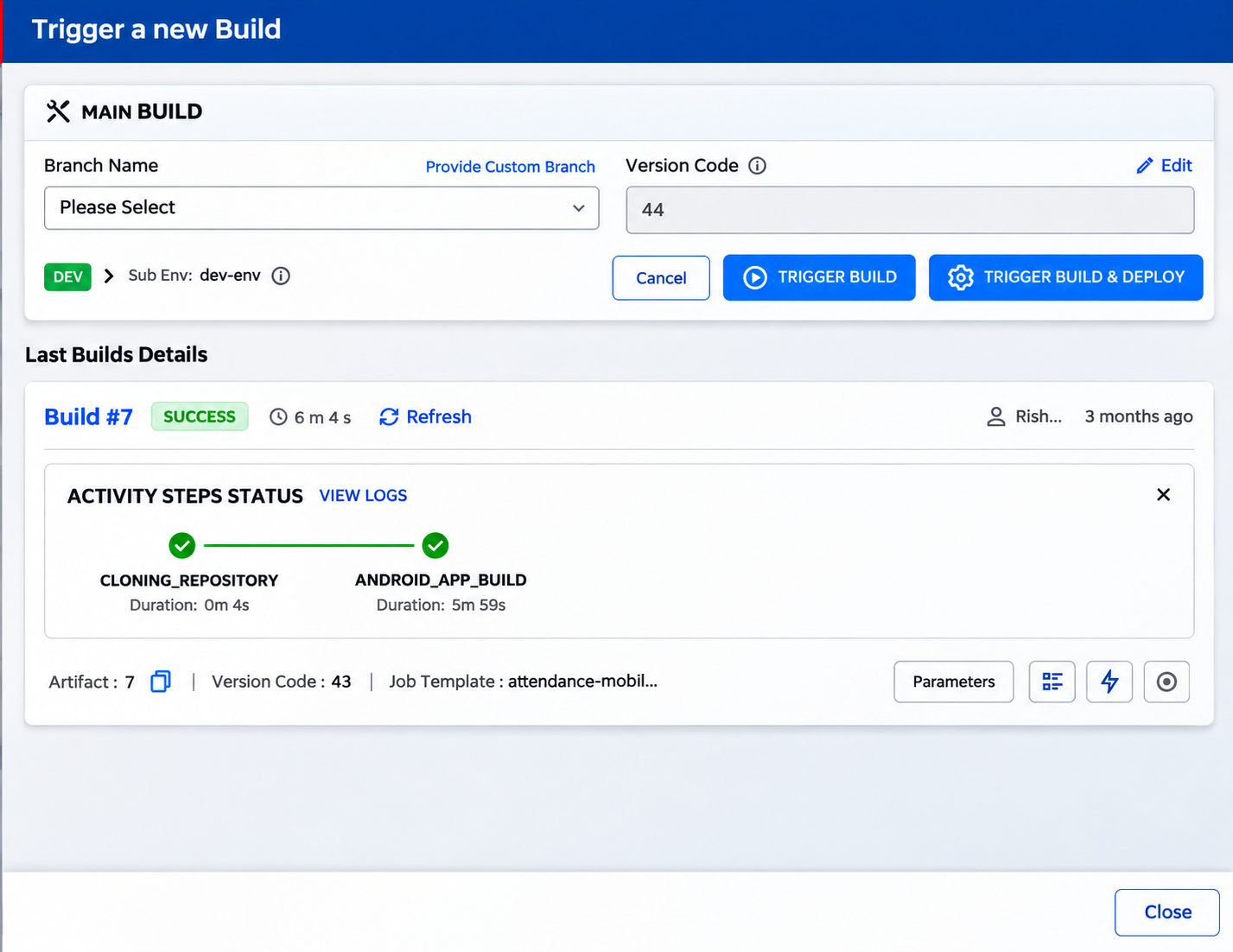
Figure 1: Manual build controls and previous build details
Verify the build status, branch, version code, artifact tag, and execution steps to ensure the build completed successfully. If the selected job template includes Android Push, the generated artifact is also published to the configured Artifactory. Before triggering a separate deployment, verify that the artifact is available in the repository.
Note: The Version Code is not the artifact tag. Use the artifact tag to select the stored output and the version code to identify the Android release. For a new release, use an unused version code and increase it for each update. Google Play rejects a version code that was already uploaded.
3. Deploy an Existing Artifact Manually #
Navigation: Open the service, select the environment and open the deployment action.
Before you deploy, confirm that Play Store deployment is configured, the credentials and the signing alias are correct, and the artifact is available.
- 1
Open Trigger a new Deploy.
- 2
Check the environment shown.
- 3
Select the artifact Tag to deploy.
- 4
Use Provide Custom Tag only when you have verified that the artifact exists.
- 5
Click Deploy to playstore.
- 6
Monitor the deployment result and the logs, and then verify the app, version and track in Play Console.
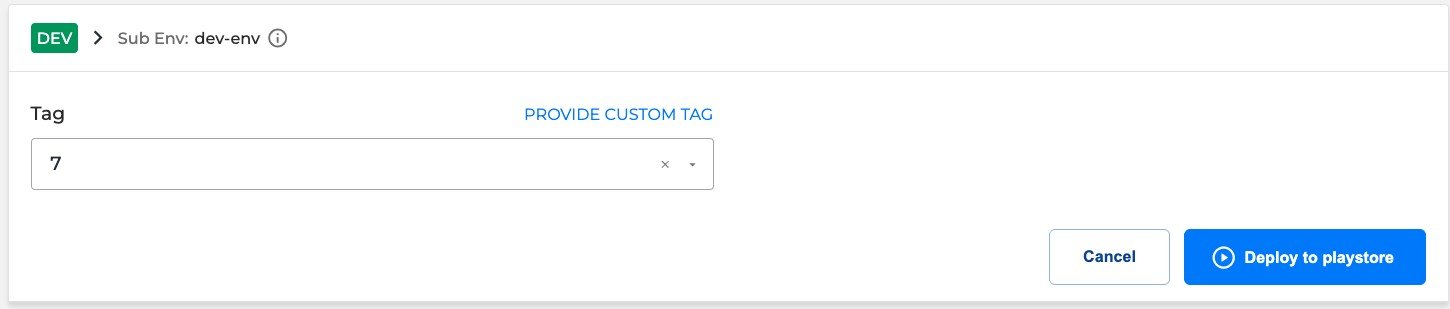
Figure 2: Manual deployment environment, artifact tag and action
The deployment uses the saved app package, track, signing and release settings. A successful upload does not by itself mean that the release is available to users. Check the release state in Play Console.
Expected result: The deployment finishes successfully, and Play Console shows the intended artifact version on the intended track.
4. Troubleshooting #
| Symptom | What to check |
|---|---|
| Artifactory shows Not Connected, or the artifact push fails | Test the integration. Check the endpoint, access credentials, bucket, access permissions and connectivity from the build environment. |
| Repository or credential is missing from a selector | Confirm the onboarding, the connection status, and the view permissions or group access of the user. |
| Branches do not load, or cloning fails | Test the repository access again, click Load Branches and confirm that the branch exists in the repository. |
| Signing alias is missing | Check the keystore and the password, fetch its keys again, and check the signing credential selected for the environment. |
| Package not found | Check the configured App Package Name, the matching Play Console app and the app access of the service account. |
| Gradle build fails | Open View Logs. Check the command, the project file, the build variant, the SDK settings, the Java compatibility, the JVM target and the Node.js requirements. |
| Build completes but the artifact is not available | Check the Artifact Path against the actual output, confirm that Android Push ran and verify the Artifactory destination. |
| Play Store rejects an upload | Check the package identity, the accepted signing certificate, the artifact format, the version code, the publishing permissions and the error that Google Play returns. |
Note: Correct the failed configuration before you retry. Rebuild when the output, signing, version or embedded configuration must change. Redeploy an existing artifact only when it is the intended valid release and the failure happened in the deployment.
Read more: Android Pipeline Definition (automate build and deployment)