

External User Groups #
External User Groups in BuildPiper enable organizations to map groups from an external identity provider, such as LDAP or an SSO provider, to BuildPiper policies. Access permissions are managed centrally at the group level, instead of being configured individually for each user.
Each mapping associates an External User Group Name with one or more policies that define the access permissions of the group within BuildPiper. Unlike an internal User Group, a mapping uses the group information provided directly by the external identity provider.
Before You Begin #
| Requirement | Details |
|---|---|
| Authentication and group information | Authentication and the delivery of external group information are configured for your deployment. |
| External group name | Obtain the exact group name from your identity provider administrator. |
| Policies | Create the policies that must be assigned to the group. |
1. View Mappings #
- 1
Switch to or stay in the Super Admin Portal.
- 2
Click Manage User in the left menu.
- 3
Click Manage External Groups. To create a mapping, click New External Group.
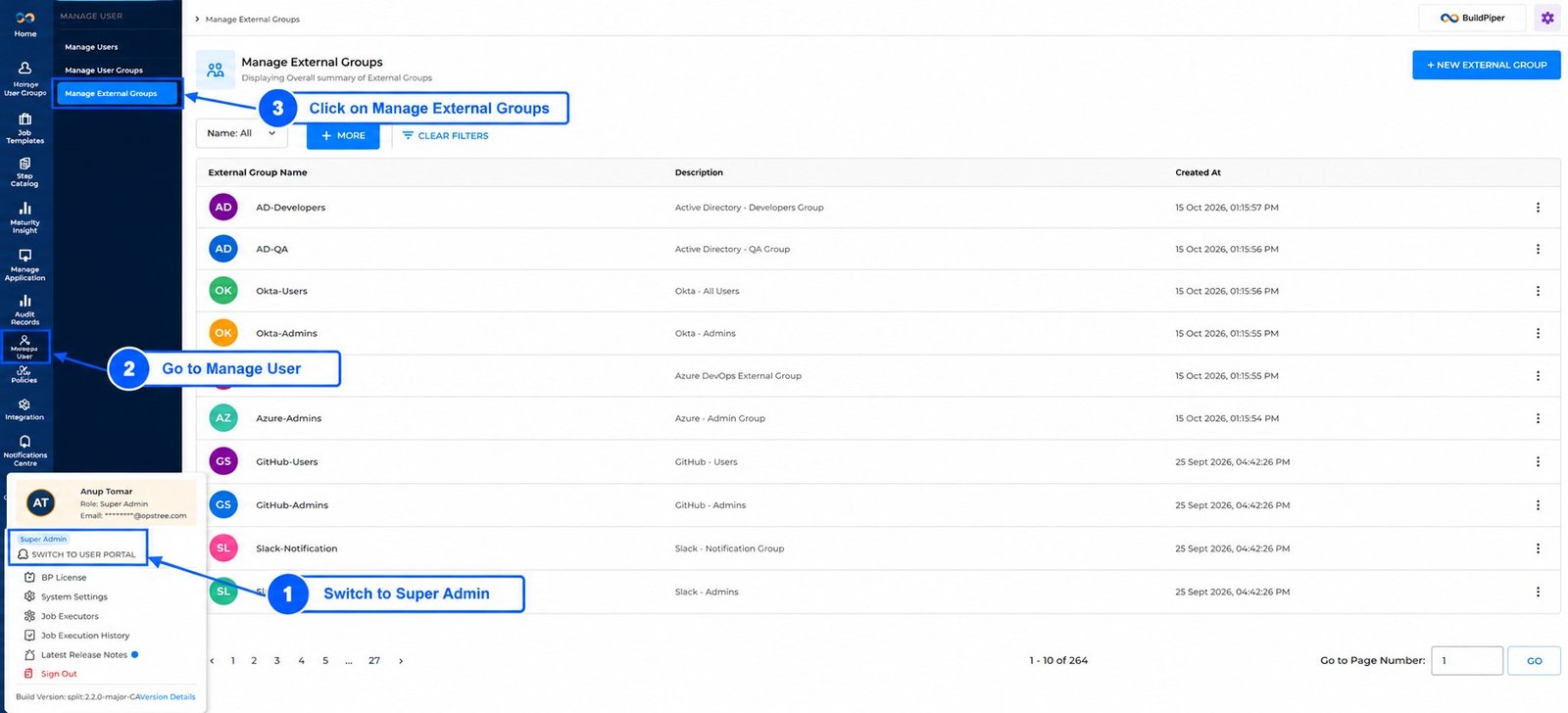
Figure 1: Navigation to Manage External Groups
| Column | What it shows |
|---|---|
| External Group Name | The external identity-provider group name of the mapping. |
| Description | The description of the external group. |
| Created At | The relative creation time. Hover to see the full timestamp. |
| Three-dot menu | The Edit and Delete actions. |
Use Name to filter the mappings, and Clear Filters to restore the list.
2. Create a Mapping #
- 1
Click New External Group.
- 2
Enter the External User Group Name, exactly as the identity-provider administrator supplied it.
- 3
In Select User Policies, search for and select the policies to assign. Select All selects the policies that are shown by the search.
- 4
Click the right arrow to move them to Assigned User Policies. To remove one, select it and click the left arrow.
- 5
Click Save and check the group name and the policies in the list.
- 6
Verify the mapping with a member account after the identity integration supplies its group information.
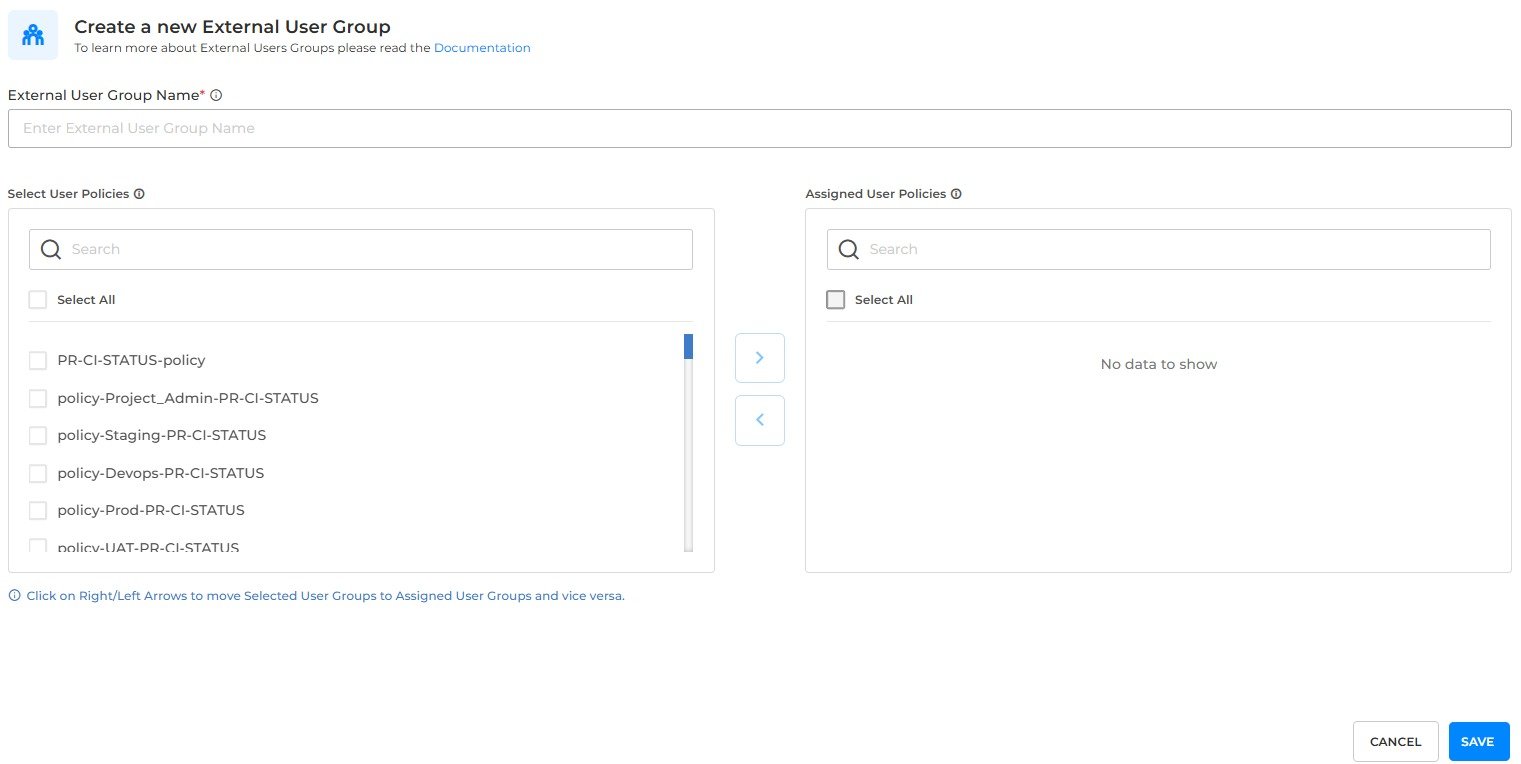
Figure 2: Create a new External User Group
An external group name and at least one policy are required. For example, map the group engineering-release to the policies for the release resources that its members need. The identity provider continues to manage the membership of the group.
3. Edit and Delete a Mapping #
| Task | Steps |
|---|---|
| Edit | Open the three-dot menu and select Edit. Update the name or move policies between the panes, and click Update. |
| Delete | Select Delete and follow the shared deletion procedure. This removes only the BuildPiper mapping, and does not delete the group from the identity provider. |
Note: To change who belongs to an external group, update the membership in the identity provider. This page manages only the policy mapping.
4. Troubleshooting #
| Situation | What to do |
|---|---|
| A member of the group lacks access | Check the group name, the membership in the identity provider, the configured group information and the scope of the policies. |
| No policies are available | Create the policies first and confirm that your account can view them. |
| Save reports missing assignments | Move the policies into Assigned User Policies before you save. |
| Edit or Delete is disabled | Ask an administrator with the required permissions. |
| Access persists after a mapping changes | Review the direct policies, the internal User Groups and the other external mappings of the user. |
Read more: Authentication and SSO