

Credential Management #
Overview #
BuildPiper allows you to provision different types of credentials that its users can use to connect to external systems, such as code repositories and container (Docker) registries. You create each credential once in Credential Management, and it is then available wherever a connection is needed, so users do not have to enter secrets again each time.
All credentials are stored securely within the BuildPiper system.
Each credential has:
• a type, such as Password, Token or AWS, which decides the details that are stored,
• a unique name, which users select when a feature needs the credential, and
• permissions, which control which user groups can view or edit it.
Important: Credentials are sensitive. Use accounts and tokens that have only the access BuildPiper needs, and never share credential values in tickets, chats or documents.
Credential Types #
BuildPiper supports more than 13 credential types, for example Password, SSH, Token, AWS and App Signing Config. When you select a type, the form shows the details that type needs. The Credential Name and the View and Write permission fields are the same for every type.
Navigate to Credential Management #
Credential Management is configured from the Admin Portal, under Integration.
- 1
Click your profile at the bottom of the left menu and select Switch to Admin Portal (the Super Admin role is required).
- 2
In the left menu, click Integration.
- 3
Under Integration, click Credential Management. The Integrations: In Credentials page opens.
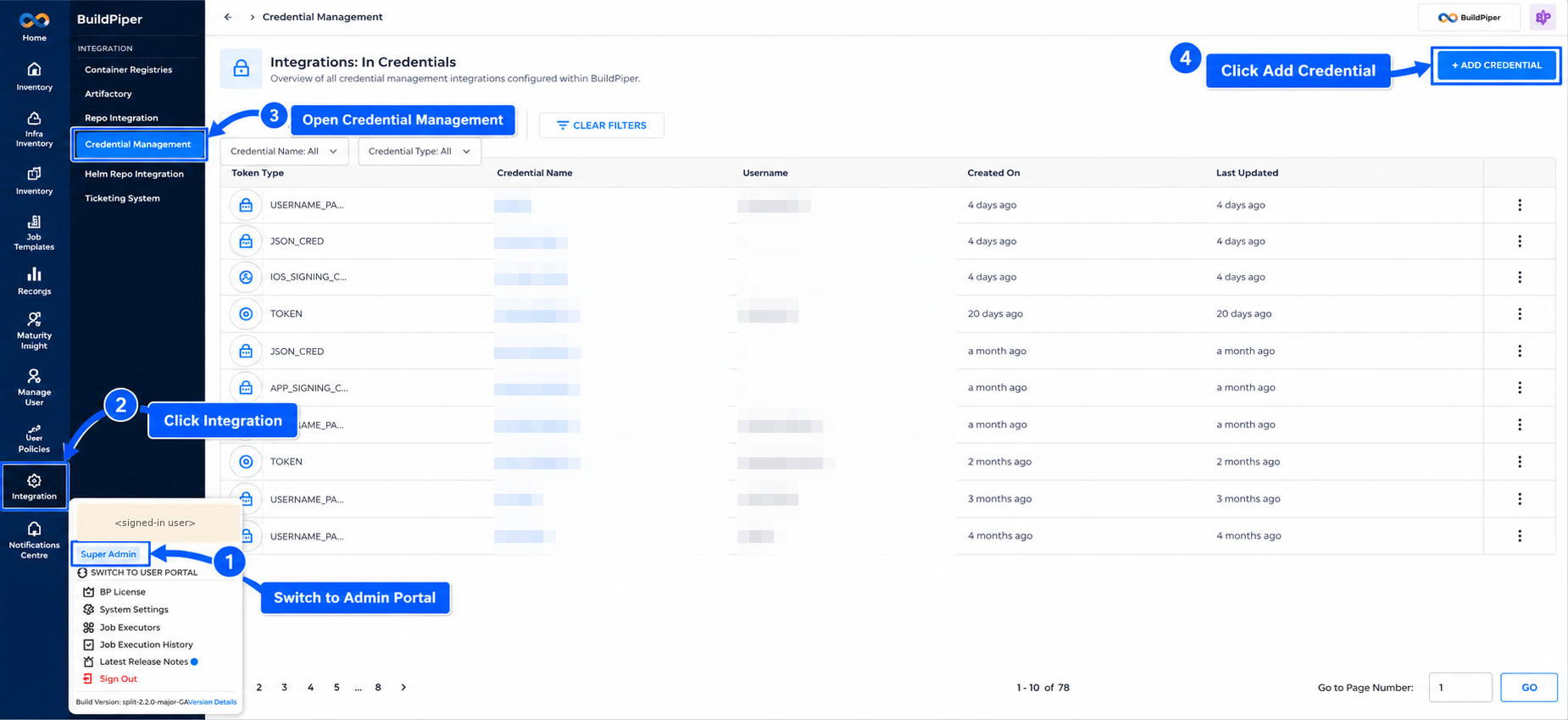
Navigate to Credential Management
The page lists the credentials that are already configured. Use Credential Name and Credential Type to filter the list, and Clear Filters to reset them. Each row shows the token type, credential name, username, when it was created and when it was last updated. The three-dot menu at the end of a row lists more actions for that credential.
Add a Credential #
- 1
On the Credential Management page, click + Add Credential at the top right.
- 2
Select the Credential Type you need.
The form then shows the fields for the selected type. The two examples below show how the form looks for a Password credential and an App Signing Config credential.
Example 1: Password #
Use the Password type to store a username and password.
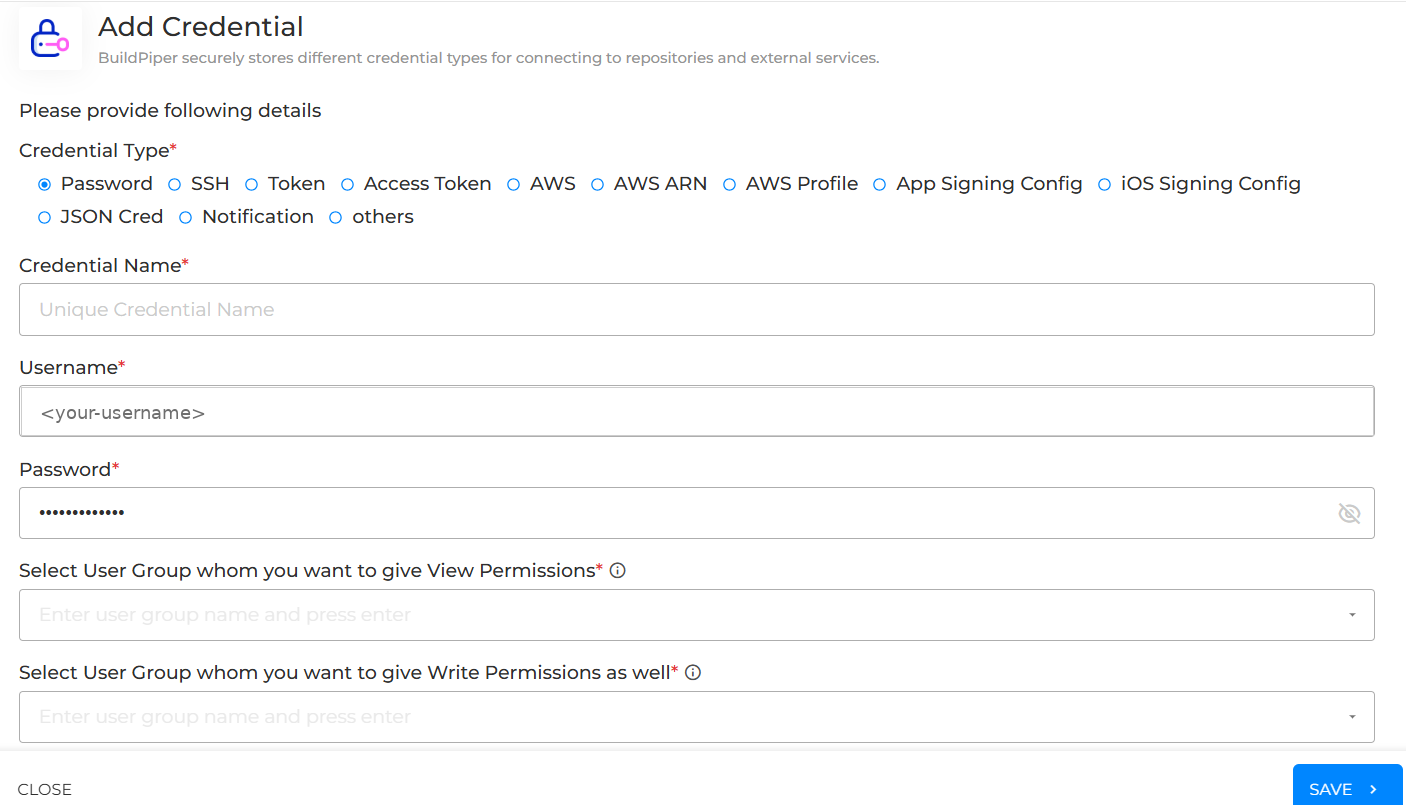
Add Credential: Password type
| Field | Required | What to enter |
|---|---|---|
| Credential Type | Yes | The type of credential, for example Password |
| Credential Name | Yes | A unique name to identify this credential. You select this name later when a feature needs the credential. |
| Username | Yes | <your-username> |
| Password | Yes | <your-password>. Use the eye icon to show or hide it. |
| View Permissions | Yes | User groups with read-only access to view this credential’s configuration |
| Write Permissions | Yes | User groups with full access to update the details and delete this credential |
Note: Use a clear, unique name, for example one that shows the system and purpose, so the credential is easy to find in the list.
Example 2: App Signing Config #
An App Signing Config defines how your Android app is digitally signed before it is built and released. Every Android app must be signed with a unique digital certificate (key) before it can be installed on a device or uploaded to the Play Store.
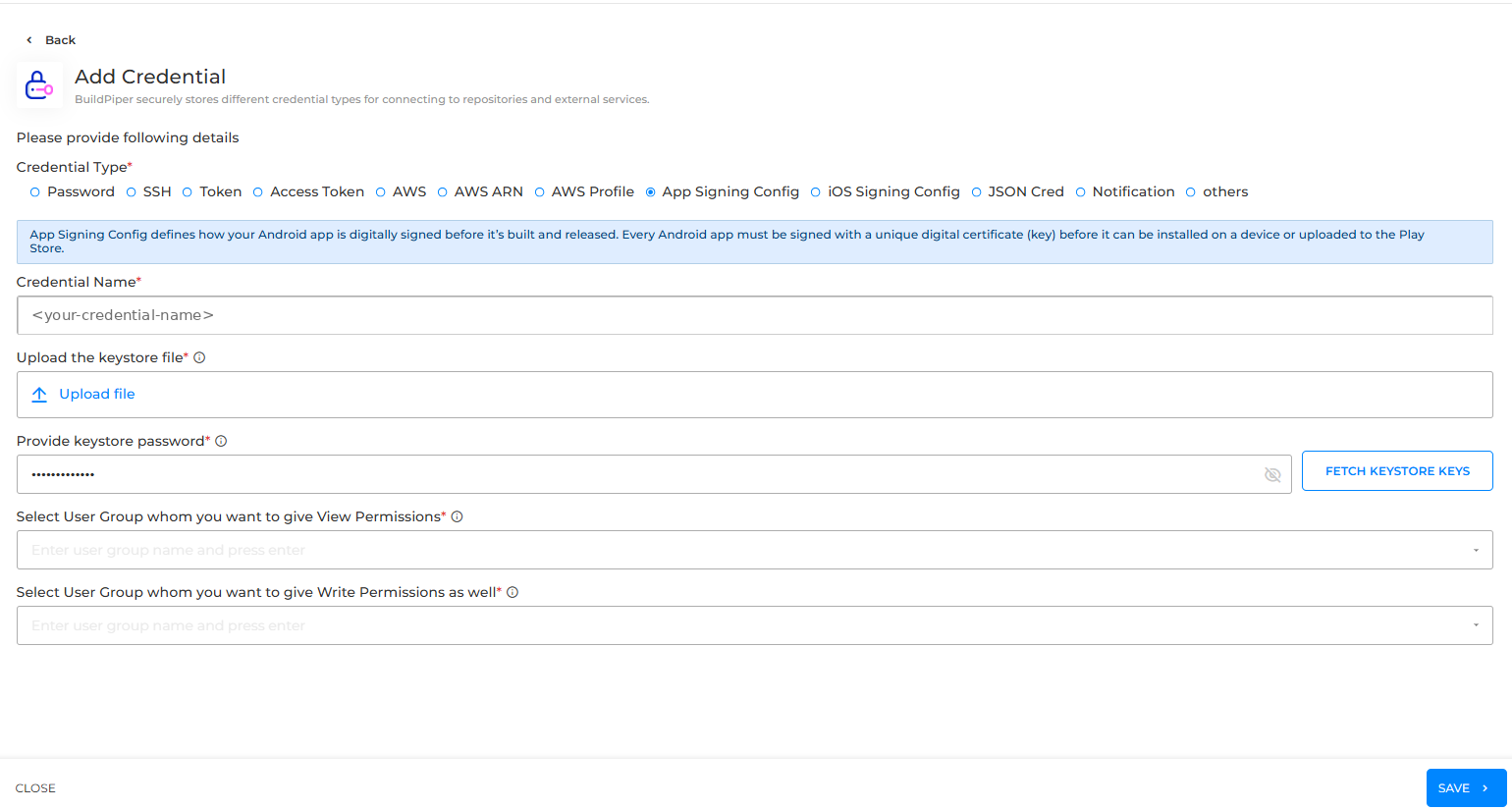
Add Credential: App Signing Config
| Field | Required | What to enter |
|---|---|---|
| Credential Name | Yes | A unique name to identify this credential, for example <your-credential-name> |
| Upload the keystore file | Yes | The Android release signing file, usually a .jks or .keystore file. It is created through Android Studio or maintained in your project’s secure signing storage. |
| Provide keystore password | Yes | <your-keystore-password>: the password set when the keystore was created. BuildPiper uses it to unlock the keystore, read its key aliases and access the signing keys. Click Fetch Keystore Keys after entering it. |
| View Permissions | Yes | User groups with read-only access to view this credential’s configuration |
| Write Permissions | Yes | User groups with full access to update the details and delete this credential |
Note: BuildPiper reads the available key aliases from the keystore file and uses the key you select to sign the Android release artifact.
Important: Keep your keystore file and its password safe. Never share them in tickets, chats or documents.
Permissions #
Each credential has two permission settings. In both, enter one or more user groups and press Enter after each group name.
| Permission | What users in the selected groups can do |
|---|---|
| View Permissions | Read-only access. They can view the credential’s configuration. |
| Write Permissions | Full access. They can update the credential’s details and delete the credential. |
Tip: Give Write Permissions only to the groups that maintain the credential, and keep View Permissions as narrow as possible.