

Agent Monitoring #
Agent Monitoring shows you, in real time, whether BuildPiper’s core services in execution plane are working. It checks the overall health of the agents whether or not they are healthy and operational. When everything responds and can run builds, deployments and other jobs, BP shows the status as Healthy.
Without it, a stuck or dead worker is only noticed when jobs stop moving. With it, BP shows you the problem straight away, and you can restart the worker from the UI instead of logging in to the VM.
Overview #
once the Platform API, BP Runner (agent), and frontend components are up and running.
Once BuildPiper is operational, navigate to the Job Executors page and validate that all configured BP components are Online and in an Operational State.
Anyone can view the health status. It is available on both the User Portal and the Admin Portal, and no special role is needed.
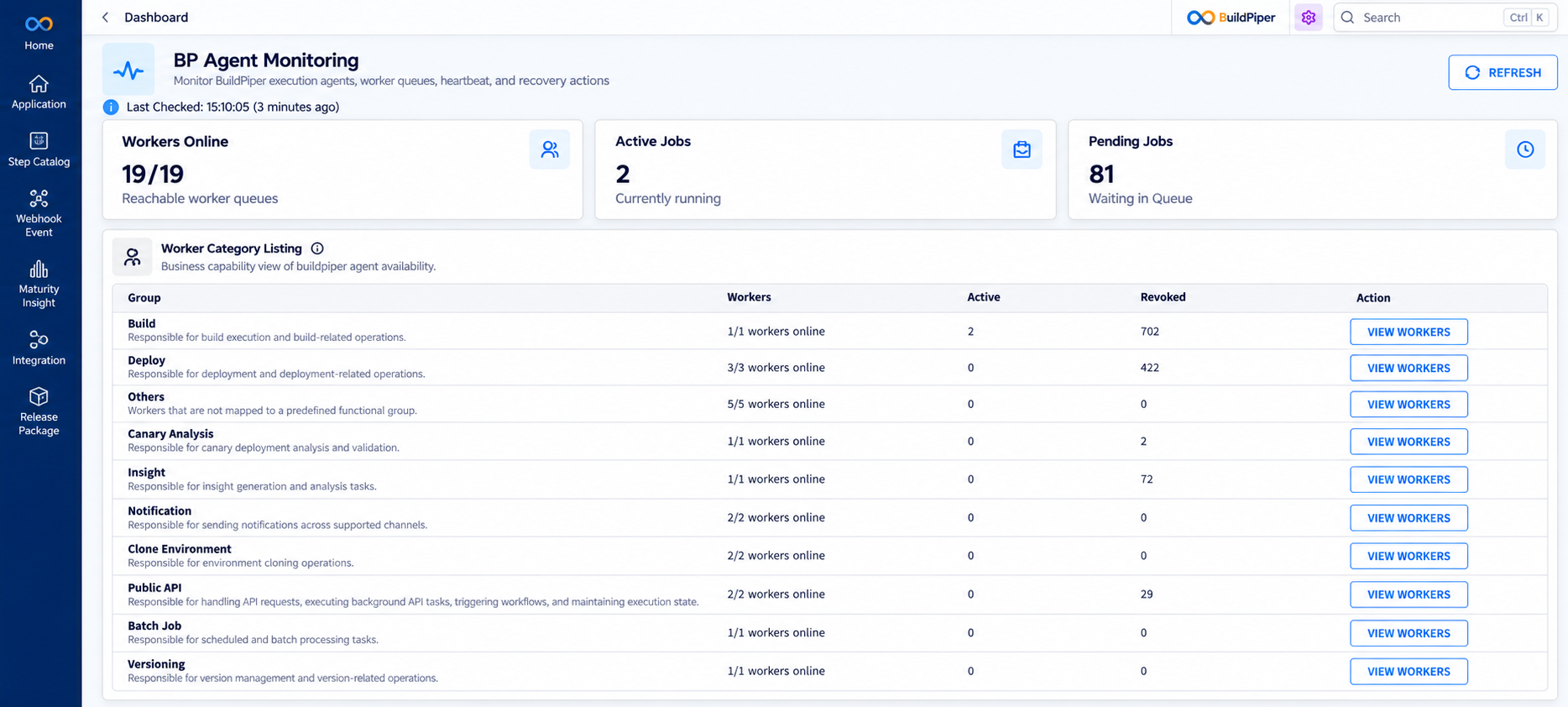
Agent Monitoring
How to open Agent Monitoring #
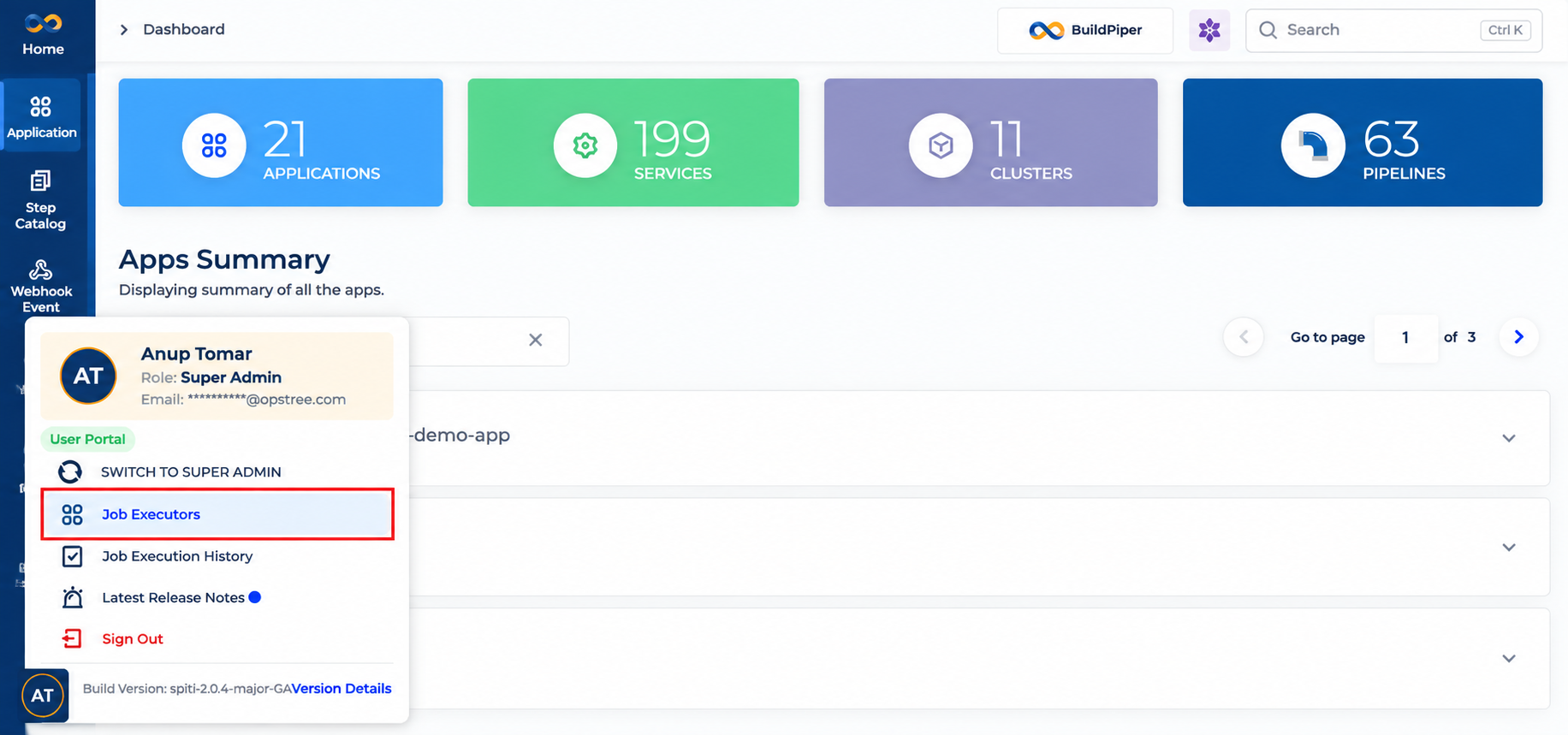
- 1
Log in to BP.
- 2
Open the Bottom User Panel.
- 3
Click Job Executors.
Worker groups and worker actions #
Worker Category Listing #
Workers are grouped by what they do. Each row shows the group name and a short description of what it is responsible for (for example, Build is responsible for build execution and build-related operations).
| Column | Description |
|---|---|
| Group | The group name and what it is responsible for |
| Workers | How many workers in the group are online (for example, 1/1 workers online) |
| Active | Number of jobs currently running in the group |
| Revoked | Number of revoked jobs in the group |
| Action | View Workers opens the worker details for the group. Hide Workers closes them |
Opening a group shows Worker Details for that group. Each worker has its own row:
| Column | Description |
|---|---|
| Worker | Worker name, for example bp_agent_build on @bpagent |
| Health | Healthy or Unhealthy |
| Active | Number of jobs currently running on this worker |
| Revoked | Number of revoked jobs on this worker |
| Action | Resource Info and Restart |
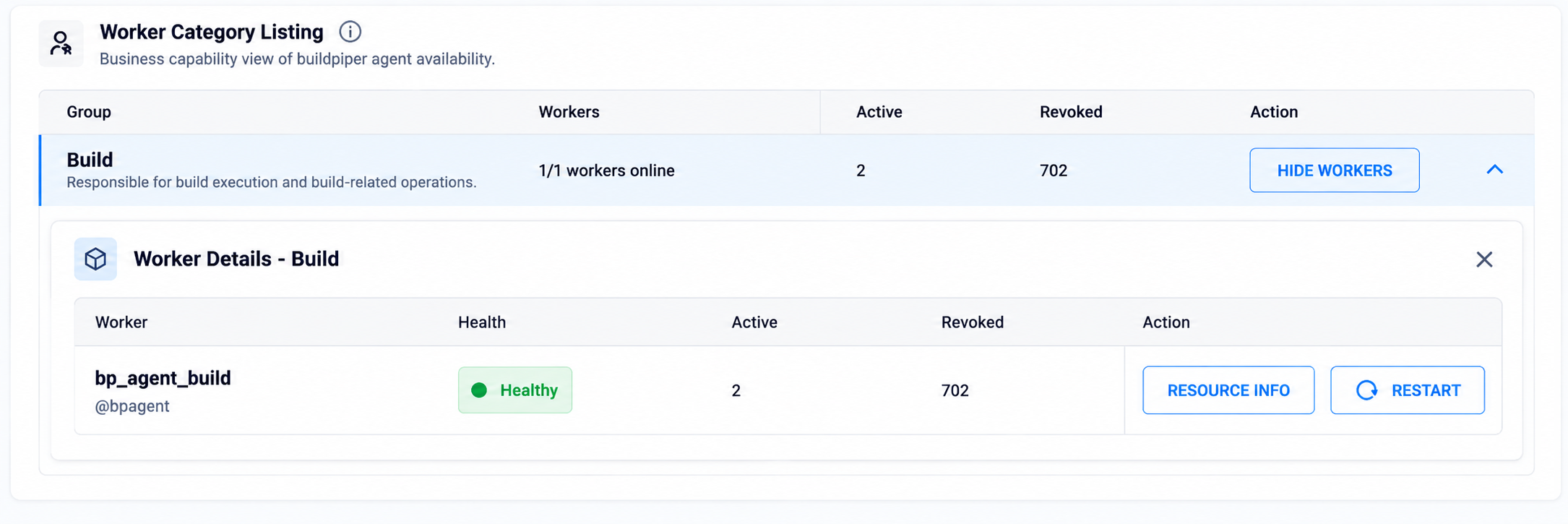
Worker details
Resource Info #
Click Resource Info on a worker to see its resource usage. The panel shows:
CPU Usage: current usage and the CPU limit (for example, 1.00% of 8 cores).
Memory Usage: memory used and the memory limit (for example, 0.08Gi of 19.53Gi).
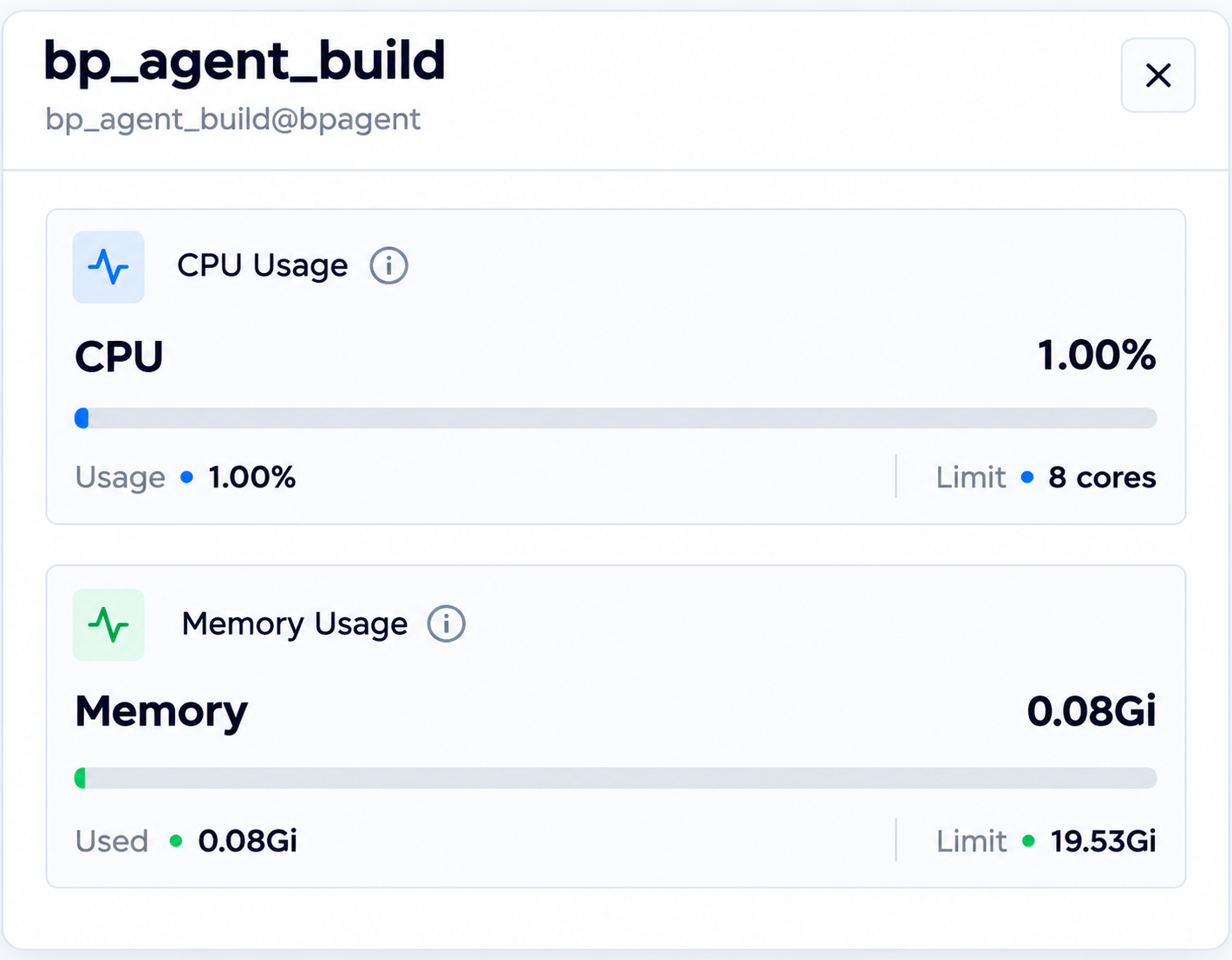
Resource Info panel for a worker
Restart a worker. #
Click Restart on a worker. Buildpiper asks you to confirm before it restarts the worker.
The dialogue warns that restarting the worker may interrupt the jobs it is currently running.
It shows the number of jobs running. Click View Running Job to see them.
BP recommends revoking the running tasks first and then restarting the worker for a clean and predictable restart.
The restart may take up to 30 seconds to complete.
Click Yes, Restart Now to restart, or cancel to go back.
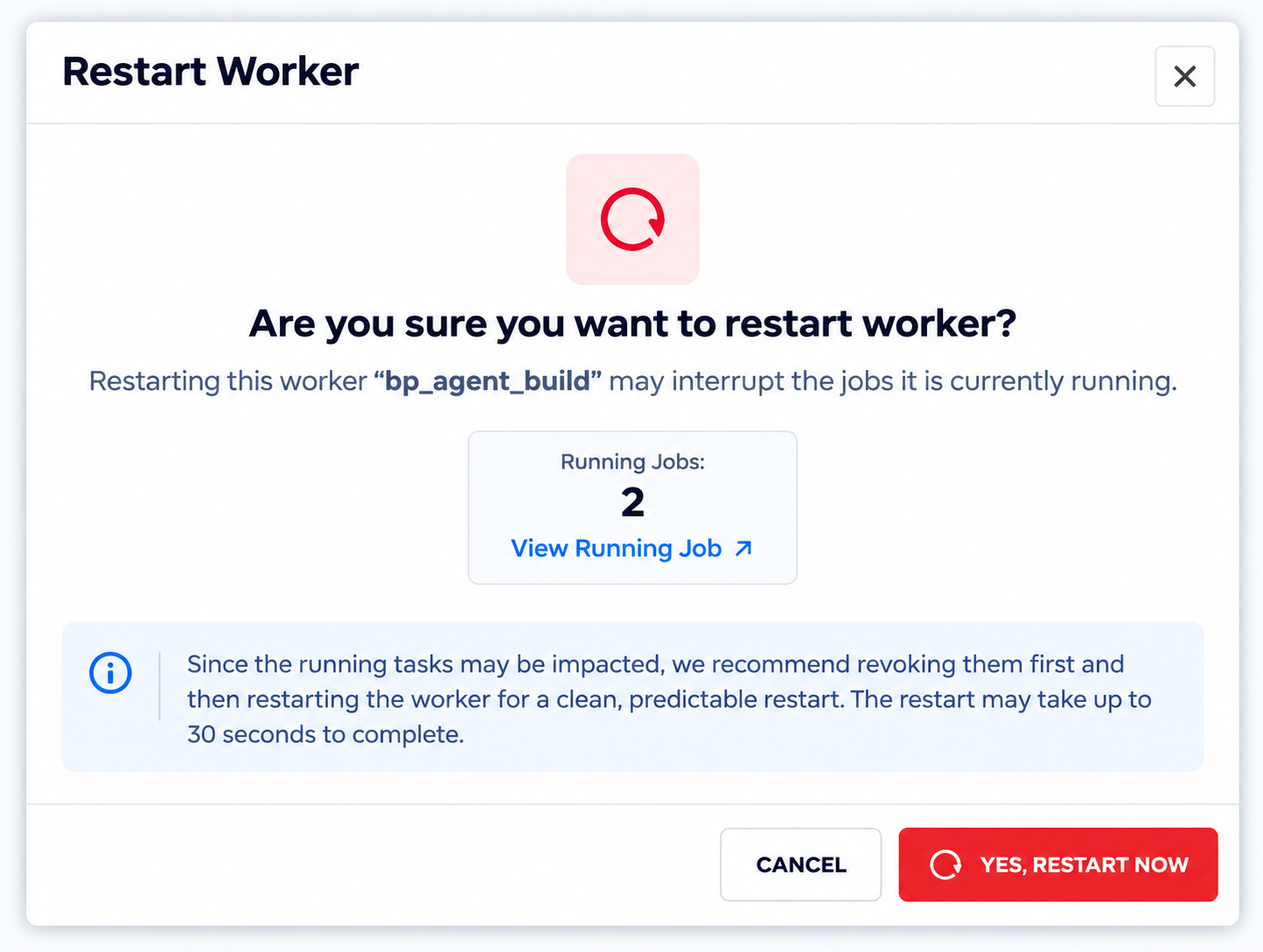
Restart Worker
BP workers #
BuildPiper runs its work through four types of workers. Each type looks after a different part of the delivery pipeline. All workers must be Healthy for Buildpiper to work fully.
| Worker type | What it does |
|---|---|
| BP Runners workers | Run the main CI/CD work: build operations, deploy pipelines, environment cloning, insights, and parallel execution |
| Scheduled API workers | Run time-based and event-based automation: scheduled triggers, event-based automation, and async task management |
| Deploy API workers | Handle deployments: deployment orchestration, API-driven deploy requests, and manifest and rollout processing |
| Other workers | Support the platform with auxiliary functions |
Manual health check from the CLI #
The UI gives you the overview. If the UI is not reachable, an administrator can also check a component’s heartbeat directly from the BuildPiper VM.
For example, the publicapi component is mapped to port 9001 on the VM. Run this to check it:
curl localhost:9001/api/v1/default/health/A healthy component returns:
{
    "status": "success",
    "message": "success",
    "description": "Successfully hit to Public API"
}| Result | What it means |
|---|---|
| status: success | The component is reachable and healthy |
| Connection refused | The component is down, or the port is wrong |
You can run the same kind of check for the agents on their own ports. See Step 2 below.
Before you start #
You need access to the BuildPiper Worker VM.
You need access to the docker-compose.yml configuration.
You need access to BuildPiper System Settings.
The Worker Agent, Scheduled API, and Deploy API services must be running.
Step 1: Identify the service ports #
Open docker-compose.yml and note the ports configured for bp_agent, scheduledapi, and deployapi. For example:
bp_agent:
  ports:
    - "9125:9125"

scheduledapi:
  ports:
    - "9123:9123"

deployapi:
  ports:
    - "9124:9124"
Note: Use the actual ports configured in your environment. Do not assume the example ports above.
You can also list them from the running containers:
docker compose ps --format "table {{.Service}}t{{.Ports}}"
docker compose ps showing the configured ports
Step 2: Update BuildPiper System Settings #
Go to System Settings → Worker & Queue Monitoring and add the JSON below, replacing the IP address and ports with the values for your Worker VM. Save with Apply Immediately.
{
  "bp_agent": "http://192.168.10.39:9125/",
  "deployapi": "http://192.168.10.39:9124/",
  "scheduledapi": "http://192.168.10.39:9123/"
}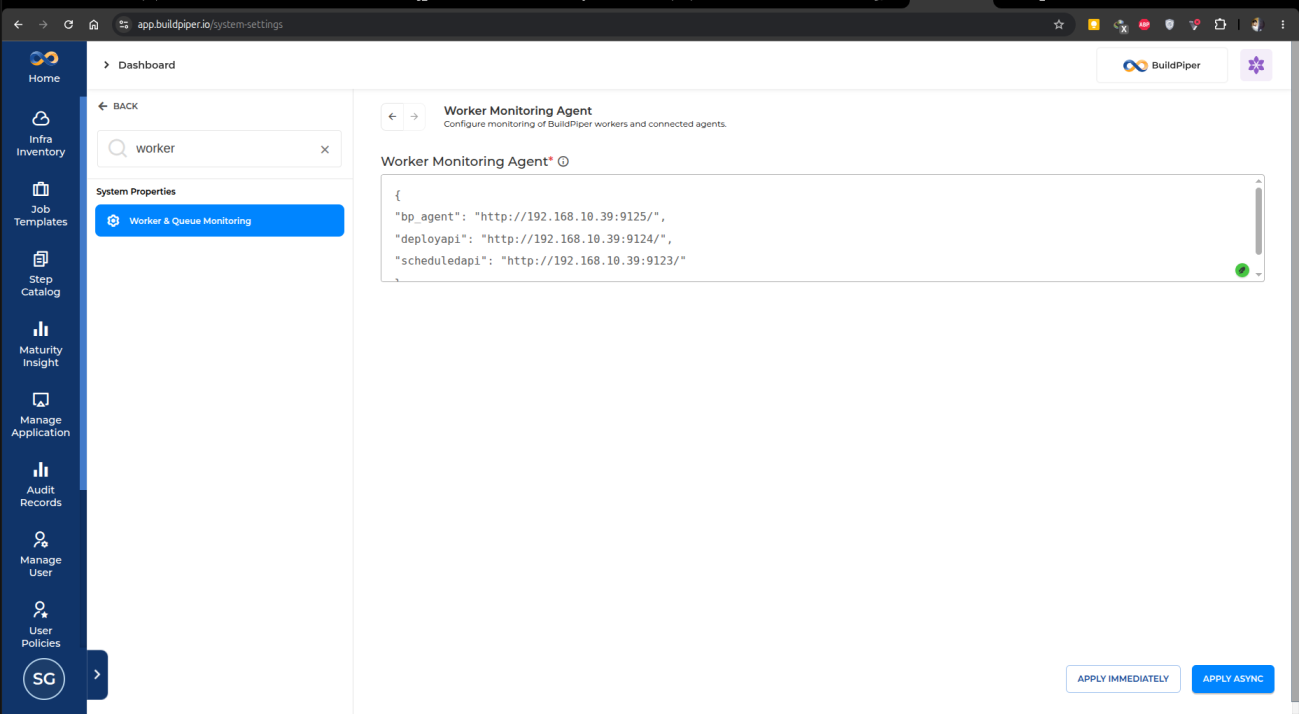
Worker Monitoring Agent setting in System Settings
Find your VM’s IP address with hostname -i, then log in to BP again so the change takes effect.
You can check that each agent responds:
curl localhost:9123/health
curl localhost:9124/health
curl localhost:9125/health
Step 3: Update the agent configuration files #
Each BuildPiper agent has its own configuration file. They live under:
~/deploy_buildpiper/properties/agent_manager/| Service | Configuration file | Purpose |
|---|---|---|
| bp_agent | agent.json | Configuration for BP Agent |
| scheduledapi | api.json | Configuration for Scheduled API |
| deployapi | deploy.json | Configuration for Deploy API |
Each file defines four things: which workers belong to the agent, which container it runs in, the command used to restart the agent, and the command used to restart an individual worker.
deploy.json (Deploy API) #
{
    "ENVIRONMENT": "DOCKER",
    "AGENT_COMMAND_MAPPING": {
        "DEPLOY_API_AGENT": "supervisorctl -c /etc/supervisor/supervisord.conf restart workers:admin_deploy_api workers:deploy_api"
    },
    "AGENT_WORKER_MAPPING": {
        "DEPLOY_API_AGENT": [
            "deploy_api",
            "admin_deploy_api"
        ]
    },
    "AGENT_CONTAINER_MAPPING": {
        "DEPLOY_API_AGENT": "deployapi"
    },
    "HOST_AGENT": [],
    "WORKER_RESTART_COMMAND_MAPPING": {
        "BP_AGENT": [
            "celery",
            "multi",
            "restart",
            "{worker_name}",
            "--workdir=/home/buildpiper/bp-agent/bp_agent",
            "--pidfile=/home/buildpiper/.run/buildpiper/celery/%n.pid",
            "--logfile=/home/buildpiper/.log/buildpiper/celery/%n%I.log",
            "--app=bp_agent",
            "-c",
            "{concurrency}",
            "-P",
            "prefork",
            "-Q:{worker_name}",
            "{worker_name}",
            "-n",
            "%h"
        ],
        "PUBLIC_API_AGENT": [
            "supervisorctl",
            "-c",
            "/etc/supervisor/supervisord.conf",
            "restart",
            "{worker_name}"
        ],
        "DEPLOY_API_AGENT": [
            "supervisorctl",
            "-c",
            "/etc/supervisor/supervisord.conf",
            "restart",
            "workers:{worker_name}"
        ]
    }
}
api.json (Scheduled API) #
{
    "ENVIRONMENT": "DOCKER",
    "AGENT_COMMAND_MAPPING": {
        "PUBLIC_API_AGENT": "supervisorctl -c /etc/supervisor/supervisord.conf restart public_api admin_public_api public_api_batch_job versioning_api workers:celerybeat"
    },
    "AGENT_WORKER_MAPPING": {
        "PUBLIC_API_AGENT": [
            "public_api",
            "admin_public_api",
            "scheduler",
            "public_api_batch_job",
            "versioning_api",
            "public_api_clone_env",
            "notification_api"
        ]
    },
    "AGENT_CONTAINER_MAPPING": {
        "PUBLIC_API_AGENT": "scheduledapi"
    },
    "HOST_AGENT": [],
    "WORKER_RESTART_COMMAND_MAPPING": {
        "BP_AGENT": [
            "celery",
            "multi",
            "restart",
            "{worker_name}",
            "--workdir=/home/buildpiper/bp-agent/bp_agent",
            "--pidfile=/home/buildpiper/.run/buildpiper/celery/%n.pid",
            "--logfile=/home/buildpiper/.log/buildpiper/celery/%n%I.log",
            "--app=bp_agent",
            "-c",
            "{concurrency}",
            "-P",
            "prefork",
            "-Q:{worker_name}",
            "{worker_name}",
            "-n",
            "%h"
        ],
        "PUBLIC_API_AGENT": [
            "supervisorctl",
            "-c",
            "/etc/supervisor/supervisord.conf",
            "restart",
            "{worker_name}"
        ],
        "DEPLOY_API_AGENT": [
            "supervisorctl",
            "-c",
            "/etc/supervisor/supervisord.conf",
            "restart",
            "workers:{worker_name}"
        ]
    }
}
agent.json (BP Runners) #
{
    "ENVIRONMENT": "DOCKER",
    "AGENT_COMMAND_MAPPING": {
        "BP_AGENT": "docker exec -i bpagent supervisorctl -c /etc/supervisor/supervisord.conf reload",
        "PUBLIC_API_AGENT": "docker exec -i scheduledapi supervisorctl -c /etc/supervisor/supervisord.conf restart all",
        "DEPLOY_API_AGENT": "docker exec -i deployapi supervisorctl -c /etc/supervisor/supervisord.conf restart all"
    },
    "AGENT_WORKER_MAPPING": {
        "BP_AGENT": [
            "bp_agent_build",
            "bp_agent_deploy",
            "bp_agent_parallel_build",
            "bp_agent_canary_analysis",
            "bp_agent_insight",
            "bp_agent_notification_api",
            "bp_agent_clone_env",
            "bp_android_build",
            "bp_android_deploy"
        ]
    },
    "AGENT_CONTAINER_MAPPING": {
        "PUBLIC_API_AGENT": "scheduledapi",
        "DEPLOY_API_AGENT": "deployapi"
    },
    "HOST_AGENT": [
        "BP_AGENT"
    ],
    "WORKER_RESTART_COMMAND_MAPPING": {
        "BP_AGENT": [
            "celery",
            "multi",
            "restart",
            "{worker_name}",
            "--workdir=/home/buildpiper/bp-agent/bp_agent",
            "--pidfile=/home/buildpiper/.run/buildpiper/celery/%n.pid",
            "--logfile=/home/buildpiper/.log/buildpiper/celery/%n%I.log",
            "--app=bp_agent",
            "-c",
            "{concurrency}",
            "-P",
            "prefork",
            "-Q:{worker_name}",
            "{worker_name}",
            "-n",
            "%h"
        ],
        "PUBLIC_API_AGENT": [
            "supervisorctl",
            "-c",
            "/etc/supervisor/supervisord.conf",
            "restart",
            "{worker_name}"
        ],
        "DEPLOY_API_AGENT": [
            "supervisorctl",
            "-c",
            "/etc/supervisor/supervisord.conf",
            "restart",
            "workers:{worker_name}"
        ]
    }
}
Step 4: Flush the worker cache. #
After changing the configuration, clear the cached worker list:
docker exec -it publicapi bash
python manage.py shell
from django.conf import settings
DEFINED_WORKERS = settings.DEFINED_WORKERS
from django.core.cache import cache
for defined_worker in DEFINED_WORKERS:
    cache.delete(defined_worker);
Step 5: Verify the configuration #
After saving the configuration:
- 1
Open the Job Executors page in the BuildPiper UI.
- 2
Check that the worker agent details are displayed correctly.
- 3
Check that worker status and queue information are visible.
- 4
Check that Restart is available for each worker (see Restart a worker).
- 5
If worker details are not displayed, verify network connectivity between BuildPiper and the configured service endpoints.
Troubleshooting #
Job Executors page shows no workers #
If the Job Executors page shows no workers at all, the BuildPiper agent needs attention.
Step 1: Clear the old agent monitoring cache #
docker exec -it scheduledapi bash
python manage.py shell
from django.core.cache import cache
cache.delete("WORKER_MONITORING_GENT")
This should return True.
Step 2: Restart the agent manager #
docker exec -it scheduledapi bash
cd ~/.log/agent-manager/api
supervisorctl -c /etc/supervisor/supervisord.conf stop agent_manager
supervisorctl -c /etc/supervisor/supervisord.conf start agent_manager
supervisorctl -c /etc/supervisor/supervisord.conf status agent_manager
Step 3: Check connectivity #
If worker details still do not appear, check network connectivity between BuildPiper and the configured service endpoints, and confirm that ports 9123, 9124, and 9125 are open on the Worker VM.
Workers show as unhealthy #
A worker marked unhealthy usually reports a reason, such as missing critical metrics. Check that:
The agent container is running: docker ps
Its health endpoint responds: curl localhost:9125/health
The IP and ports in System Settings match the Worker VM
No bp_agent processes are running as the root user:
ps -aux | grep bp_agentWorkers missing after a configuration change #
Flush the cached worker list (see the step above), then log in to BP again. BP caches the worker list, so changes do not appear until the cache is cleared and the session is refreshed.
Check the Celery workers directly #
For scheduledapi:
celery -A api status
celery -A api worker -Q admin_api,versioning_api
celery -A api worker -Q bp_agent_deploy
For BP Runners
celery -A bp_agent worker -Q bp_agent_buildWhere to find the logs #
| Log | Path |
|---|---|
| Celery logs | /home/buildpiper/.log/celery |
| Agent logs | /home/buildpiper/.log/buildpiper/celery |
| Agent manager logs | /home/buildpiper/.log/agent-manager/api |