

Pipeline Approval #
A stage configured with an approval gate pauses the pipeline until the required questions are answered and the approver approves. This document explains how to add an approval to a stage, and then walks through a pipeline run, using a CI/CD pipeline whose second stage, Go No Go Approvals, requires approval. It also covers what to do when a stage fails during the run.
1. Add Approval Configuration
A stage can be configured with an approval gate. On the workflow builder, each stage header shows Approval: Yes or Approval: No.
Before the stage runs, BuildPiper can enforce a questionnaire and an approval. The questionnaire captures release-readiness information, for example:
| Area | Question |
|---|---|
| Code review | Has the code review been completed? |
| Testing | Have test cases been created and successfully executed? |
| Developer sign-off | Has developer sign-off been provided? |
| Security | Have security vulnerabilities been reviewed and addressed? |
| Documentation | Has the release documentation been updated? |
| Deployment | Has the deployment and rollback plan been validated? |
Based on the stage and the nature of the release, approval requests can be routed to the appropriate stakeholders, such as developers, QA leads, product owners, security teams, release managers, operations teams, or CAB members.
Pipeline execution remains paused until all mandatory questionnaire responses are provided and the required approvals are granted. This gives control, traceability, and accountability over the delivery lifecycle.
Approvers are chosen by selecting user groups in the stage details, as shown below.
1.1 Turn On Approval for a Stage #
In Stage Details, turn on Approval required to run this Stage? (Yes). The approval options open. Click Update to save.
| Option | Default | What it does |
|---|---|---|
| User Group | – | Tick the user groups whose members can approve this stage. The list scrolls. |
| Send Email? | Ticked | Sends an email for the approval request. |
| Require multiple approvals for this stage? | No | When turned on, enter Minimum Approvals Required, the number of approvals needed, for example 2. |
| Any questions before approval? | No | When turned on, click + Add Questions to add the questions the approver should answer before approving the pipeline. |
| Do you want to push approver name to JIRA? | No | When turned on, choose the JIRA key from the Choose JIRA key list. |
| Do you want to push approver name to ServiceNow? | No | When turned on, choose the ServiceNow key from the Choose ServiceNow key list. |
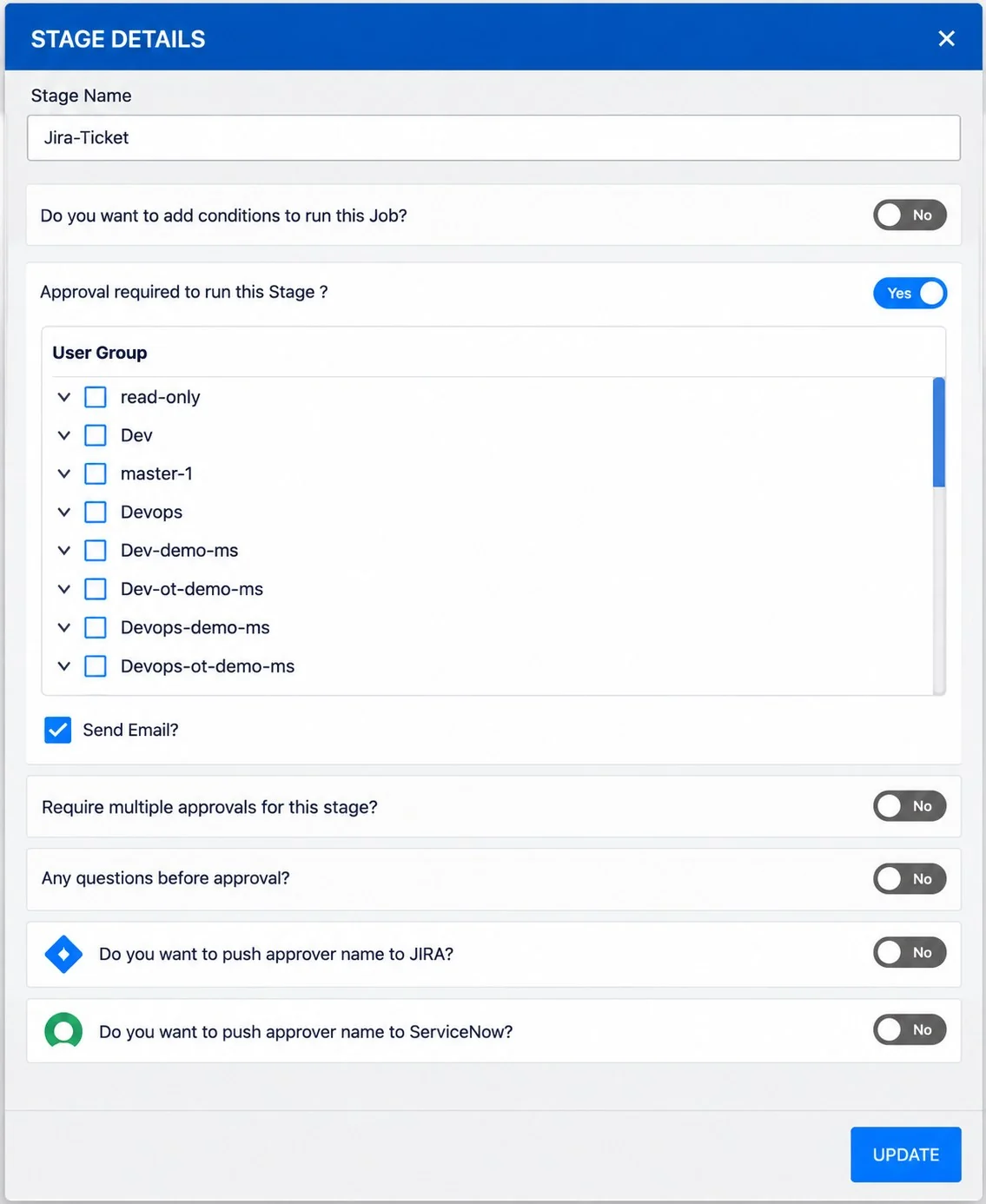
Figure 1: Stage Details with approval turned on
2. Run the Pipeline
Select the pipeline you want to run, and click Run with Parameters.
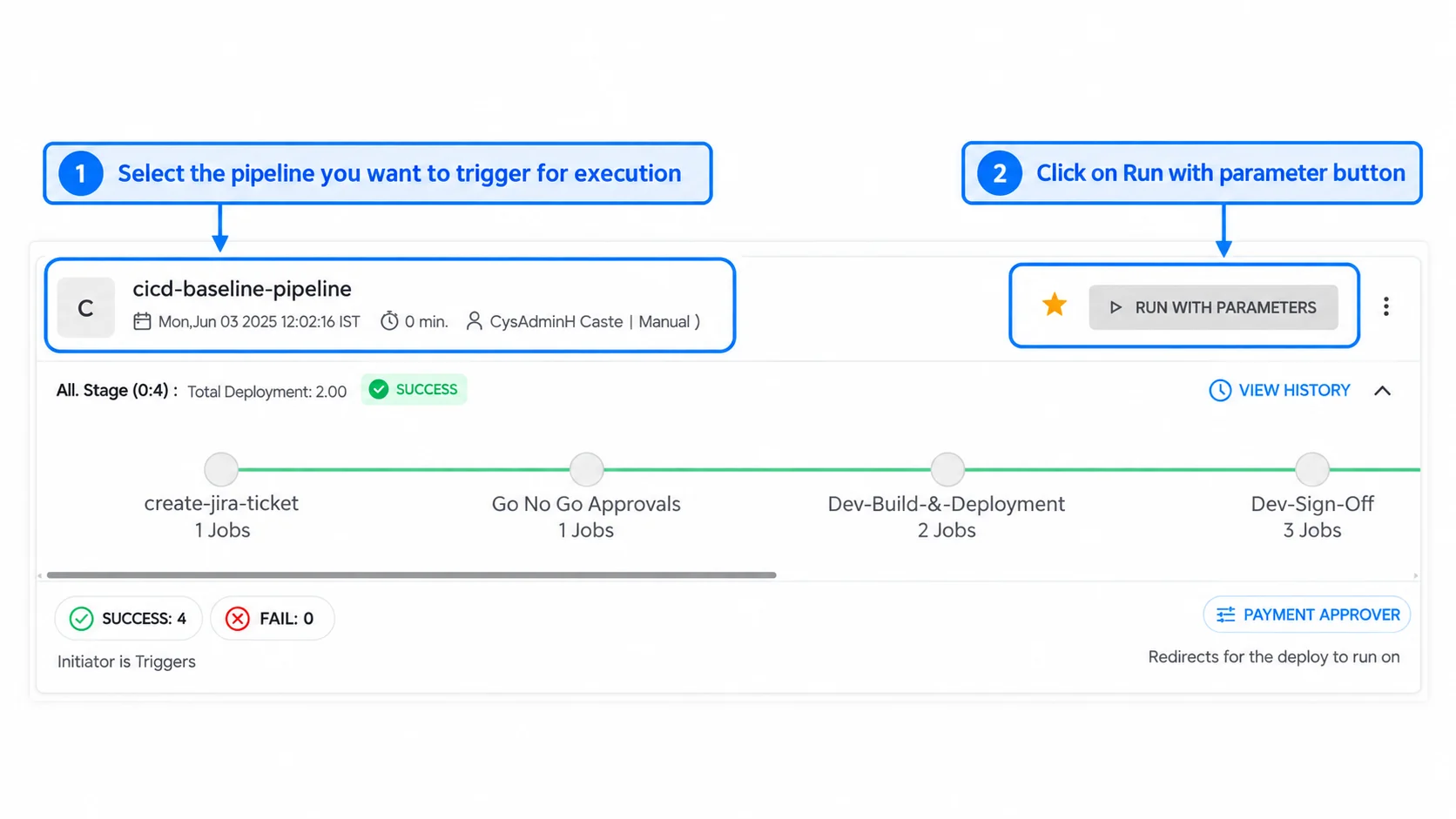
Figure 2: Select the pipeline and click Run with Parameters
In the Run With Parameters window, Trigger Through is set to Parameters by default. Select the service to deploy, and fill in the branch, tag, and version if needed.
Click Run Pipeline to start the execution.
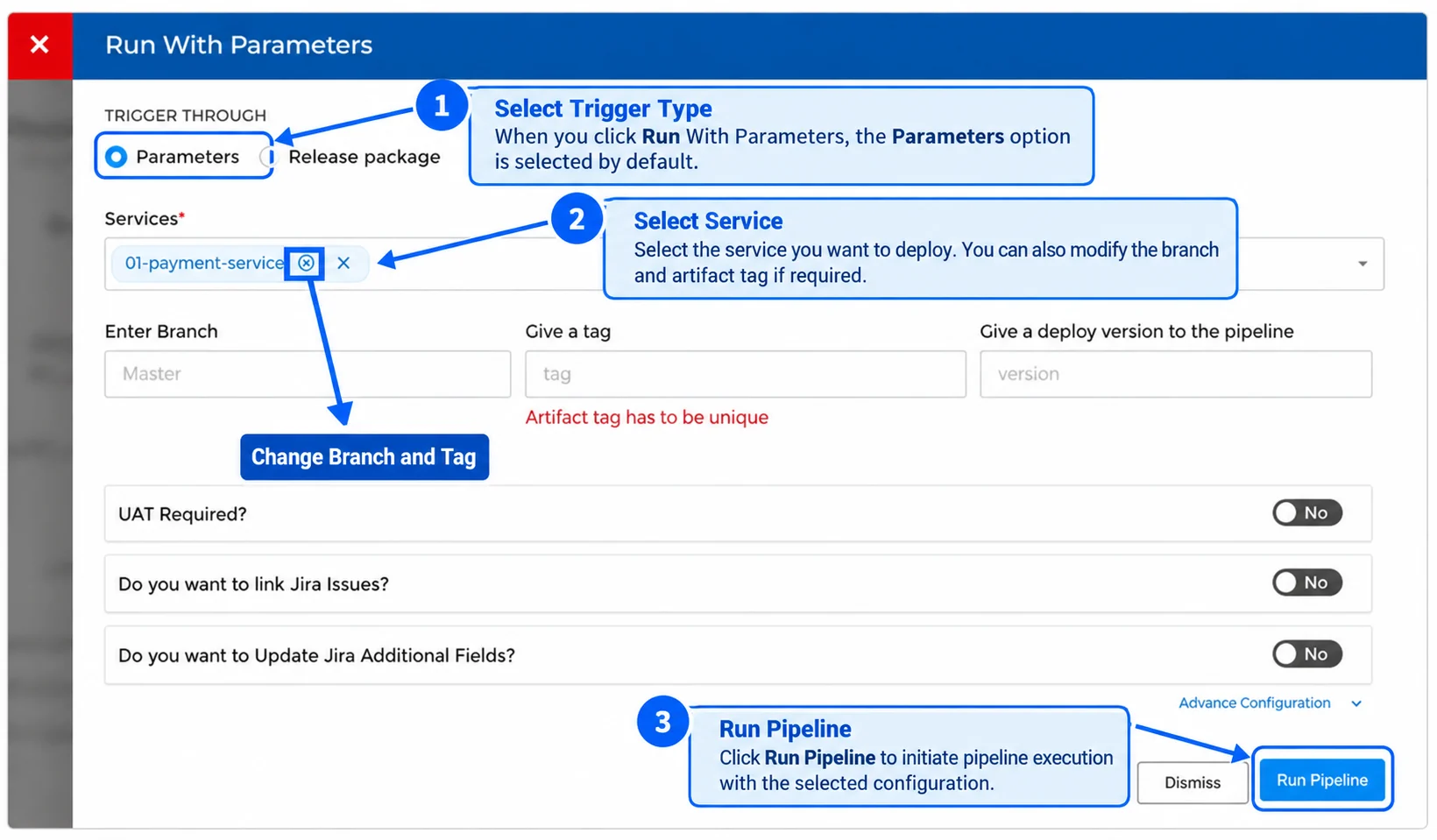
Figure 3: The Run With Parameters window
To change the branch or the artifact tag of a service, click the Change Branch and Tag icon next to the service. The Change Branch window opens. Fill in the details, then click Save.
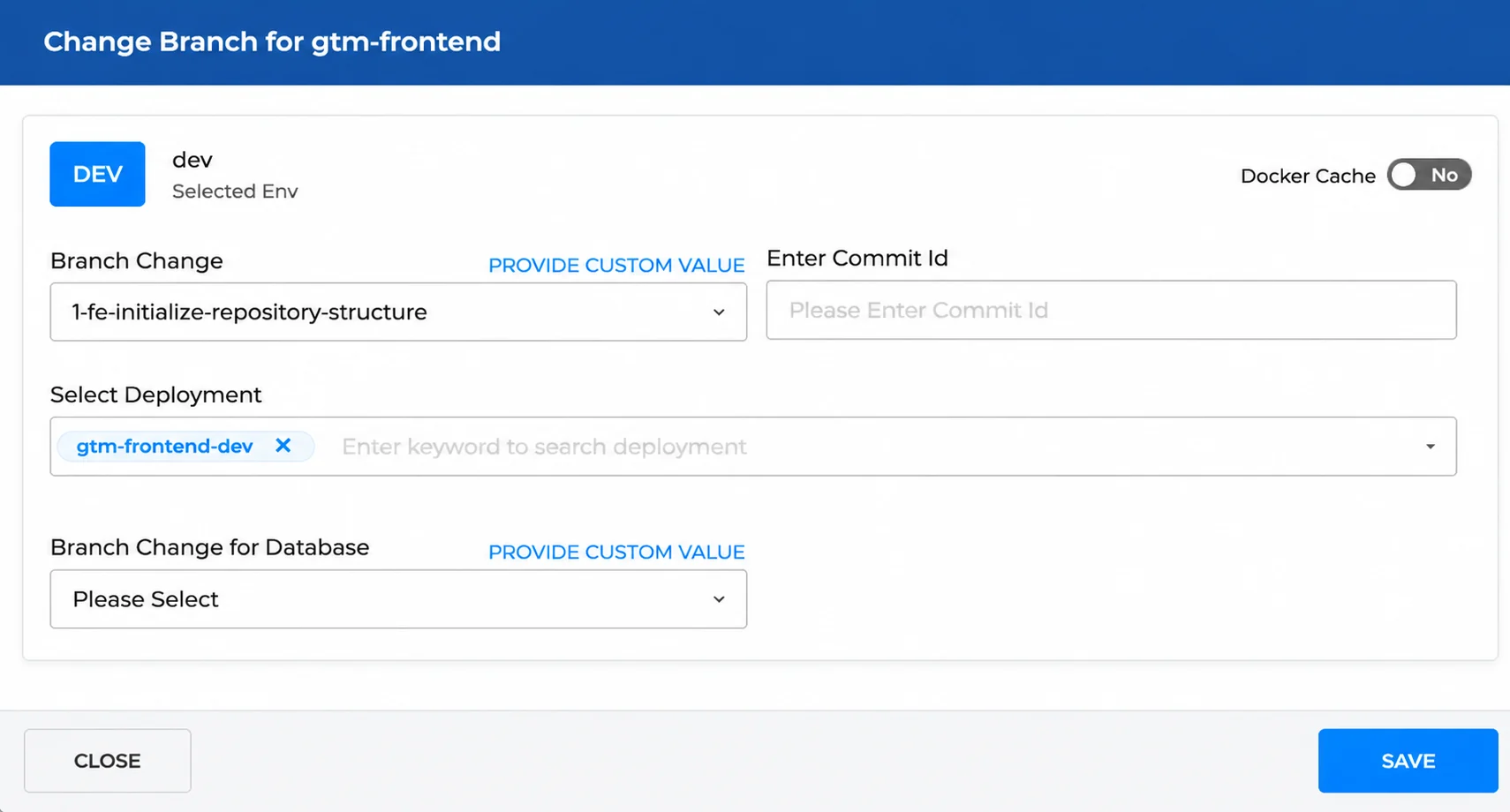
| Field | Description |
|---|---|
| Docker Cache | Toggle to use the Docker cache for the build. Set to No in the example. |
| Branch Change | Select the branch to build, or click PROVIDE CUSTOM VALUE to enter your own. |
| Enter Commit Id | Enter a commit ID to build from a specific commit. |
| Select Deployment | Select the deployment for the change, for example gtm-frontend-dev. |
| Branch Change for Database | Select the branch for the database, or click PROVIDE CUSTOM VALUE to enter your own. |
The pipeline moves from the queue to the RUNNING state. The card shows the user who triggered it and the service it is running on.
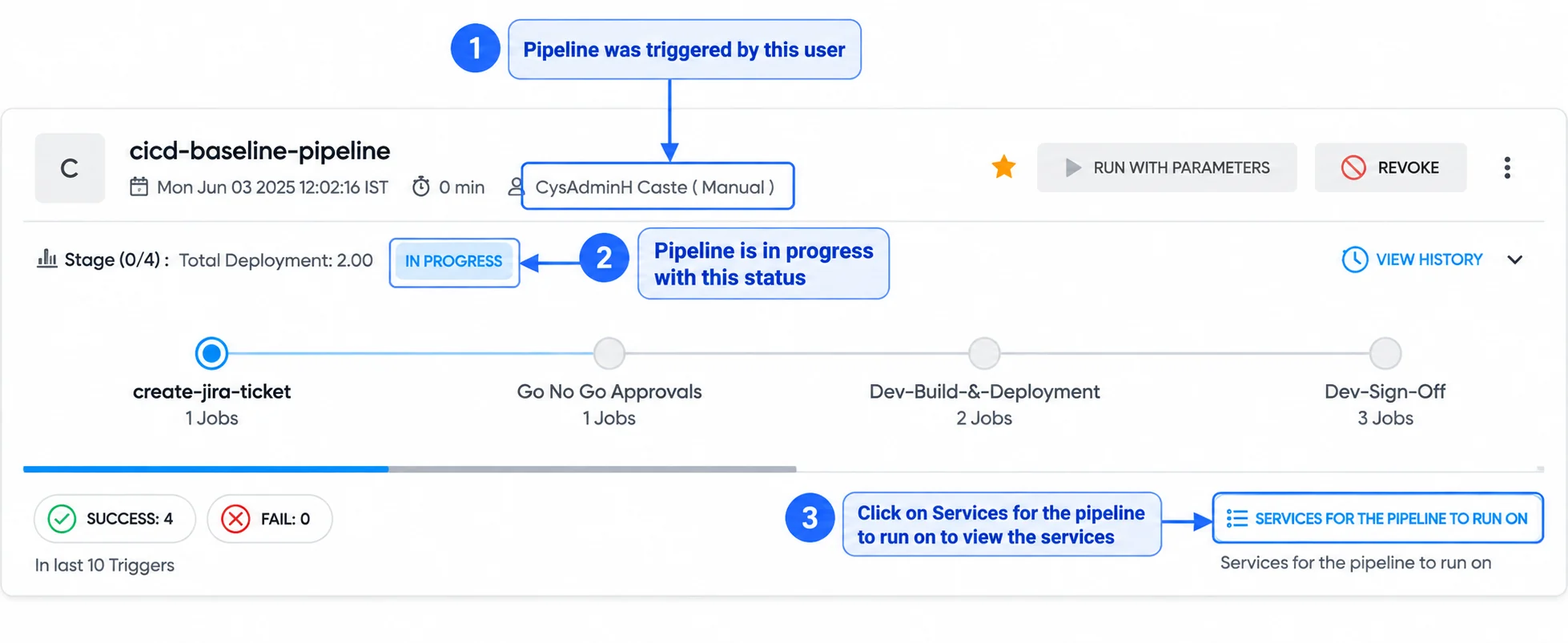
Figure 4: The pipeline running after it has been triggered
3. Stage Waiting for Approval
When the pipeline reaches a stage that has an approval, it waits for the approval before it proceeds. In the example, the JIRA ticket created in the first stage is clickable, and the Go No Go Approvals stage is waiting. The page refreshes automatically every few seconds.
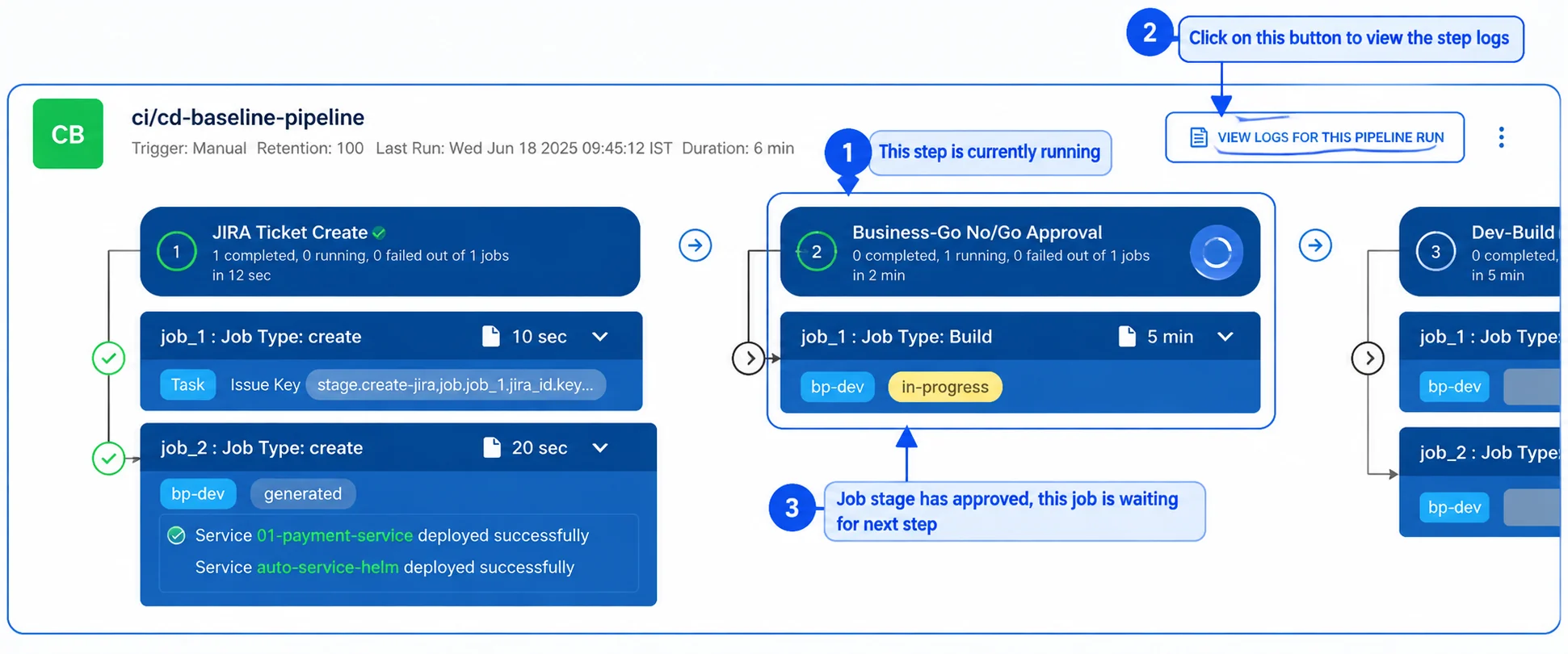
Figure 5: The Go No Go Approvals stage is waiting for approval
4. Approve the Stage
The approver opens the stage and sees the message The Stage not approved yet. The approver must answer the mandatory questions and add a comment, then click Approve and Run. The Decline button rejects the stage.
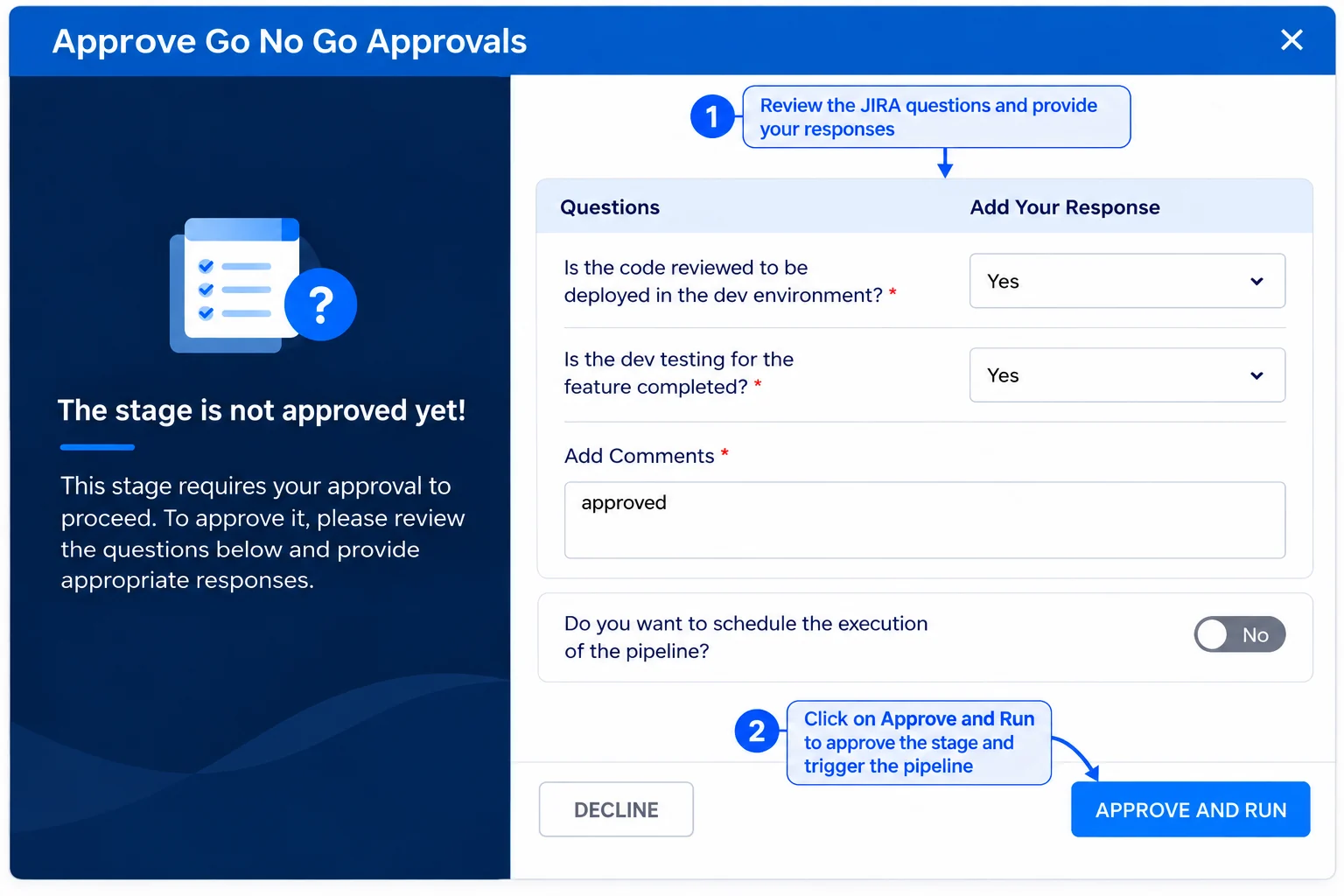
Figure 6: The approval window with the questionnaire and comment
After the questions are answered and the stage is approved, the UI shows the messages Approval Request Accepted and Approval Process Initiated, and the pipeline continues.
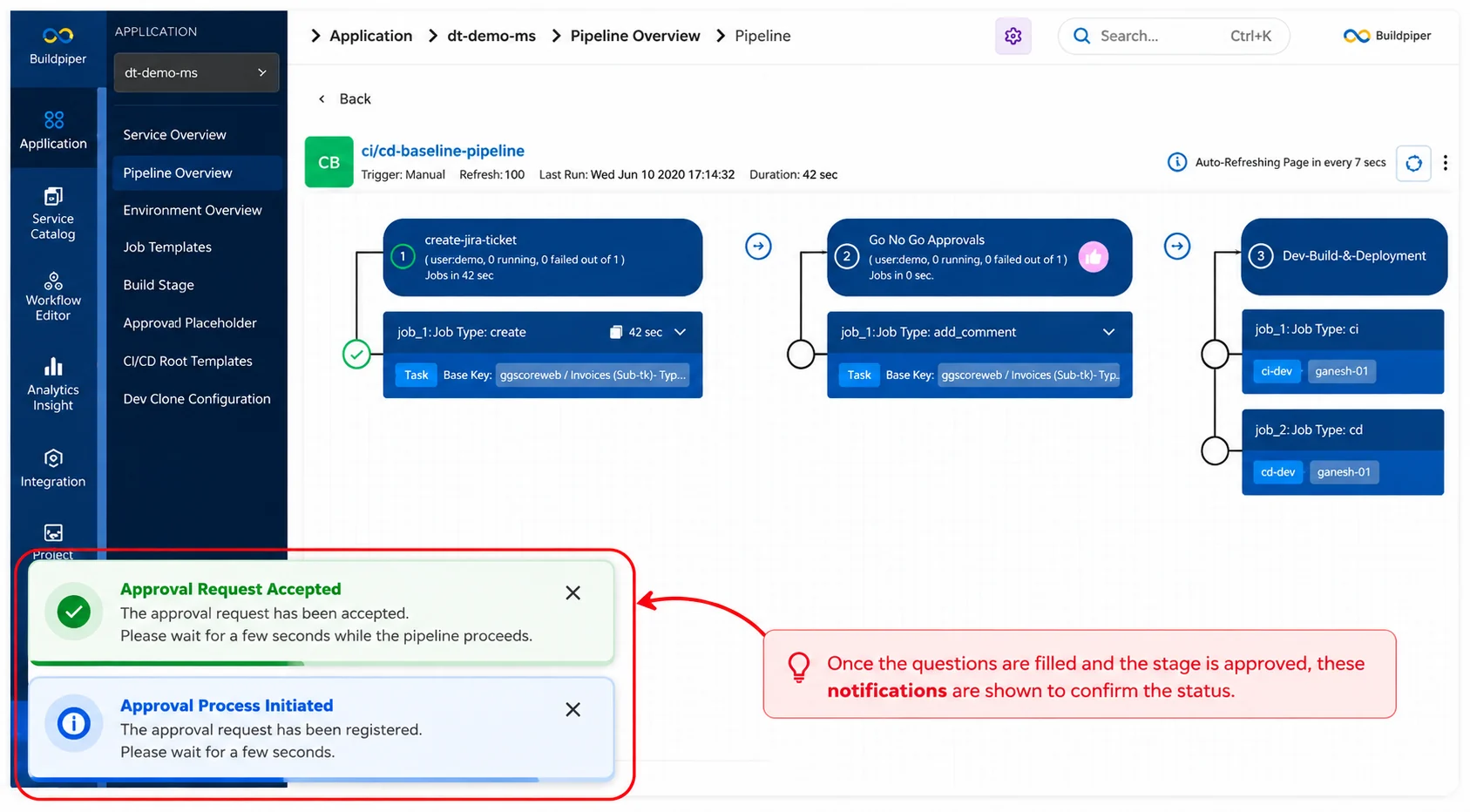
Figure 7: Confirmation messages after the approval
5. Approval Details
Once approved, the stage window shows The Stage is Approved along with the name of the approver, the questions, and the responses given. View Logs is available for the approval.
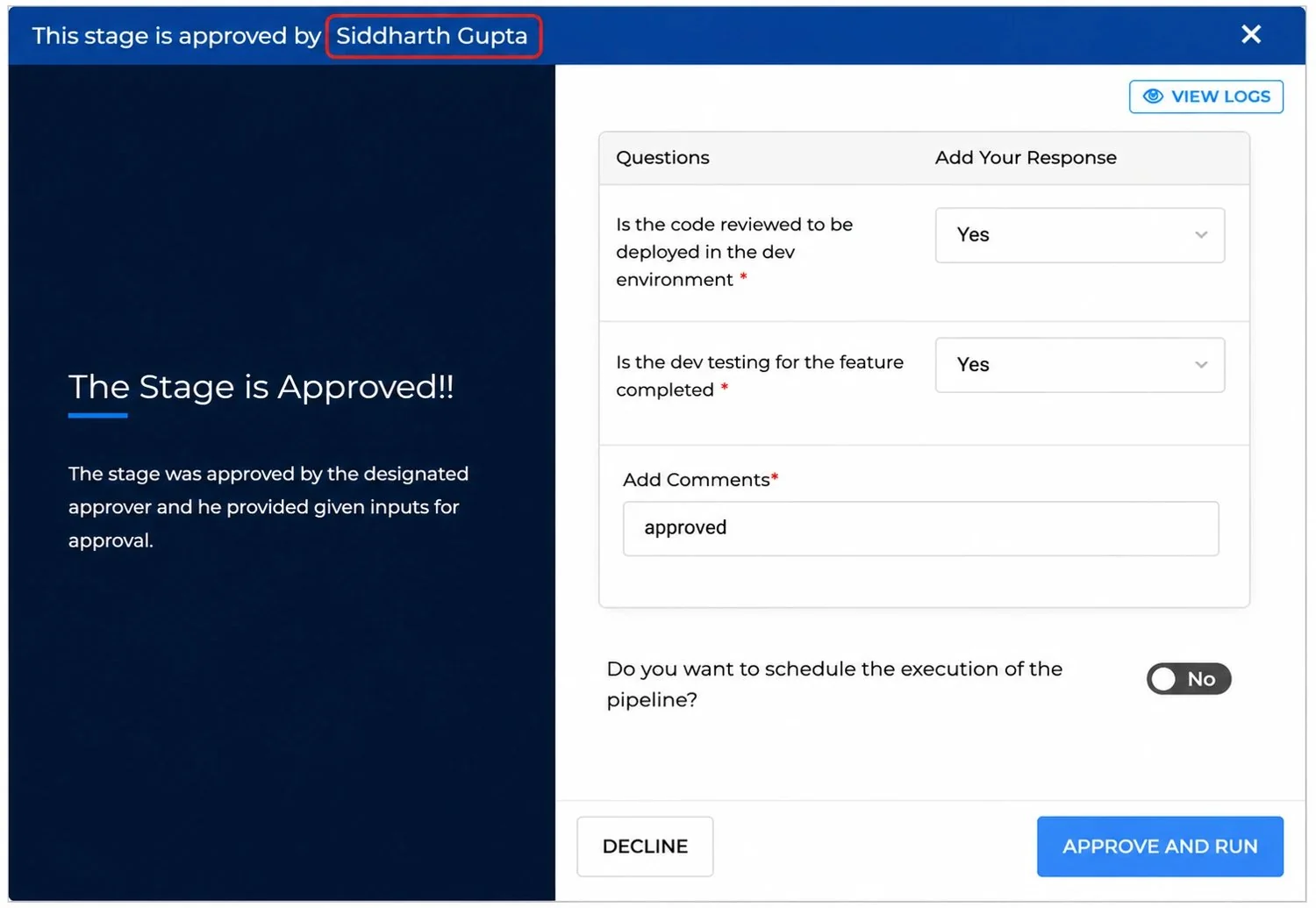
Figure 8: The approved stage showing the approver, questions, and responses
Note: Until all mandatory questions are answered and the required approvals are granted, the pipeline stays in the Pending Approval state.
6. When a Pipeline Fails: Manage Failure
If a stage fails while the pipeline you started with Run with Parameters is running, normal progression stops. The Manage Failure button becomes available in the BuildPiper UI so an authorised user can review the failure and choose a recovery action, instead of re-running the entire pipeline.
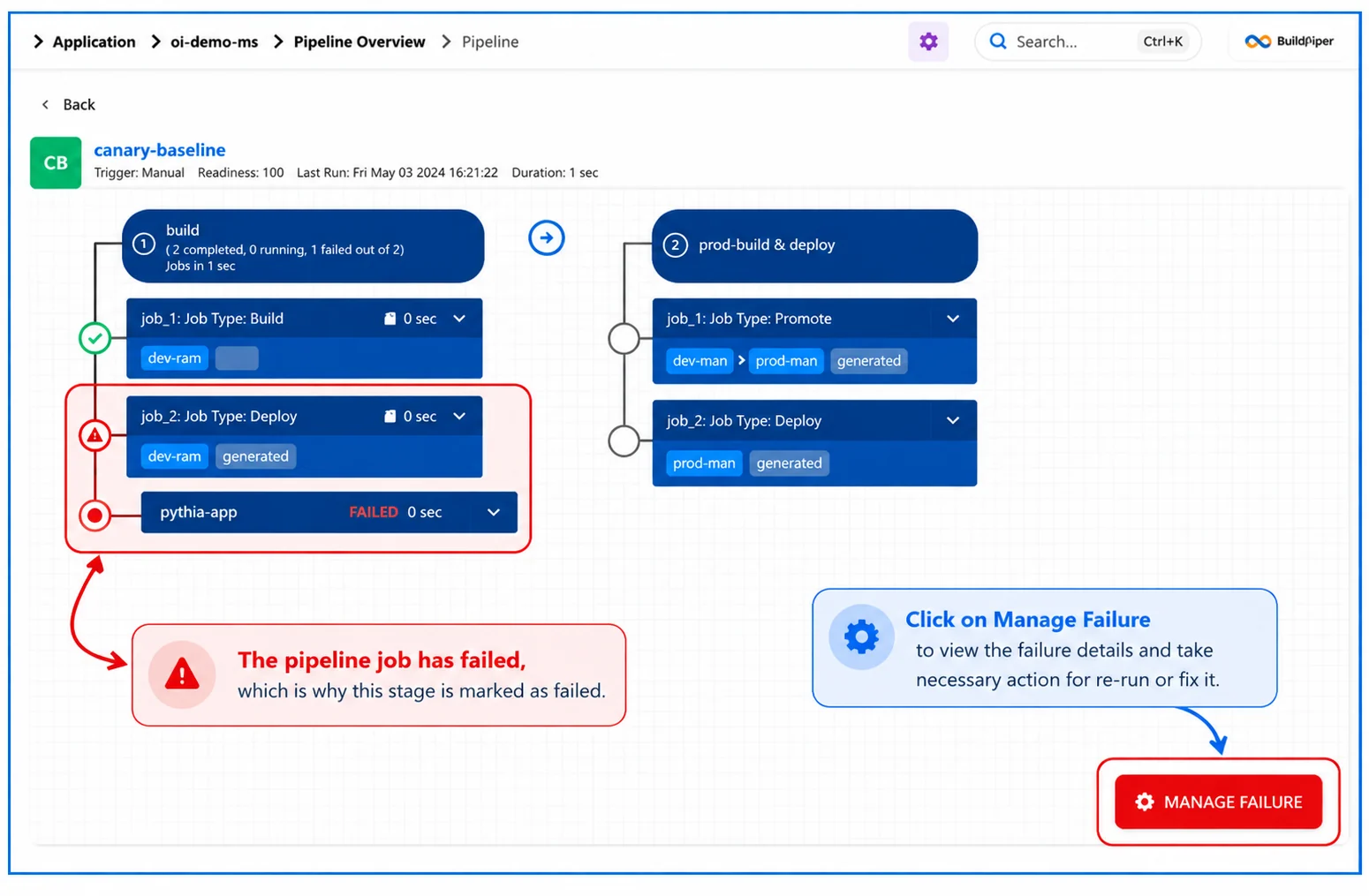
Figure 9: A failed Deploy job makes the stage fail, and the Manage Failure option appears
The Manage Failure panel gives the context needed to decide:
Failed stage and job details #
Associated application and service information
Target environment details #
Failure logs and error messages
Execution timestamps #
Deployment and release context
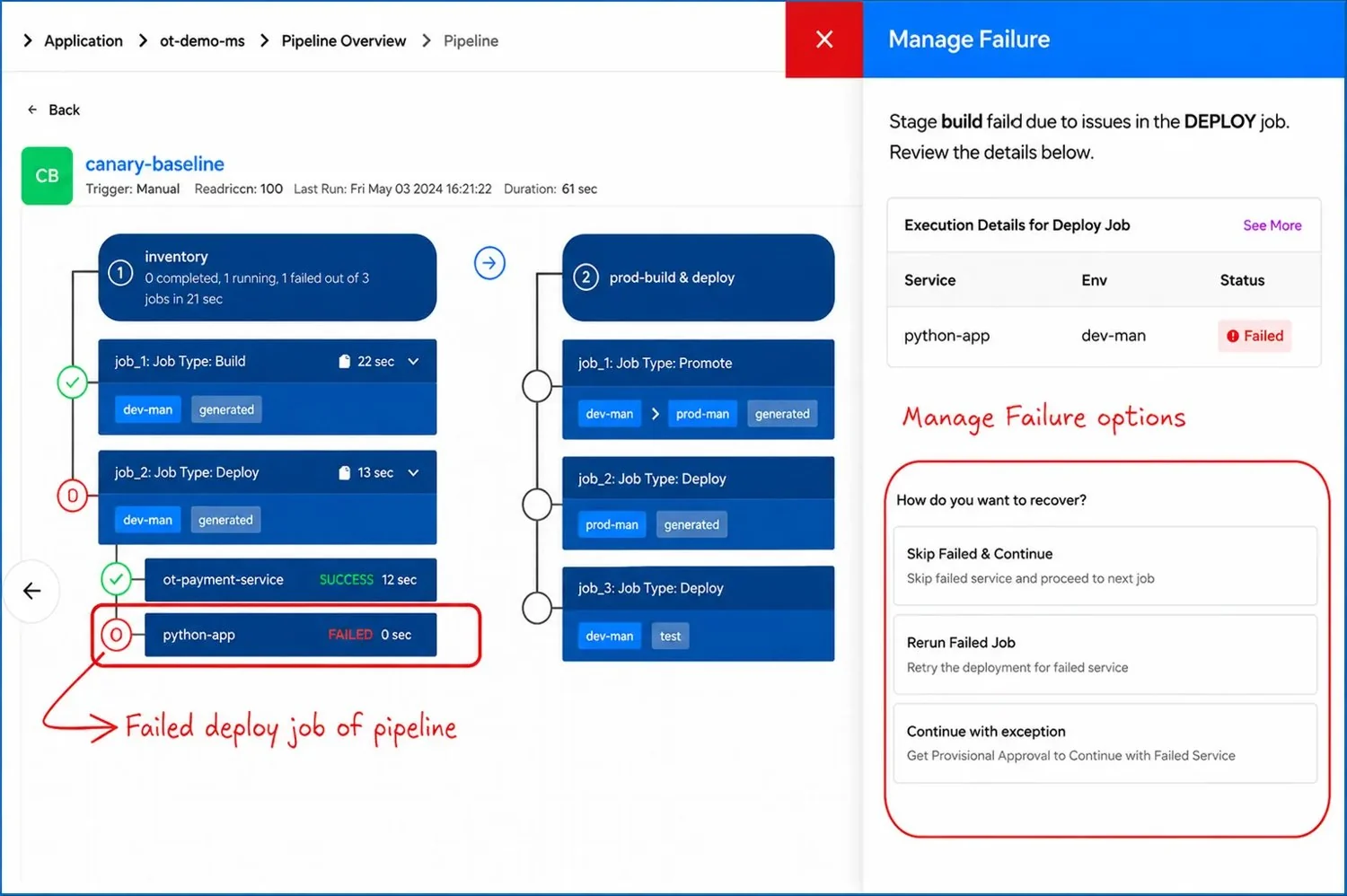
Figure 10: The Manage Failure panel with its recovery options
6.1 Recovery Options #
Skips the failed service and proceeds to the next job. Typically used for non-critical failures where the rest of the workflow can continue safely, for example a job that failed to update a JIRA comment.
Re-runs only the failed job for the failed service, without restarting the entire pipeline. Useful for transient failures such as infrastructure issues, network interruptions, or temporary environmental problems.
Gets provisional approval to continue with the failed service.
Note: Every recovery action is taken from the UI, so the release stays fully auditable and governed.
Read more: Stage Configuration > 1. Add Stages and Jobs
Stage Configuration > 2. Stage Execution
Pipeline Configuration > 1. How to Create a Pipeline