

Build Configuration #
BuildPiper introduces v3 jobs for fully custom and user-defined build and deployment tasks. You specify the job logic, commands and dependencies, which lets you bring specialized tools and scripts into your build. These custom jobs are then added to v3 templates, so they run in an orchestrated way within the CI/CD pipeline.
BuildPiper gives you fine-grained control over execution parameters, dependencies and resource allocation. Even with this customization, governance features such as access control, logging and audit trails keep your builds secure and easy to maintain.
| Capability | Description |
|---|---|
| Service-Linked CI | Build configuration is tied to a service and its environment, ensuring each environment can have its own CI settings if required. |
| UI-Driven Setup | All CI configurations are managed through the BuildPiper UI, allowing platform teams to configure builds without manually editing pipeline files. |
1. Build Configuration Steps #
The Configure Non MS Build form has three steps.
| No. | Step | What You Configure |
|---|---|---|
| 01 | Codebase Clone | The Git repository and branch. |
| 02 | Build Details | The Docker registry, base image and build command. |
| 03 | Other Build Details | Environment variables, pre hook and post hook. |
2. Codebase Clone #
These settings tell BuildPiper where to fetch your source code from.
| Field Name | Mandatory | Description |
|---|---|---|
| Select Git Repo | Yes | Select the repository from the drop-down. |
| Select branch | Yes | Click LOAD BRANCHES to select the required branch name. |
3. Build Details #
| Field Name | Mandatory | Description |
|---|---|---|
| Select Docker Registry information | No | Select the Docker registry. If no registry is configured at the application level, only public base images can be fetched. To use a private base image, first add a registry at the application level. |
| Provide Base image name with tag | Yes | Enter the base image name with its tag. |
| Build Command | No | Choose how to give the build command: Provide Command, Upload Build Script or Pick Build Script from Git. |
| Command | No | Enter the command when you select Provide Command. Click ADD ANOTHER KEY to add more. |
4. Other Build Details #
| Field Name | Description |
|---|---|
| Environment Variables | Add key and value pairs for the build. Click ADD ANOTHER KEY to add more. |
| Pre Hook / Post Hook | Enable this configuration to execute custom scripts before (Pre Hook) or after (Post Hook) the build process. Both are set to No by default. |
Pre-hooks and post-hooks can be added via the three options offered by BuildPiper:
| Option | Description |
|---|---|
| A. Via Command | Run a Command directly inside the build environment. |
| B. Via File Upload | Upload a script file and enter the command arguments. |
| C. Via Git | Select the Git URL, branch, file/folder path and enter command arguments. |
5. Navigation #
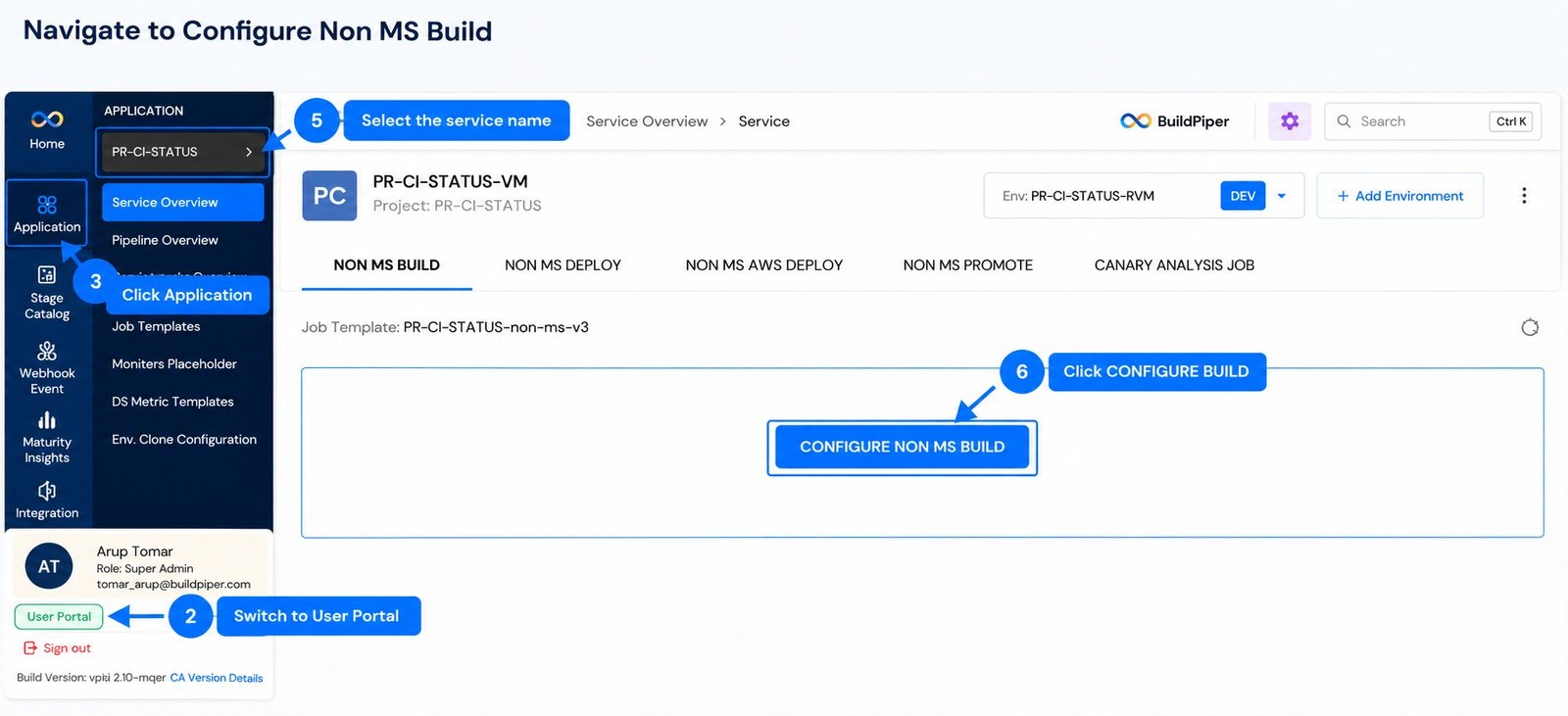
Figure 1: Navigation to Configure Build Details
- 1
Log in to BuildPiper.
- 2
Switch to User Portal.
- 3
Click Application.
- 4
Open Service Overview.
- 5
Select the service name.
- 6
Click CONFIGURE NON MS BUILD.
Note: The BP Environment onboarding page is accessible inside the User Portal.
6. BP Snapshots #
Reference screenshots showing each step of the build configuration flow inside BuildPiper.
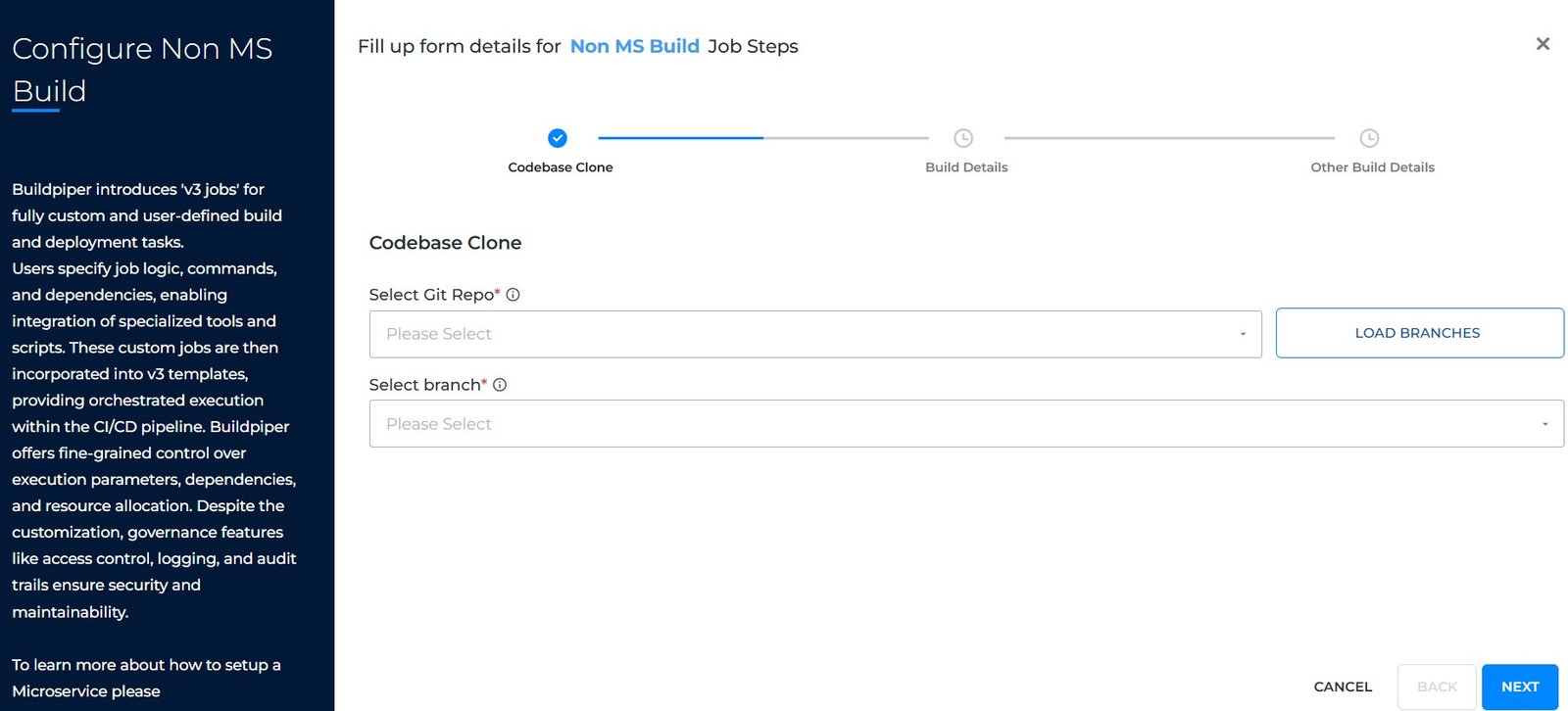
Figure 2: Codebase Clone
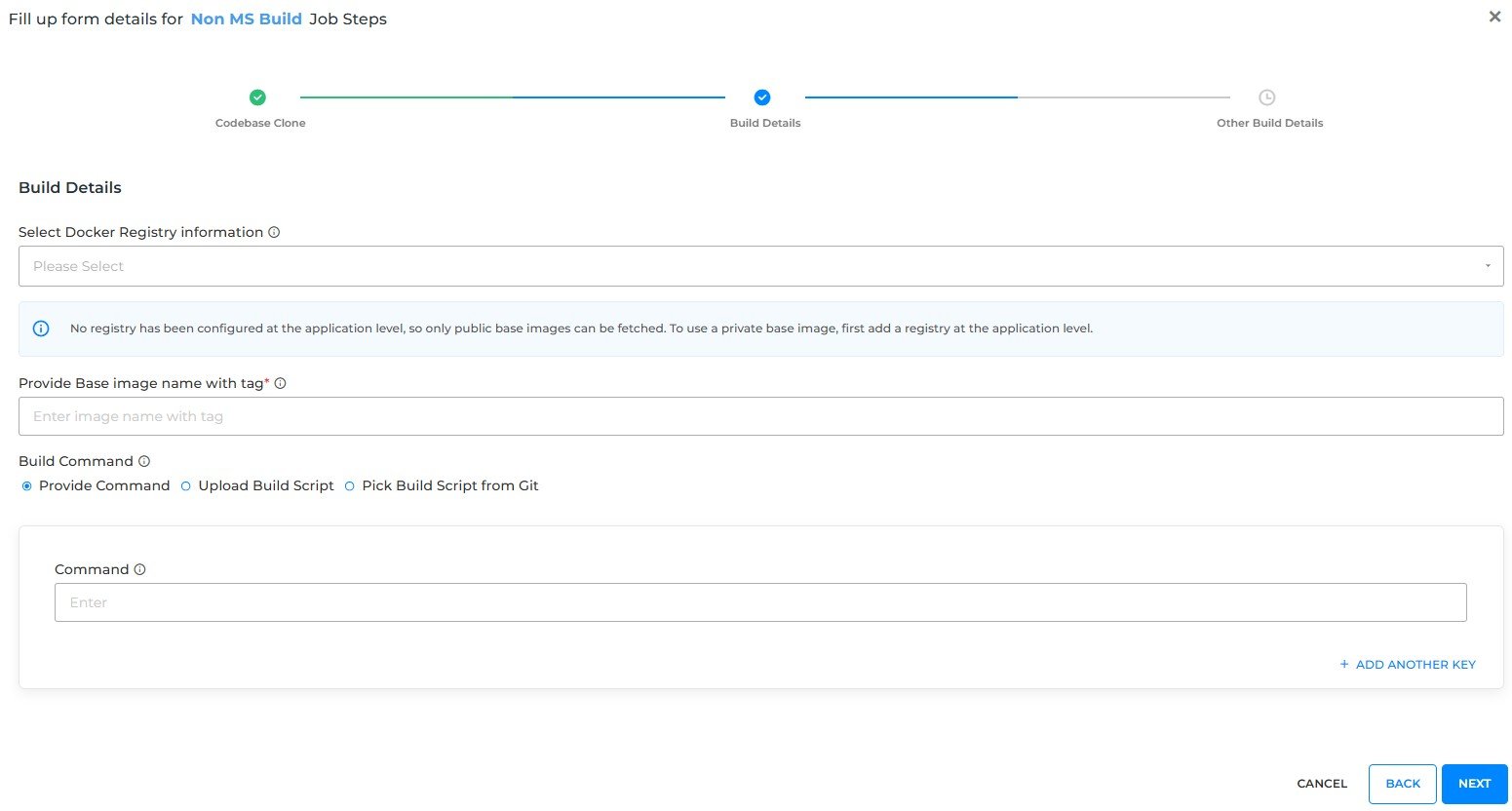
Figure 3: Build Details
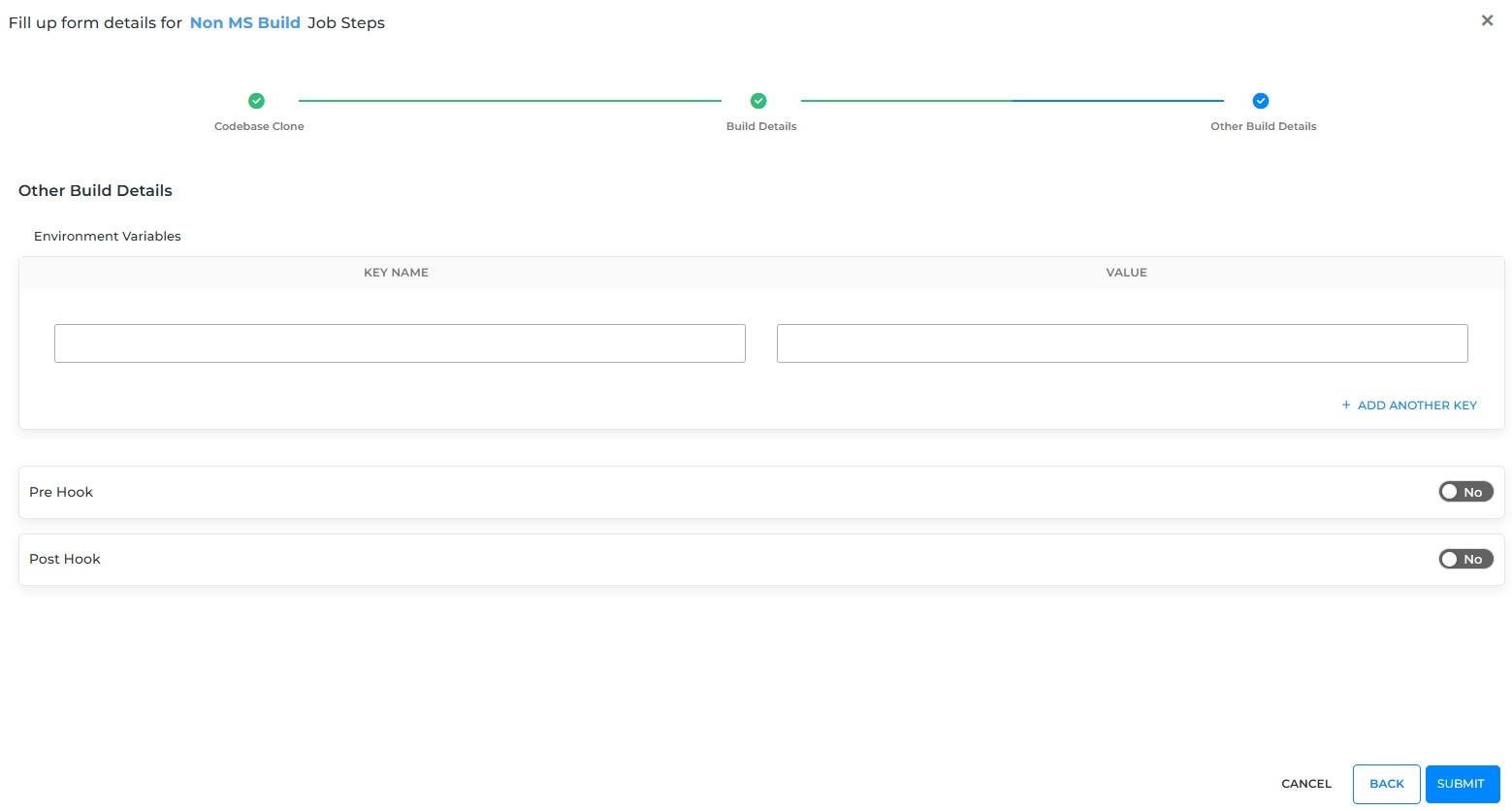
Figure 4: Other Build Details
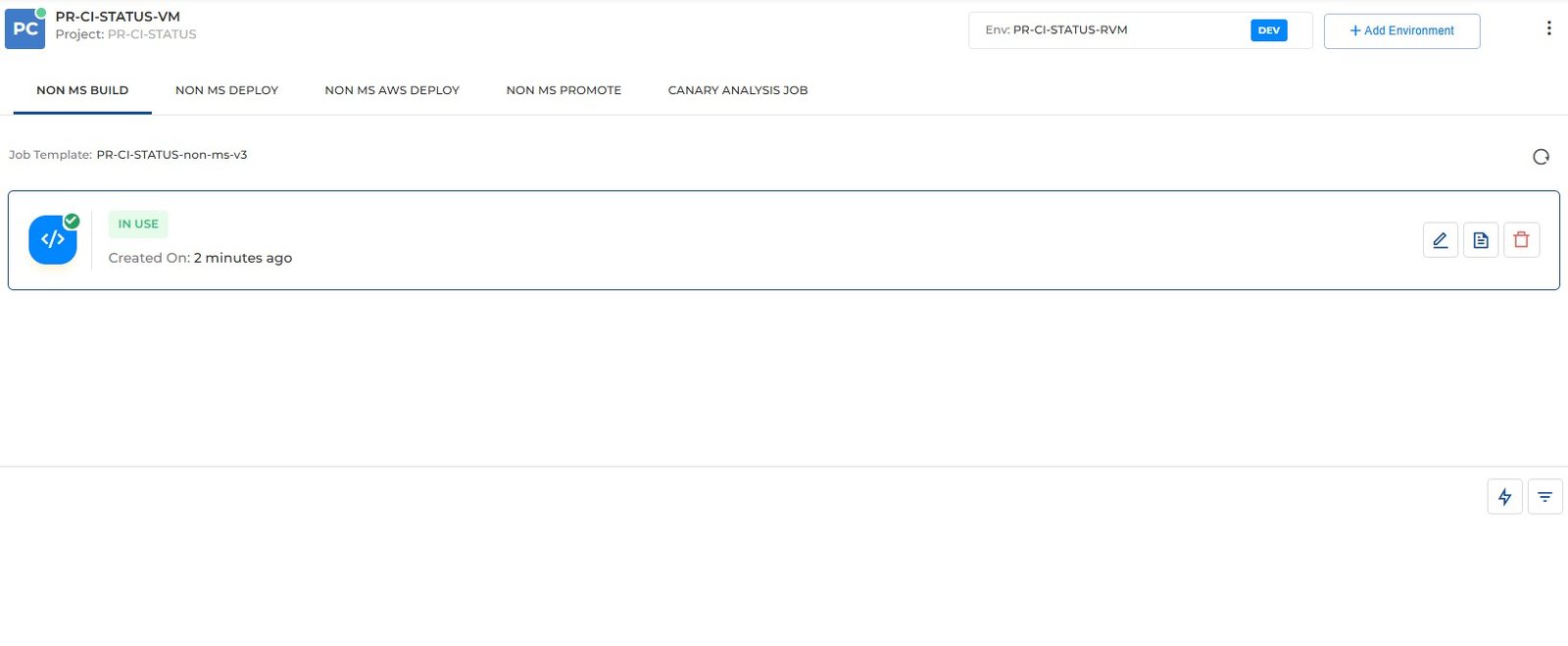
Figure 5: Build configuration saved