

Stage Configuration #
A stage is a logical grouping of jobs within a pipeline. Stages define when and how jobs run, for example tests run only after code compilation. This document explains how to add stages and jobs to a pipeline, how a stage executes, and how jobs run in parallel.
1. Add Stages and Jobs #
1.1 Add a Stage #
In the workflow builder, click Add New Stage. The Stage Details window opens. Fill in the details, then click Update.
| Field | Description |
|---|---|
| Stage Name | The name of the stage, for example jira-create. |
| Do you want to add conditions to run this Job? | Turn this on to run the stage only when a condition is met. Off by default. See 1.2. |
| Approval required to run this Stage? | Turn this on to require an approval before the stage runs. Off by default. See 1.3. |
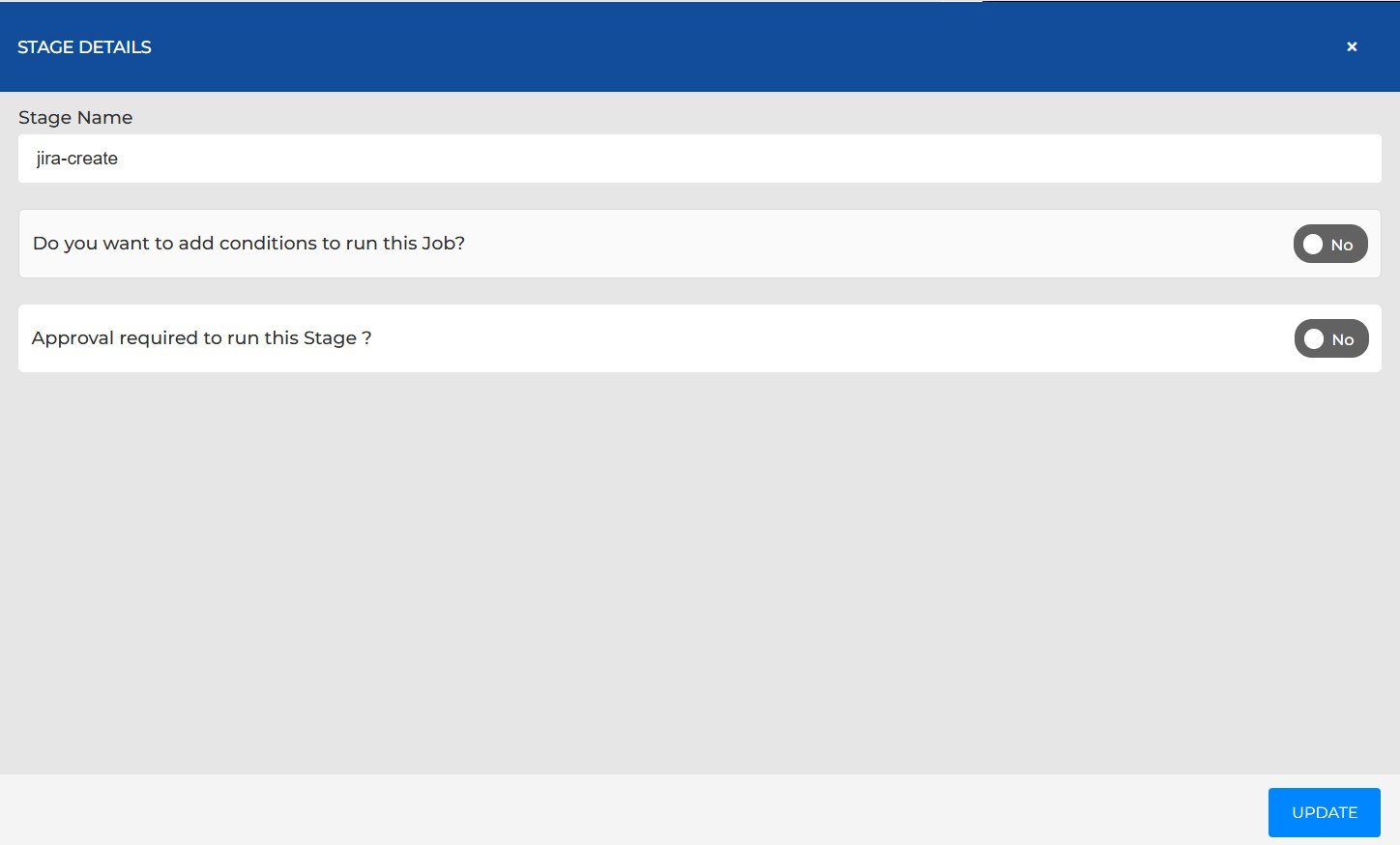
Figure 1: Stage Details
1.2 Add Conditions #
- 1
In Stage Details, turn on Do you want to add conditions to run this Job? A table with the columns Condition, Value, and Actions appears.
- 2
Click + Add Conditions.
- 3
In the Add Conditions window, choose a condition from Select Conditions.
- 4
Set If value is? to Yes or No.
- 5
Click Save. Click Cancel to close the window without saving.
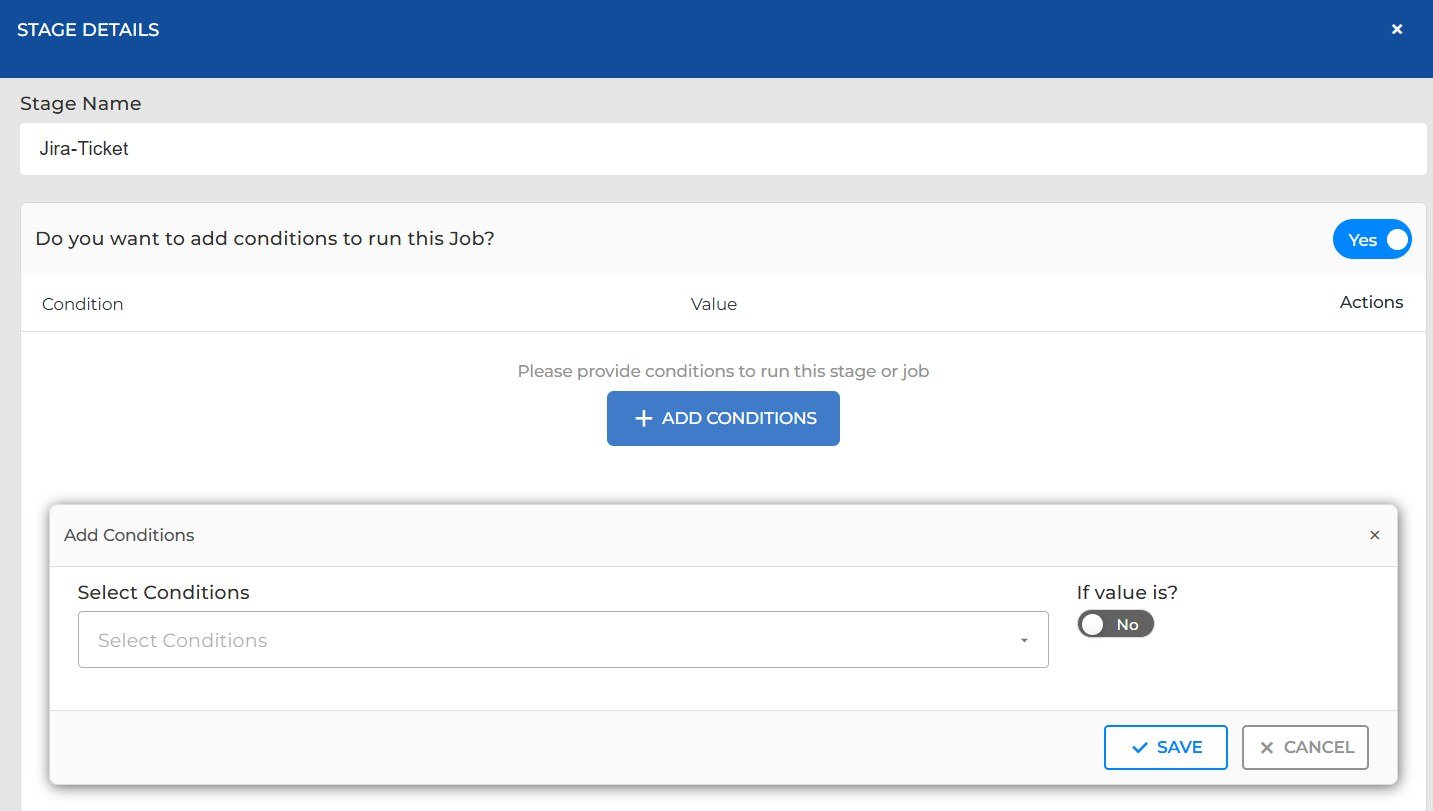
Figure 2: Add Conditions
The stage runs only when its condition matches the value you set.
1.3 Add Approval #
Turn on Approval required to run this Stage? to make the stage wait for an approval. The user groups, email, multiple approvals, and questionnaire options are described in the Pipeline Approval document, section 1, Add Approval Configuration.
1.4 Add a Job #
Inside a stage, click Add New Job. The Job Form opens. Fill in the details, then click Add.
The first fields are the same for every job:
| Field | Description |
|---|---|
| Add Job from Job Template | Selected by default. The job is built from a job template. |
| Do you want to add Dynamic jobs? | Off by default. |
| Job Type | Select the type of job, for example Jira Ticket. The other fields change with the job type. The job types are listed in the Job Definitions document, section 1, Job Types. |
To learn how to create a job template, see Job Templates.
The example below is a Jira Ticket job. Its fields are Jira Operations, Available Projects, Issue Type, Jira Id Reference key, Jira issue reference name, Summary, Description, Account Id, priority, and whether the ticket is a release ticket.
These options are shown for every job:
| Option | Default |
|---|---|
| Do you want to specify a specific job template to execute this job for all selected services? | No |
| Do you want to add conditions to run this Job? | No |
| Terminate Pipeline on Success? | No |
| Terminate Pipeline on Failure? | Yes (in the example screen) |
| Skip Job? | No |
| Mark success on skip job? | No |
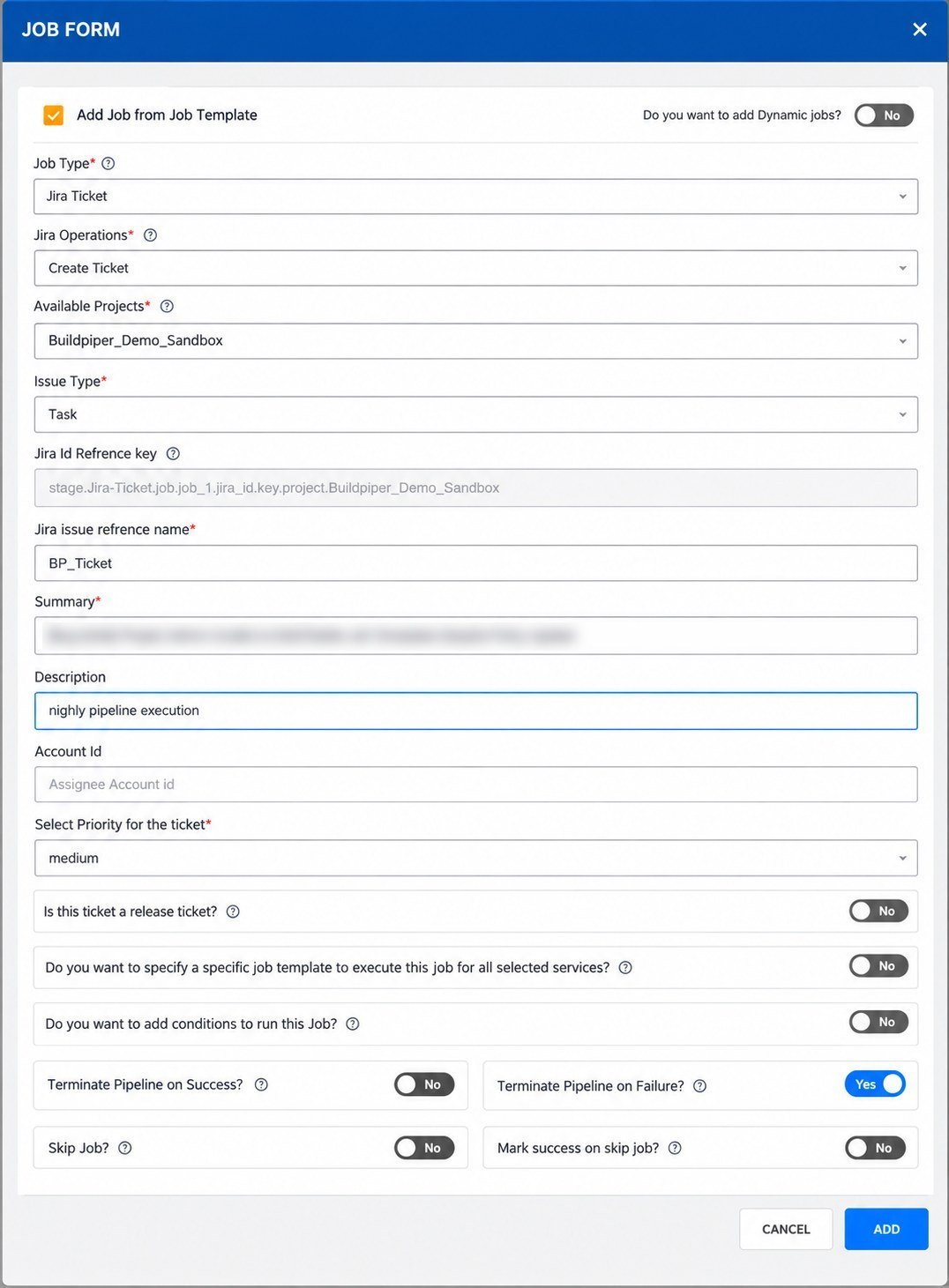
Figure 3: Job Form for a Jira Ticket job
1.5 Add More Stages and Save the Workflow #
- 1
After the first stage and its job, click Add New Stage again to add the next stage, for example a Build & Deploy stage.
- 2
Add the jobs the stage needs, such as a Build job and a Deploy job.
- 3
Select the services each job runs on. The job card shows the number of services.
- 4
When all stages are in place, click Save Workflow.
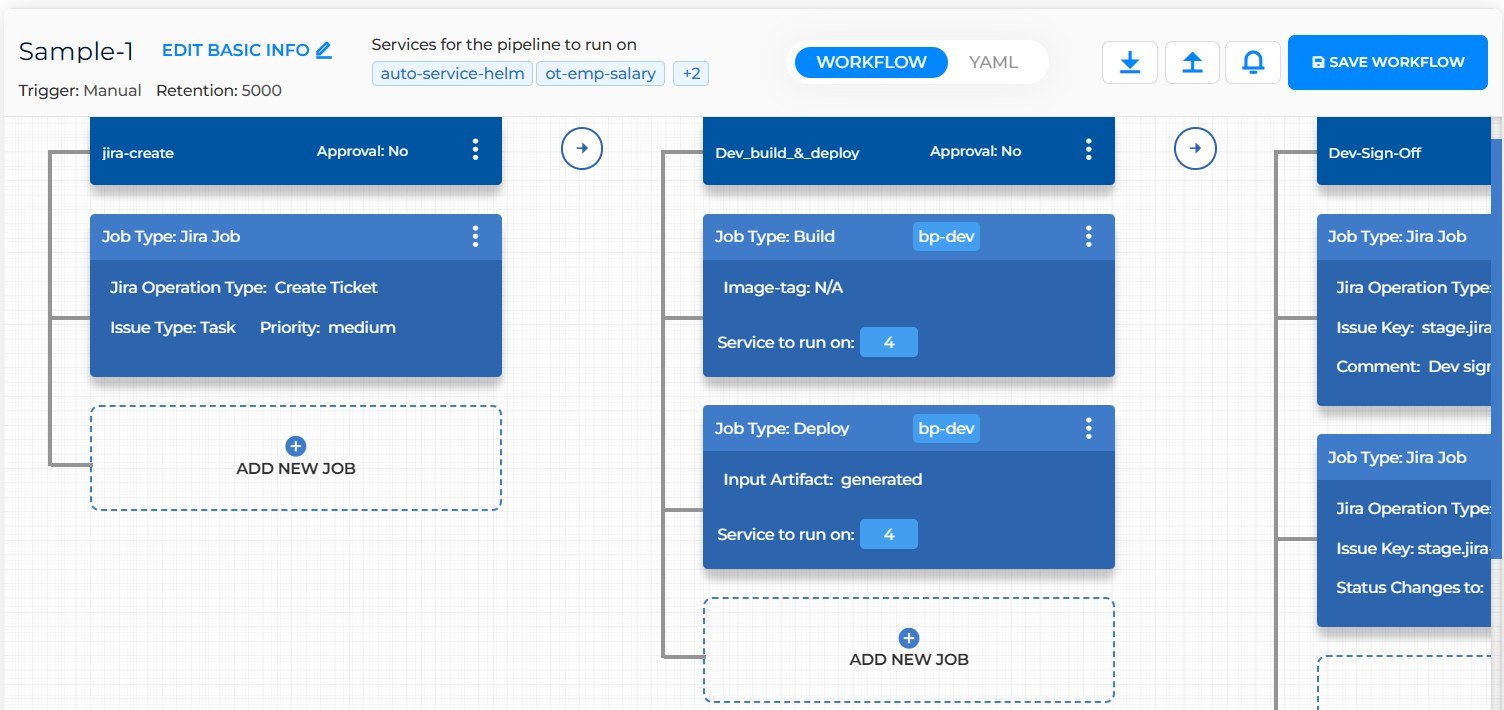
Figure 4: A pipeline with three stages. Each stage header shows its approval status, and each job card shows its type and settings
Stages run from left to right. To run the saved pipeline, see the Pipeline Approval document, section 2, Run the Pipeline.
2. Stage Execution #
A BuildPiper pipeline orchestrates workflows through a hierarchy of stages, jobs, and steps. The pipeline follows a fixed execution lifecycle from start to finish.
| Phase | What happens |
|---|---|
| Pipeline initialisation | Execution begins automatically when the pipeline is triggered, and starts with the first configured stage. |
| Governance gates | Before a stage starts, BuildPiper can enforce questionnaires and approvals. The pipeline stays in the Pending Approval state until all of them are satisfied. See the Pipeline Approval document, section 1, Add Approval Configuration. |
| Stage execution | Once all governance gates are cleared, the stage becomes active and starts executing its configured jobs. |
| Job execution | A stage can contain one or more jobs. Based on the stage configuration, jobs execute one after another. Each job is a distinct unit of work within the stage. |
| Step-level execution | Every job is made up of one or more steps, which always run in a predefined sequence. Examples include source code checkout, Docker image build, deployment manifest generation, Kubernetes deployment, rollout validation, and Slack notifications. |
| Success criteria | A job is marked Successful only when all its steps complete without errors. A stage is marked Successful only when all its jobs complete successfully. |
| Automatic progression | After a stage succeeds, BuildPiper moves to the next configured stage. This continues until all stages have run. |
| Failure handling | If a step fails, the current job halts and is marked Failed. A failed job makes its parent stage Failed. Subsequent stages are not executed, and the pipeline is marked as failed. |
| Manage Failure | When a stage fails, BuildPiper makes the Manage Failure option available so that an authorised user can decide how to recover. The recovery options are explained in the Pipeline Approval document, section 6, When a Pipeline Fails: Manage Failure. |
2.1 Stage Execution Outcomes #
| Outcome | What happens |
|---|---|
| Success | All jobs in the stage finished successfully. The pipeline moves on to the next stage automatically. |
| Failure | One or more jobs failed. Subsequent stages are not executed, the pipeline is marked as failed, and execution stops. |
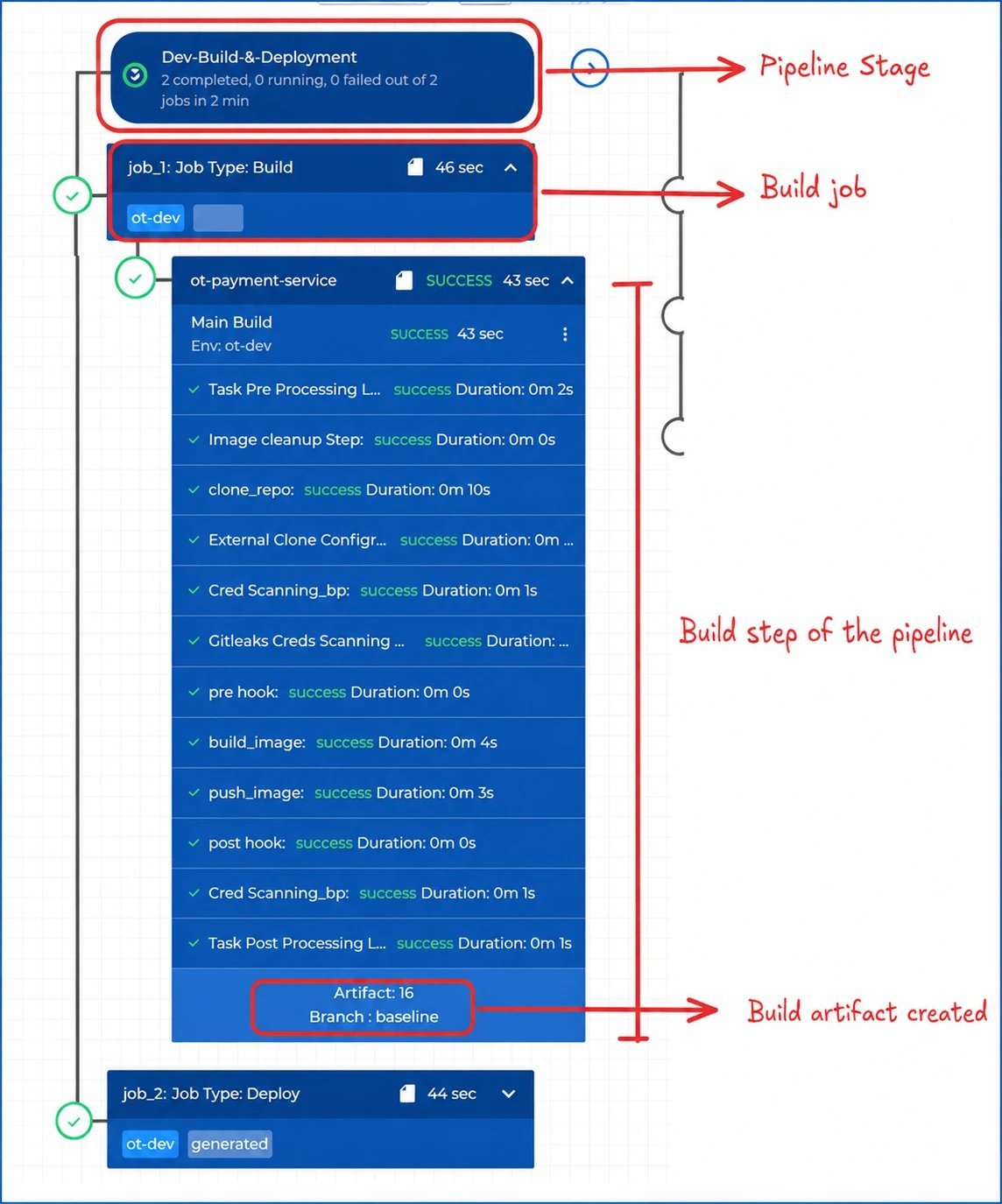
Figure 6: A stage (Dev-Build-&-Deployment) with its Build job, the steps inside the job, and the build artifact created
3. Parallel Execution Concurrency #
The Parallel Execution Concurrency setting controls the maximum number of jobs that can run at the same time within a pipeline.
For example, if the concurrency is set to 4 and a build stage has 16 microservices, each as an independent build job:
- 1
The first 4 jobs are picked up immediately and move to the RUNNING state.
- 2
The remaining 12 jobs are placed in the IN-QUEUE state.
- 3
As soon as any running job finishes, whether it succeeds or fails, BuildPiper picks the next queued job and moves it to RUNNING.
- 4
This continues until all queued jobs have run.
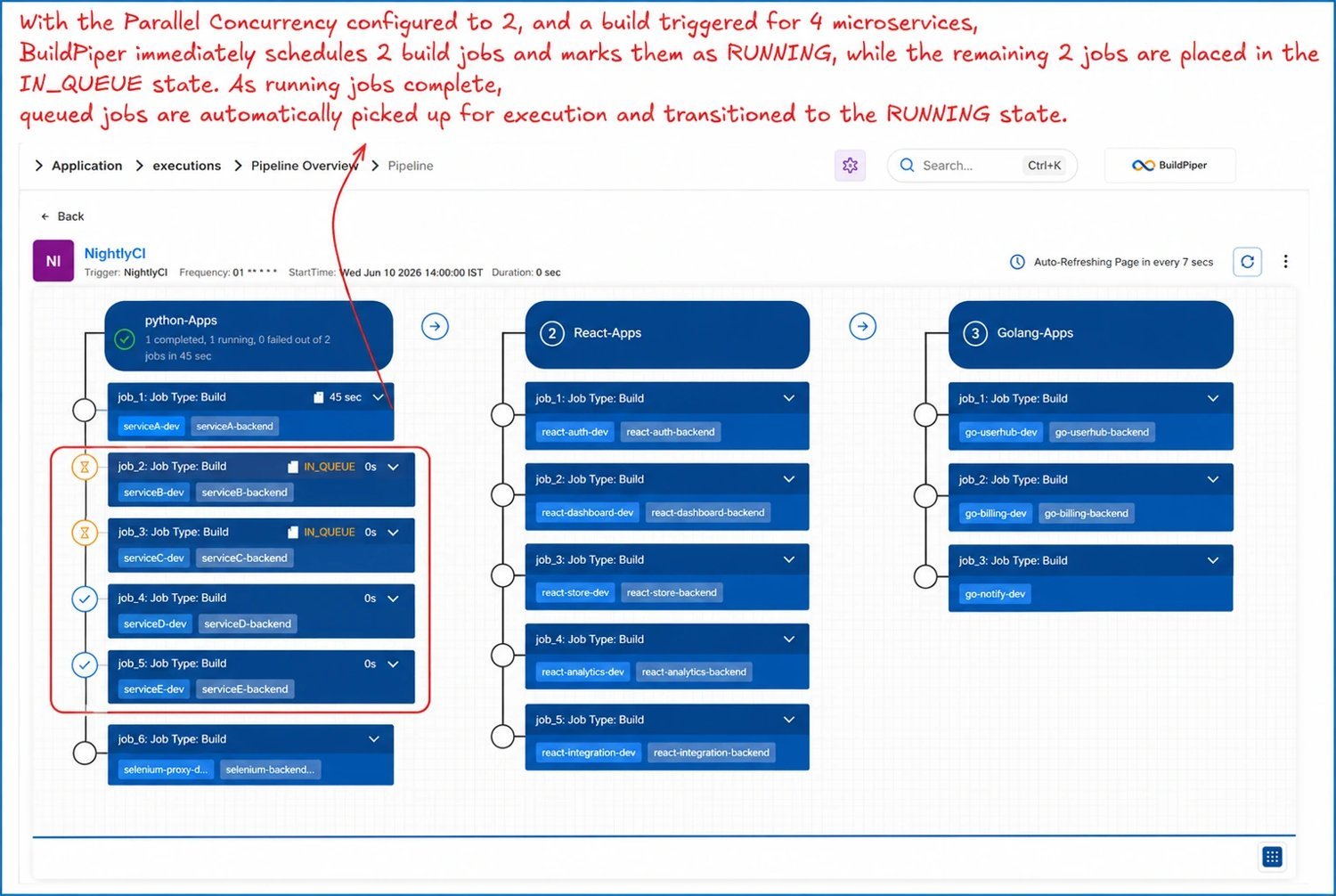
Figure 7: With concurrency set to 2 and a build triggered for 4 microservices, 2 jobs run and the rest wait in IN_QUEUE
This model makes the best use of the available build and deployment infrastructure and prevents resource exhaustion, so workloads with hundreds of microservices or jobs can be processed without overwhelming the execution environment.
Read more: Pipeline Approval > 1. Add Approval Configuration
Pipeline Approval > 2. Run the Pipeline
Pipeline Approval > 6. When a Pipeline Fails: Manage Failure
Job Definitions > 1. Job Types