

Downtime Scheduler #
Downtime Scheduler automates the start and stop of an environment, so that the environment runs only when it is needed. You add a schedule to scale the environment up or down at a set time. BuildPiper creates and runs a default pipeline for each schedule: an up pipeline to start the environment and a down pipeline to stop it.
Stopping an environment means that BuildPiper reduces the pod count of all the services of that environment to zero, and starting it restores them. If the cluster is configured to scale automatically, it then scales down the unused nodes, which reduces the infrastructure cost.
The default pipeline scales the pods of the services. To also scale other related infrastructure, such as databases and middleware, edit the pipeline that BuildPiper created and add the steps that you need.
1. How It Works #
| Schedule type | Pipeline that runs | What it does |
|---|---|---|
| Scale Up | Up pipeline | Starts the environment at the scheduled time. |
| Scale Down | Down pipeline | Stops the environment at the scheduled time. |
You do not create these pipelines yourself. BuildPiper creates a default pipeline for each schedule of action and runs on the days, time and time zone you set. You can see them on the Pipeline Overview page, as described in the Schedule List section.
2. Open Downtime Scheduler #
- 1
Log in to BuildPiper.
- 2
Click Application.
- 3
Click Environment Overview.
- 4
Select the environment.
- 5
Click the Downtime Scheduler tab.
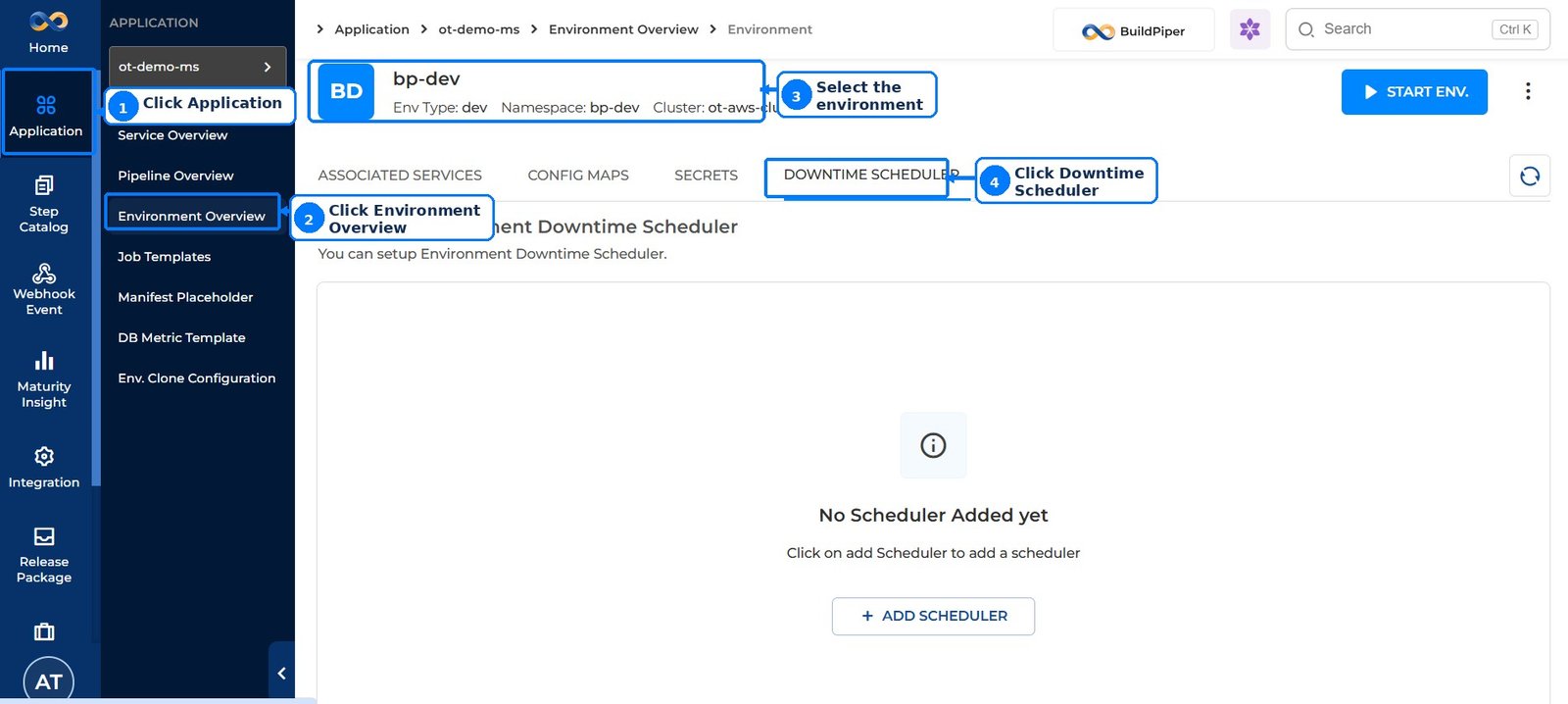
Figure 1: Downtime Scheduler tab of an environment
When no schedule exists, the tab shows No Scheduler Added yet. Click Add Scheduler to add a scheduler.
3. Add a Schedule #
- 1
On the Downtime Scheduler tab, click Add Scheduler.
- 2
In the Add Schedule window, fill in the fields described below.
- 3
Click Save. Click Cancel to close the window without saving.
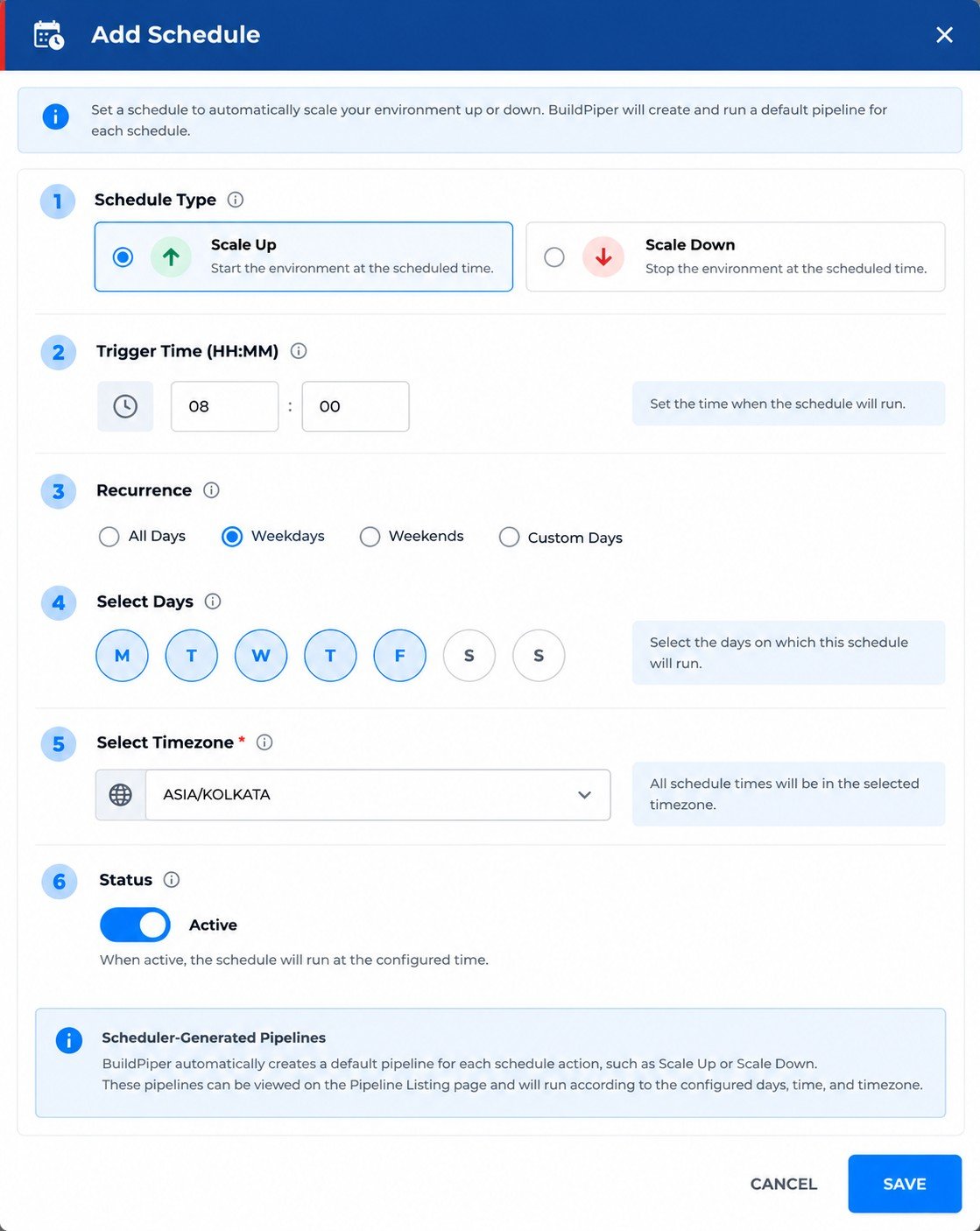
Figure 2: Add Schedule window
| Field | What to do |
|---|---|
| Schedule Type | Select Scale Up to start the environment at the scheduled time, or Scale Down to stop the environment at the scheduled time. |
| Trigger Time (HH:MM) | Set the time when the schedule will run. |
| Recurrence | Select All Days, Weekdays, Weekends or Custom Days. |
| Select Days | Select the days on which this schedule will run. |
| Select Timezone | Select the timezone. All schedule times are in the selected timezone. This field is mandatory. |
| Status | When the status is Active, the schedule runs at the configured time. |
4. Schedule List #
After you save, the schedules are listed under Schedules on the Downtime Scheduler tab. Click Add Scheduler to add another schedule.
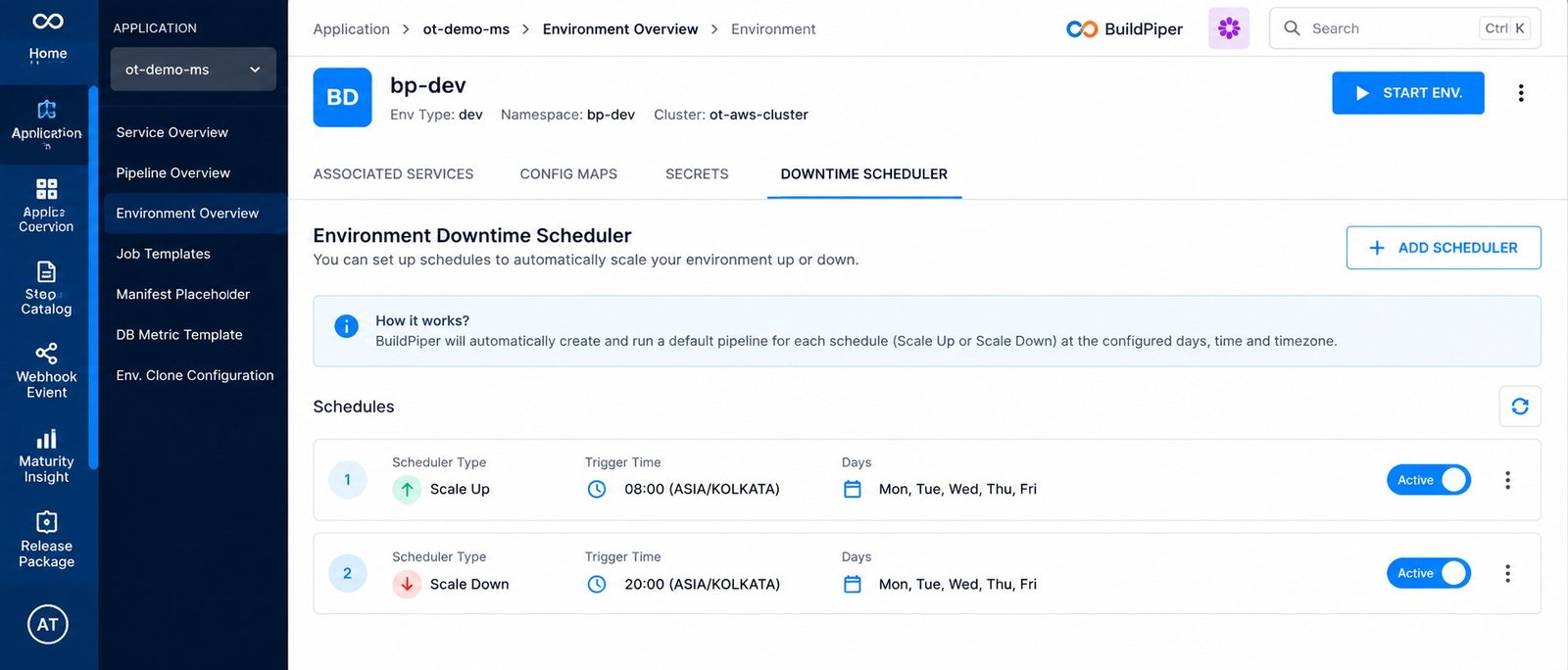
Figure 3: Schedules on the Downtime Scheduler tab
Screenshot needed: Figure 4: the options in the three-dot menu of a schedule
The up pipeline and the down pipeline of the environment are listed on the Pipeline Overview page, named after the environment, for example bp-dev_PR-CI-STATUS_up and bp-dev_PR-CI-STATUS_down.
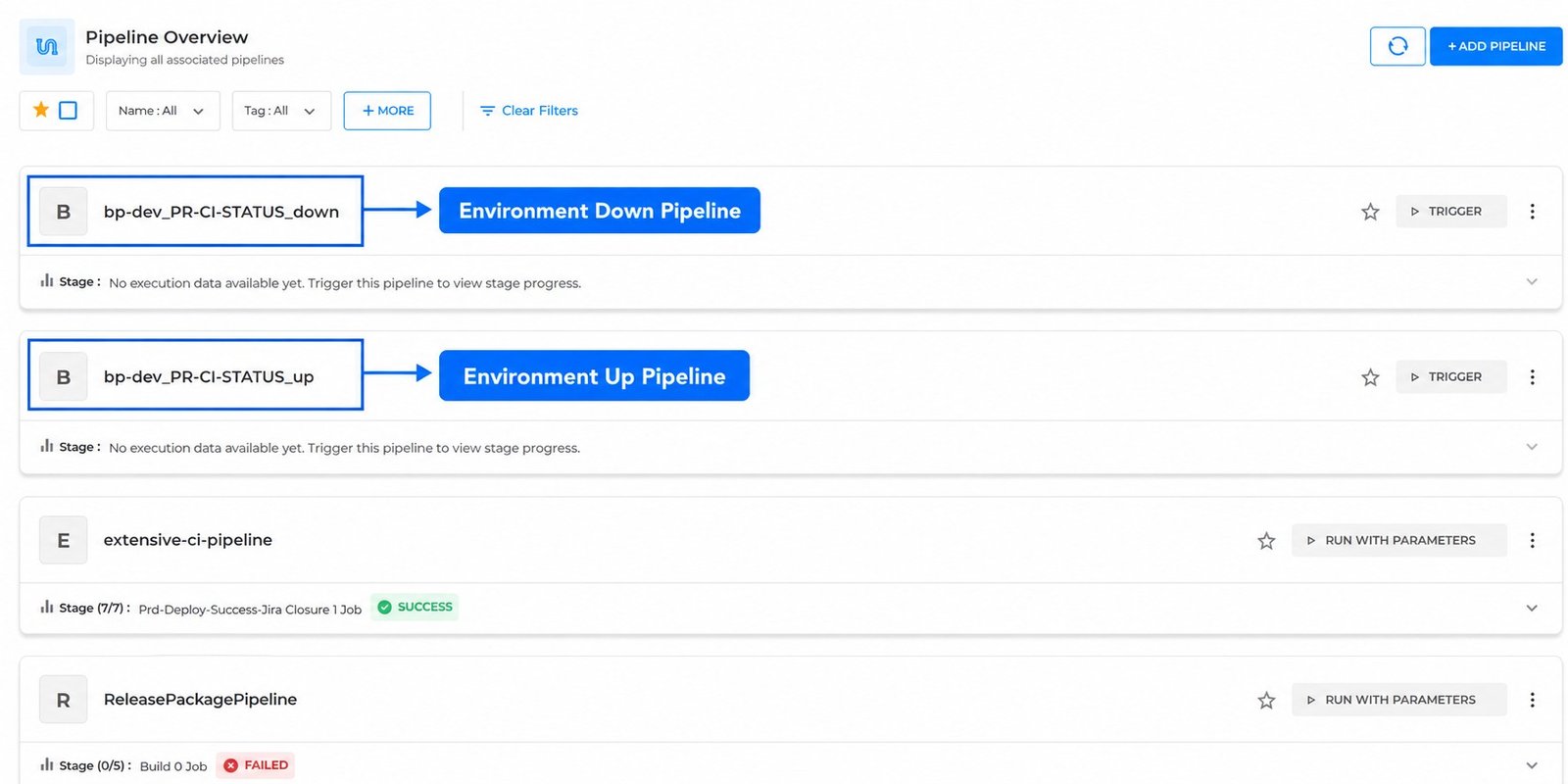
Figure 5: Environment up and down pipelines on the Pipeline Overview page