

Actions #
1. Actions Overview #
Once a VM-based service is configured for an environment, you can run actions on it directly from the service page. The action buttons are available at the bottom right of the job tabs, such as BUILD and DEPLOY. The actions work in the same way for a build and a deploy.
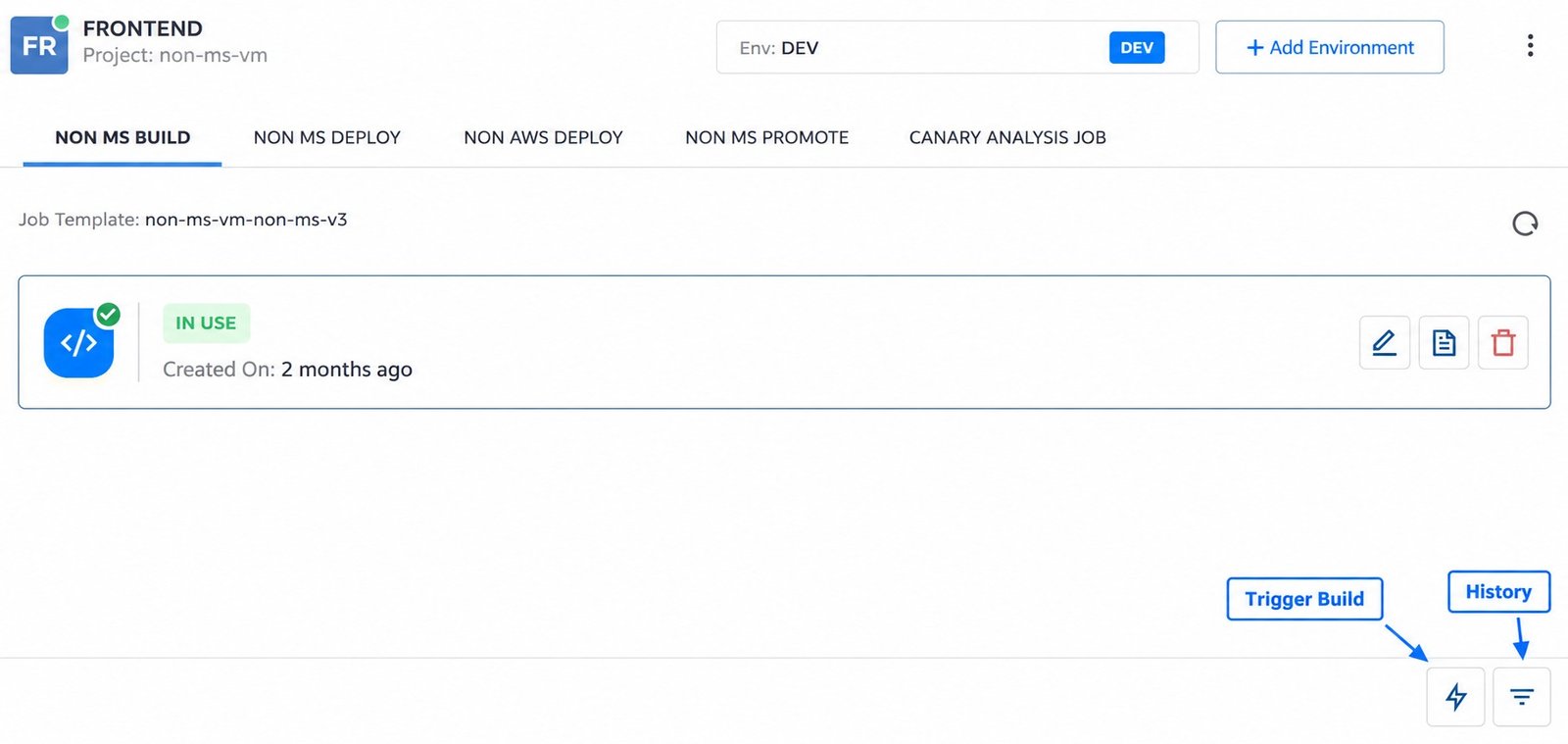
Figure 1: Service Actions (NON MS BUILD tab)
| Action | Description |
|---|---|
| Trigger | Run the job, a build or a deploy, for the service in the selected environment. |
| History | View the history of the job for the service in the selected environment. |
2. Trigger a Build or Deploy #
Click the trigger button to open the Trigger screen of the job, for example Build or Deploy. The screen shows the recent history of the job.
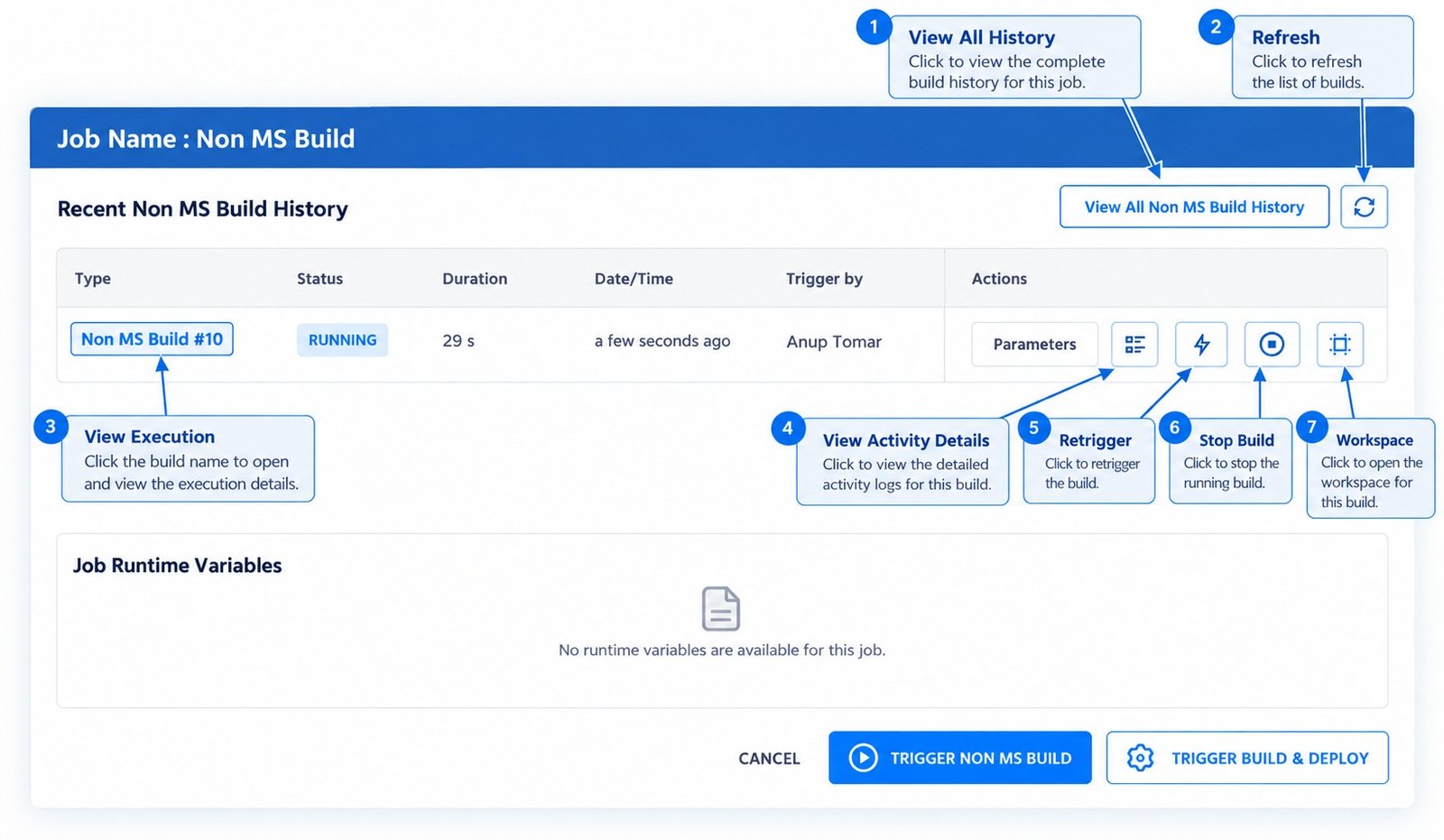
Figure 2: Trigger Non MS Build (example)
The Parameters button next to each run shows the parameters of that run.
Activity Steps Status #
Click View Activity Details to see the status of each step of the run. The screen shows the steps in the order they run, with the duration of each step. Click VIEW LOGS to see the logs, and click the close icon to hide the steps.
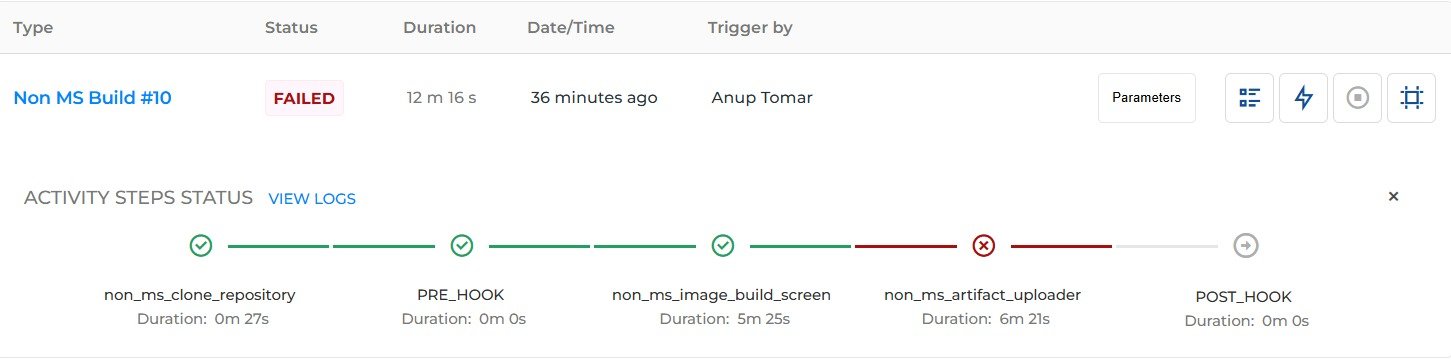
Figure 3: Activity Steps Status
Buttons #
| Button | Description |
|---|---|
| TRIGGER BUILD / TRIGGER DEPLOY | Start the build or the deploy. |
| TRIGGER BUILD & DEPLOY | Start the build and deploy the result. |
3. History #
Click History to see the history of builds, deploys and promotes for the selected environment. Use the NON MS BUILD, NON MS DEPLOY and NON MS PROMOTE tabs to switch between them.
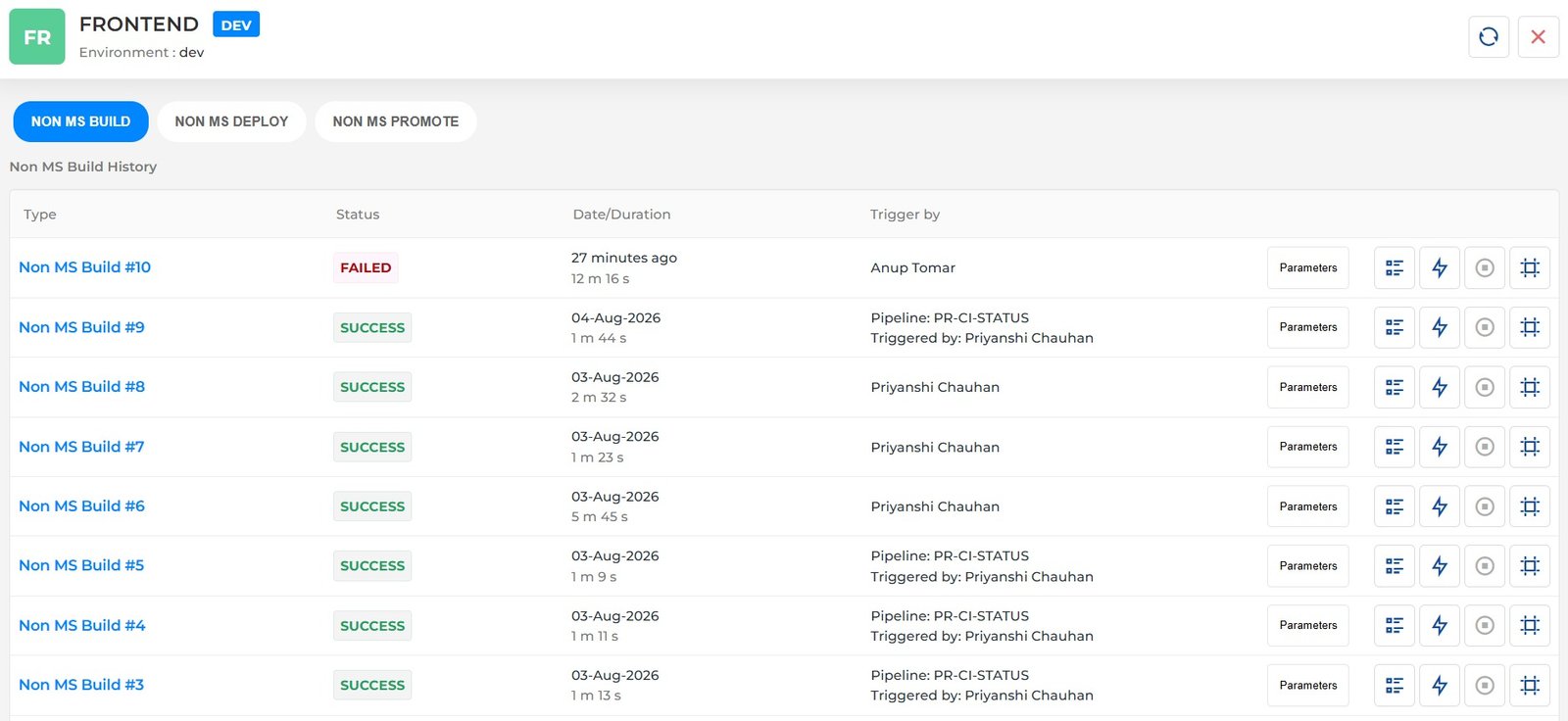
Figure 4: Non MS Build History (example)
| Column | Description |
|---|---|
| Type | The run name and number, for example Non MS Build #10. Click it to view the execution. |
| Status | The result of the run, for example SUCCESS or FAILED. |
| Date/Duration | When the run happened and how long it took. |
| Trigger by | The user who triggered the run. For a run started from a pipeline, it shows the pipeline name and the user who triggered it. |
The buttons at the end of each row are the same as on the Trigger screen: Parameters, View Activity Details, Retrigger, Stop Build and Workspace.