

ConfigMaps #
BuildPiper gives you one place to manage Kubernetes ConfigMaps. It syncs directly with the Kubernetes cluster and namespace that are associated with the environment, and it fetches real-time data, so you can see your configuration without leaving the platform. You can also create, configure, view and deploy new ConfigMaps from the BuildPiper UI, with no manual terminal work.
1. Config Management Overview #
| Capability | What it gives you |
|---|---|
| Centralised interface | Create, update, delete, configure, view and deploy Kubernetes ConfigMaps directly from the BuildPiper UI. |
| Real-time cluster sync | BuildPiper syncs directly with the Kubernetes cluster to fetch up-to-date configuration data. |
| Unified management | Manage ConfigMaps from one platform, without switching to terminal-based Kubernetes tools. |
| Dual tracking | Track the ConfigMaps managed by BuildPiper and also identify the ones deployed directly to the cluster. |
| Flexible input methods | You can define ConfigMap data in any of the following ways: • Key-value pairs, using the Guided Form or the Use Editor / Use YAML Editor option • Upload a ConfigMap manifest file • Provide a Git repository that contains the ConfigMap manifest file • Use a Helm template with a values file |
1.1 Dual Tracking #
BuildPiper can manage the full lifecycle of the ConfigMaps that are deployed through the platform. At the same time, it identifies the ConfigMaps that were deployed directly to the cluster and displays them in read-only format.
| Type | What it means |
|---|---|
| BP Managed ConfigMaps | All ConfigMaps created and deployed from the BuildPiper UI. They are listed under BP-managed-config-maps. |
| External ConfigMaps | ConfigMaps deployed directly to the Kubernetes cluster. They are shown separately so you can see them. |
2. Configuration #
2.1 Open ConfigMaps View and Add a ConfigMap #
The ConfigMaps page is available only in the User Portal.
- 1
Log in to BuildPiper.
- 2
Click Application.
- 3
Click Environment Overview.
- 4
Select the environment.
- 5
Click the Config Maps tab.
- 6
Click Add ConfigMap to create a new ConfigMap. See section 2.5 for the form.
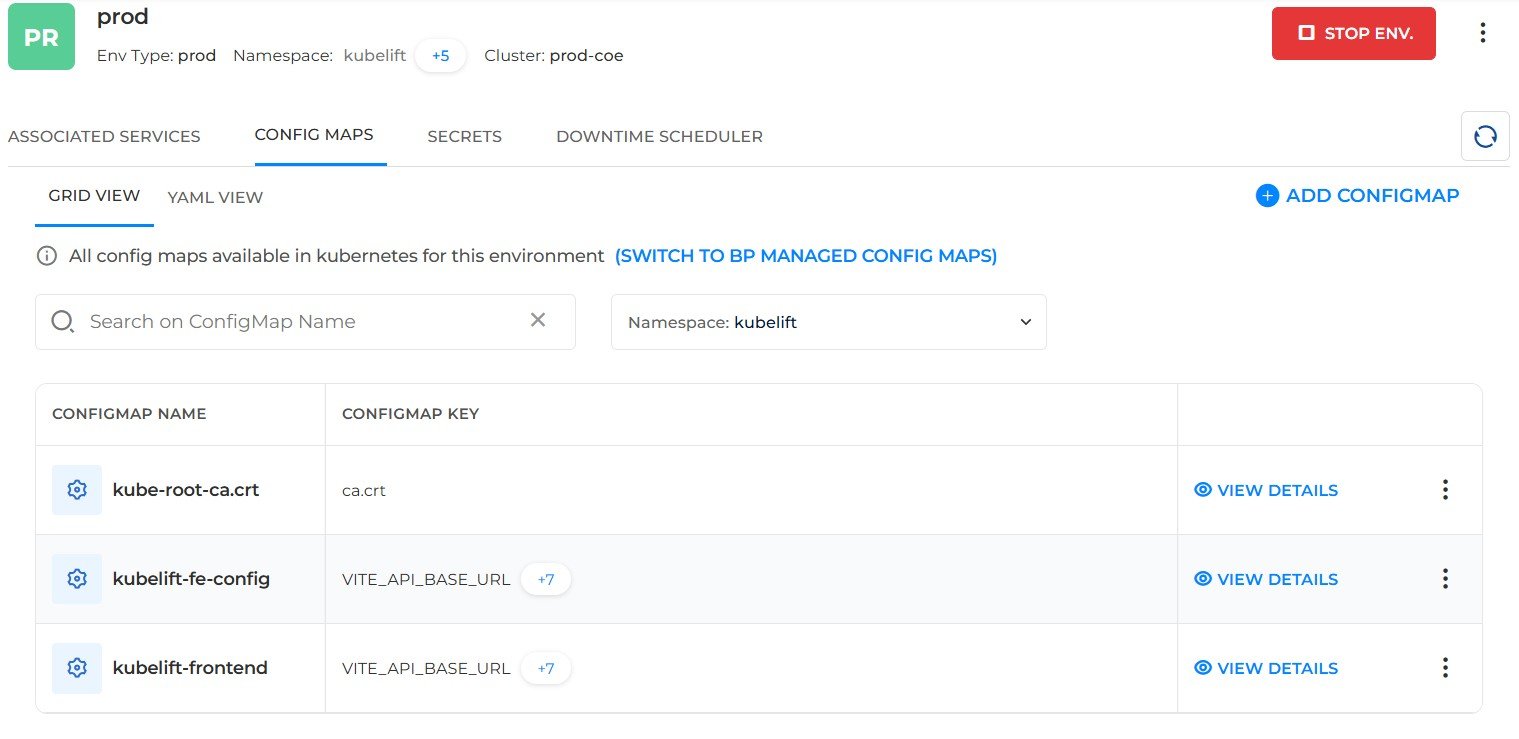
Figure 1: Config Maps tab of an environment
The page has these parts:
| Item | What it does |
|---|---|
| Environment header | Shows the environment name, type, namespace and cluster, with the Stop Env. button and a 3-dot menu. |
| Grid View / YAML View | Displays the ConfigMaps in a grid or in YAML format. In the top-level YAML View, the YAML definitions of all ConfigMaps are displayed together in a single view. To view the YAML of an individual ConfigMap, open its details view. |
| Add ConfigMap | Opens the form to create a new ConfigMap. |
| Switch to BP Managed Config Maps | Switches the list to the ConfigMaps managed by BuildPiper. Otherwise, the list shows all the ConfigMaps available in Kubernetes for the environment, both those managed by BuildPiper and those directly available in Kubernetes. |
| Search on ConfigMap Name | Finds a ConfigMap by name. |
| Namespace filter | When multiple namespaces are assigned to an environment, select a namespace from the dropdown menu to view the ConfigMaps of that namespace. |
| List | Shows each ConfigMap name and its keys. View Details opens the details of the ConfigMap, and the 3-dot menu shows more actions. |
2.2 Grid View and YAML View #
Use the two links under the tabs to change how the ConfigMaps are shown.
| View | What it shows |
|---|---|
| Grid View | The ConfigMaps as a list, with the name and keys of each one. See Figure 1. |
| YAML View | The YAML of the ConfigMaps in the environment, in a code editor with line numbers. It starts with apiVersion and items, and each item has its data and metadata, such as the creation time, name, namespace and uid. See Figure 2. |
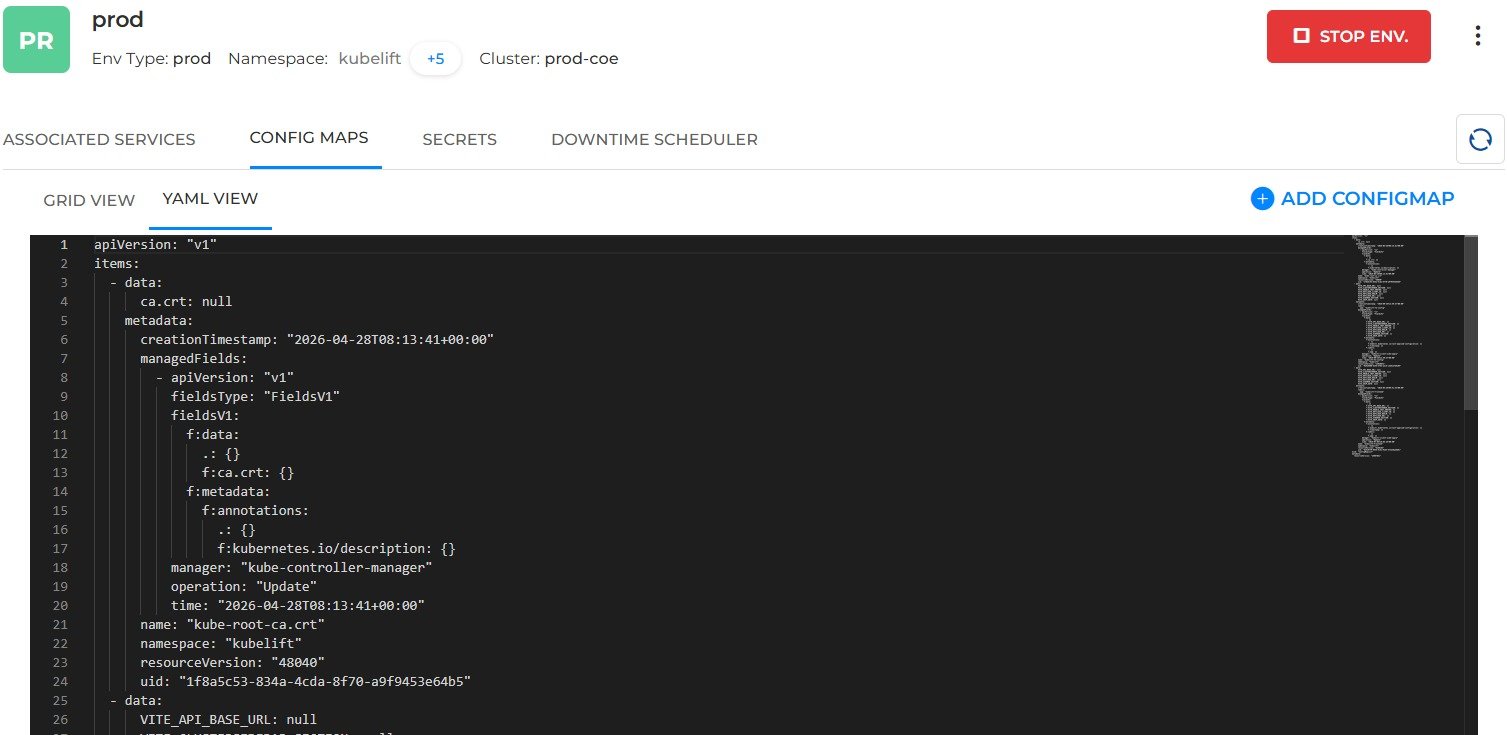
Figure 2: YAML View of the ConfigMaps
2.3 View ConfigMap Details #
Click View Details on a ConfigMap row to see the details of that ConfigMap. The YAML View in section 2.2 shows the YAML of all the ConfigMaps together. The YAML tab of the details window shows the YAML of this ConfigMap only, along with its other details.
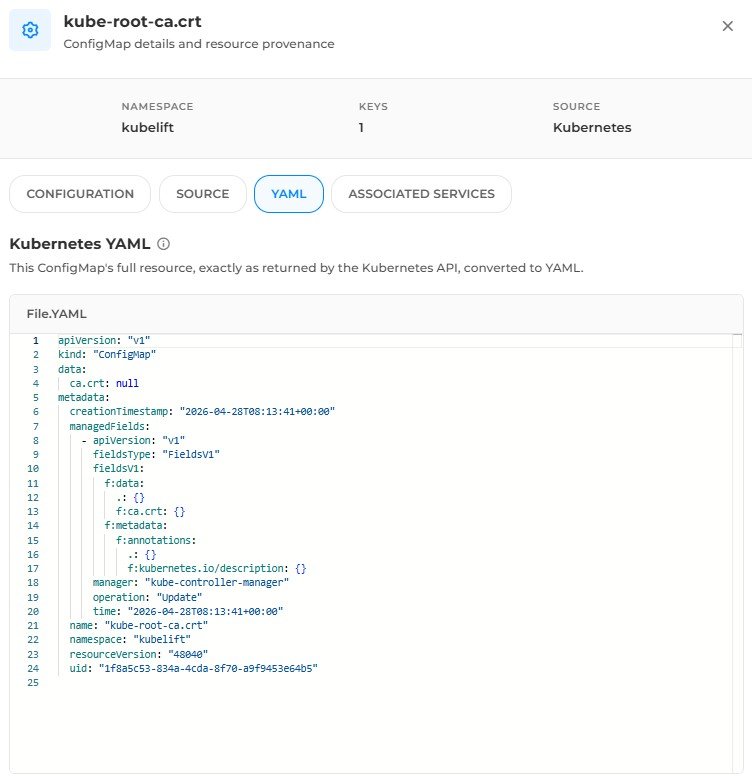
Figure 3: ConfigMap details, YAML tab
2.4 Input Methods #
Select the method with the radio buttons at the top of the form. Every method asks you to Select Namespace. Fields marked * are required.
Note: If multiple namespaces are configured in the environment, the Select Namespace drop-down lists all of them. Select one namespace from the list. This applies to all the input methods below.
| Input method | Use it to |
|---|---|
| Guided Form | Enter the data as key-value pairs. |
| Upload Custom Manifest file / GitOps | Upload a YAML manifest, import one from a Git repository, or use a Git-based Helm template and values file. |
| Use Editor | Paste key-value pairs in a text area. |
| Use YAML Editor | Paste the full YAML. |
Guided Form #
| Field | What to do |
|---|---|
| Config map Strategy* | Select how to give the values. The option shown is Provide Key Values. |
| Key and value | Enter a key and its value. The value is hidden by default. Click the eye icon to show it. |
| Add Row | Adds another key-value pair. |
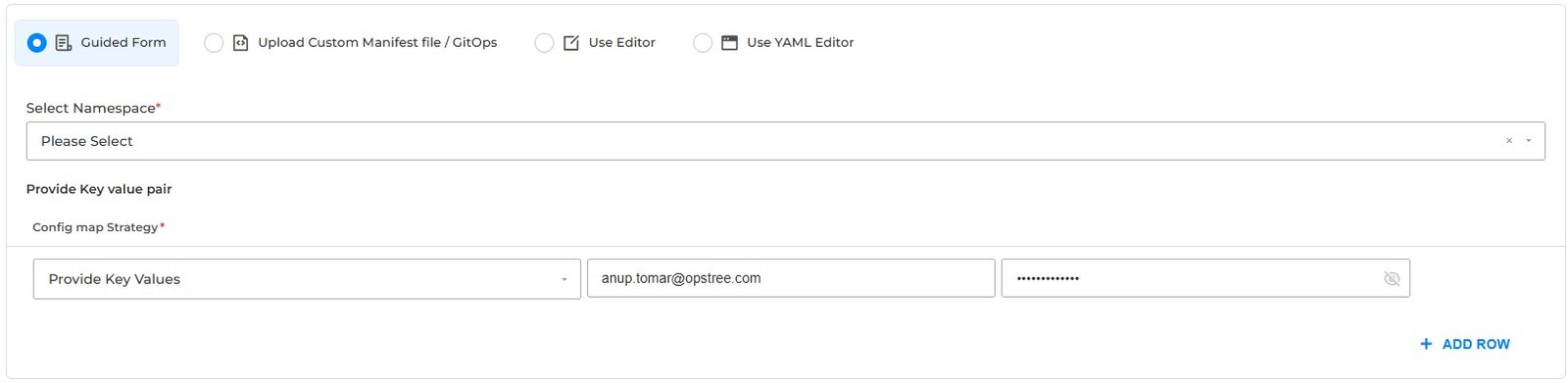
Figure 4: Guided Form
Upload Custom Manifest file / GitOps #
Select one of three ways to give the manifest.
| Option | What to do |
|---|---|
| Via Manifest File Upload | Drag and drop the file, or click click here to choose it. You can upload more than one file. Make sure the ConfigMap name matches the metadata.name in the manifest and that the file has valid key-value pairs. |
| Via Git URL | Get the manifest from a Git repository. See the steps below. |
| Via Helm Templates | Create the ConfigMap from a Helm template. See the steps below. |
Via Git URL #
Make sure the ConfigMap name matches the metadata.name in the manifest.
- 1
In Please Select the Git URL*, select the repository from the drop-down.
- 2
Click Load Branches to get the branches of the repository.
- 3
In Select Branch*, select the branch, for example dev-test.
- 4
In File or folder Paths, enter the path of the file or folder that has the ConfigMap key-value pairs, for example abc.yaml or xyz-folder. Click Add Row to add more paths. Use the delete (bin) icon to remove a path.
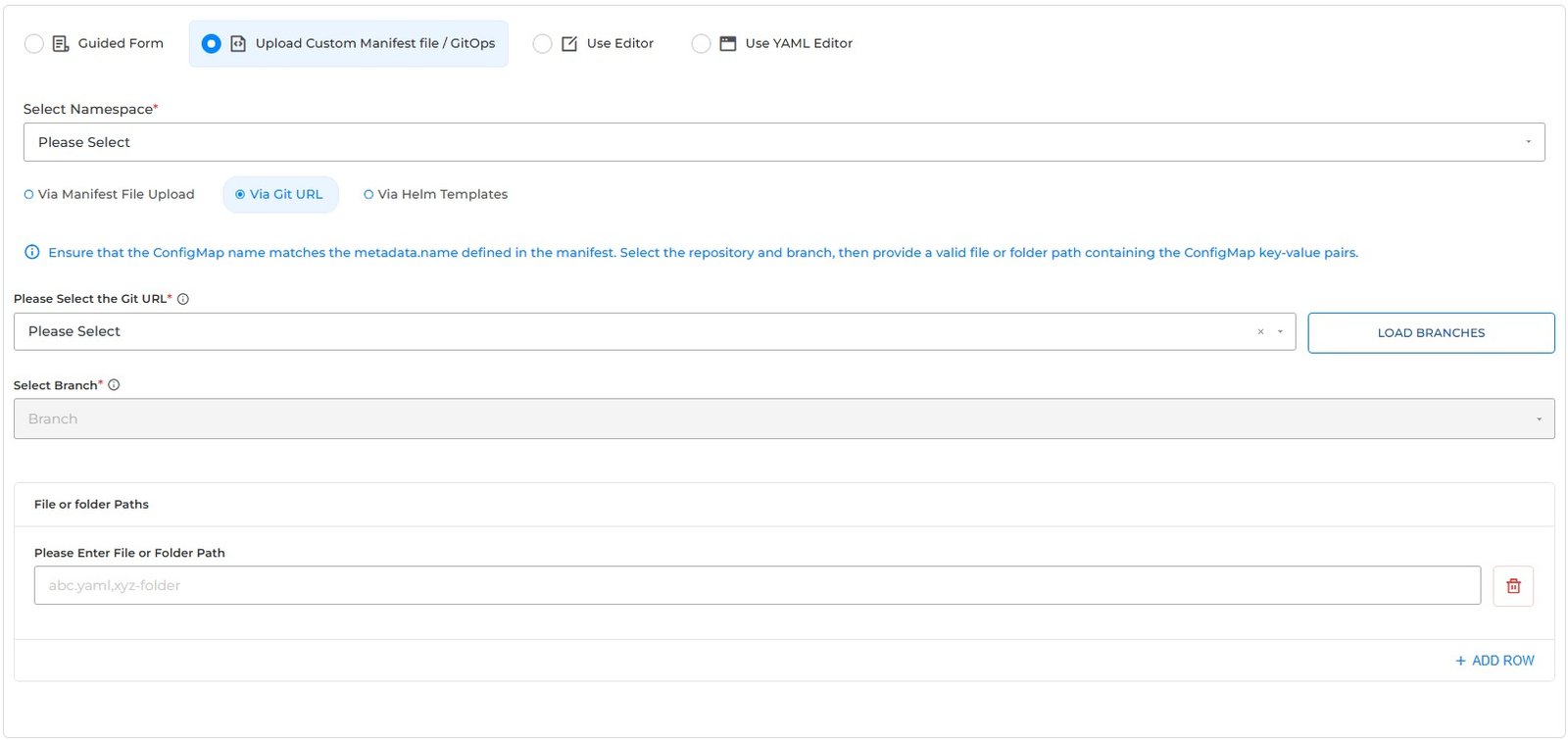
Figure 5: Upload Custom Manifest file / GitOps, Via Git URL
Via Helm Templates #
Make sure the ConfigMap name matches the metadata.name that the Helm template generates, and that the template and values produce valid key-value pairs. Under Helm Templates, select Git Repo or Helm Repo. The steps below are for Helm Repo.
- 1
In Please Select the Helm Repo*, select the repository. Click Load Templates.
- 2
Select the chart in Select Helm Charts*.
- 3
Select the chart version in Select Version*.
- 4
Enter a name in Helm Release Name.
- 5
Under Value Files, select Via File Upload or Via Git Repo. For Via File Upload, click Choose file and upload the values file in Please upload the file*.
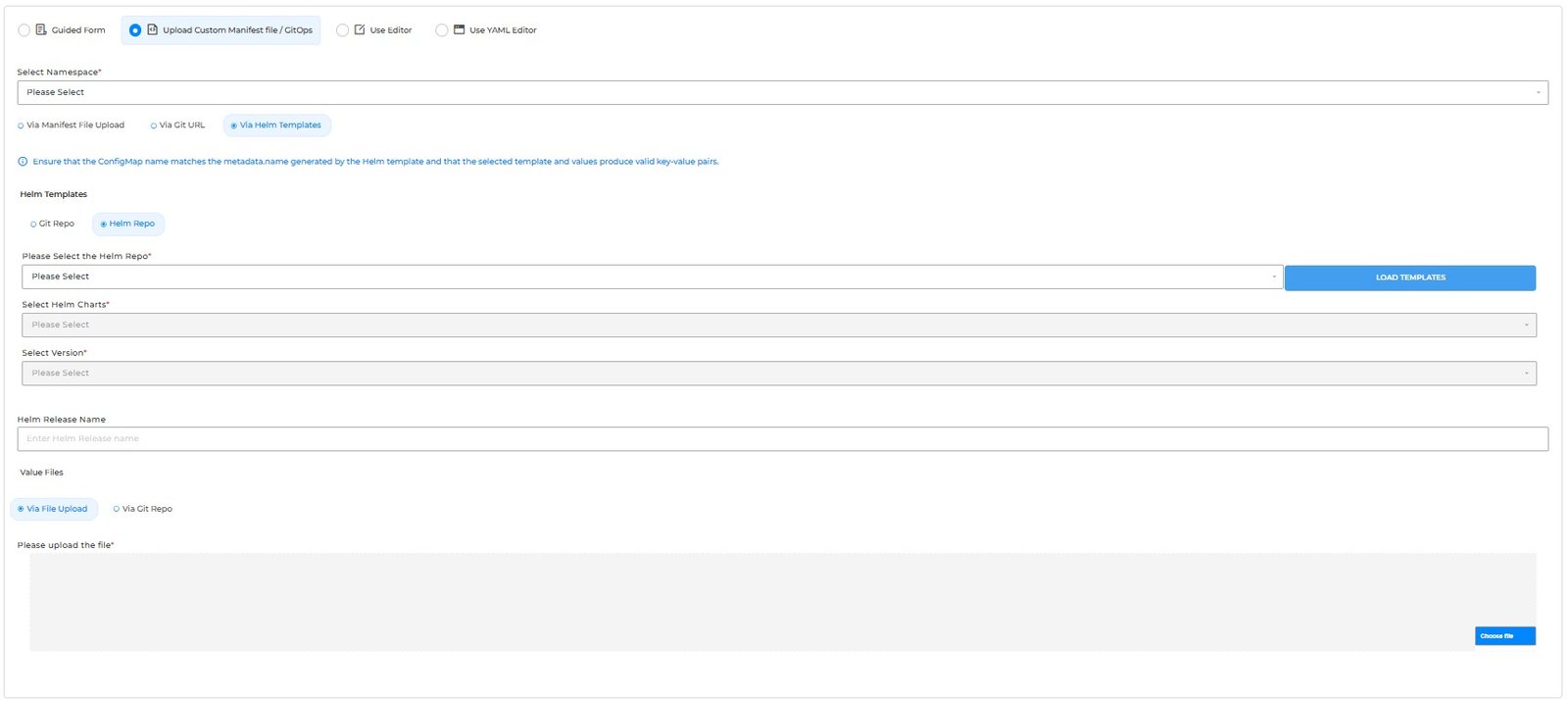
Figure 6: Upload Custom Manifest file / GitOps, Via Helm Templates
Use Editor and Use YAML Editor #
| Input method | What to do |
|---|---|
| Use Editor | Paste key-value pairs only, one per line, in the form key=value. |
| Use YAML Editor | Paste YAML content only, for example key: value. |
2.5 Add Key/Value Config Map Form #
- 1
On the Config Maps tab, click Add ConfigMap. The Add Key/Value Config Map form opens.
- 2
Fill in the fields in the table below.
- 3
Click Save to save the ConfigMap, or click Save & Deploy to save and deploy it in one step.
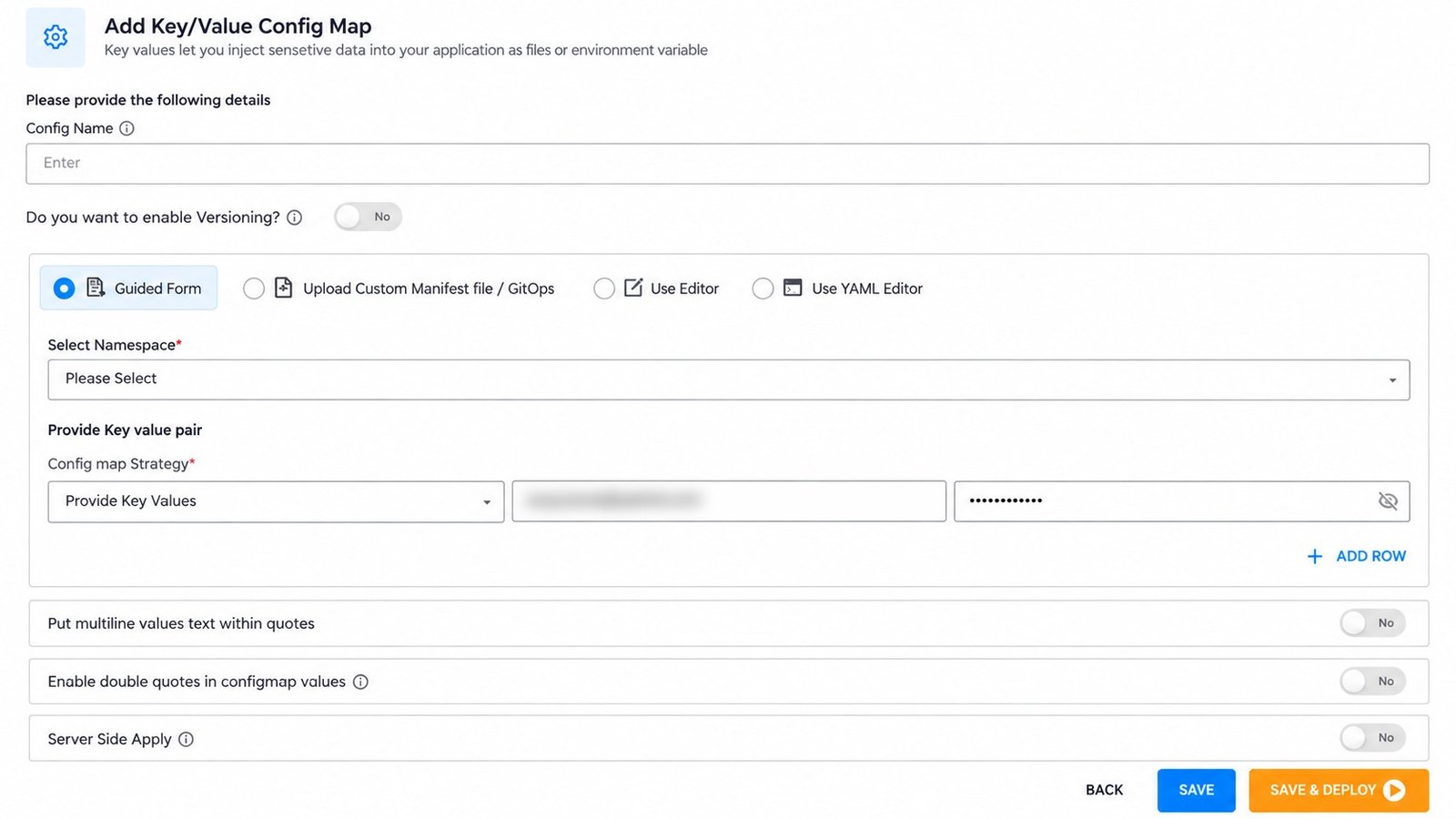
Figure 7: Add Key/Value Config Map form (Guided Form)
| Field | Required | What to do |
|---|---|---|
| Config Name | Yes | Give the ConfigMap a unique name. You use this name later to refer to the ConfigMap in the deployment settings. |
| Do you want to enable approval? | No | Enable this option to require approval before the ConfigMap changes are applied. When it is enabled, the changes must be approved according to the configured approval workflow before they proceed. The default is Disable |
| Input method | Yes | Choose how to give the data: Guided Form, Upload Custom Manifest file / GitOps, Use Editor or Use YAML Editor. See section 2.4. |
| Select Namespace | Yes | When multiple namespaces are assigned to an environment, you can select a namespace from the dropdown menu to view the ConfigMaps associated with that namespace. |
| Put multiline values text within quotes | No | When enabled, BuildPiper automatically encloses multiline data in quotes to preserve the correct format. The default is No. |
| Enable double quotes in configmap values | No | Kubernetes requires values to be enclosed in double quotes. Enable this setting to have BuildPiper automatically wrap every ConfigMap value in double quotes if the values are not already quoted. The default is No. |
| Server Side Apply | No | An advanced Kubernetes feature. The cluster server manages the merges and updates of the configuration, instead of the local client. The default is No. |
| Button | What it does |
|---|---|
| Save | Saves the ConfigMap. |
| Save & Deploy | Saves the ConfigMap and deploys it. |
3. Actions #
These are the actions you can take on a ConfigMap from the Config Maps tab.
3.1 3-dot Menu Actions #
Click the 3-dot menu at the end of a ConfigMap row to see the actions.
| Action | What it does |
|---|---|
| Edit | Opens the ConfigMap so you can change it. |
| Delete | Deletes the ConfigMap. |
| Re-deploy | Deploys the ConfigMap again. |
| View Yaml | Shows the YAML of the ConfigMap. |