

Dynamic Environment #
Before You Start #
Make sure you have the following:| No. | Requirement |
|---|---|
| 1 | Access to the application you want to clone an environment for, for example PMS. |
| 2 | An existing environment to clone from, for example dev. |
| 3 | The target cluster and namespace where the new environment should run. |
| 4 | A Clone Configuration for the base environment. If you do not have one yet, create it first using section 1 below. |
1. Create a Clone Configuration #
Environment Clone Configuration defines the configuration values that are carried over when a new environment is created. You can configure the ConfigMaps and Secrets that are replaced for critical components, such as domains, databases, middleware and application properties. The cloning process uses a base environment as a reference. The ConfigMaps and Secrets of the base environment serve as the foundation, and you can override or replace specific values to suit the requirements of the new environment.- 1
Click Application.
- 2
Click Env. Clone Configuration.
- 3
Click + Add Configuration to add a configuration.
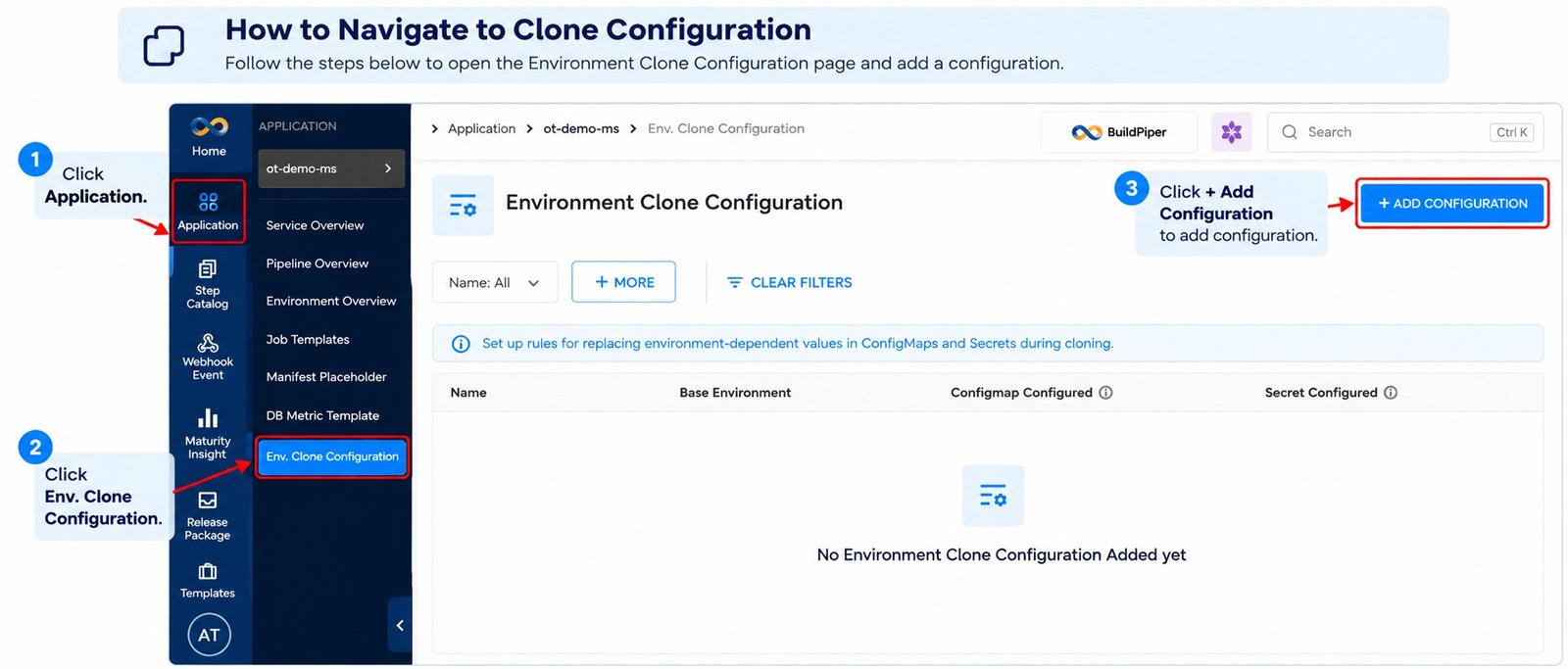
Figure 1: Environment Clone Configuration page
After a clone configuration is added, the page lists it with these columns.| Column | What it shows |
|---|---|
| Configmap Configured | The number of ConfigMaps configured, for example 0/0, with a Configure link. When cloning, if ConfigMaps are not configured, the system uses the existing values, so the environment is replicated exactly as it is. |
| Secret Configured | The number of Secrets configured, for example 0/0, with a Configure link. When cloning, if Secrets are not configured, the system uses the existing values, so the environment is replicated exactly as it is. |
- 1
Click + Add Configuration. The Add Environment Clone Configuration window opens.
- 2
Fill in the fields described below.
- 3
Click Save & Continue. Click Cancel to close the window without saving.
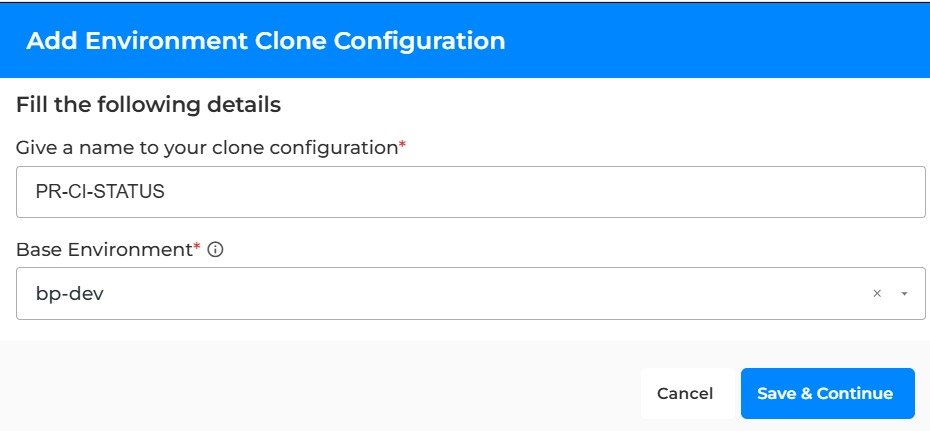
Figure 2: Add Environment Clone Configuration window
| Field | What to do |
|---|---|
| Give a name to your clone configuration* | Enter a name for the clone configuration, for example PR-CI-STATUS. |
| Base Environment* | Select the environment this configuration is based on, for example bp-dev. |
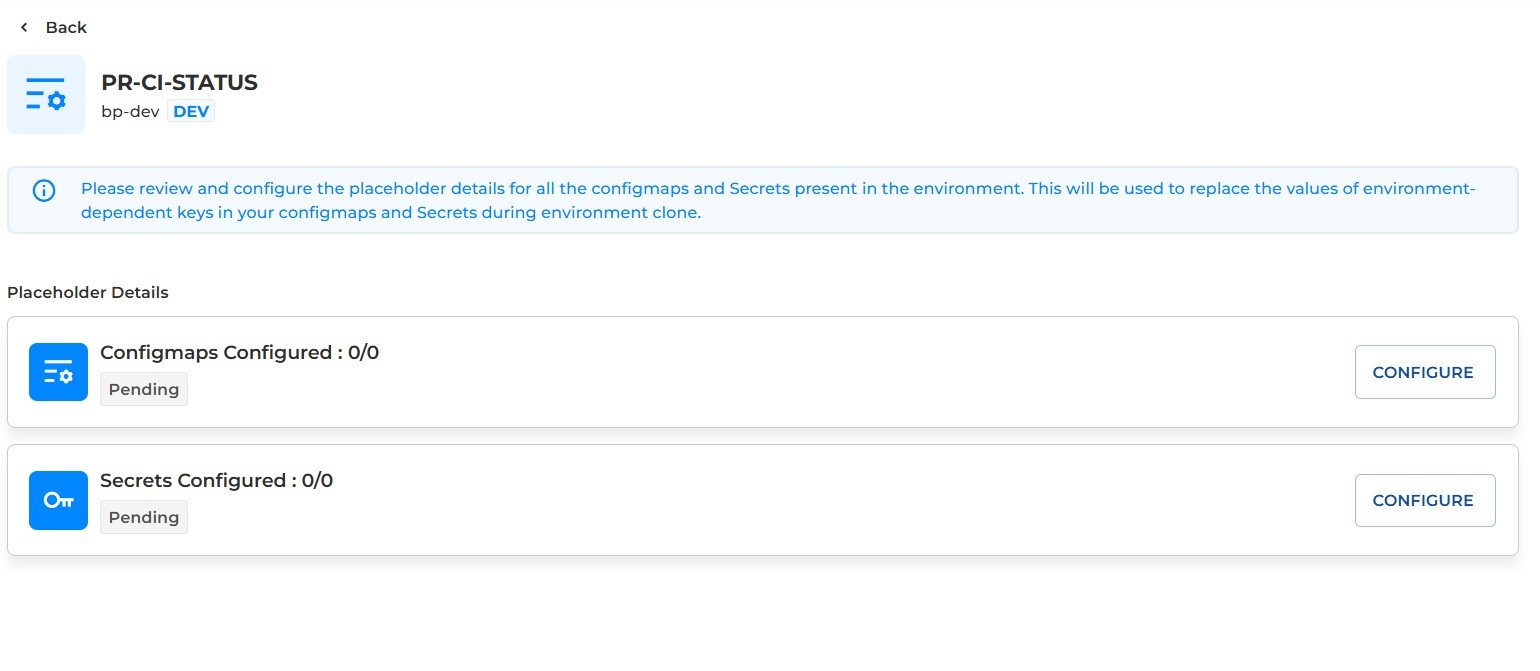
Figure 3: Placeholder Details of a clone configuration
Screenshots needed: The screens that open after clicking Configure for ConfigMaps and for Secrets
2. Open Clone Env #
- 1
Log in to BuildPiper.
- 2
Click Application.
- 3
Click Environment Overview.
- 4
Click Clone Env.
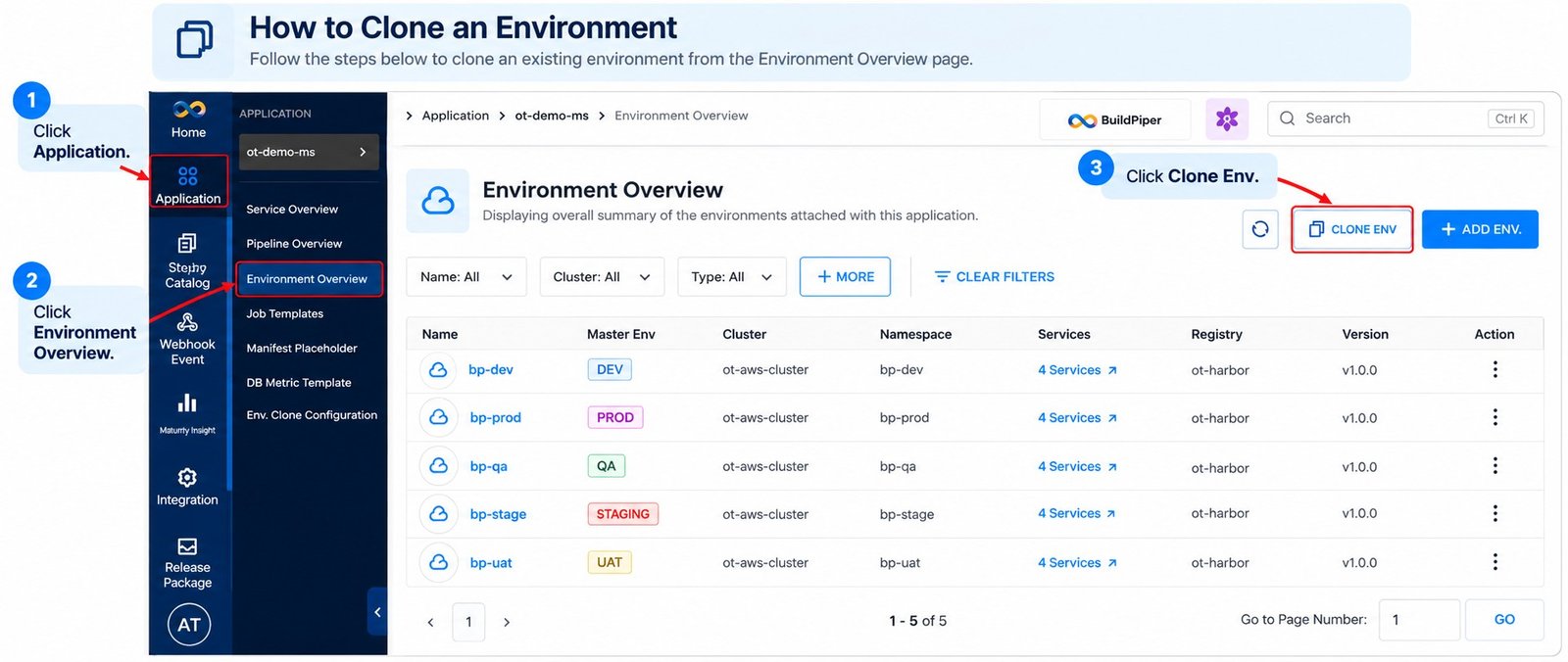
Figure 4: Clone Env on the Environment Overview page
3. Clone Environment Steps #
Clicking Clone Env opens the Clone Environment page, which sets up the new environment in the following steps. Click Continue to move to the next step.| Step | Name | What you do |
|---|---|---|
| 1 | Basic Information | Choose the master environment, the environment to clone and the clone configuration. Set the toggles and enter the new environment name and key. |
| 2 | Service Configuration | Review the detected patterns and set the clone patterns. |
| 3 | Review Service Configuration | Review the services. |
| 4 | Service Domain | Review and update the environment-dependent domains. |
| 5 | Review Service Domain | Review the service domains. |
| 6 | Database Configuration | Override the configuration of the required databases. |
| 7 | Review Database Configuration | Review the databases. |
| 8 | Middleware Configuration | Override the configuration of the required middleware. |
| 9 | Review Middleware Configuration | Review the middlewares. |
| 10 | Dependent App Properties | Review the keys with their old and new values, then click Create Clone. |
4. Step 1: Basic Information #
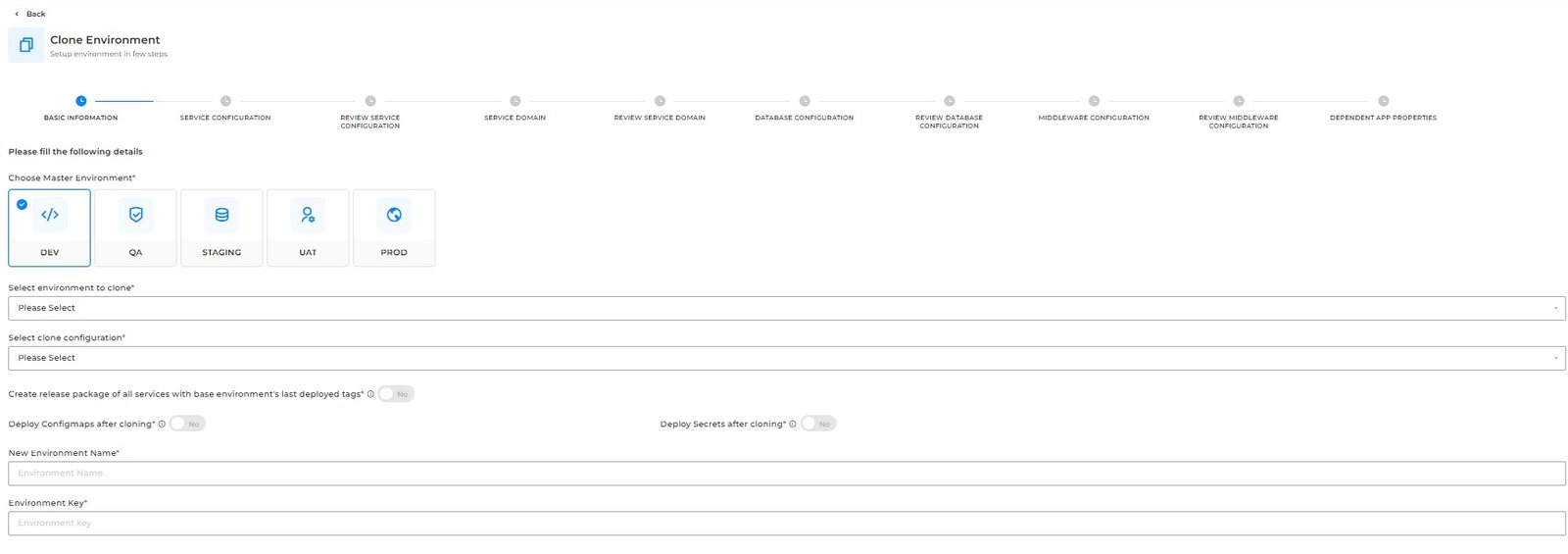
Figure 5: Basic Information step of Clone Environment
| Field | What to do |
|---|---|
| Choose Master Environment* | Select the type of the master environment: DEV, QA, STAGING, UAT or PROD. |
| Select environment to clone* | Select the environment you want to clone. |
| Select clone configuration* | Select the clone configuration to use. This is mandatory: you cannot continue to the next step without a clone configuration. See section 1 to create one. |
| Create release package of all services with base environment’s last deployed tags* | If marked Yes, a release package is created that contains all services linked to the new cloned environment, using the latest tags from the base environment. If marked No, no release package is created. The default is No. |
| Deploy Configmaps after cloning* | If marked Yes, all ConfigMaps are cloned and deployed to Kubernetes. If marked No, all ConfigMaps are cloned but not deployed to the new environment. The default is No. |
| Deploy Secrets after cloning* | If marked Yes, all Secrets are cloned and deployed to Kubernetes. If marked No, all Secrets are cloned but not deployed to the new environment. The default is No. |
| New Environment Name* | Enter the name of the new environment. |
| Environment Key* | Enter the key of the new environment. |
5. Step 2: Service Configuration #
This step shows the patterns detected in the deployment configurations of the base environment. Review them and update the required patterns accordingly.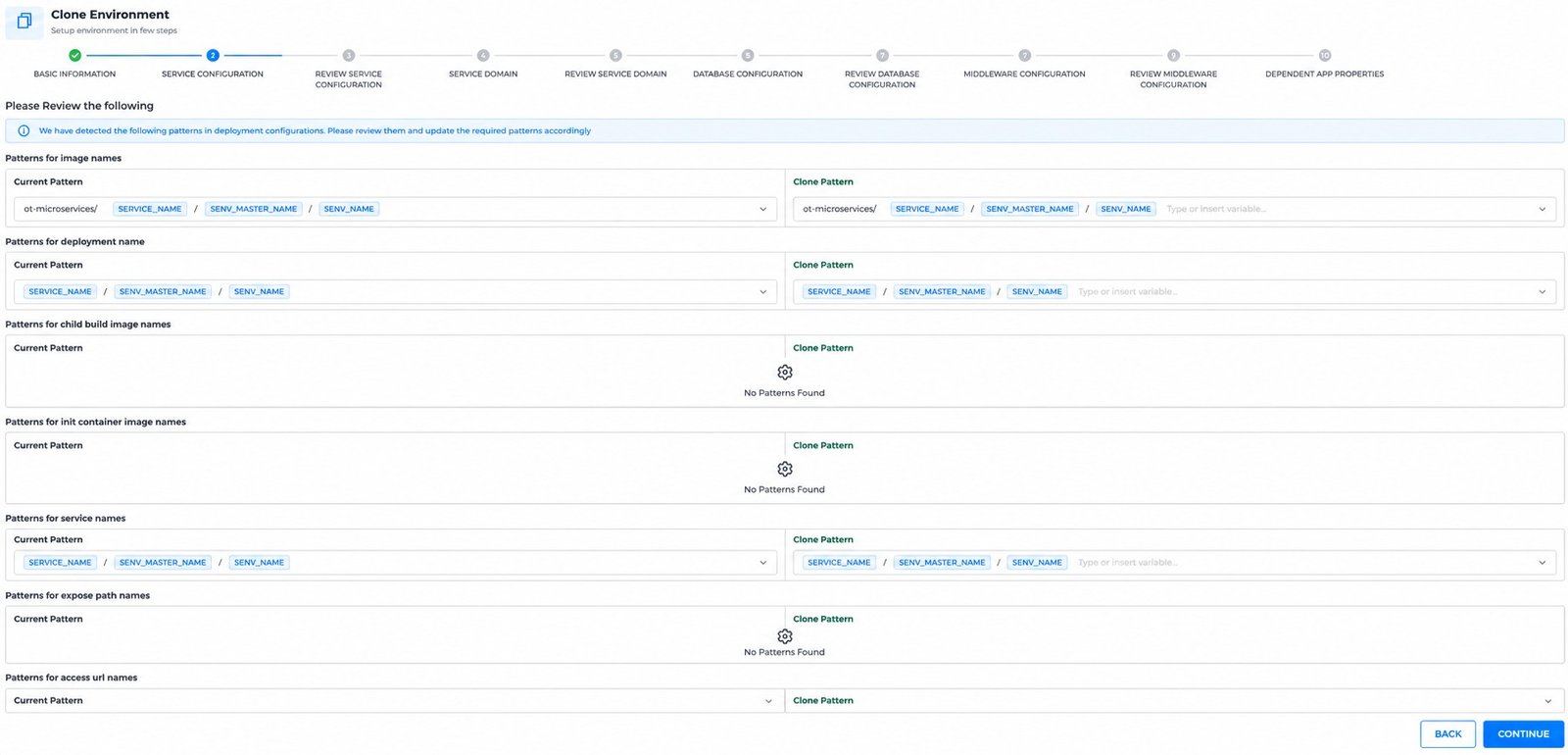
Figure 6: Service Configuration step of Clone Environment
Each pattern type has two sides. Current Pattern shows the pattern in the base environment. Clone Pattern is where you set the pattern for the new environment by typing or inserting a variable. When no pattern is detected for a type, the page shows No Patterns Found.| Button | What it does |
|---|---|
| Back | Returns to the previous step. |
| Continue | Moves to the next step. |
6. Step 3: Review Service Configuration #
This step lists the services for review before you continue. Use Search Service to find a service. The list shows the Service Name, k8s service name, Deployment name, Image name, Child Build Image name, Init Container Image Name, Access URL and Expose Path of each service. Use the page numbers below the list, or Go to Page Number, to move between pages.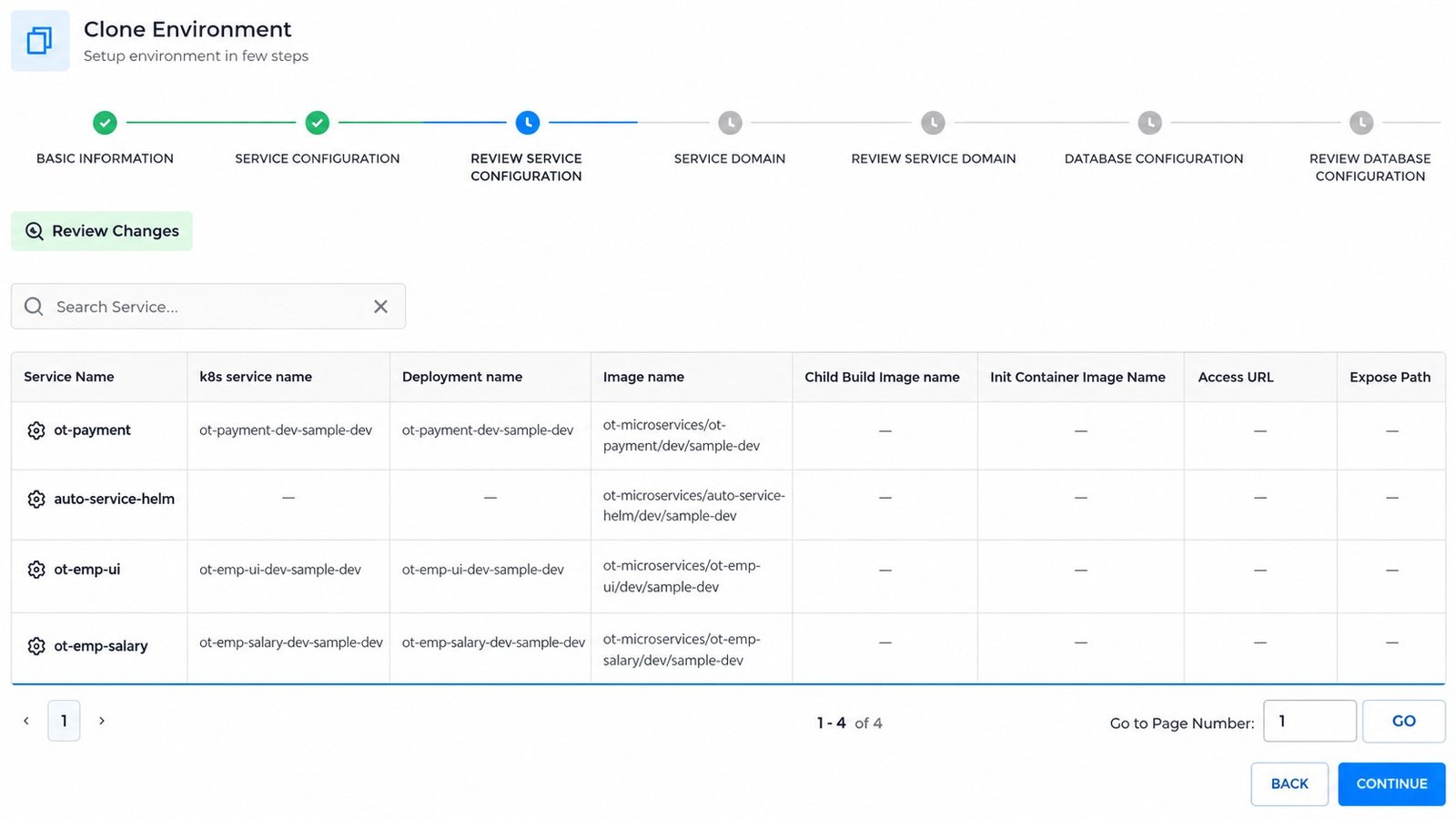
Figure 7: Review Service Configuration step of Clone Environment
Click Continue to move to the next step, or Back to return to the previous step.7. Step 4: Service Domain #
This step shows only the domains that are marked as environment-dependent in the environment clone configuration. Review and update the domains. The base environment domains are shown on the left, and the domains of the new environment are shown on the right. When there are no such domains, the page shows No Data Found.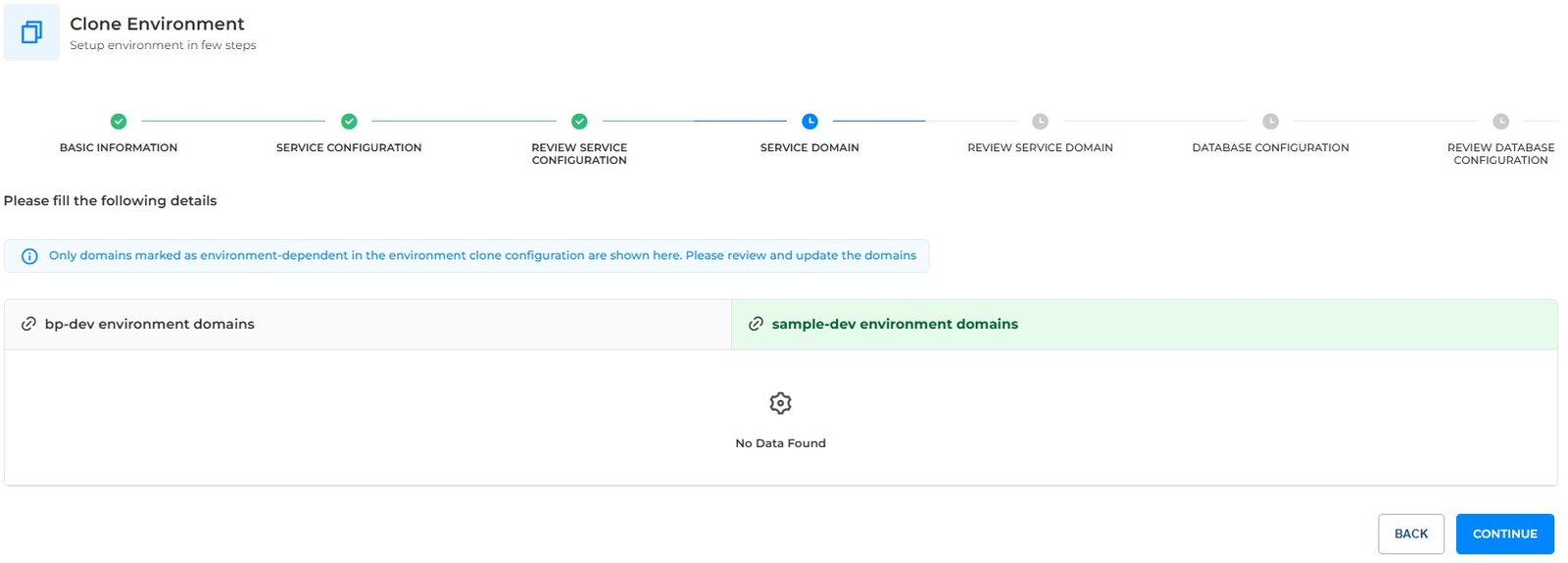
Figure 8: Service Domain step of Clone Environment
Click Continue to move to the next step, or Back to return to the previous step.8. Step 5: Review Service Domain #
This step shows the Review Service Domain list for review before you continue. When there is nothing to review, the page shows No Data Found.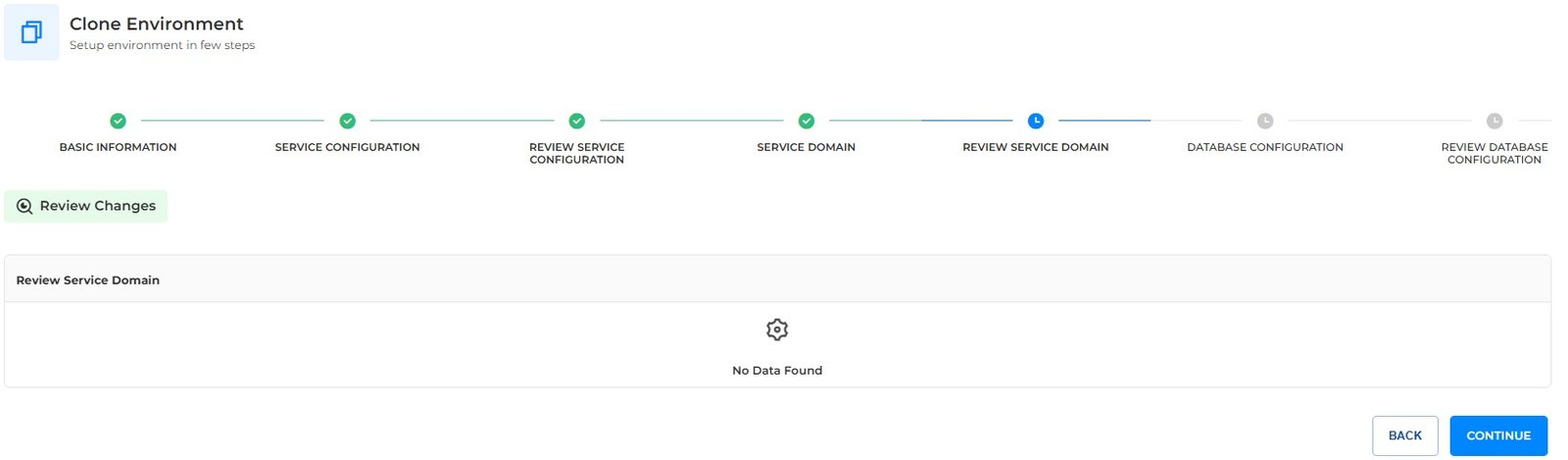
Figure 9: Review Service Domain step of Clone Environment
Click Continue to move to the next step, or Back to return to the previous step.9. Step 6: Database Configuration #
In this step, override the configuration of the required databases. The Databases list shows them, and shows No Data Found when there are none.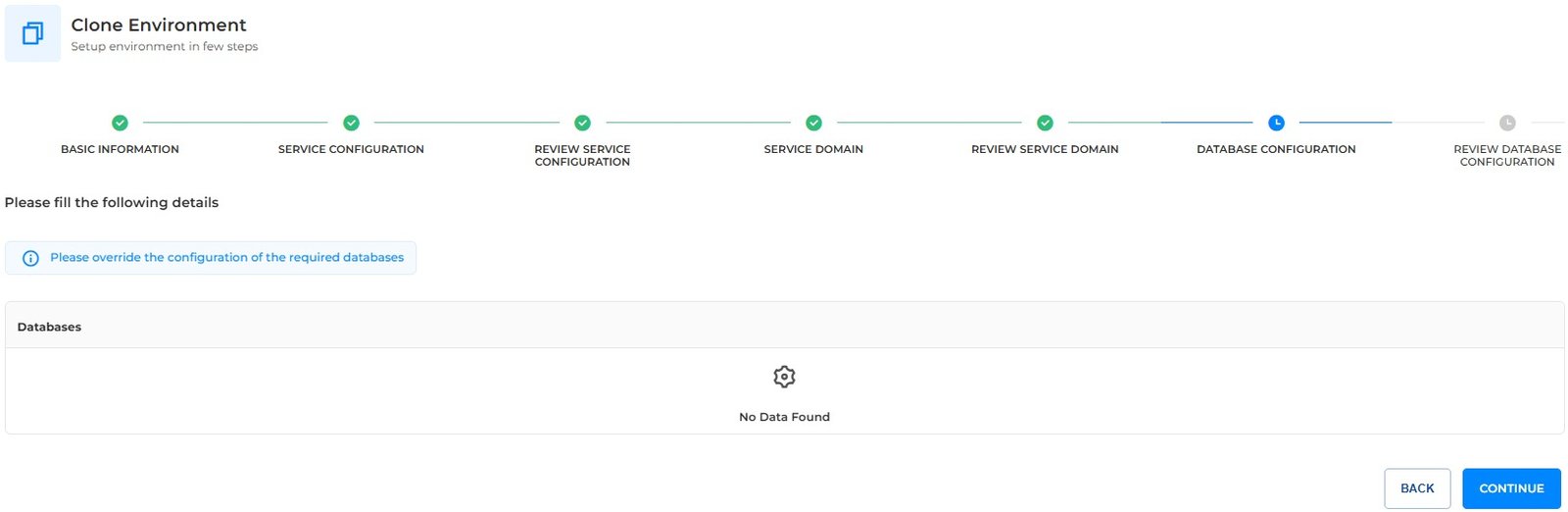
Figure 10: Database Configuration step of Clone Environment
Click Continue to move to the next step, or Back to return to the previous step.10. Step 7: Review Database Configuration #
This step shows the Review Databases list for review before you continue. When there is nothing to review, the page shows No Data Found.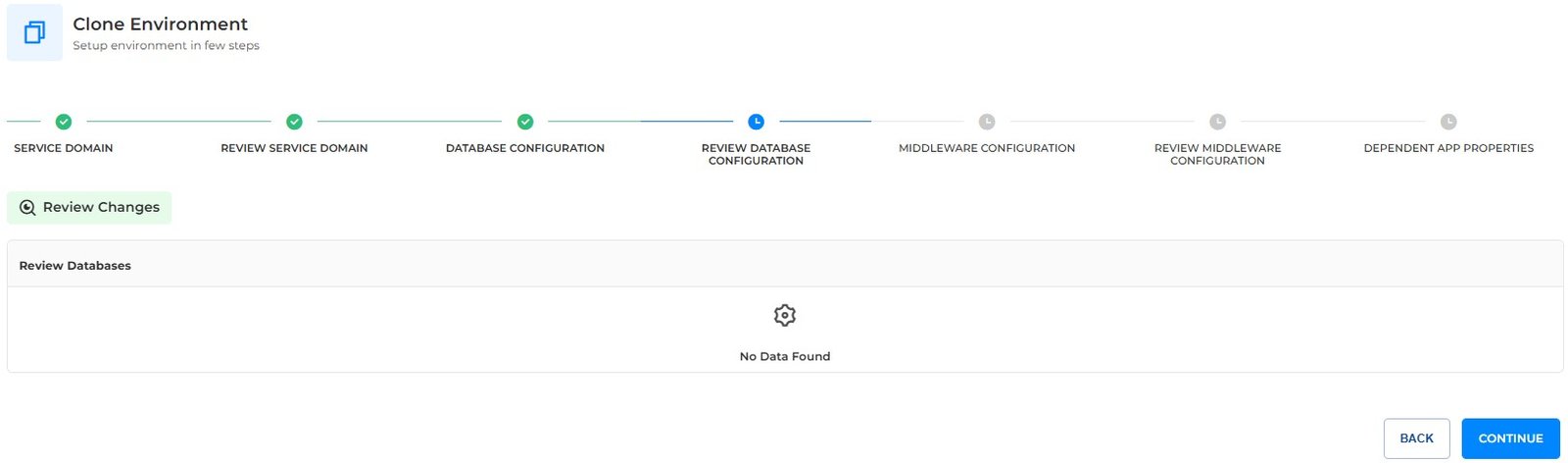
Figure 11: Review Database Configuration step of Clone Environment
Click Continue to move to the next step, or Back to return to the previous step.11. Step 8: Middleware Configuration #
In this step, override the configuration of the required middleware. The Middlewares list shows them, and shows No Data Found when there are none.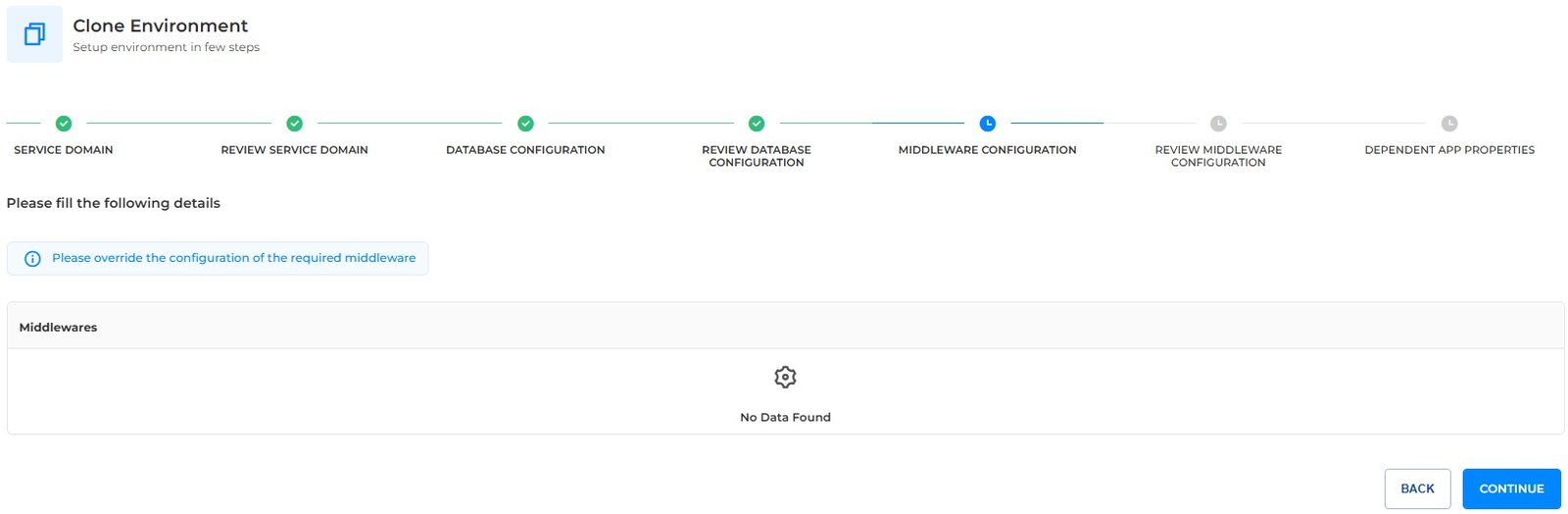
Figure 12: Middleware Configuration step of Clone Environment
Click Continue to move to the next step, or Back to return to the previous step.12. Step 9: Review Middleware Configuration #
This step shows the Review Middlewares list for review before you continue. When there is nothing to review, the page shows No Data Found.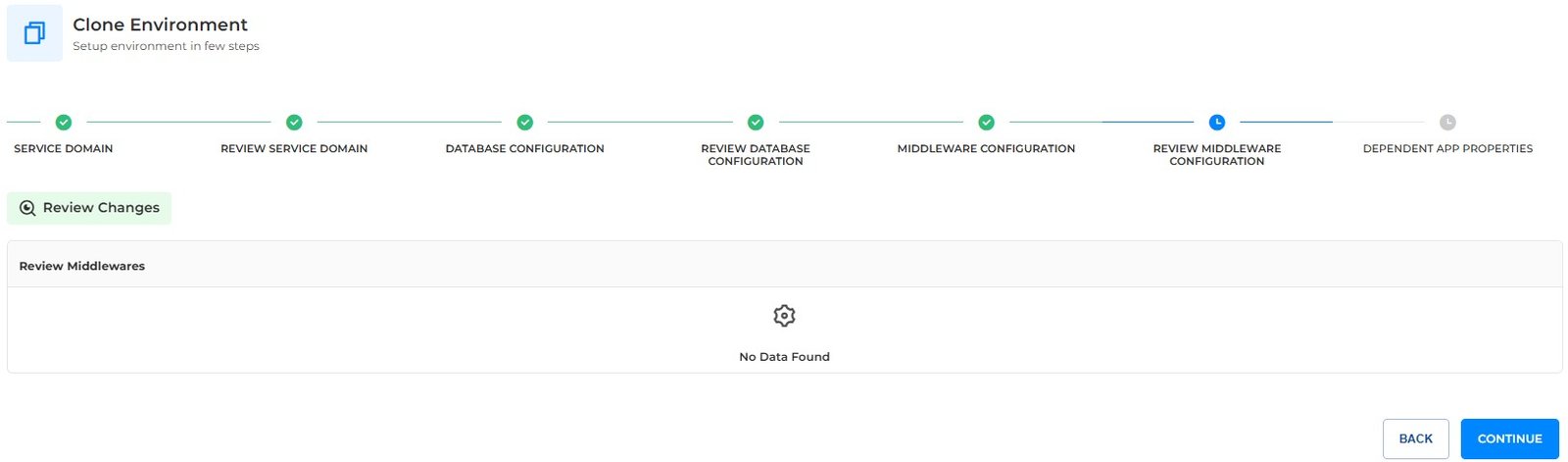
Figure 13: Review Middleware Configuration step of Clone Environment
Click Continue to move to the next step, or Back to return to the previous step.13. Step 10: Dependent App Properties #
This is the last step. It shows all the dependent app properties and their new values, with the Key, Old Value and New Value of each property. When there are no such properties, the page shows No Data Found.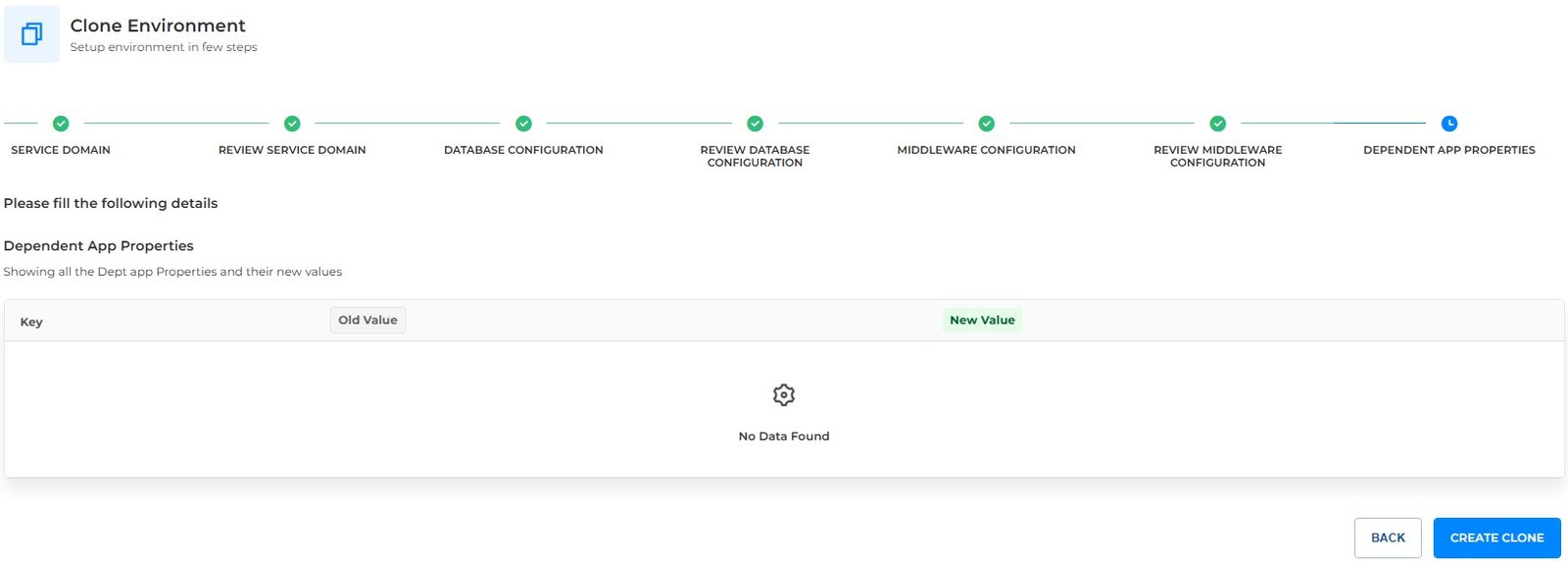
Figure 14: Dependent App Properties step of Clone Environment
Click Create Clone to create the cloned environment, or Back to return to the previous step.14. Clone Creation in Progress #
After you click Create Clone, the Clone Creation in Progress page opens. Cloning can take some time. You can click Skip and check the cloned environment later from the Environment Overview page.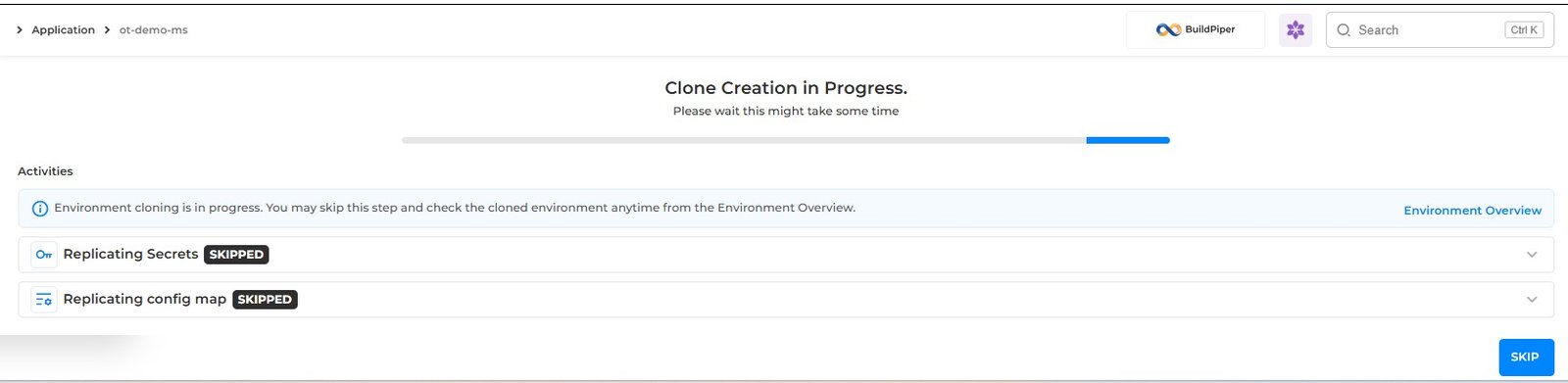
Figure 15: Clone Creation in Progress page
The Activities list shows the progress of each part of the clone, with the status of each, such as Skipped or Success. When the clone is created, the page shows Clone Creation Completed!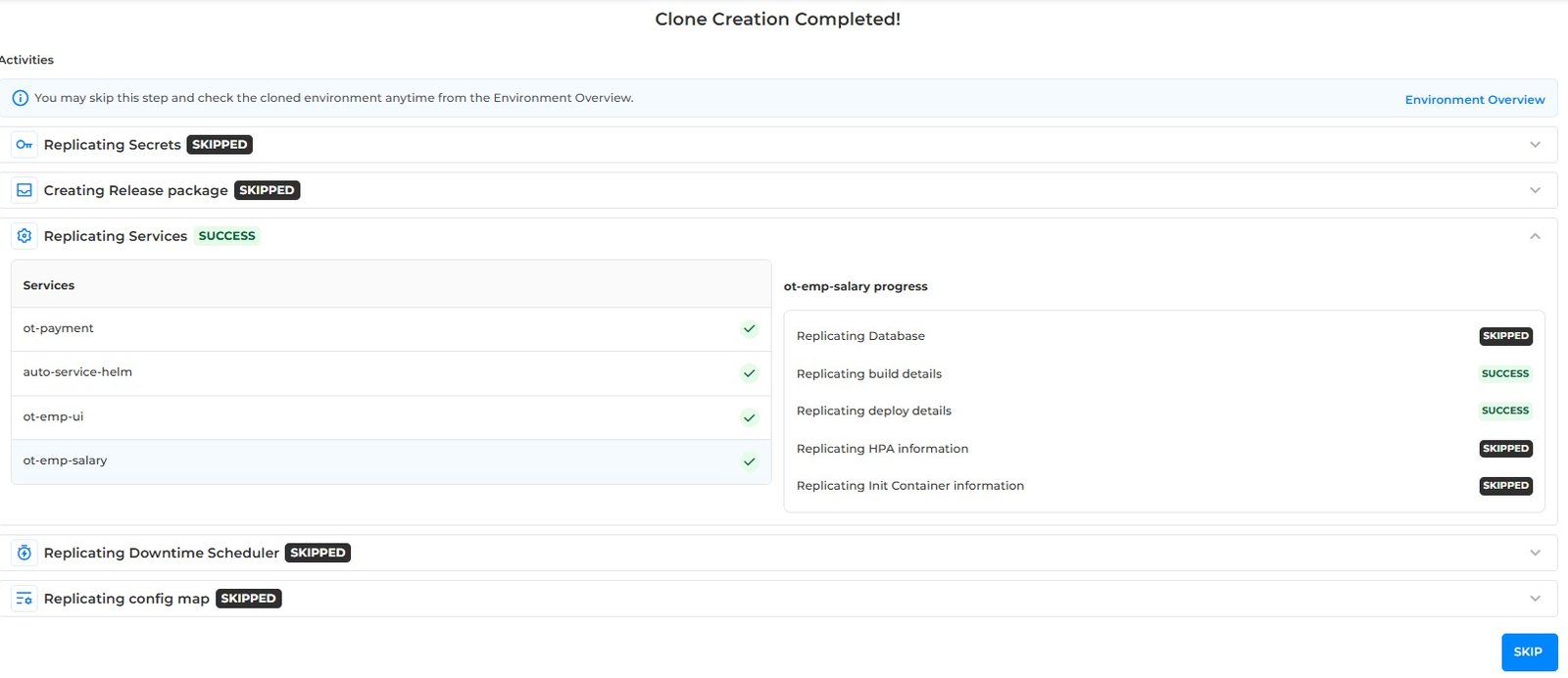
Figure 16: Clone Creation Completed page
Expand Replicating Services to see the services that were replicated. Select a service to see its progress. When the clone is created, the new environment is listed on the Environment Overview page, for example sample-dev.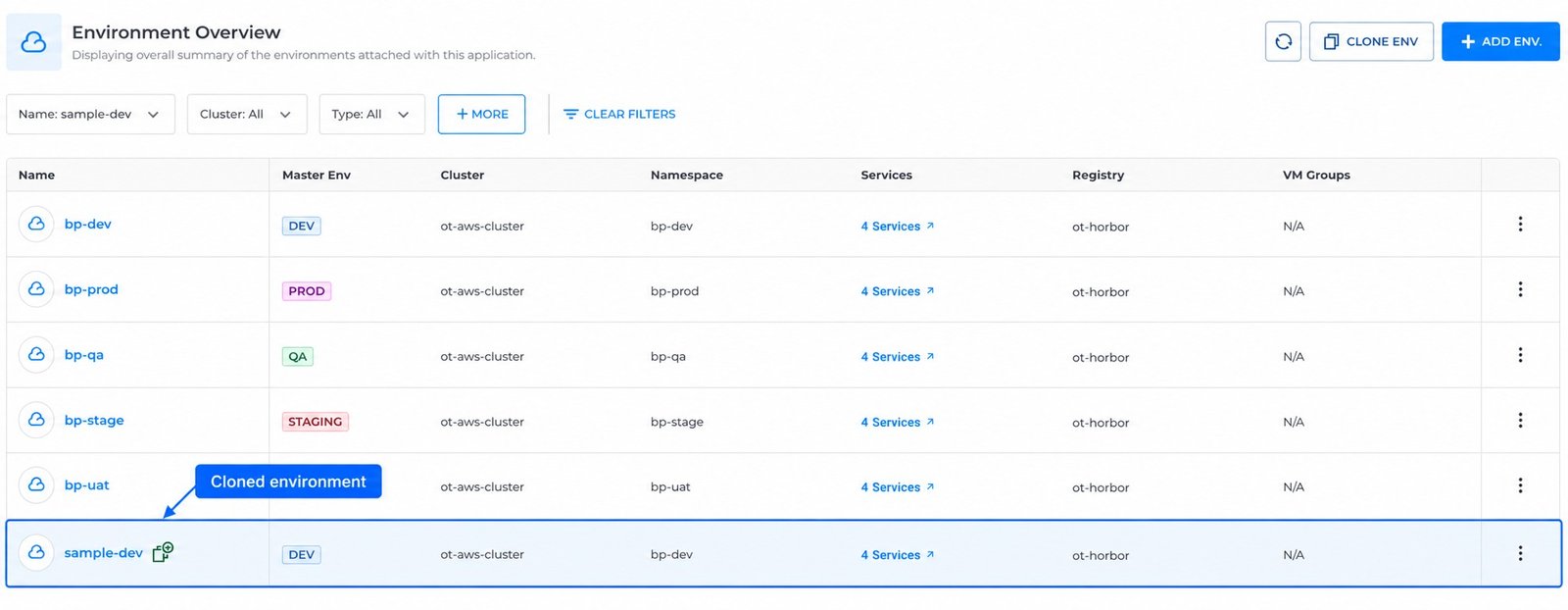
Figure 17: Cloned environment on the Environment Overview page