

Release Package Configuration #
Release Package Configuration defines the rules for creating release packages in BuildPiper, including ticketing integration, project selection, required ticket status, and approval permissions. You can configure these rules globally as the default for all applications or customize them for individual applications.
Before You Start #
Ticketing integration #
JIRA integration or ADO integration is configured in the ticketing system.
Permissions #
You have the permissions to run and execute pipelines and release packages.
1. Open Release Package Config #
- 1
Click the profile menu and make sure you are in the Super Admin area.
- 2
Click Governance & Rules in the left navigation.
- 3
Click Release Package Config.
- 4
Click + Add Configuration to create a new release package configuration.
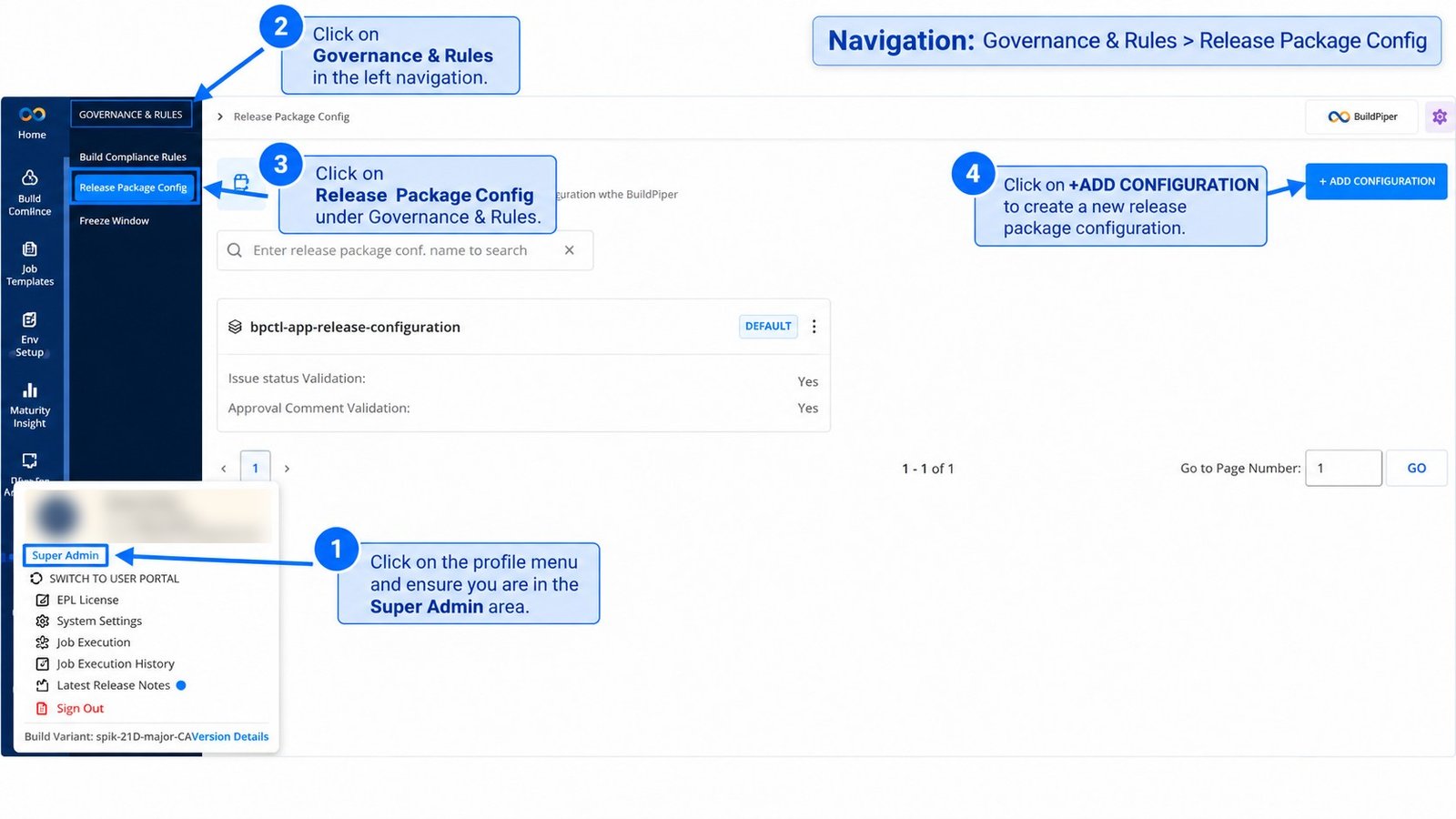
Figure 1: Governance & Rules > Release Package Config
The page lists the release package configurations. Each configuration shows whether Issue status Validation and Approval Comment Validation are on.
After you click + Add Configuration, select the config type.
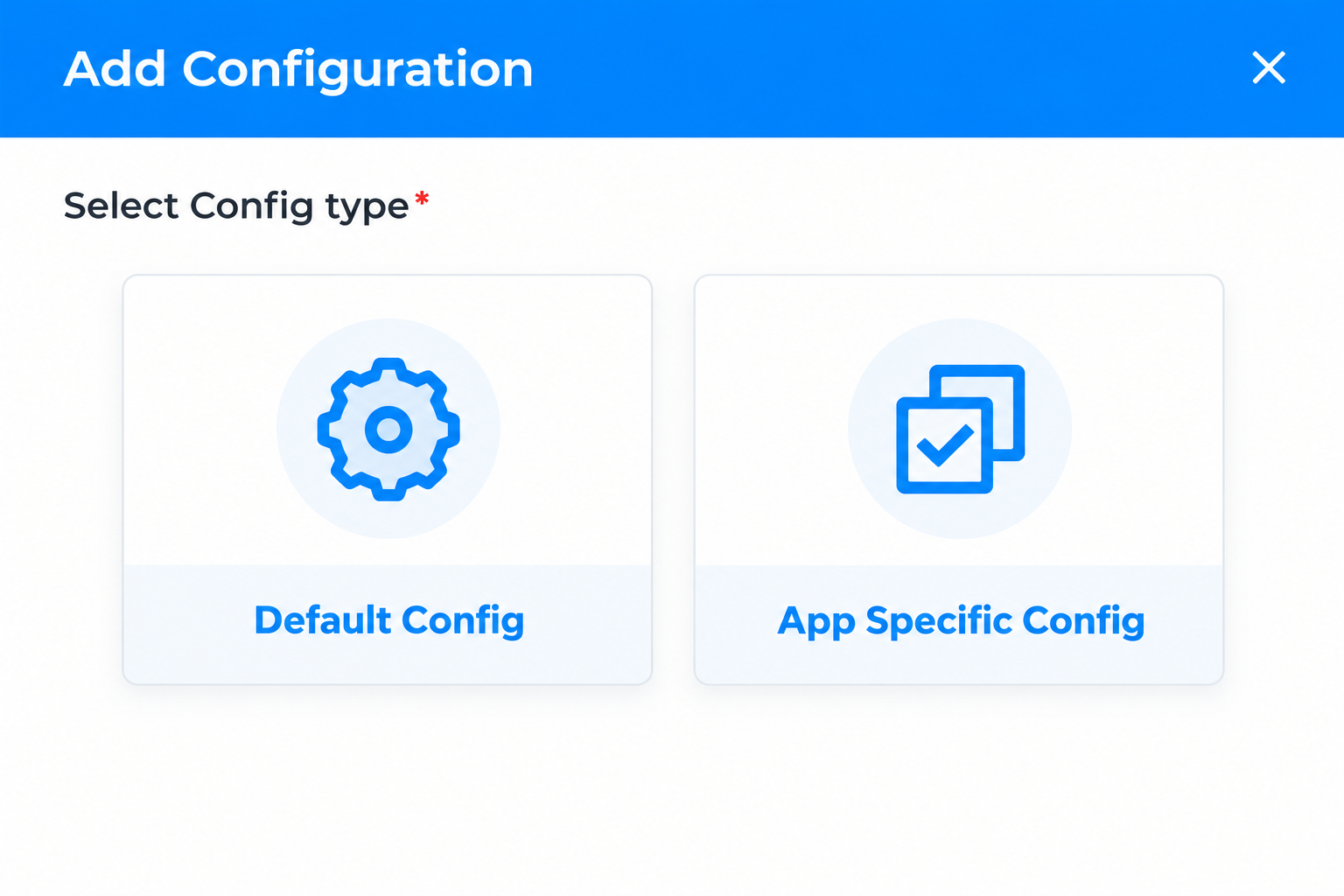
Figure 2: Add Configuration, Select Config type
Default Config #
The configuration used for a global package, and for any application that has no configuration of its own.
App Specific Config #
The configuration for a particular application.
2. Add an App Specific Configuration #
Select App Specific Config. The Release Package Configuration page opens with five sections. Complete each section and click Finish.
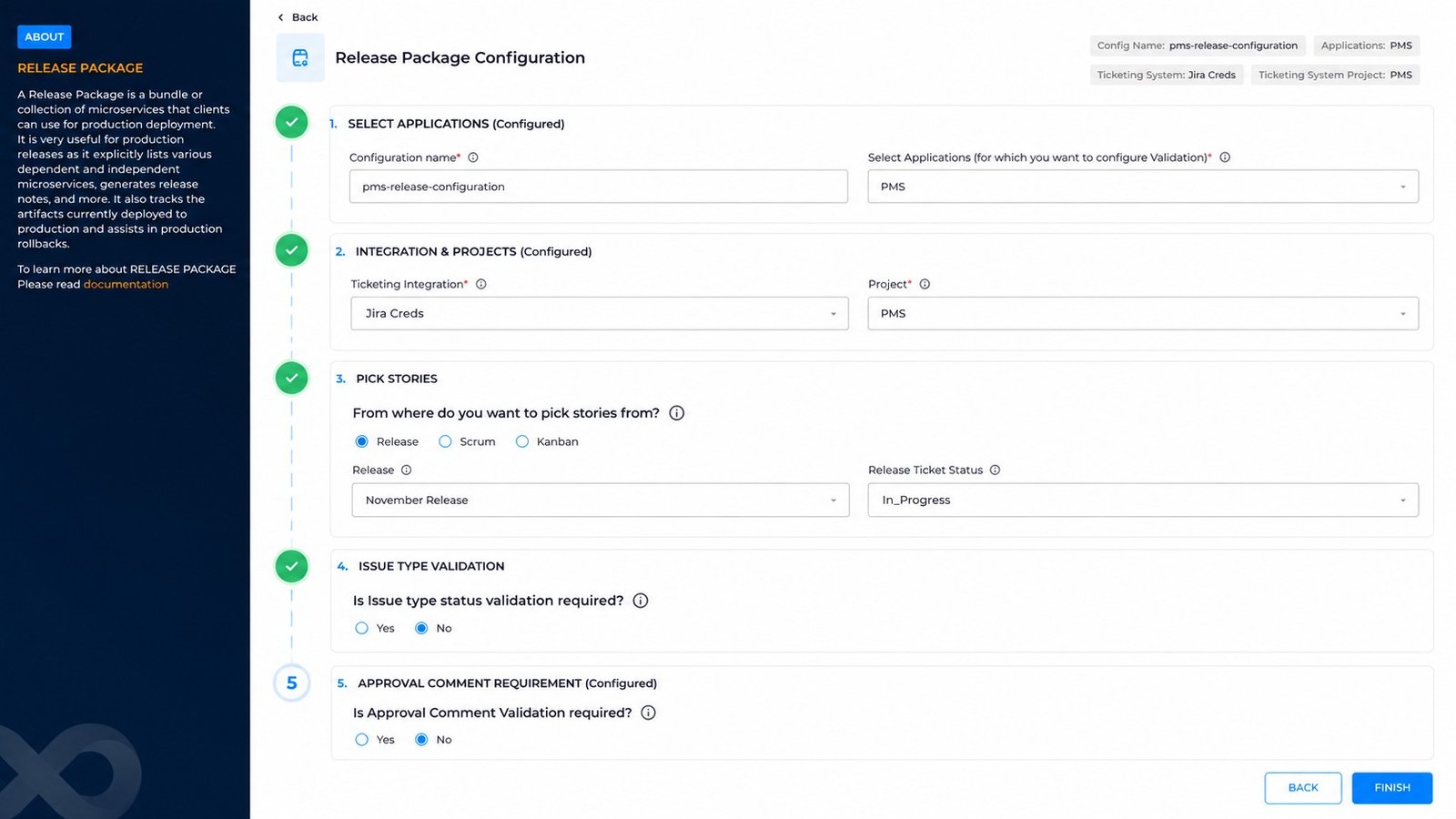
Figure 3: Release Package Configuration form
| Section | Field | Description |
|---|---|---|
| 1. Select Applications | Configuration name * | Name of the configuration. |
| Select Applications * | Choose the application this configuration applies to. Only the selected application’s services are validated against this release package configuration. | |
| 2. Integration & Projects | Ticketing Integration * | Pick the ticketing integration (for example, Jira). |
| Project * | Pick the project whose tickets will be fetched into this release package. | |
| 3. Pick Stories | From where do you want to pick stories from? | Choose how tickets are pulled into the release package: Release (by release or fix version), Scrum (by a Scrum board’s sprint) or Kanban (by a Kanban board). |
| Release | Select the release. | |
| Release Ticket Status | Select the ticket status. | |
| 4. Issue Type Validation | Is Issue type status validation required? | Yes or No. When enabled, a ticket is eligible for the release only if its issue type is in one of the allowed statuses. Configure the valid status for each issue type. |
| 5. Approval Comment Requirement | Is Approval Comment Validation required? | Yes or No. When enabled, each ticket approval must include a comment that matches the configured pattern. |
| Button | Action |
|---|---|
| Finish | Saves the configuration. |
After you click Finish, the new configuration is created and appears in the list with the APP CONFIG tag. The default configuration has the DEFAULT tag.
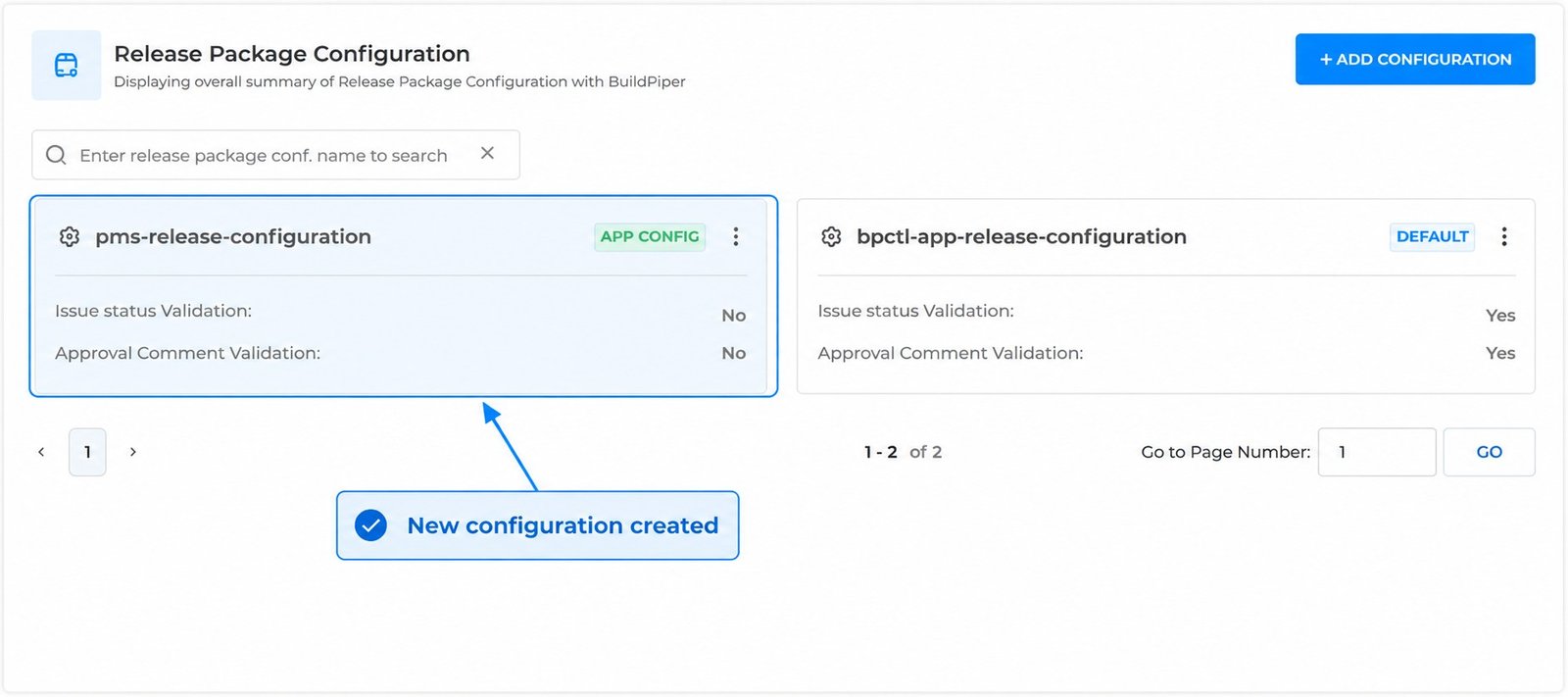
Figure 4: New configuration created