

Release Packages #
Release Package Overview #
BuildPiper Release Packages provide a standardised and governed approach to application releases by bundling all deployment components into a single, versioned, and immutable release construct.
A Release Package combines frontend applications, backend services, database changes, deployment metadata, release notes, and dependency information into one deployable unit that can be promoted consistently across environments through BuildPiper pipelines.
Integrated with a ticketing tool like Jira, BuildPiper can automatically create release packages by selecting all release tickets that satisfy predefined criteria, such as workflow status, release version, labels, or custom filters. The platform then generates release notes, maps dependencies between frontend, backend, and database components, and produces a coherent release package that is executed through a deployment pipeline.
In the event of a production issue, rollback can be triggered for all related components like Services, ConfigMaps, Secrets, DB and middleware changes etc, ensuring consistent state.
Key Features #
| Feature | Description |
|---|---|
| Package Once, Deploy Anywhere | Create the release package once and promote the same immutable package across development, QA, UAT, Staging, and Production environments. |
| Versioned Releases | Each release package is assigned a unique version, enabling easy identification, rollback, and auditability. |
| Artifact Management | Supports packaging of application binaries, container images, configuration files, deployment manifests, Helm charts, and other deployment assets. |
| Release Promotion | Promote an approved release package through multiple environments without rebuilding the application. |
| Deployment Traceability | Track which release package was deployed, when it was deployed, by whom, and to which environment. |
| Approval Workflows | Integrate manual or automated approval gates before promoting a release package to the next environment. |
| Rollback Support | Quickly redeploy a previously validated release package in the event of deployment issues. |
| Audit and Compliance | Maintain a complete history of release package creation, approvals, promotions, and deployments for governance and compliance. |
Types of Release Packages #
BuildPiper provides two types of Release Packages to support both application-specific deployments and coordinated enterprise-wide releases.
1. Application/Team-Level Release Package #
| Capability | Description |
|---|---|
| Application scope | Designed for individual applications or product teams. |
| Single-application package | Packages all release components for a single application. |
| Release components | Includes frontend services, backend microservices, database changes, deployment manifests, and configuration files related to that application. |
| Ticket-based creation | Automatically creates the release package using Ticketing Integration like Jira that meets the configured release criteria. |
| Release notes | Generates application-specific release notes automatically from the associated Jira issues. |
| Dependencies | Maps dependencies between the application's frontend, backend, and database components. |
| Immutable package | Creates a versioned, immutable release package that is executed through the application pipeline. |
| Deployment standards | Ensures deployments follow the predefined deployment standards established for the application. |
| Rollback | Supports one-click rollback by redeploying the last stable application release package. |
| Best suited for | Best suited for independent application releases, microservices, and team-specific deployments. |
2. Global-Level Release Package #
| Capability | Description |
|---|---|
| Enterprise scope | Designed for enterprise-wide, multi-application releases. |
| Coordinated release | Combines multiple application-level release packages into a single coordinated release. |
| Shared components | Supports deployment of multiple frontend applications, backend services, shared services, and database changes across the organisation. |
| Jira integration | Integrates with Jira to aggregate approved release tickets from multiple applications based on defined release criteria. |
| Consolidated notes | Automatically generates consolidated release notes for the complete enterprise release. |
| Cross-app dependencies | Identifies and manages dependencies across applications and shared services to ensure correct deployment sequencing. |
| Global pipeline | Creates a single, versioned, immutable enterprise release package executed through the global pipeline. |
| Governance | Enforces organisation-wide release standards, governance, and approval workflows. |
| Global rollback | Enables one-click rollback of the complete enterprise release by redeploying the last stable global release package. |
| Best suited for | Best suited for platform releases, enterprise product launches, coordinated multi-team deployments, and organisation-wide release management. |
Before You Start #
| Requirement | Needed? | Details |
|---|---|---|
| Permissions | Yes | You have permission to create or run and execute pipelines and release packages. |
| JIRA integration | Optional | JIRA integration is pre-configured. If you use it, only the valid tickets, as set in the Release Package Configuration, can be selected. This is not a mandatory requirement, so you can skip it. |
| Application package | Yes | Pre-configured, if you want a release package at the application level. |
| Global package | Yes | Pre-configured, if you want a release package at the global level. |
Note: It is mandatory to have at least one of the two package pre-configured. Continue with the package that matches the level at which you want the release package.
Read more: Release Package Configuration
1. Open Release Packages #
- 1
Make sure you are in the User Portal.
- 2
Click Release Package in the left navigation.
- 3
Click Release Packages.
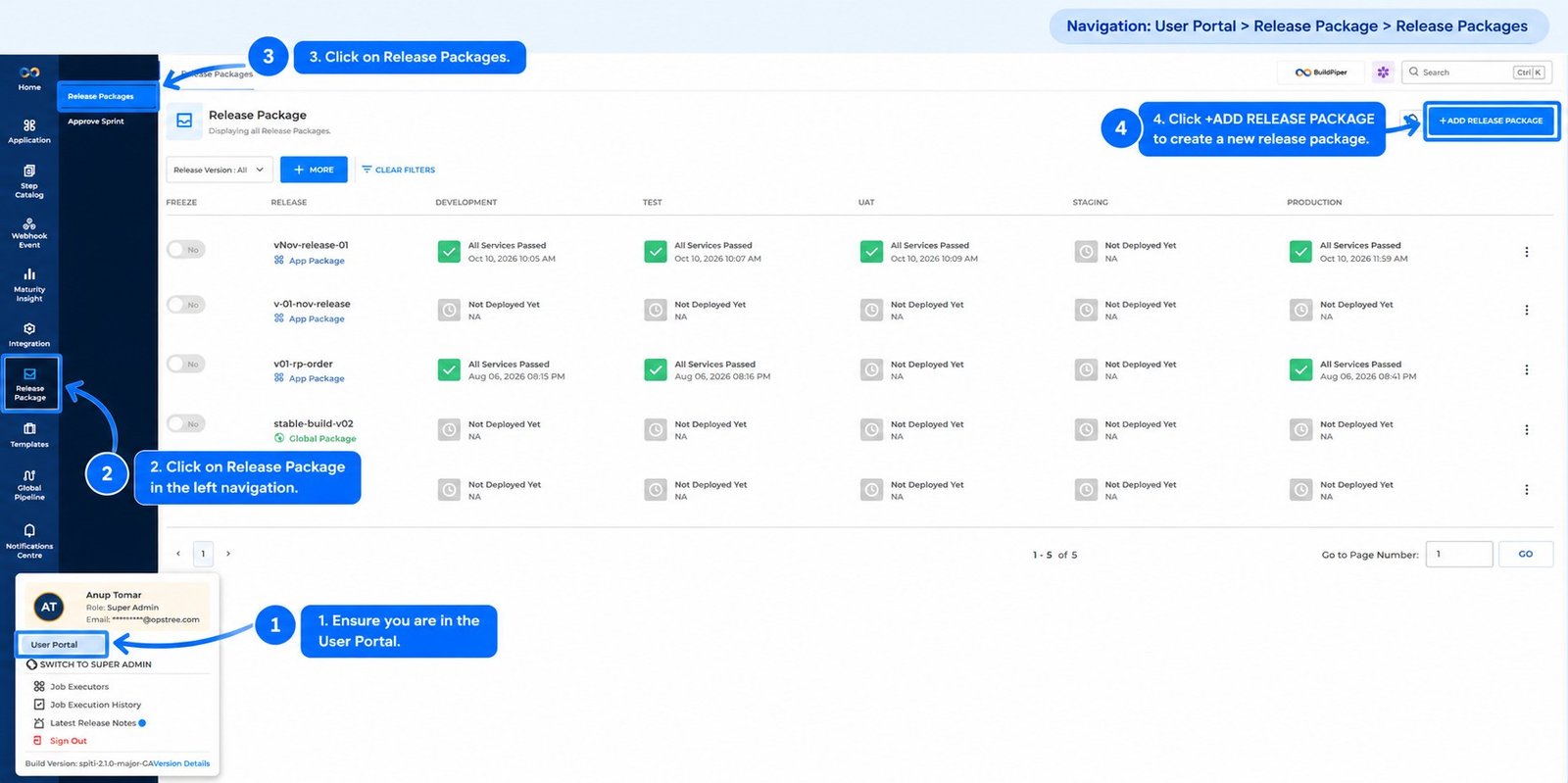
Figure 1: User Portal > Release Package > Release Packages
The page lists the release packages. For each release package, it shows the release name, the package type (App Package or Global Package), and the deployment status in each environment (Development, Test, UAT, Staging and Production), for example All Services Passed with the date, or Not Deployed Yet.
2. Add a Release Package #
Click + Add Release Package. The Create Release Package page opens. Select the type of release package, then fill in the details.
Global Package #
To deploy microservices from different applications to production as a single unit. It combines microservices across various applications for streamlined production deployment.
App Package #
To deploy multiple microservices of the same application to production. It groups related microservices into a single unit for streamlined production deployment.
The fields shown depend on the type you select.
3. Create a Release Package #
Select App Package or Global Package. The release package is created in six steps, and the steps are the same for both. Click Continue to move to the next step.
- 1
Create Release
- 2
Add JIRA Stories
- 3
Select Change Set
- 4
Configure Change Set
- 5
Review Config and DB Changes
- 6
Finalise
Step 1: Create Release #
Fill in the release details.
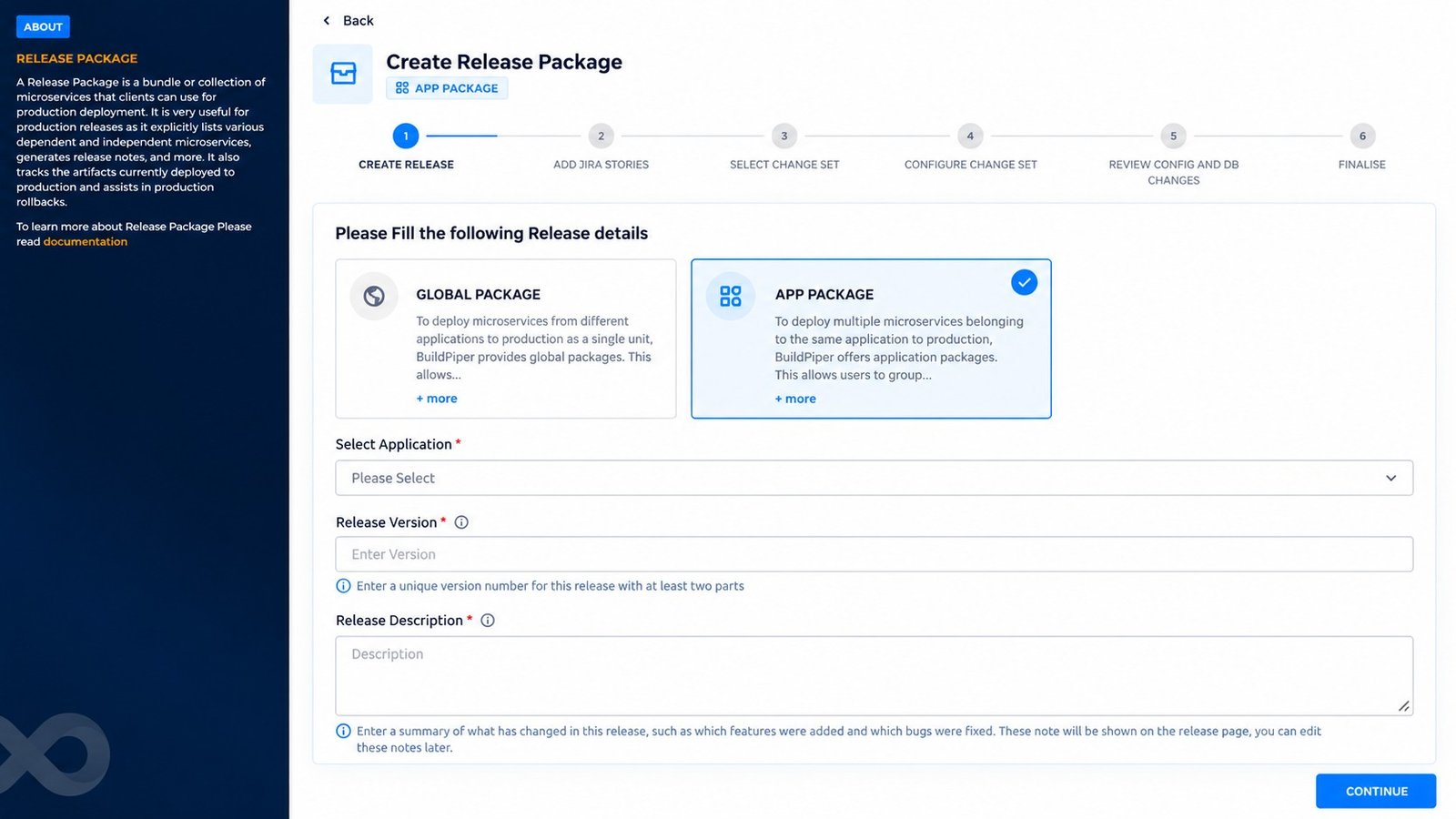
Figure 2: Step 1, Create Release (App Package)
| Field | Description |
|---|---|
| Select Application * | The application for which the release package is created. Shown for an App Package only. |
| Release Version * | A specific iteration or snapshot of the release. It helps in tracking changes, managing updates, and ensuring consistency across different environments. Enter a unique version number with at least two parts. |
| Release Description * | A summary of what has changed in this release, such as the features added and the bugs fixed. It helps developers, testers, and stakeholders understand what is included in the release, the reasons for the changes, and any important notes or instructions related to its deployment. The notes are shown on the release page, and you can edit them later. This is in addition to details already picked from JIRA stories. |
For a Global Package, there is no application field. Enter only the Release Version and the Release Description.
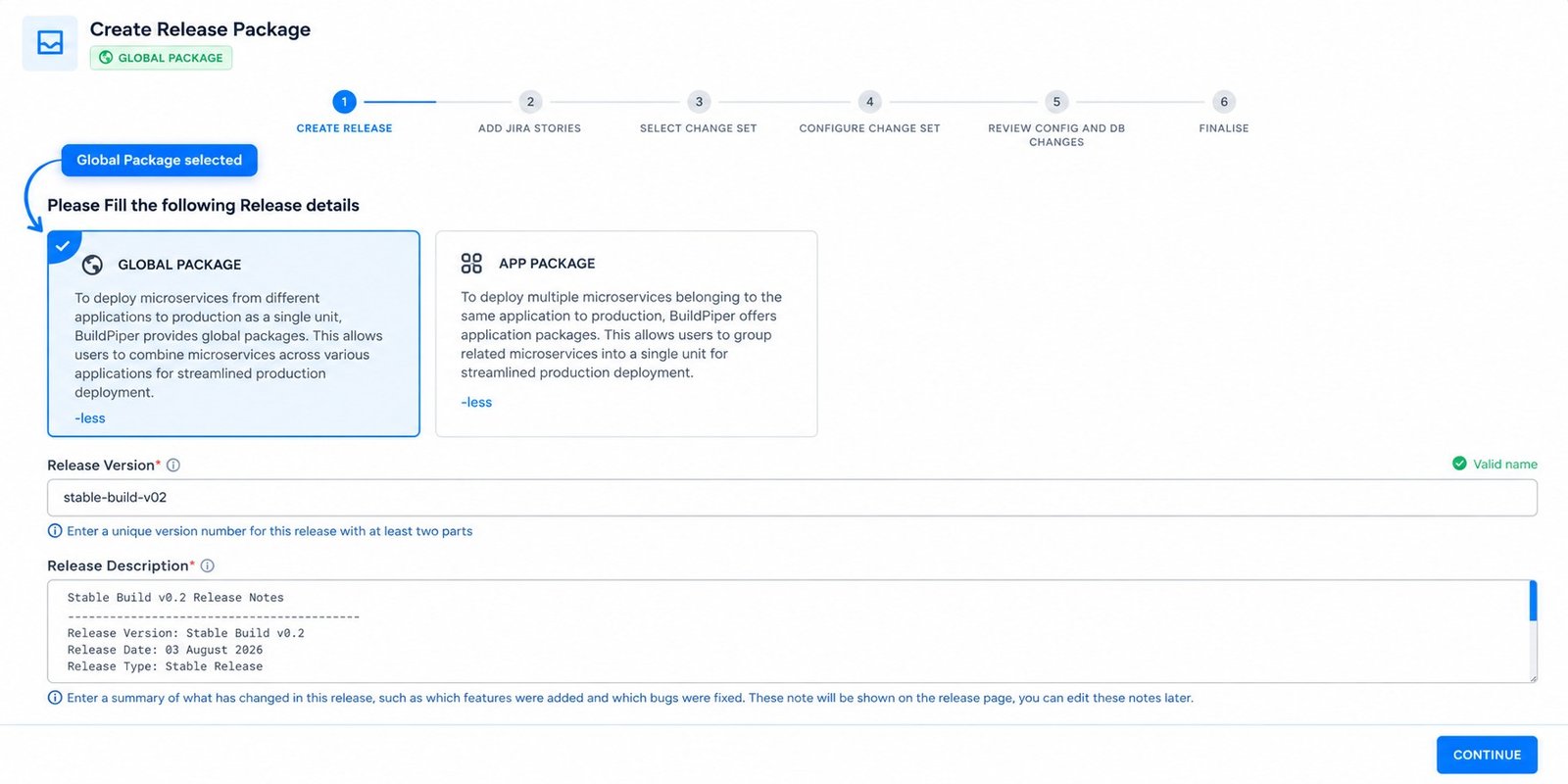
Figure 3: Step 1, Create Release (Global Package)
Step 2: Add JIRA Stories #
Add the JIRA tickets to the release package. Only the valid tickets can be selected. A ticket is valid when its JIRA status matches the Release Ticket Status selected in the Release Package Configuration, under Pick Stories.
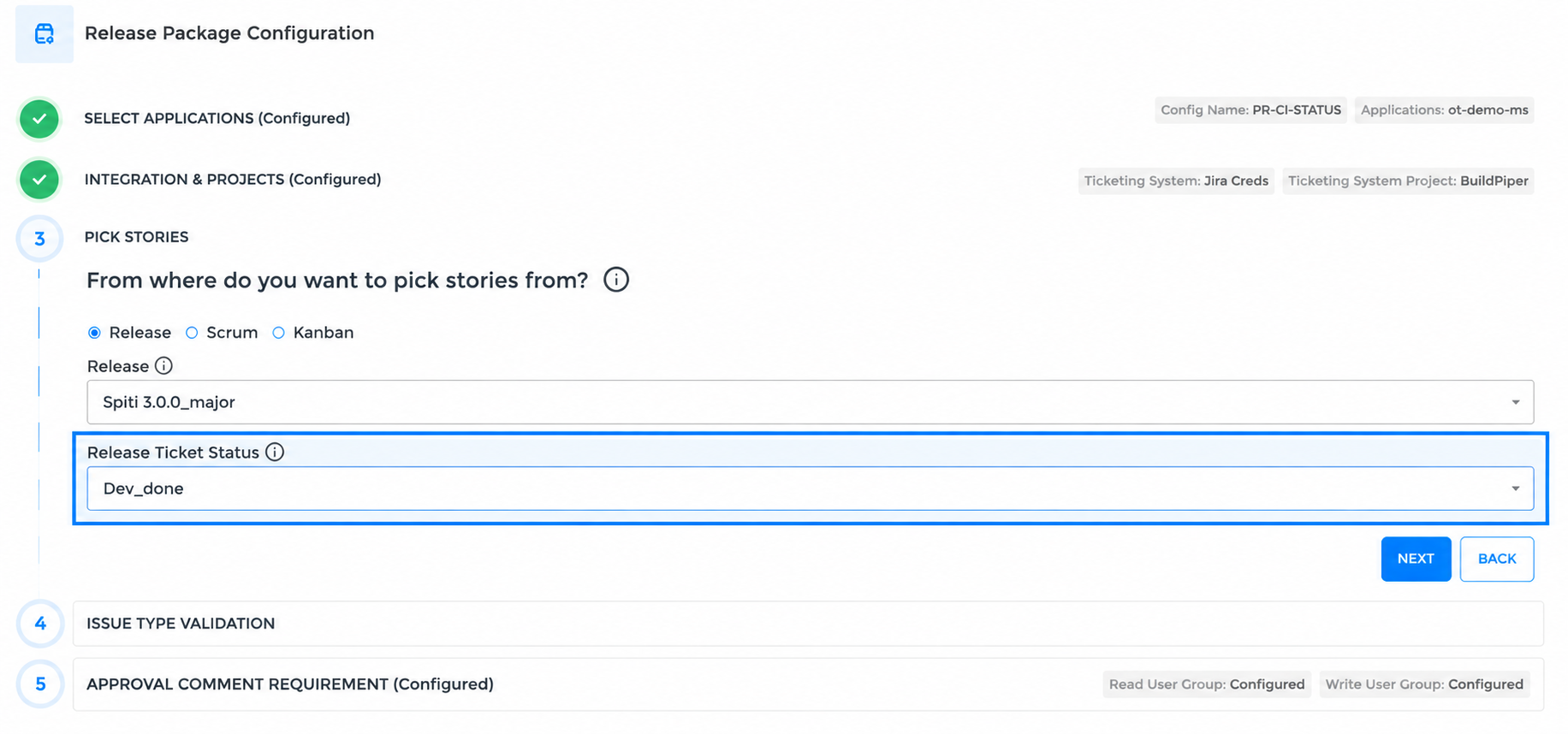
Figure 4: Release Package Configuration, Release Ticket Status
Read more: Release Package Configuration
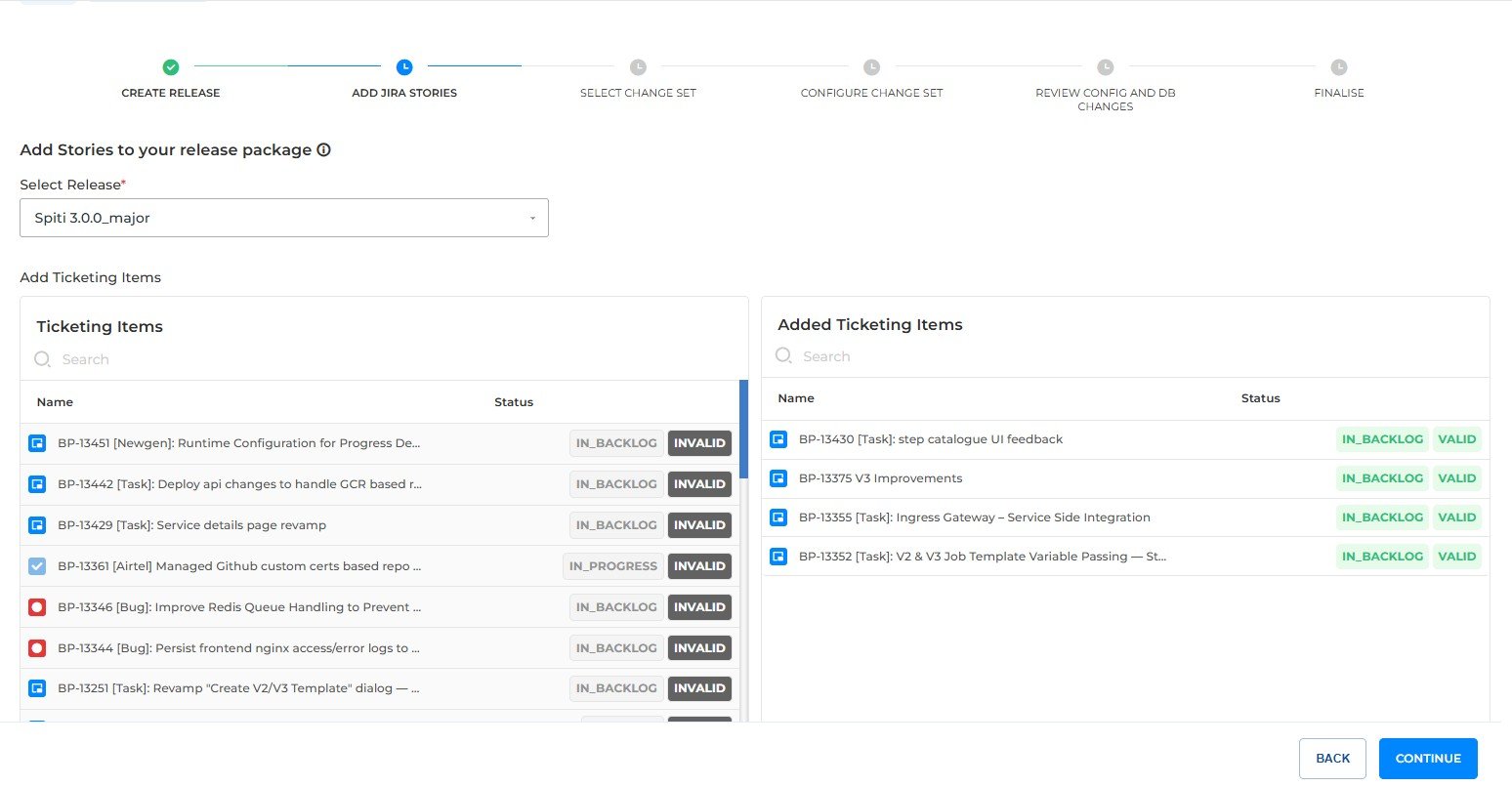
Figure 5: Step 2, Add JIRA Stories
- 1
Select the release in Select Release.
- 2
In Ticketing Items, search for and select the tickets you want to add.
- 3
Move the tickets to Added Ticketing Items.
- 4
Click Continue.
Each ticket shows its JIRA status, for example IN_BACKLOG or IN_PROGRESS, and a VALID or INVALID tag.
Step 3: Select Change Set #
Add the services to your change set.
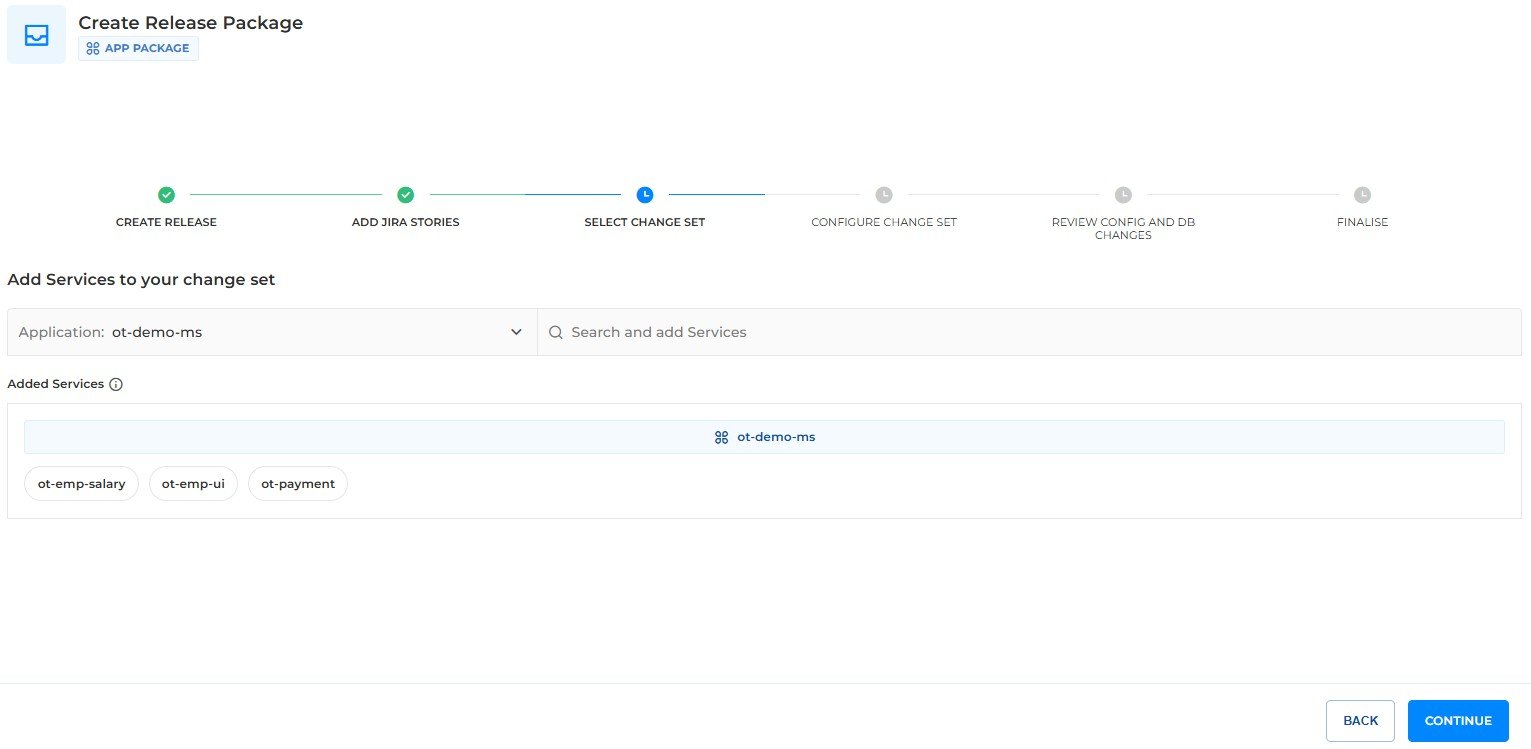
Figure 6: Step 3, Select Change Set
| Field | Description |
|---|---|
| Application | The application whose services you want to add. |
| Search and add Services | Search for a service and add it to the change set. |
| Added Services | The services added to the change set. These are the microservices/vm apps or mobile apps you want to configure in the release package and deploy in production. |
Step 4: Configure Change Set #
Select the strategy for the release package, then configure each service.
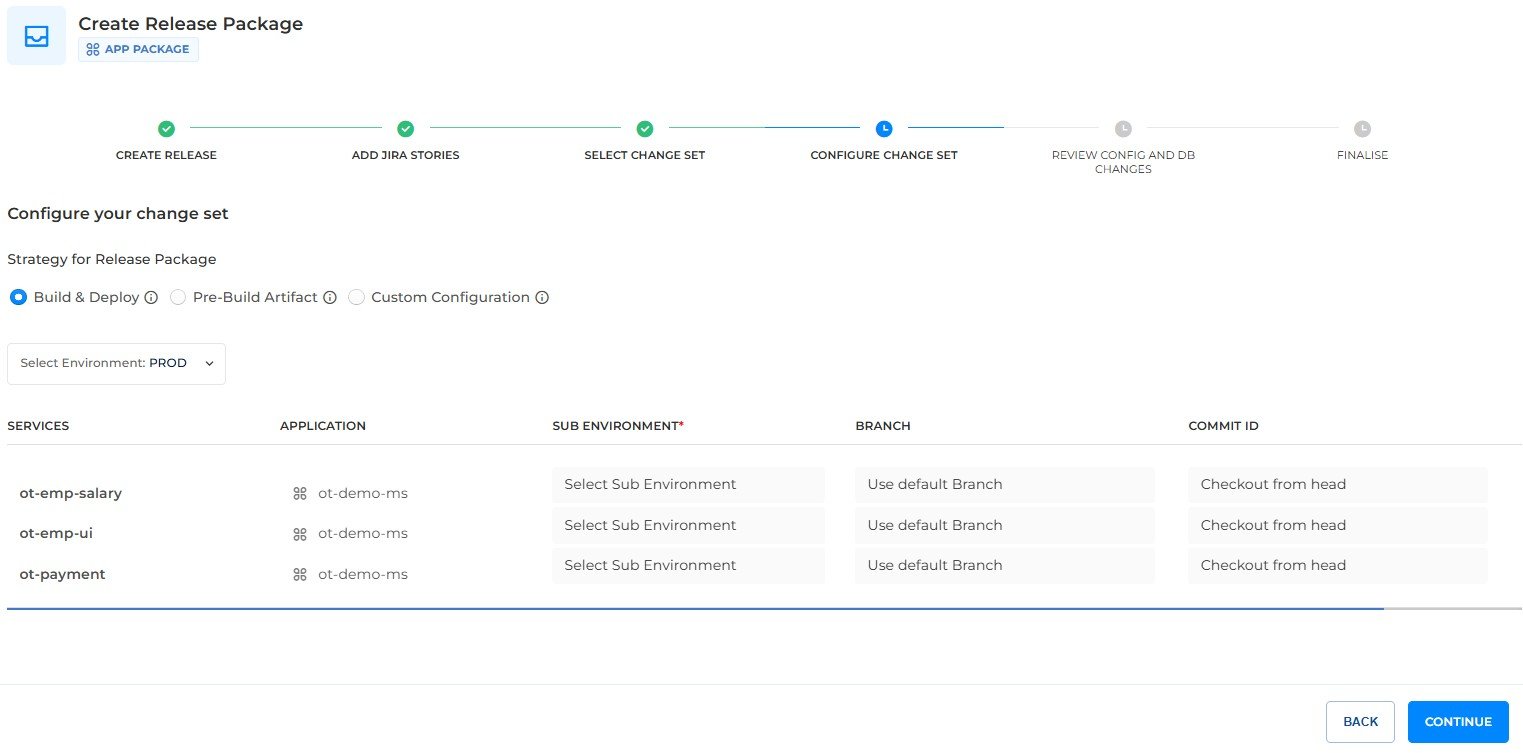
Figure 7: Step 4, Configure Change Set
Build & Deploy #
Builds and deploys the microservices in a lower environment for a specific branch, and promotes them to higher environments upon successful validation.
Pre-Build Artifact #
Uses an artifact, built earlier, for the deployment via release package.
Custom Configuration #
Use it when you need a mix of both. For example, some services need Build & Deploy, while others use Pre-Build Artifact.
| Field | Description |
|---|---|
| Select Environment | The environment for the release package: DEV, QA, UAT, STAGING or PROD. |
| Services | The services added in the change set. |
| Application | The application the service belongs to. |
| Sub Environment * | The sub environment for the service. There could be multiple dev type or QA type environments, choose a specific sub env, for example qa-perf. |
| Branch | Select the branch for the service. Use Default Branch is selected by default and refers to the branch configured in the service’s build details. |
| Commit ID | The commit hash of the service. Checkout from head is selected by default. |
Step 5: Review Config and DB Changes #
In this step, BuildPiper reviews the changes that the release package carries, so that you can approve them before the deployment. The page Review Config & DB Changes for Services lists each service of the change set, and shows the result of the check for each of the following items.
| Item | What is checked |
|---|---|
| db_schema | Changes in the database scripts, both DDL (structure) and DML (data). The table shows the DB_SCHEMA NAME, the STATUS and the FILE PATH of each change. |
| secrets | Changes in the Secrets of the service. |
| configmaps | Changes in the ConfigMaps of the service. |
When the check is done, the message Change Detection Completed is shown, and BuildPiper asks Do you want to approve deployment? Review the detected changes, and then approve to continue.
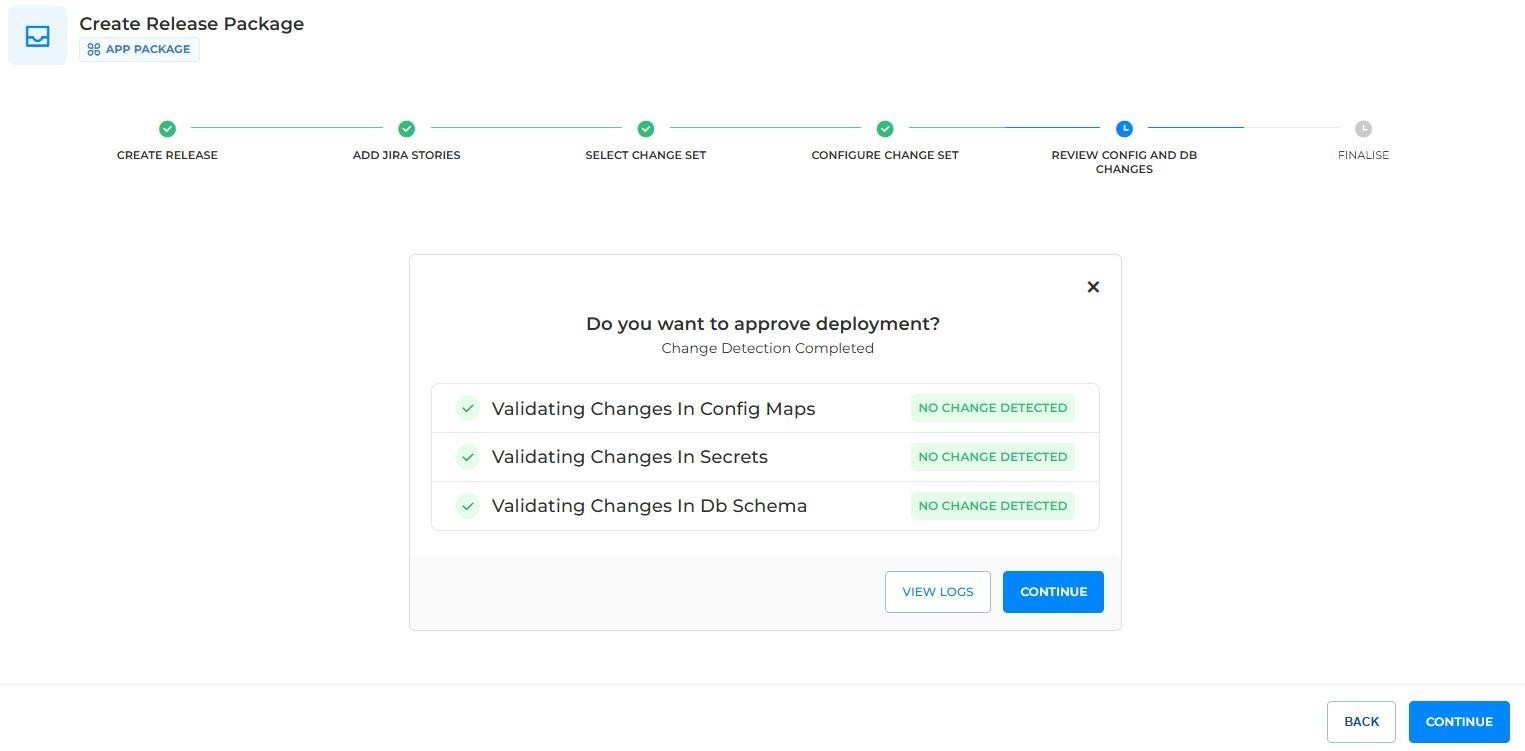
Figure 8: Step 5, Change Detection Completed
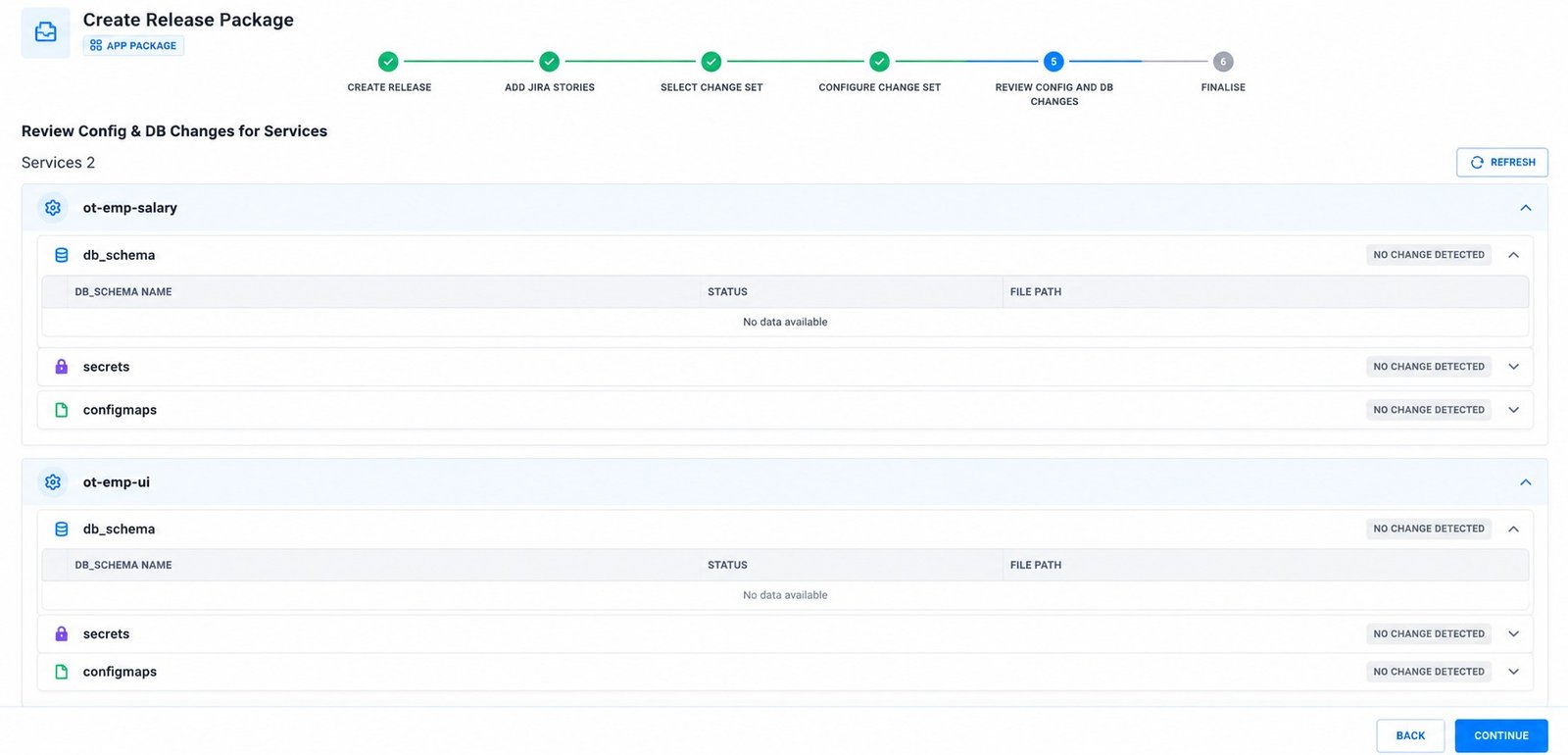
Figure 9: Step 5, Review Config and DB Changes for each service
Figure 8 lists the changes found in the ConfigMaps, Secrets and database scripts of each service. Expand an item to see the details. If an item has no changes, it shows the status tag NO CHANGE DETECTED.
| Button | Action |
|---|---|
| Refresh | Reloads the result of the change detection. |
| View Logs | Shows the logs of the change detection. |
| Back | Returns to the previous step. |
| Continue | Approves and moves to the next step. |
Step 6: Finalise #
Configure and verify all the details before finalizing the release package. The page shows the summary of the release package.
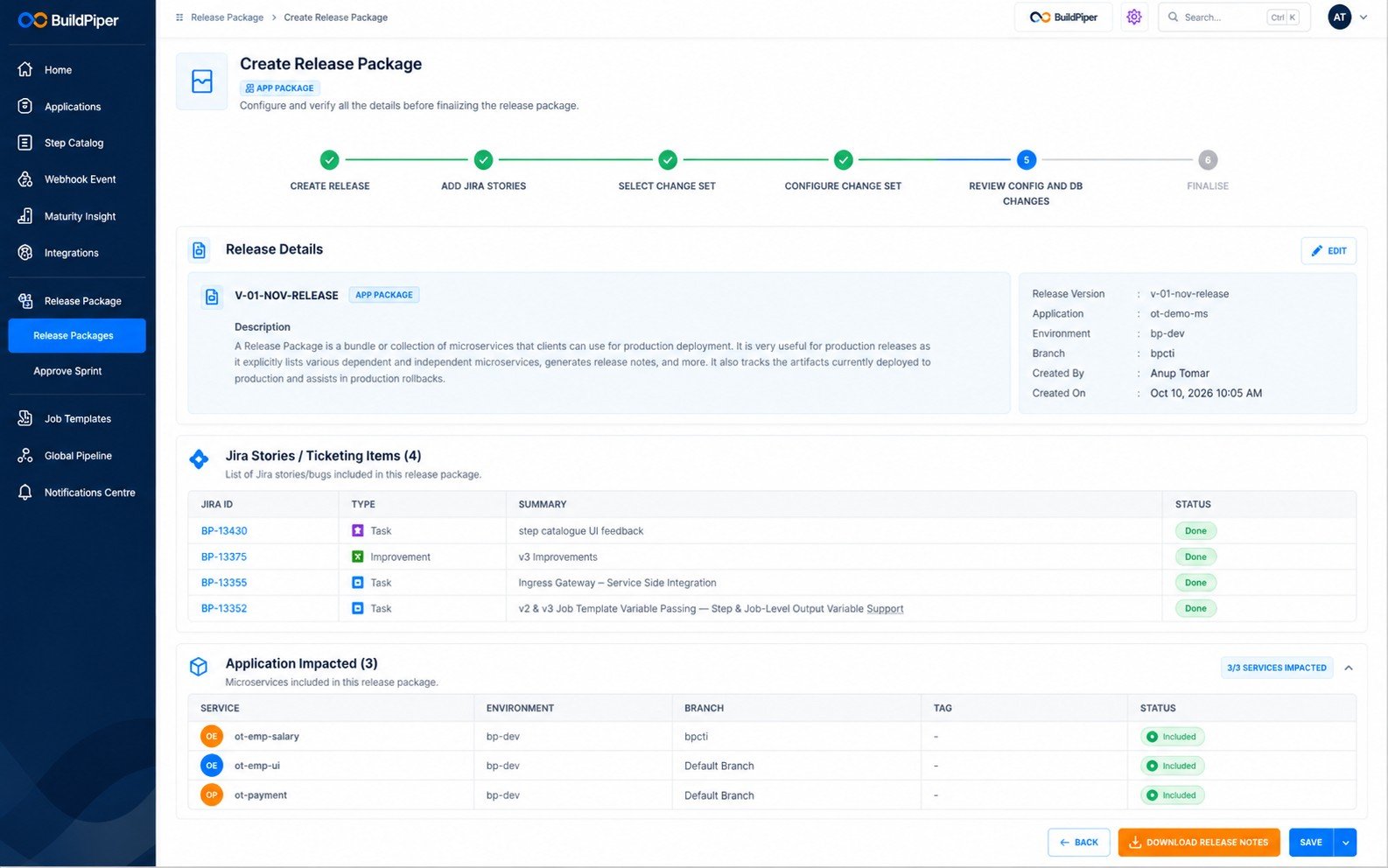
Figure 10: Step 6, Finalise
| Section | Details |
|---|---|
| Release Details | The release name and package type, the description, and the release version, application, environment, branch, created by and created on. Click Edit to change the details. |
| Jira Stories / Ticketing Items | The list of Jira stories and bugs included in the release package, with the JIRA ID, type, summary and status. |
| Application Impacted | The microservices included in the release package, with the service, environment, branch, tag and status. For example, 3/3 SERVICES IMPACTED with the status Included. |
| Button | Action |
|---|---|
| Download Release Notes | Downloads the release notes. |
| Save | Saves the release package. |
The arrow next to Save shows more options.
| Option | Action |
|---|---|
| Save & Trigger | Saves the release package and triggers it. |
| Save & Schedule Trigger | Saves the release package and schedules the trigger. |
4. Save & Trigger #
When you select Save & Trigger, the Release Package Create & Trigger window opens. Select the pipeline to trigger.
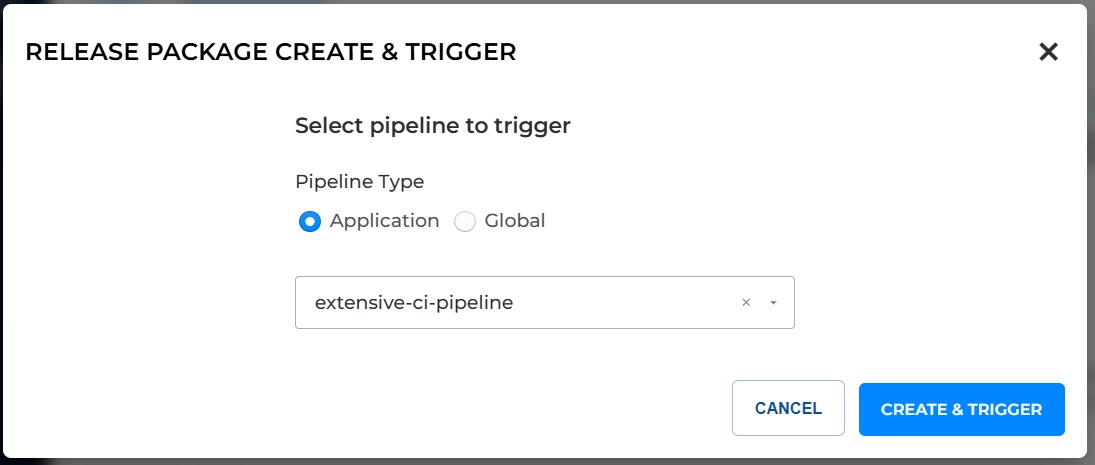
Figure 11: Release Package Create & Trigger
| Field | Description |
|---|---|
| Pipeline Type | Select Application or Global. |
| Pipeline | Select the pipeline to trigger. |
Click Create & Trigger to create the release package and trigger the pipeline. Click Cancel to close the window.
After you click Create & Trigger, the pipeline you selected is triggered. You can see it on the Pipeline Overview page, in the running state.
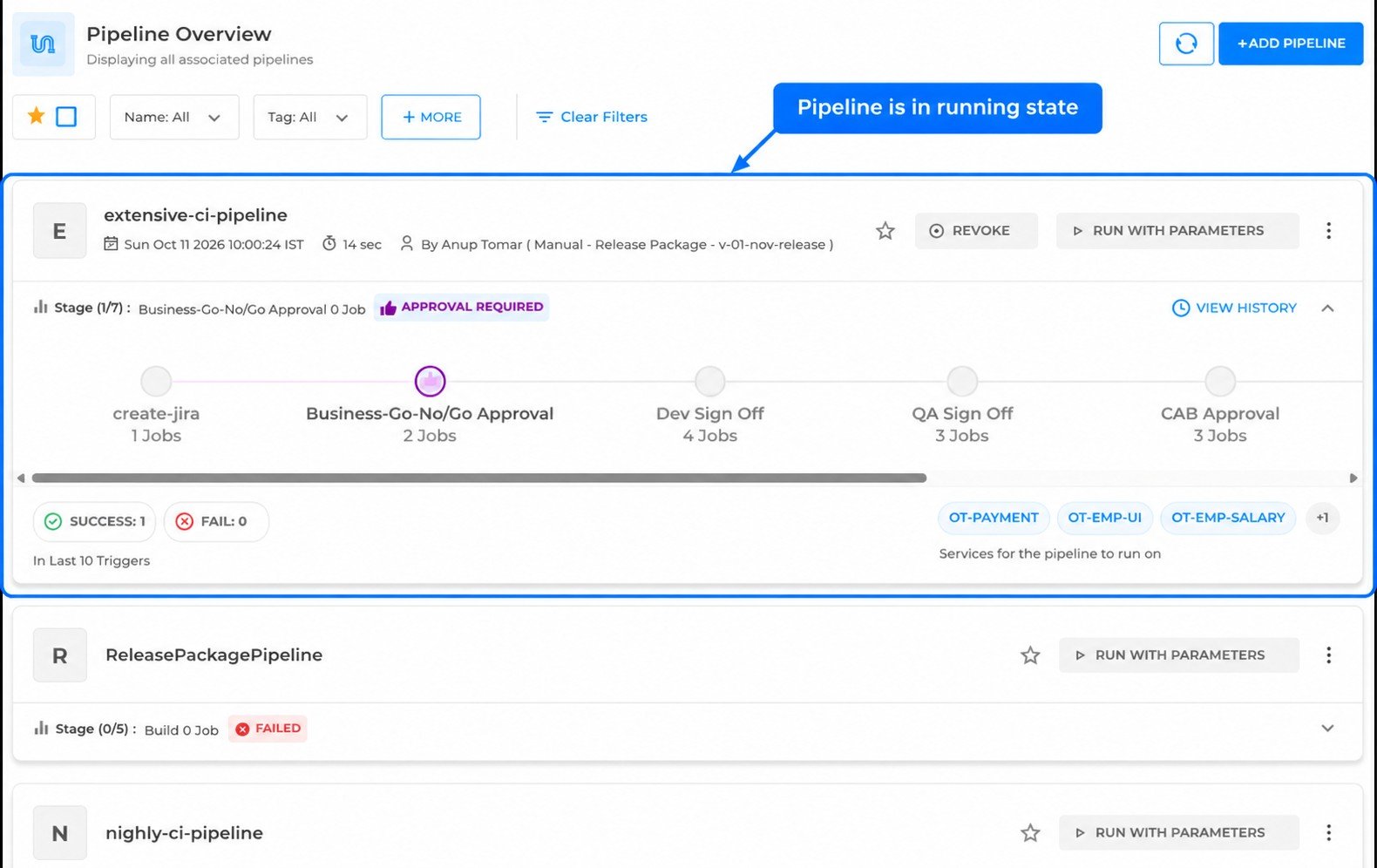
Figure 12: The triggered pipeline in the Pipeline Overview
5. Trigger a Release Package via the Application Pipeline #
- 1
Open the User Portal.
- 2
Click Application in the left navigation and open your application.
- 3
Click Pipeline Overview.
- 4
Go to the pipeline you want to run and click Run with Parameters.
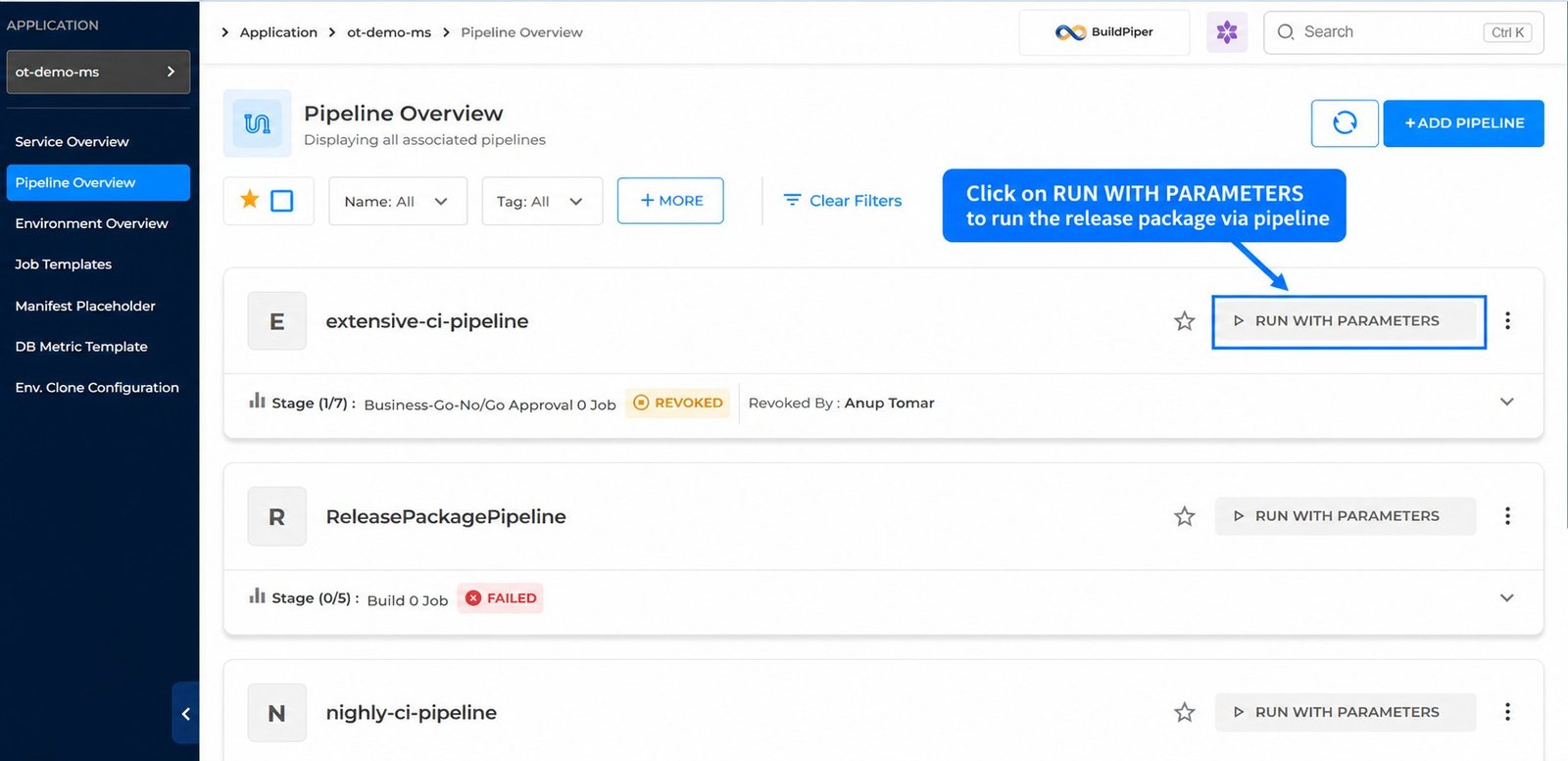
Figure 13: Pipeline Overview, Run with Parameters
The Run With Parameters window opens. Under Trigger Through, you can select Parameters or Release package.
- 1
Select Release package under Trigger Through.
- 2
In Select Release Package, select the release package. You can search for it by name.
- 3
Click Trigger Pipeline.
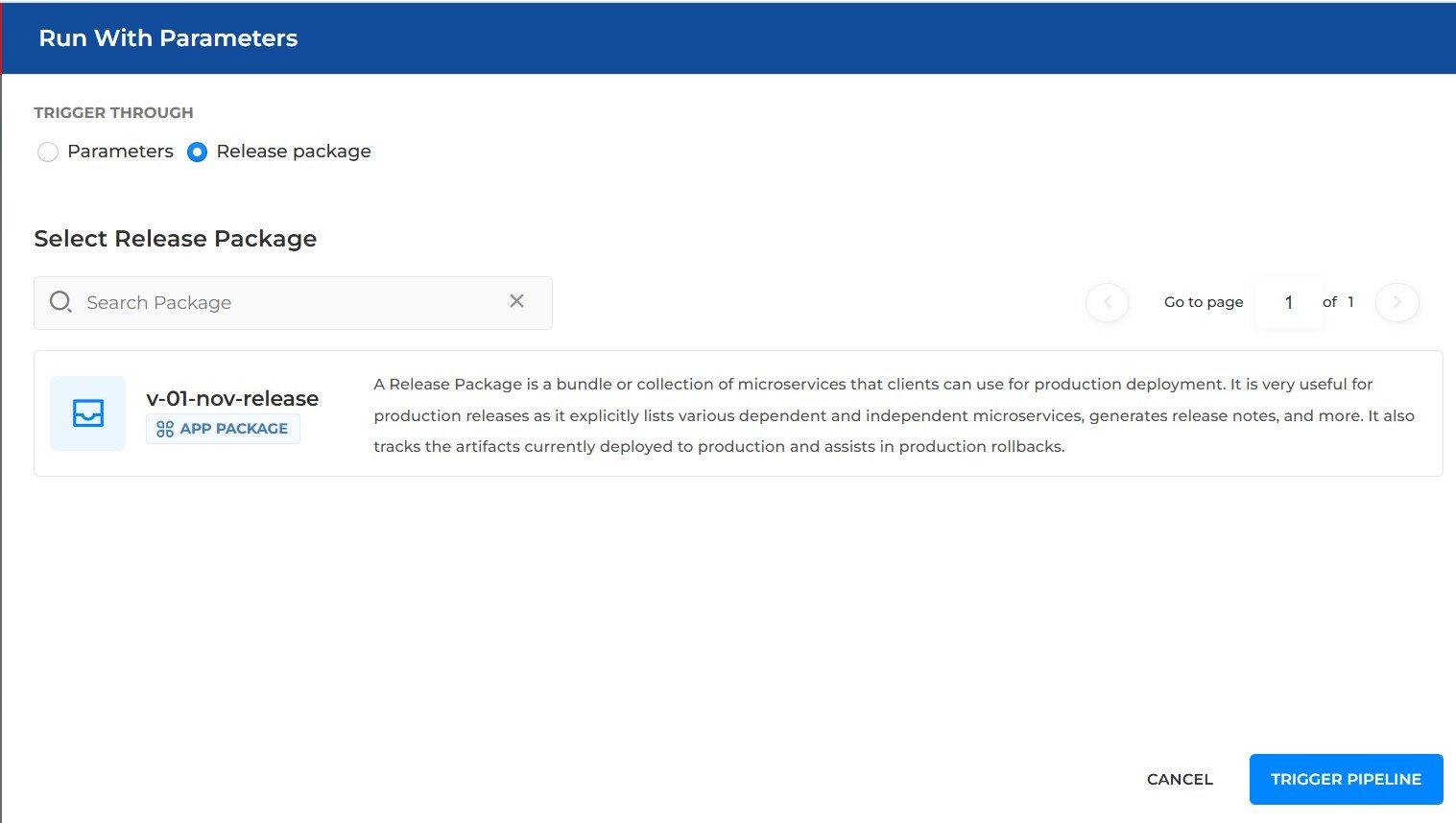
Figure 14: Run With Parameters, Release package
6. Release Package Execution #
When the pipeline completes successfully, it pushes the execution information back to release package. To check run information, open the Release Package.
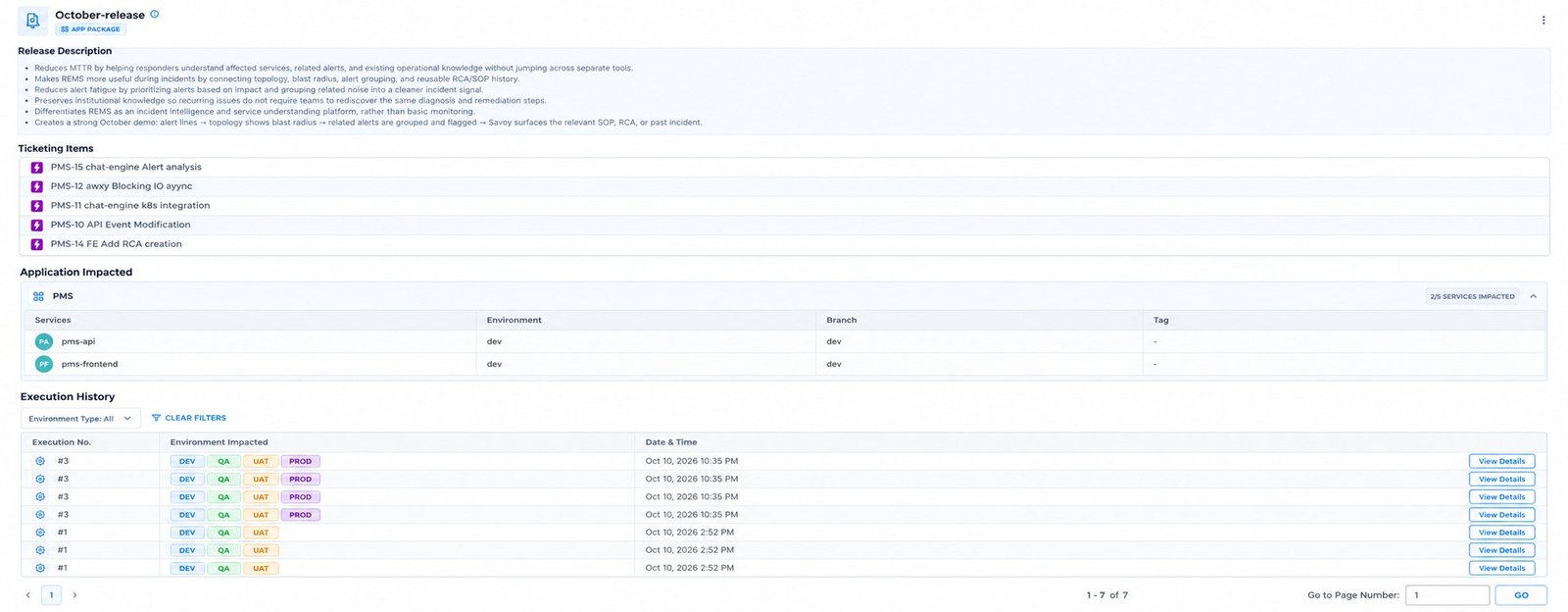
Figure 15: Release package details
The page shows the following sections.
| Section | Details |
|---|---|
| Release Description | The description entered for the release package. |
| Ticketing Items | The JIRA stories and tickets included in the release package. |
| Application Impacted | The services included in the release package, with the Environment, Branch and Tag of each service. The tag at the right shows how many services are impacted. |
| Execution History | The pipeline executions of the release package, with the Execution No., the Environment Impacted and the Date & Time. Use Environment Type to filter the list, and Clear Filters to reset it. Click View Details to open an execution. |
Click View Details against an execution in Execution History to open the Execution Details page.
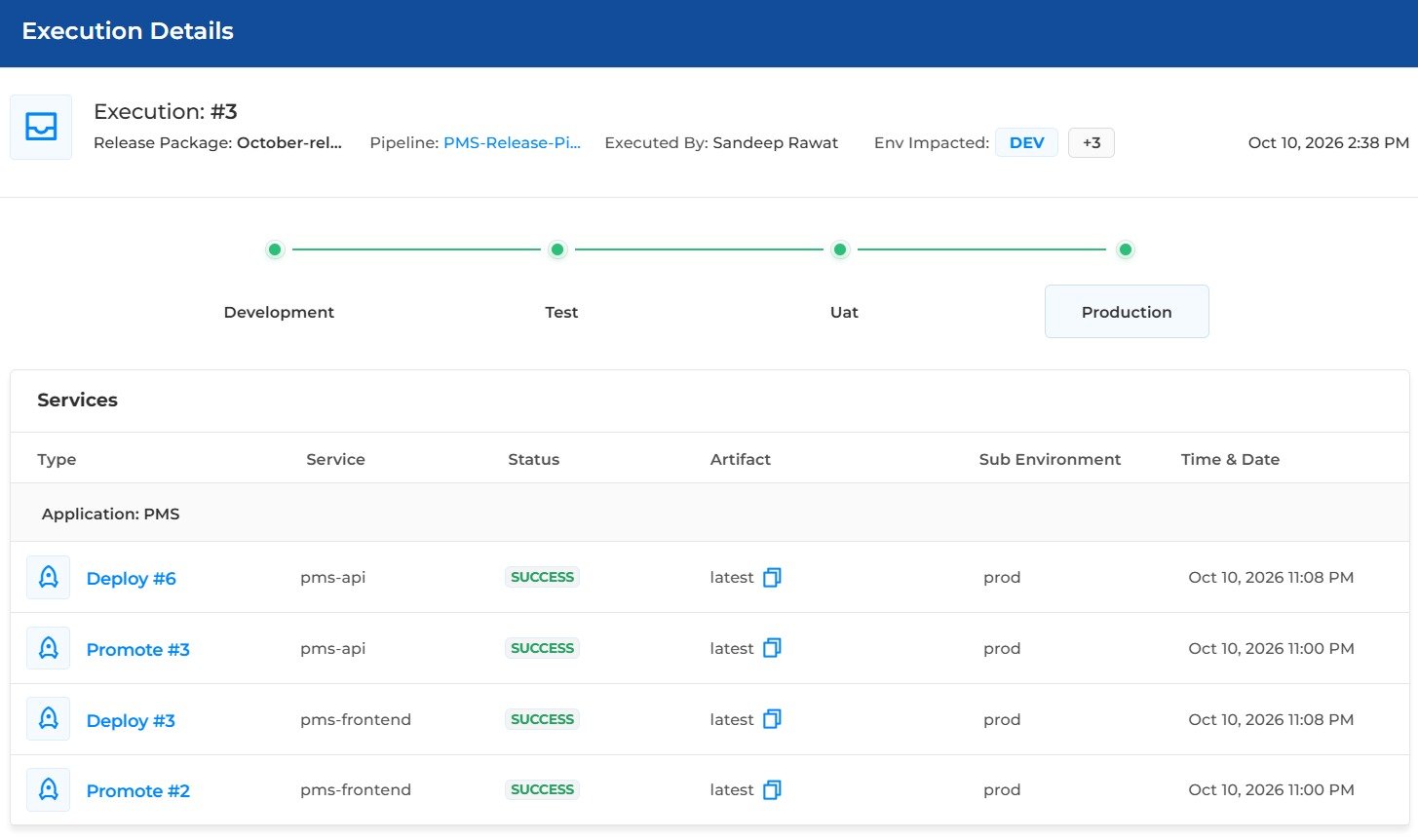
Figure 16: Execution Details
The header of the page shows the following details.
| Field | Description |
|---|---|
| Execution | The execution number. |
| Release Package | The name of the release package. |
| Pipeline | The pipeline that was run. |
| Executed By | The user who ran the execution. |
| Env Impacted | The environments impacted by the execution. |
| Date and time | The date and time of the execution. |
Below the header, the pipeline stages are shown in order, for example Development, Test, Uat and Production. Select a stage to see its services.
Read more: Pipeline Configuration > 1. How to Create a Pipeline