

This document explains these parts in simple terms, shows how they connect, and gives the order in which to set them up.
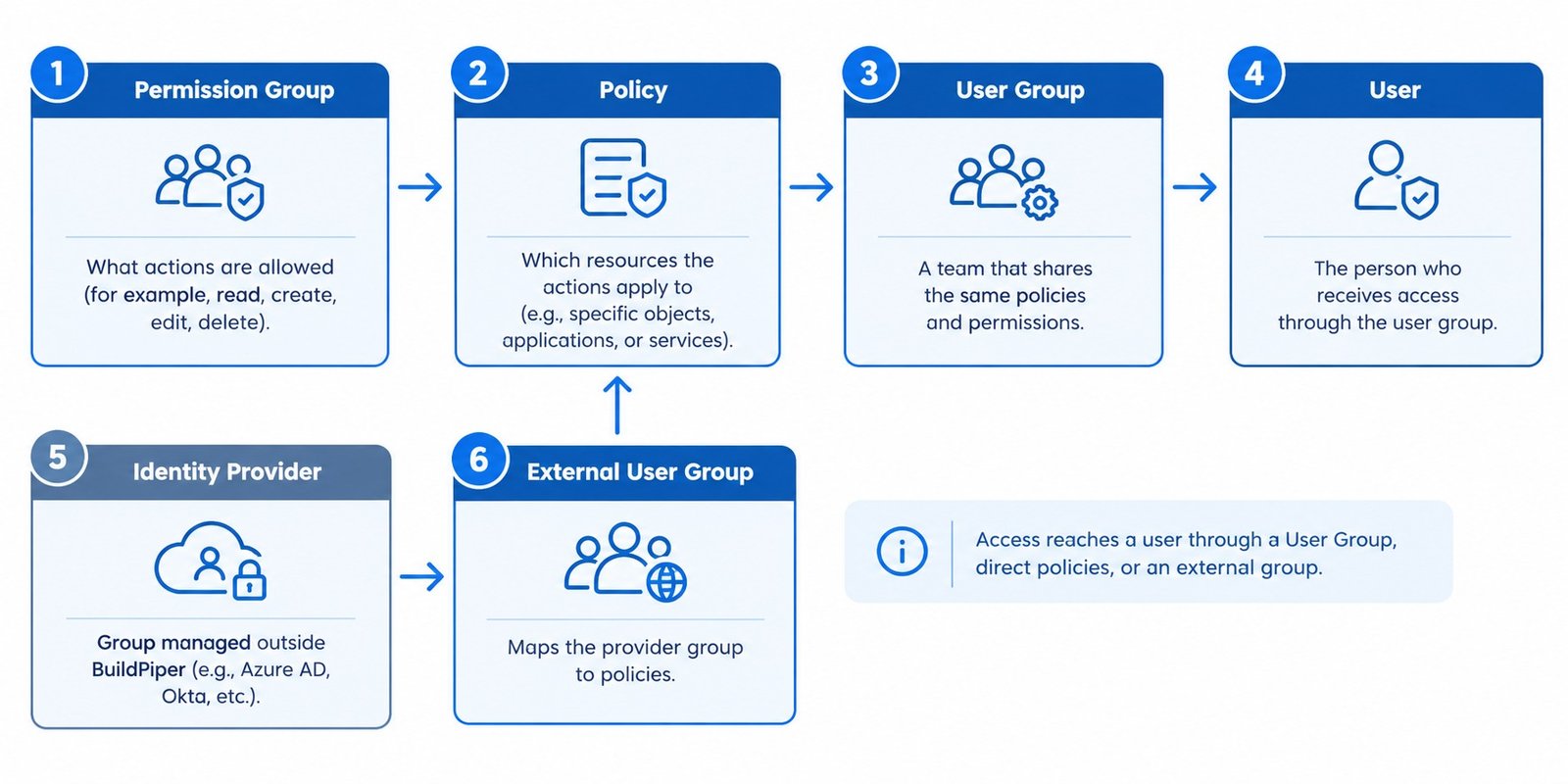
Access is built in layers. Each layer answers one question.
| Part | In simple terms | Example |
|---|---|---|
| Permission Group | A set of allowed actions for a resource. | View a service |
| Policy | Permission Groups plus the resources they apply to. Here you can add filters to a specific resource or a group of a kind of resource. | View only the catalog-api service |
| User Group | A group of users that shares the same access/policy. | catalog-observers |
| User | A person who receives access through a group or directly. | reader@example.com |
| External User Group | Links a group from your identity provider to policies. Your AD could have different group naming convention than that in BuildPiper. This functionality allows you to map the external groups to BuildPiper allowed policies. | platform-catalog-observers |
| Policy Template | A ready-made/default user groups and associated policy setup that is reused when an application is created. | standard-application-access |
| Term | Meaning |
|---|---|
| Resource type (entity) | An important resource in BuildPiper, such as Service, Cluster, Project or User. |
| Resource | One item of that category, such as the catalog-api service. |
| Permission | A named action on a resource type, such as viewing the details of a service, ability to perform Builds etc. |
Viewing a list, opening the details of a record and changing the record are separate permissions. For example, permission to view a service does not include permission to edit it.
| Path | How it works |
|---|---|
| Through a User Group | The user is a member of a User Group. The group has policies. |
| Directly | The policy is attached to the user. Use this only when one person needs extra access. |
| Through an external group | The user belongs to a group in org identity provider. An External User Group maps that group to policies. |
| Feature | Navigation |
|---|---|
| Permission Groups | User Roles → Permission Groups |
| Policies | User Roles → Policies |
| Policy Templates | User Roles → Policy Templates |
| User Groups | Manage User → Manage User Groups |
| External User Groups | Manage User → Manage External Groups |
| Users | Manage User → Manage Users |
| Authentication / SSO | System Settings → Authentication & Identity Management |
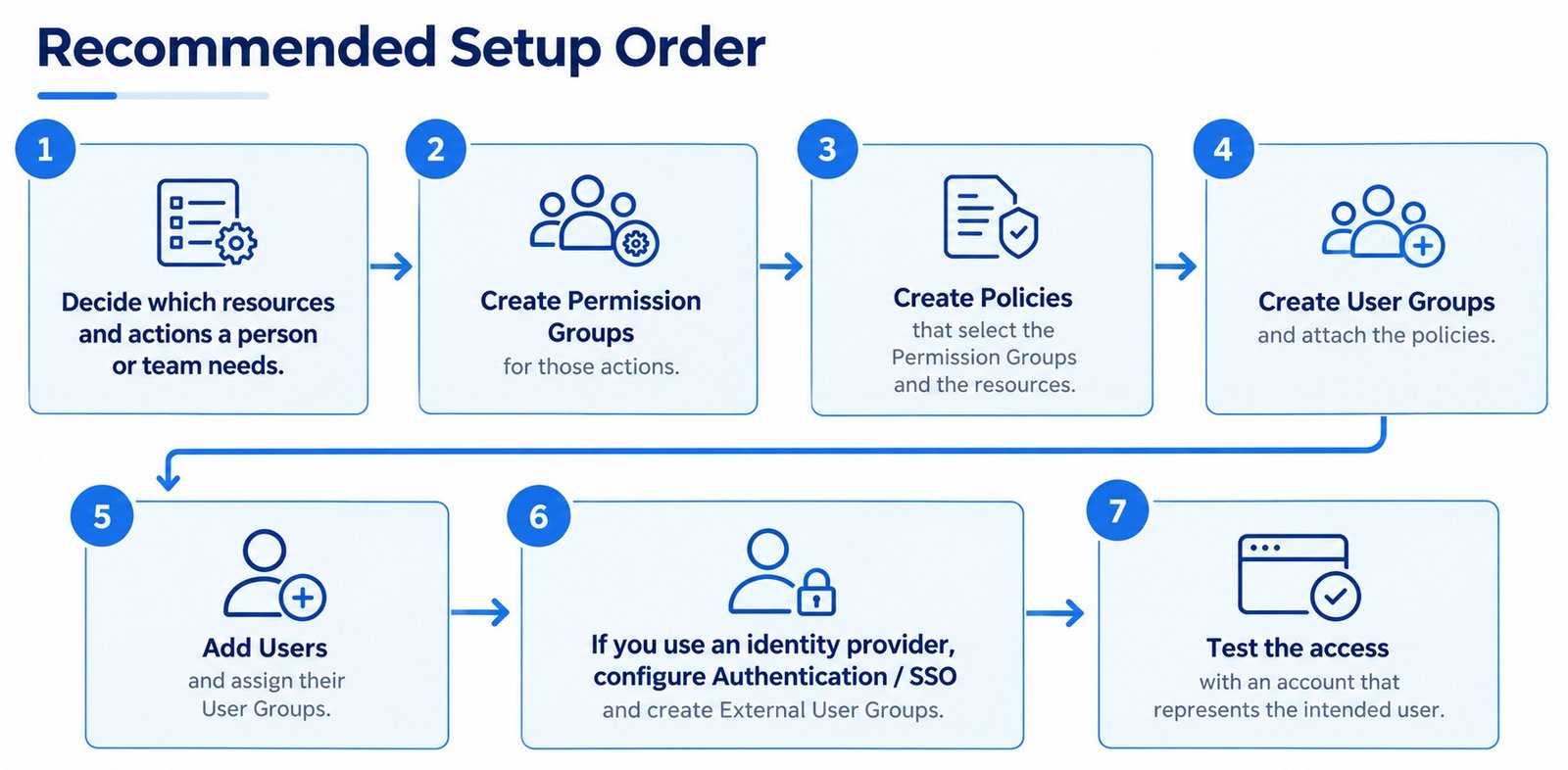
Resource types and their actions have no separate page. You select them while you create or edit a Permission Group.
1
2
3
4
5
6
7
Creating accounts, changing access and configuring authentication need the matching administrative permissions, so the actions that you see depend on your account.
| Part | In simple terms | Example |
|---|---|---|
| Permission Group | A set of allowed actions for a resource. | View a service |
| Policy | Permission Groups plus the resources they apply to. Here you can add filters to a specific resource or a group of a kind of resource. | View only the catalog-api service |
| User Group | A group of users that shares the same access/policy. | catalog-observers |
| User | A person who receives access through a group or directly. | reader@example.com |
| External User Group | Links a group from your identity provider to policies. Your AD could have different group naming convention than that in BuildPiper. This functionality allows you to map the external groups to BuildPiper allowed policies. | platform-catalog-observers |
| Policy Template | A ready-made/default user groups and associated policy setup that is reused when an application is created. | standard-application-access |
| Term | Meaning |
|---|---|
| Resource type (entity) | An important resource in BuildPiper, such as Service, Cluster, Project or User. |
| Resource | One item of that category, such as the catalog-api service. |
| Permission | A named action on a resource type, such as viewing the details of a service, ability to perform Builds etc. |
| Path | How it works |
|---|---|
| Through a User Group | The user is a member of a User Group. The group has policies. |
| Directly | The policy is attached to the user. Use this only when one person needs extra access. |
| Through an external group | The user belongs to a group in org identity provider. An External User Group maps that group to policies. |
| Feature | Navigation |
|---|---|
| Permission Groups | User Roles → Permission Groups |
| Policies | User Roles → Policies |
| Policy Templates | User Roles → Policy Templates |
| User Groups | Manage User → Manage User Groups |
| External User Groups | Manage User → Manage External Groups |
| Users | Manage User → Manage Users |
| Authentication / SSO | System Settings → Authentication & Identity Management |