

| Resource | What it is | Where to find it | What you can do |
|---|---|---|---|
| Credentials | The details BuildPiper needs to connect to a channel, such as an SMTP account or a bot token. | Integration → Credentials Management | Add a credential. |
| Channels | A reusable delivery destination of one type: Email, Slack, Teams, Telegram or Google Chat. | Notifications Centre → Channels | Add, edit, delete, turn on or off. |
| Events | Platform-wide (global) triggers: Pipeline Approval, Invite User, Multifactor Authentication and user policy change. | Notifications Centre → Events | Attach channels, choose templates and recipients, set re-attempts, turn on or off. |
| Pipeline notification rules | Per-pipeline triggers on pipeline, stage or job events. | Pipeline → Edit Pipeline → bell icon (Notification Rule) | Add rules, choose channels, templates, recipients and re-attempts. |
| Notifications | The delivery log of every notification sent. | Notifications Centre → Manage Notifications | Filter, view logs, resend. |
There are two kinds of trigger. Global events are the four fixed platform events on the Events page. Pipeline events are configured per pipeline as notification rules. Both use the same channels, and both appear in the same log, under separate tabs.
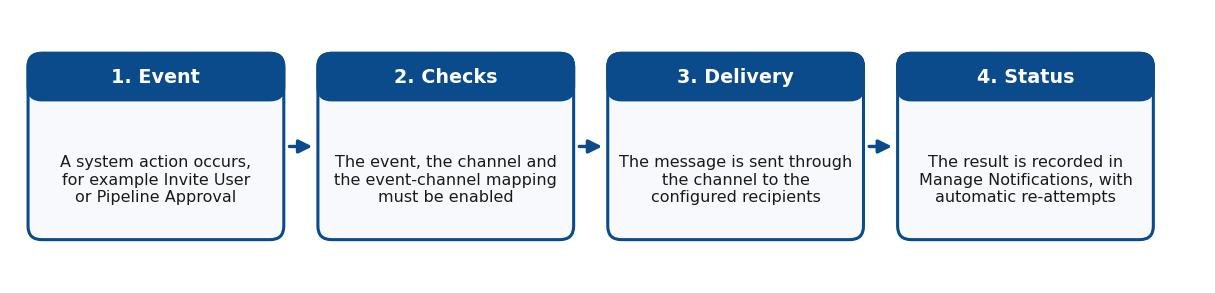
A channel is attached to global events and to pipeline rules. When a trigger fires, the template and recipients set on that attachment are used, and every send is recorded in the log. Failed sends are retried automatically, or resent by hand from the log.
| Channel type | Job step (auto-filled) | Recipient details you need |
|---|---|---|
| EMAIL_NOTIFY | Distribution list (DL) name and DL email address. | |
| SLACK | SLACK_NOTIFY | Slack channel name (for example #deployment-alerts) and an incoming-webhook URL. |
| TEAMS | TEAMS_NOTIFY | Teams channel name and an incoming-webhook URL. |
| TELEGRAM | TELEGRAM_NOTIFY | Chat name and Telegram chat ID. |
| G-CHAT | G-CHAT_NOTIFY | Google Chat space name and a space webhook URL. |
| Channel | Notifications can be sent to |
|---|---|
| The users linked to the event, and Distribution Lists (DLs). | |
| Slack | The users linked to the event, and Slack channels. |
| Microsoft Teams | Channels. |
| Telegram | Groups and channels. |
| Google Chat | Google Chat spaces. |
You enter these recipient details when you attach a channel to an event or a pipeline rule, not when you create the channel itself.
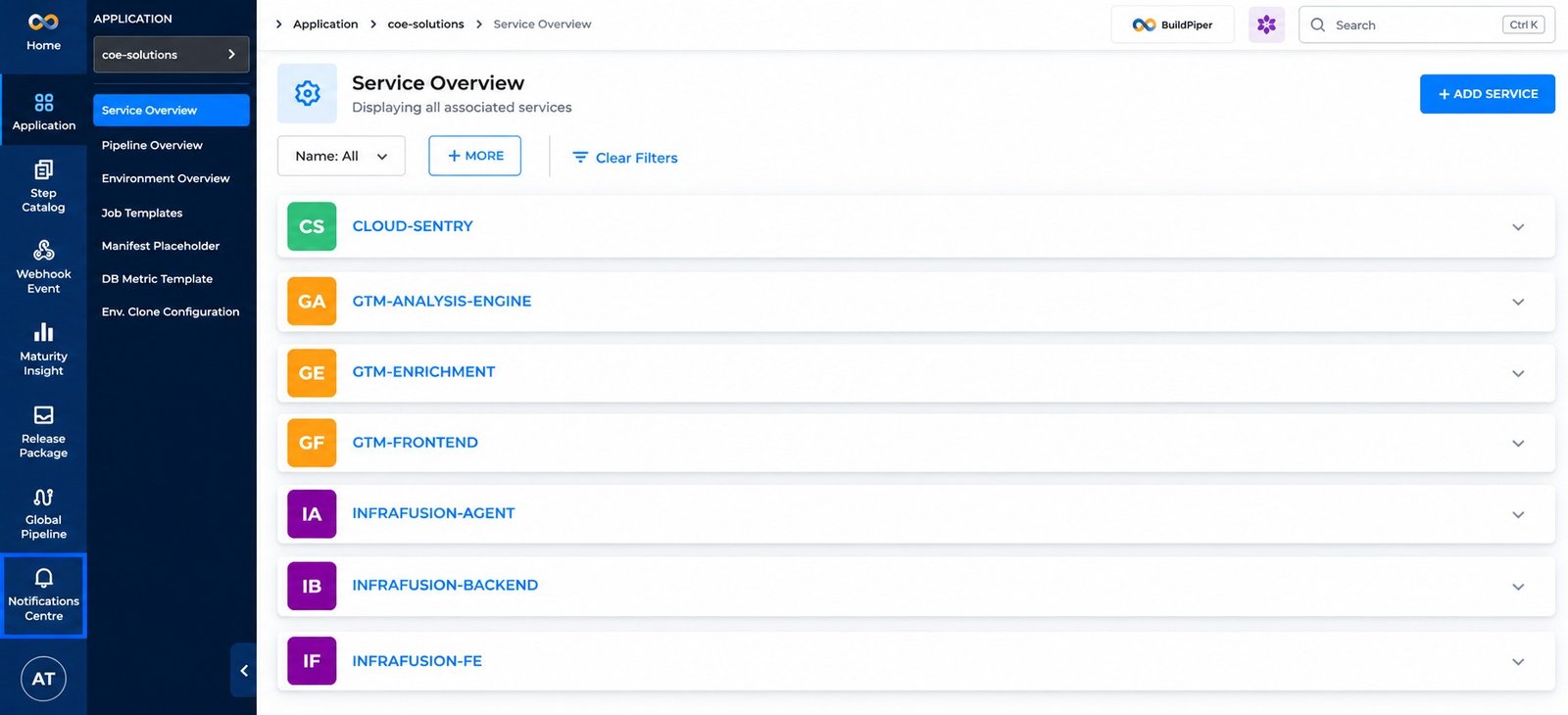
Open the Notification Center from Notifications Centre in the left navigation bar. Its submenu has three pages.
| Menu item |
|---|
| Manage Notifications |
| Events |
| Channels |
1
2
3
4
5
| Resource | What it is | Where to find it | What you can do |
|---|---|---|---|
| Credentials | The details BuildPiper needs to connect to a channel, such as an SMTP account or a bot token. | Integration → Credentials Management | Add a credential. |
| Channels | A reusable delivery destination of one type: Email, Slack, Teams, Telegram or Google Chat. | Notifications Centre → Channels | Add, edit, delete, turn on or off. |
| Events | Platform-wide (global) triggers: Pipeline Approval, Invite User, Multifactor Authentication and user policy change. | Notifications Centre → Events | Attach channels, choose templates and recipients, set re-attempts, turn on or off. |
| Pipeline notification rules | Per-pipeline triggers on pipeline, stage or job events. | Pipeline → Edit Pipeline → bell icon (Notification Rule) | Add rules, choose channels, templates, recipients and re-attempts. |
| Notifications | The delivery log of every notification sent. | Notifications Centre → Manage Notifications | Filter, view logs, resend. |
| Channel type | Job step (auto-filled) | Recipient details you need |
|---|---|---|
| EMAIL_NOTIFY | Distribution list (DL) name and DL email address. | |
| SLACK | SLACK_NOTIFY | Slack channel name (for example #deployment-alerts) and an incoming-webhook URL. |
| TEAMS | TEAMS_NOTIFY | Teams channel name and an incoming-webhook URL. |
| TELEGRAM | TELEGRAM_NOTIFY | Chat name and Telegram chat ID. |
| G-CHAT | G-CHAT_NOTIFY | Google Chat space name and a space webhook URL. |
| Channel | Notifications can be sent to |
|---|---|
| The users linked to the event, and Distribution Lists (DLs). | |
| Slack | The users linked to the event, and Slack channels. |
| Microsoft Teams | Channels. |
| Telegram | Groups and channels. |
| Google Chat | Google Chat spaces. |
| Menu item |
|---|
| Manage Notifications |
| Events |
| Channels |