

BP License #
The BP License page gives Super Admin users an overview of the BuildPiper subscription. It shows the subscription plan and status, how long the license is valid, and how much of the licensed user and microservice capacity is in use. You can also download a report from this page.
Navigate to BP License #
- 1
Log in to BuildPiper.
- 2
Click your profile at the bottom of the left menu and make sure the Super Admin context is selected.
- 3
In the profile menu, click BP License. The BuildPiper Subscription page opens.
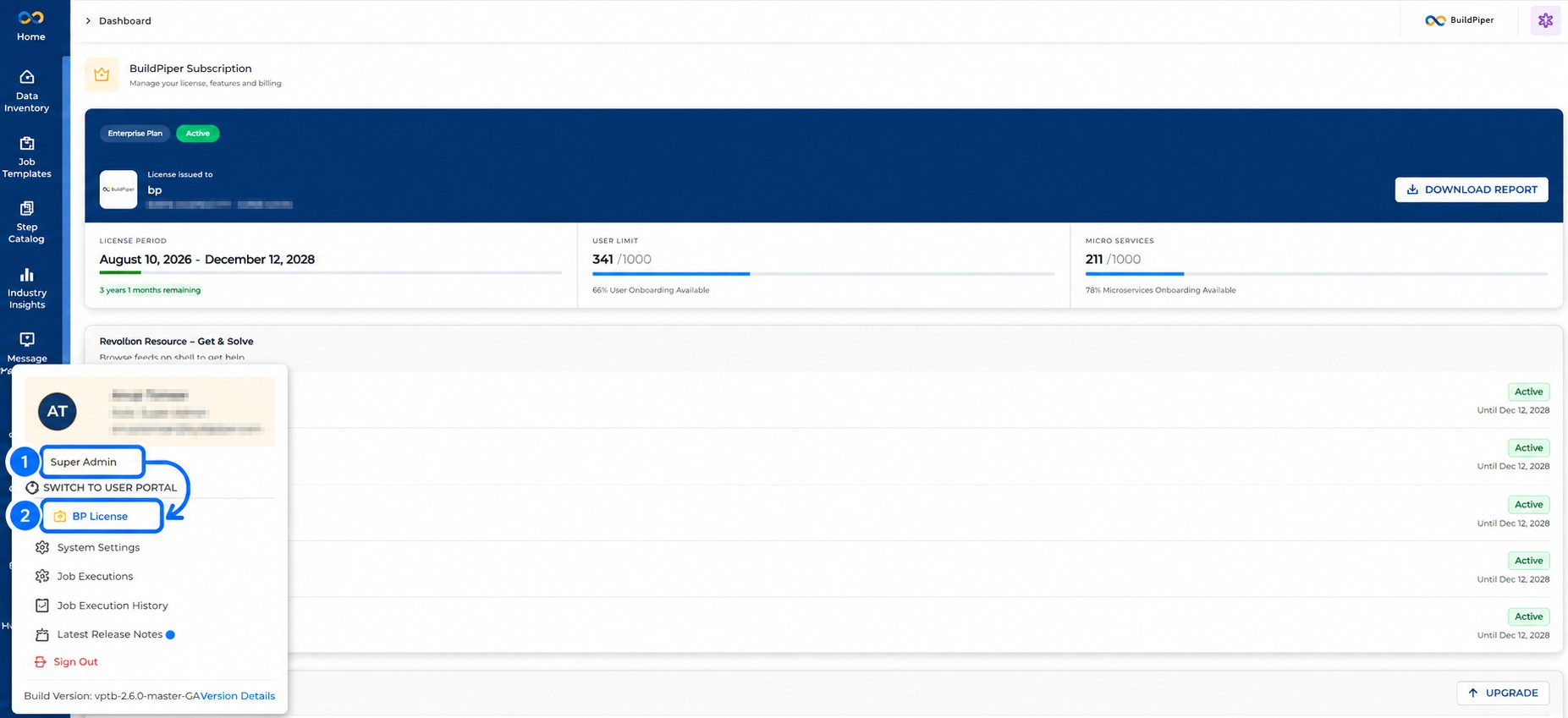
Opening BP License from the profile menu and the BuildPiper Subscription page
Note: Only Super Admin users can open the BP License page.
Subscription details #
The page summarises the active subscription and how much of the licensed capacity has been used.
| Field | What it shows |
|---|---|
| Subscription Plan | The subscription tier assigned to your organisation, for example Enterprise Plan |
| Subscription Status | The current status of the subscription, for example Active |
| License Issued To | The account or organisation that the license is issued to |
| License Identifier | The license reference, shown with the role of the user who opened the page |
| License Period | The start date and the expiry date of the license |
| Time Remaining | The time left on the license, shown under the license period |
| User Limit | The number of users onboarded against the licensed limit, for example 341 of 1,000, with the percentage of user capacity still available |
| Micro Services | The number of microservices onboarded against the licensed limit, for example 211 of 1,000, with the percentage of microservice capacity still available |
| Download Report | A button that downloads a report from the subscription page |
What you can do on this page #
Check the plan and the status of your subscription.
Check when the license started and when it expires.
Check how many users and microservices you have onboarded against your limits.
Click Download Report to download the report.