

Job Templates #
A job template defines the steps that BuildPiper runs for an activity. Application creation generates a mobile job template that contains the Android and iOS build and deployment jobs. Review the template that is attached to the Service Environment before you trigger its first build or deployment.
1. Find the Mobile Job Template #
- 1
Log in to BuildPiper and open the application.
- 2
Click Job Templates.
- 3
Open the mobile template. It is typically named [application_name]_mobile-v2. A service can also use an explicitly selected Android-specific template.
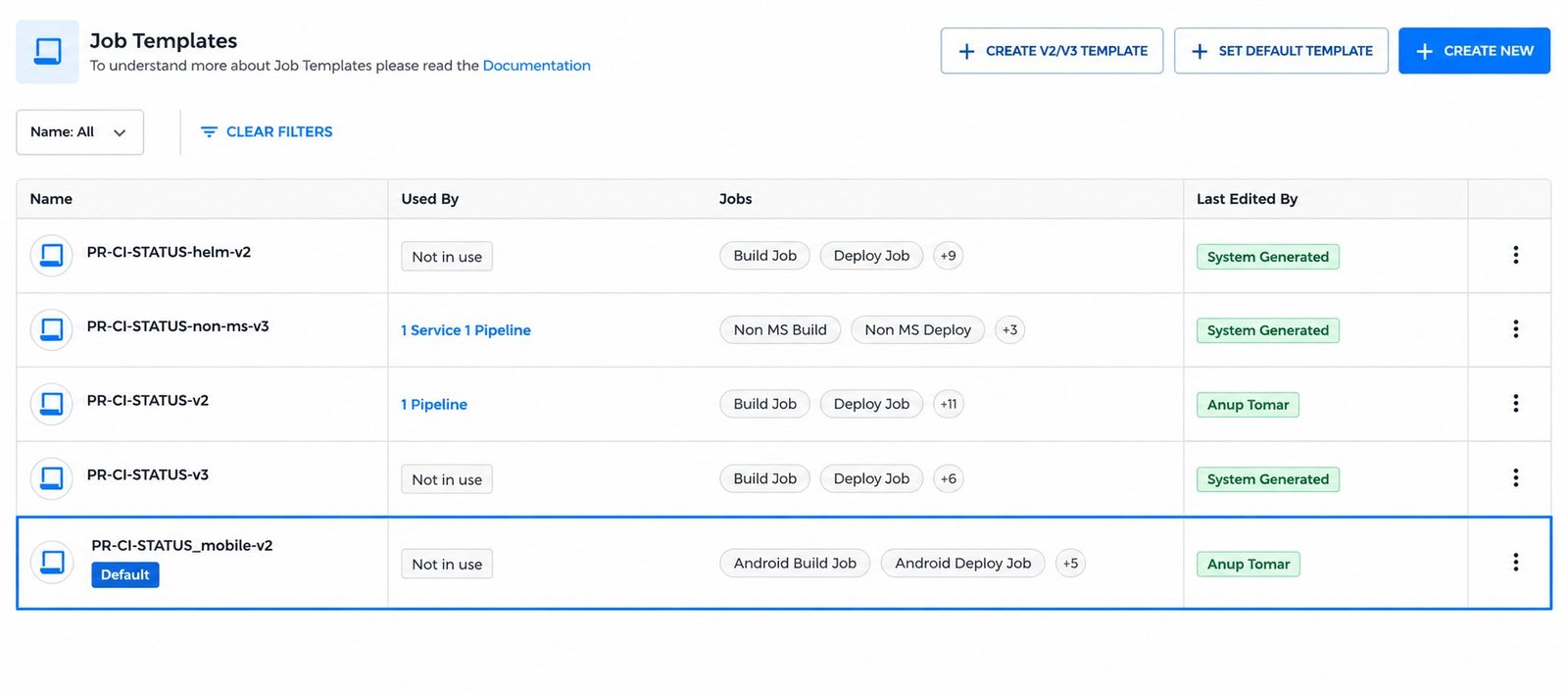
Figure 1: Job Templates page with the mobile template
2. Android Jobs in the Template #
| Android activity | Steps in the mobile template example |
|---|---|
| Android Build Job | Clone Repo → Android App Build → Android Push |
| Android Deploy Job | Android App Deploy to PlayStore |
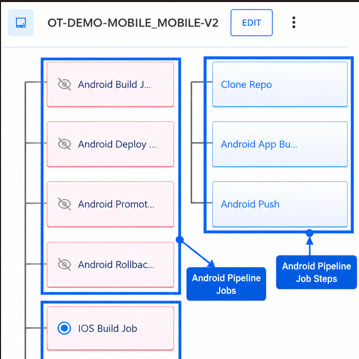
Figure 2: Android build and deploy jobs in the mobile template
The mobile template also contains iOS workflows and can include Android promotion and rollback jobs. Select the jobs that fit the Android activity. A job in the template does not run during every build.
Expected result: The selected template contains an Android build job that produces and pushes the artifact, and a Play Store deployment job if you need deployment.
3. Extend the Workflow #
You can add steps for your use case through Job Templates, for example a project-specific quality check before the artifact is published. Review the execution order and the template version that the service selects before you run the modified workflow.
Read more: Job Templates
Job Template V2 and V3 Documentation