

Pipeline Operations #
This document explains the actions you can take on a pipeline after it is created and run: stop a running pipeline, check its past runs, see who did what, and see the services it runs on.
| Operation | Where to find it | Use it to |
|---|---|---|
| Revoke Pipeline | Revoke button on a running pipeline card | Stop a running pipeline |
| Pipeline History | View History button on the pipeline card | See all past runs of the pipeline |
| Action History | 3-dot menu on the pipeline card | See who did what on the pipeline |
| Services Pipeline Ran On | Service names on the pipeline card, and the 3-dot menu | See the services the pipeline runs on |
1. Revoke Pipeline #
Use Revoke to stop a pipeline that is running. The Revoke button shows on the pipeline card only while the pipeline is running.
- 1
Open the Pipeline listing page and find the running pipeline. Hover over Revoke to see the tip: “Revoke this pipeline to stop its execution and prevent further runs.”
- 2
Click Revoke. The Revoke Pipeline window opens.
- 3
Enter the reason in Reason To Revoke. This field is required.
- 4
Click Revoke to confirm. Click Cancel to close the window without revoking.

Figure 1: Revoke button on a running pipeline card
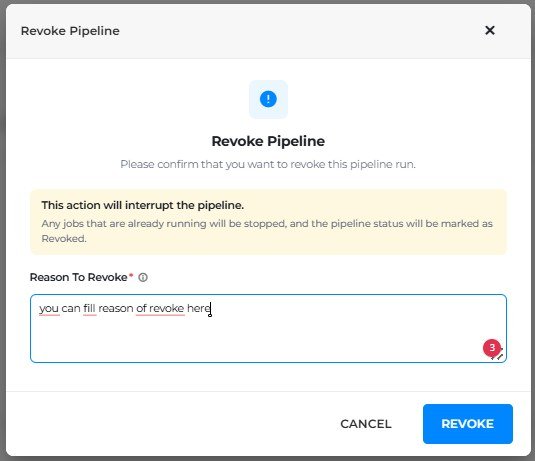
Figure 2: Revoke Pipeline window
Warning: Revoking stops the jobs that are running and marks the pipeline status as Revoked.
After you revoke, the pipeline card shows the Revoked status and Revoked By, which is the name of the user who revoked it.

Figure 3: Pipeline card after it is revoked
2. Pipeline History #
Pipeline History shows all the past runs of one pipeline.
2.1 Open Pipeline History #
- 1
Open the Pipeline listing page.
- 2
On the pipeline card, click View History.
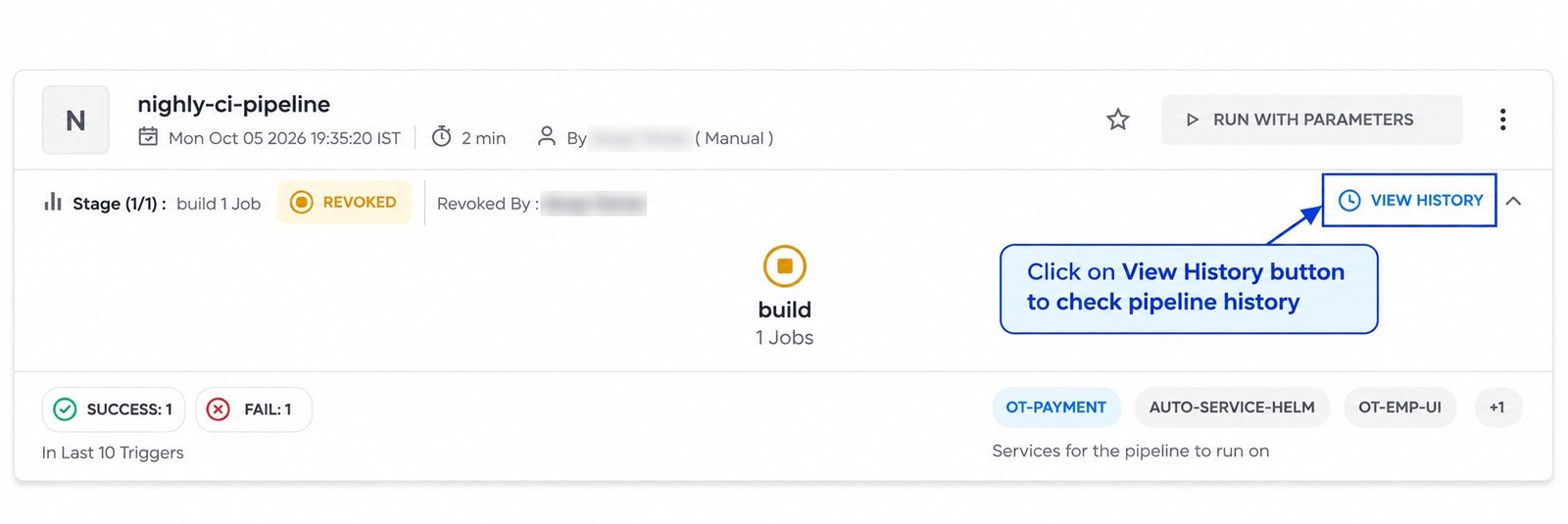
Figure 4: View History button on the pipeline card
2.2 Pipeline History Page #
The page shows the pipeline name and the text “Displaying Execution History associated with this pipeline.” Each past run is shown as a card.
| Item on the run card | What it shows |
|---|---|
| Run number | The run number, for example #47936. |
| Date and time | When the run started. |
| Duration | How long the run took, for example 30 min. |
| Triggered by | The user who ran it and how, for example Manual. |
| Stage summary | The stage count, number of jobs and the run status, for example SUCCESS. |
| View Details | Button on each run card. |
| Replay | Button on each run card. |
| Arrow (right side) | Expands or collapses the run card. |
If there are many runs, use the page arrows or Go to page at the top right to move between pages. Click Back to return to the pipeline listing page.

Figure 5: Pipeline History page
3. Action History #
Action History lists the actions people took on a pipeline, such as approving a stage.
3.1 Open Action History #
- 1
Open the Pipeline listing page and click the pipeline you want.
- 2
Click the 3-dot menu at the top right of the pipeline card.
- 3
In the menu, click Action History.

Figure 6: Action History in the 3-dot menu
The 3-dot menu has these options:
| Menu option | Where to read more |
|---|---|
| View Run Parameters | — |
| Pipeline Logs | — |
| Notification History | — |
| View Tags | Section 4 of this document (same window) |
| Services for the pipeline to run on | Section 4 of this document |
| Action History | This section |
3.2 Action History Page #
Use the filters at the top to find an action quickly.
| Filter | What it does |
|---|---|
| Action | Shows only the selected actions. The default is All. See the list below. |
| Performed By | Shows only the actions done by the selected user. The default is All. |
| + More | Opens more filter options. |
| Clear Filters | Resets all filters. |
The Action filter has a Search box and a checkbox for each action. You can select more than one.
| Action | What it shows |
|---|---|
| Approve Stage | A stage that a user approved. |
| Exceptional Approval | An exceptional approval given on the pipeline. |
| Re-Run Job After Failure | A failed job that a user re-ran. |
| Continue With Failure | A run where a user chose to continue after a failure. |
| Trigger Pipeline | A pipeline run that a user triggered. |
| Revoke Pipeline | A pipeline run that a user revoked. |
| Replay Pipeline | A pipeline run that a user replayed. |
The list has these columns:
| Column | What it shows |
|---|---|
| Performed By | The user who did the action. |
| Pipeline Action | The type of action, for example Approve Stage. |
| Message | The comment the user entered, for example “approved for dry-run”. |
| Stage / Job | The stage the action was done on, for example CAB Approval. |
| Time | The date and time of the action. |
At the bottom, move between pages or type a page number in Go to Page Number and click GO.

Figure 7: Action History page
Read more: Pipeline Approval > 4. Approve the Stage
Pipeline Approval > 6. When a Pipeline Fails: Manage Failure
4. Services Pipeline Ran On #
This shows the services that the pipeline runs on. You can see them in two places.
| Where | What you see |
|---|---|
| Pipeline card (bottom right) | Service names under the text “Services for the pipeline to run on”, for example OT-PAYMENT, AUTO-SERVICE-HELM and OT-EMP-UI. A +1 means one more service is not shown. |
| 3-dot menu | The option Services for the pipeline to run on. |
4.1 Open from the 3-dot Menu #
- 1
Open the Pipeline listing page and click the pipeline you want.
- 2
Click the 3-dot menu at the top right of the pipeline card.
- 3
Click Services for the pipeline to run on.

Figure 8: Services for the pipeline to run on in the 3-dot menu
The Tags and Service Details window opens. It has two tabs: View Tags and Service for the Pipeline to run on.
| Item | What it shows |
|---|---|
| Service for the Pipeline to run on | The names of all the services the pipeline runs on, for example ot-payment, auto-service-helm, ot-emp-ui and ot-emp-salary. The card shows only the first few; this tab shows the full list. |
| View Tags | The tags of the pipeline. |
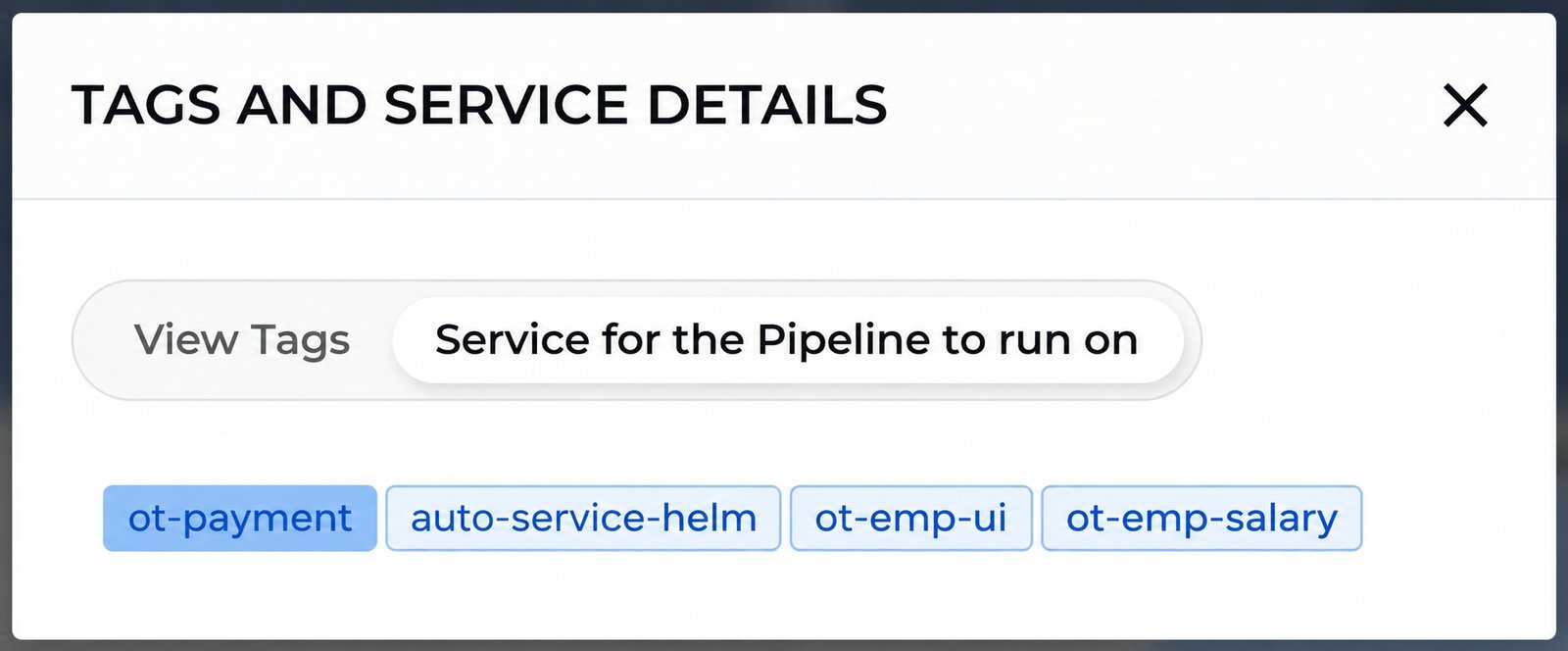
Figure 9: Tags and Service Details window