

Deployment Strategies #
1. Deployment Strategies Overview #
A deployment strategy defines how a new version of an application is released to its target instances, such as pods or virtual machines (VMs). BuildPiper supports three deployment strategies: Recreate, Rolling and Canary.
The strategies you can select depend on the type of job you add: a static job or a dynamic job.
2. Supported Strategies #
| Strategy | Description | Available For |
|---|---|---|
| Recreate | All selected service instances are stopped before the new version is deployed. Traffic is unavailable during deployment, and all instances come back online once the deployment is complete. | Dynamic jobs (V3 template) |
| Rolling | Phased deployment across the target instances, using the configured rolling percentage. | Static and dynamic jobs |
| Canary | Releases the new version to a small portion of instances first, then to the rest. For details, see the Canary Deployment documentation. | Static and dynamic jobs |
3. Selecting a Deployment Strategy #
Select the deployment strategy in the Job Form when adding a Deploy job to the pipeline.
3.1 Static Jobs #
For a static job, only Rolling and Canary are available.
- 1
Keep Do you want to add Dynamic jobs? set to No.
- 2
Select Deploy as the Job Type.
- 3
Select the To Environment and the Artifact Source.
- 4
Under Deployment Strategy, select Rolling or Canary.
- 5
Click ADD.
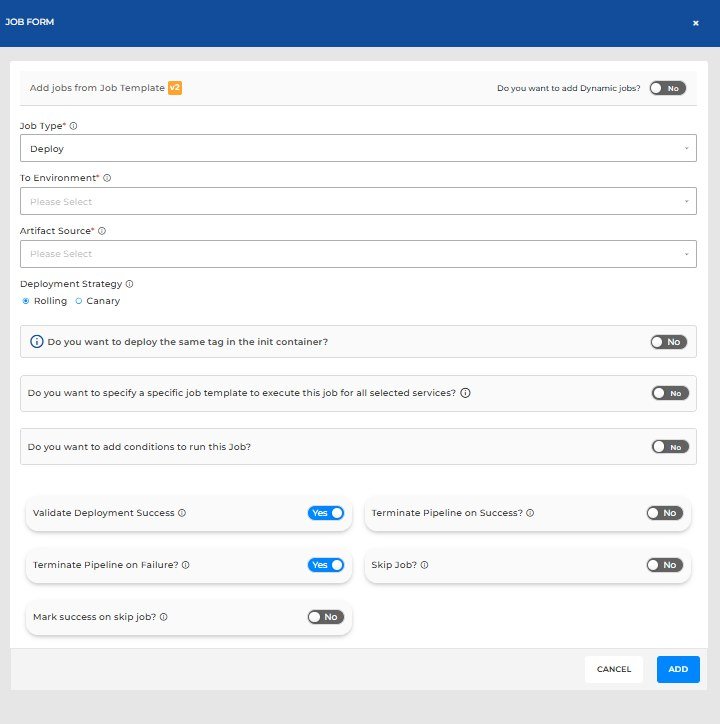
Figure 1: Job Form – Static job
3.2 Dynamic Jobs #
When you add dynamic jobs from a V3 job template, Recreate is also available, along with Rolling and Canary.
- 1
Set Do you want to add Dynamic jobs? to Yes.
- 2
Select the Project Env and the Job Template.
- 3
Select the deploy job as the Job Type (for example, Non MS Deploy).
- 4
Under Deployment Strategy Details, select Recreate, Rolling or Canary as the Deployment Strategy.
- 5
Select the Rollback Strategy: Auto Rollback or Manual Rollback.
- 6
Under Select Services, select the service to deploy.
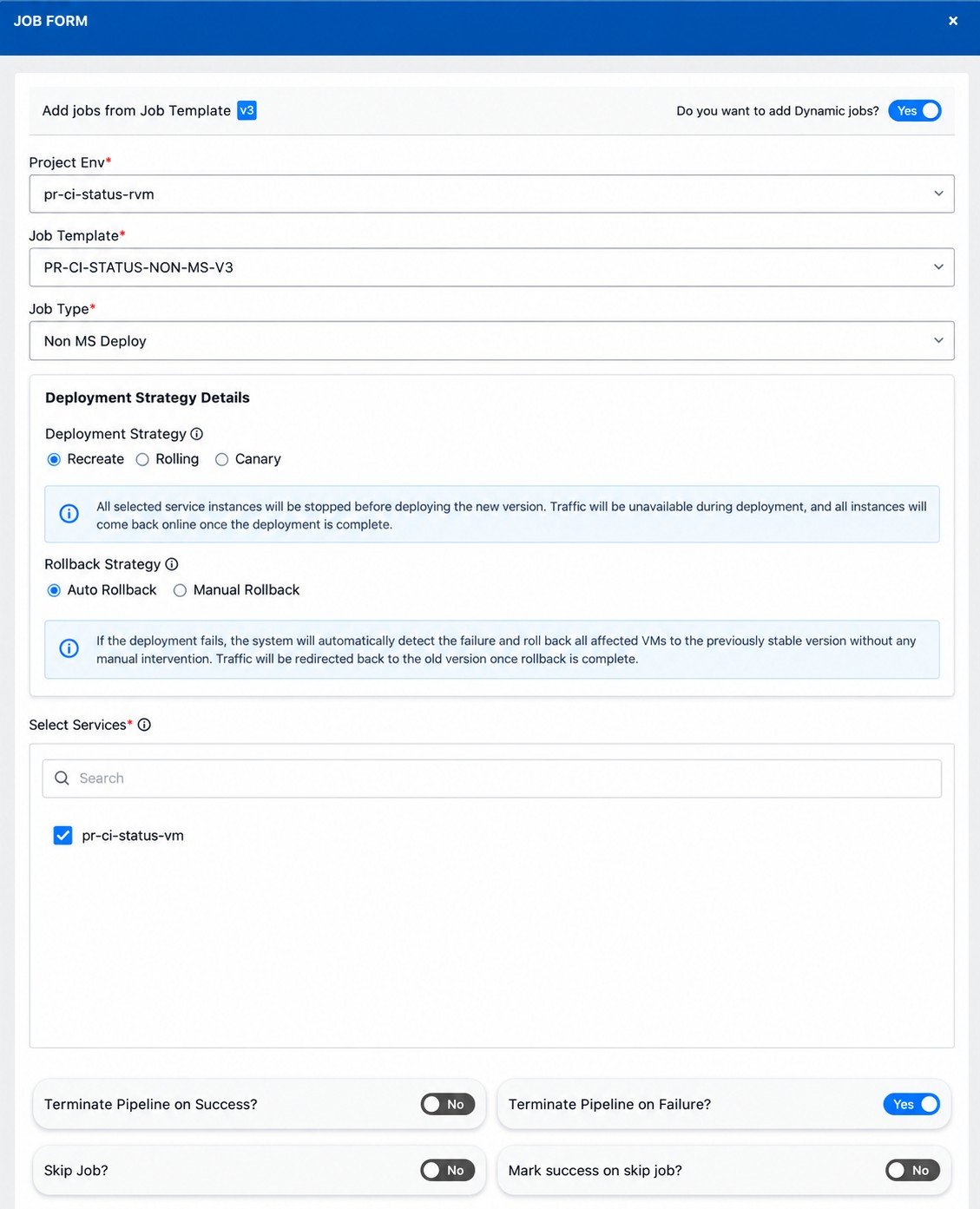
Figure 2: Job Form – Dynamic job (V3 template)
4. Rollback Strategy #
BuildPiper gives you two ways to recover from a failed deployment: Auto Rollback, which the system runs for you, and Manual Rollback, which you trigger yourself through a Rollback job in the pipeline.
| Option | Description |
|---|---|
| Auto Rollback | If the deployment fails, the system automatically detects the failure and rolls back all affected instances to the previously stable version, without any manual intervention. Traffic is redirected back to the old version once the rollback is complete. |
| Manual Rollback | You add a Rollback job to the pipeline. If the production release fails for any reason, you trigger the rollback manually. |
4.1 Auto Rollback #
Select Auto Rollback as the Rollback Strategy in the dynamic job form (V3 template), as shown in Figure 2.
Example with Canary deployment: with the Canary strategy, the new version is first released to a small portion of instances, which receive a share of live traffic. If the canary deployment fails, BuildPiper automatically rolls those instances back to the previously stable version and sends all traffic back to it. The rest of the instances are never moved to the failed version, so most users are not affected.
For details on how canary releases are configured and promoted, see the Canary Deployment documentation.
4.2 Manual Rollback (Rollback Job) #
For manual rollback, you add a Rollback job as a step in the pipeline. Rollback jobs are added from the V2 job template, with Do you want to add Dynamic jobs? set to No.
- 1
Keep Do you want to add Dynamic jobs? set to No.
- 2
Select Rollback as the Job Type.
- 3
Select the Environment to roll back.
- 4
Under Services, select the services to roll back, or select All.
- 5
Select the Version to roll back to.
- 6
Click ADD (or UPDATE when editing an existing job).
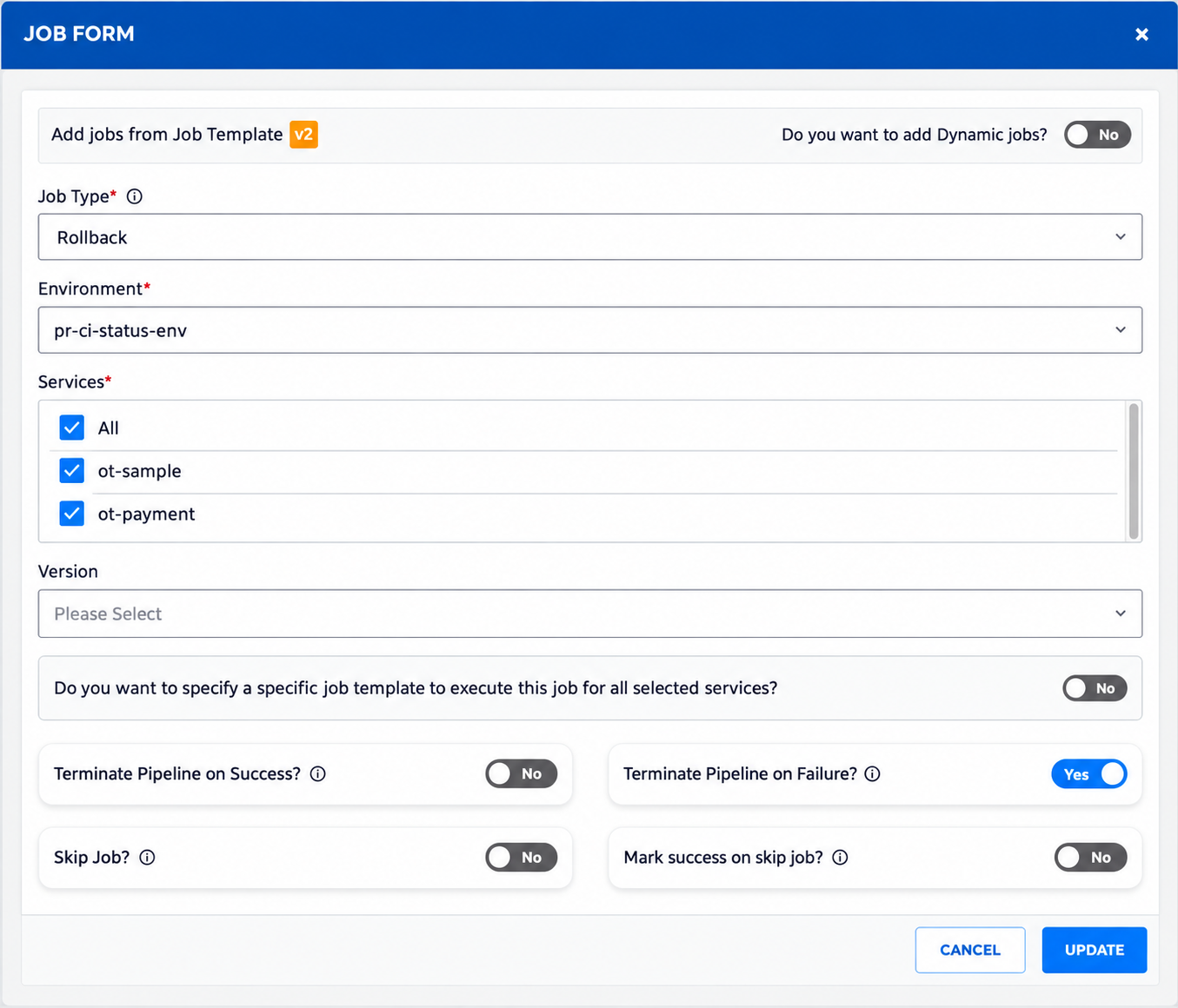
Figure 3: Job Form – Rollback job (V2 template)
Add the Rollback job in its own stage after the production deployment. In the example below, the CAB Approval stage promotes and deploys the release to bp-prod, and the Production-Rollback stage holds a Rollback job for bp-prod. If the production release fails for any reason, you trigger the rollback manually to restore the previous version.
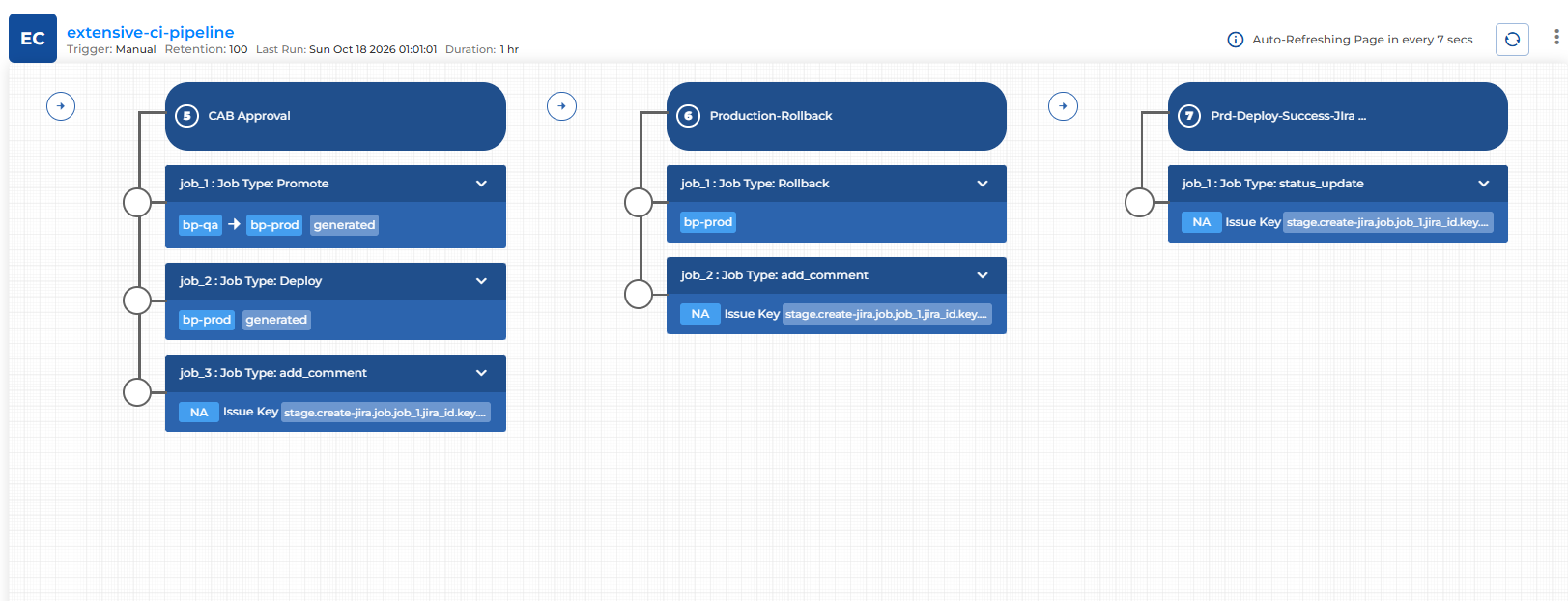
Figure 4: Pipeline with a Production-Rollback stage