

Init & Sidecar Containers #
In Kubernetes, Init Containers and Sidecar Containers are two types of containers that help the main application container perform its tasks. Both can run within the same Kubernetes Pod, but their purposes and execution lifecycles are different.
What is an Init Container? #
An Init Container is a special container that runs before the main application container starts. Its purpose is to perform initialization or setup tasks required by the application.
For example, suppose your application requires a configuration file before starting.
| Step | Container | What happens |
|---|---|---|
| 1 | Init Container | Prepare configuration or verify dependencies. Initialization completed. |
| 2 | Main Application Container | Application starts running. |
Note: Standard Init Containers must complete successfully before the main application starts.
What is a Sidecar Container? #
A Sidecar Container is an additional container that runs alongside the main application container in the same Pod. Its purpose is to provide supporting functionality without modifying the main application’s code.
For example, suppose your application generates logs and you want to send them to a centralized logging platform.
| Container (in the same Pod) | Role |
|---|---|
| Main Container | Runs the business application. |
| Sidecar Container | Collects and forwards application logs. |
The containers share the Pod’s network and can share storage volumes.
Navigation #
- 1
Open the ENV DEPLOY DETAILS page and select the DEPLOY DETAILS tab.
- 2
Click on Sidecars or Init Container to configure the init and sidecar containers.

Figure 1: Sidecars or Init Container
| Field Name | Field Type | Description / Requirement |
|---|---|---|
| Sidecars or Init Container | Status | Card on the DEPLOY DETAILS tab that shows whether any init or sidecar container is set up for this deployment. It reads Not Configured until the first container is added. |
| CONFIGURE | Button | Opens the container form, where you define a new init or sidecar container in five steps. |
Click CONFIGURE to open the container form. It has five steps: Request Quota, Configuration & Secrets, Mount Details, Env Variables and Security Context Details.
Request Quota #
In Container Type, select Init Container or Sidecar, depending on the container you want to create.

Figure 2: Sidecar or Init Container – Request Quota
| Field Name | Field Type | Description / Requirement |
|---|---|---|
| Container Name* | Mandatory | A unique name for this init or sidecar container inside the pod. It must be different from the main container name and is used to identify the container in logs and monitoring. |
| Container Type* | Mandatory | Select Init Container or Sidecar. An Init Container runs to completion before the main application container starts. A Sidecar runs alongside the main container for the life of the pod. |
| Image Name* | Mandatory | The container image to run, taken from the registry. It is pre-filled with the service image path (e.g. gtm-enrichment/dev/dev); replace it with the image this container needs. |
| Enter tag* | Mandatory | The version tag of the image to pull, e.g. 1.0.3 or latest. |
| Request Memory Quota* | Mandatory | The minimum guaranteed RAM reserved for the container. e.g. 100 means 100 MB of memory. |
| Request CPU Quota* | Mandatory | The minimum guaranteed CPU cores reserved for the container. e.g. 100 means 100 millicores of CPU. |
| Specify Request GPU Quota | Non-Mandatory | Enable to define specialised GPU requirements for the container by providing a GPU key and value. |
| Specify limit quota else limit quota will be same as request quota | Non-Mandatory | Enable to set the maximum memory, CPU and GPU the container can use (Limit Memory Quota, Limit CPU Quota, Limit GPU Quota). If left as No, the limits are set to the same values as the request quota. |
Click CONTINUE to go to the next step.
Configuration & Secrets #
The second step has four toggles, all set to No by default.

Figure 3: Sidecar or Init Container – Configuration & Secrets
| Field Name | Field Type | Description / Requirement |
|---|---|---|
| Define from ConfigMap | Non-Mandatory | Select a ConfigMap to mount its configuration data into the container at a specified path. |
| Mount ConfigMap key on subpath | Non-Mandatory | Mount a specific key from a ConfigMap as an individual file at a specified path within the container. This allows you to add configuration files to existing directories without overwriting other files. |
| Define from Secrets | Non-Mandatory | Select a Secret to mount into the container at a specified path. |
| Mount Secret key on subpath | Non-Mandatory | Mount a specific key from a Secret as an individual file at a specified path within the container, without overwriting other files in that directory. |
Click NEXT to go to the next step.
Mount Details #
The third step (Mount & Config) has four toggles, all set to No by default.
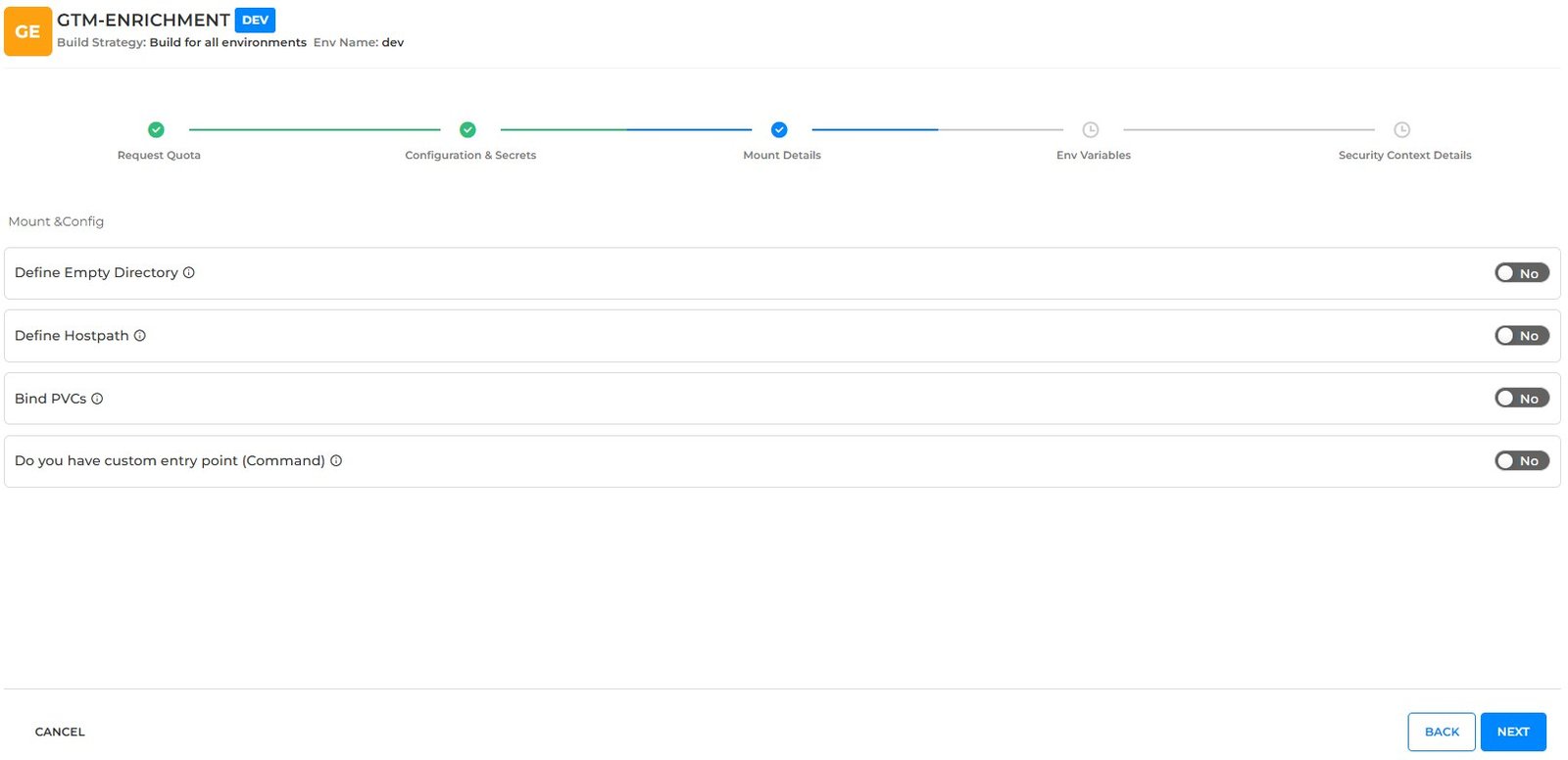
Figure 4: Sidecar or Init Container – Mount Details
| Field Name | Field Type | Description / Requirement |
|---|---|---|
| Define Empty Directory | Non-Mandatory | Mounts an empty directory inside the container. Commonly used when multiple containers in the same pod need to share files, for example an init container preparing files for the main container. Data persists for the lifetime of the pod and is removed when the pod is deleted. |
| Define Hostpath | Non-Mandatory | Mount a file or directory from the Kubernetes node’s filesystem into the container. Use this option with caution, as the container depends on the selected node and its filesystem, which may affect portability and security. |
| Bind PVCs | Non-Mandatory | Mount an existing Persistent Volume Claim into the container to persist data independently of Pod restarts or replacements. |
| Do you have custom entry point (Command) | Non-Mandatory | Execute a custom entry point command inside the container instead of the image default. |
Click NEXT to go to the next step.
Env Variables #
The fourth step (Define runtime environment variables) has three toggles, all set to No by default.
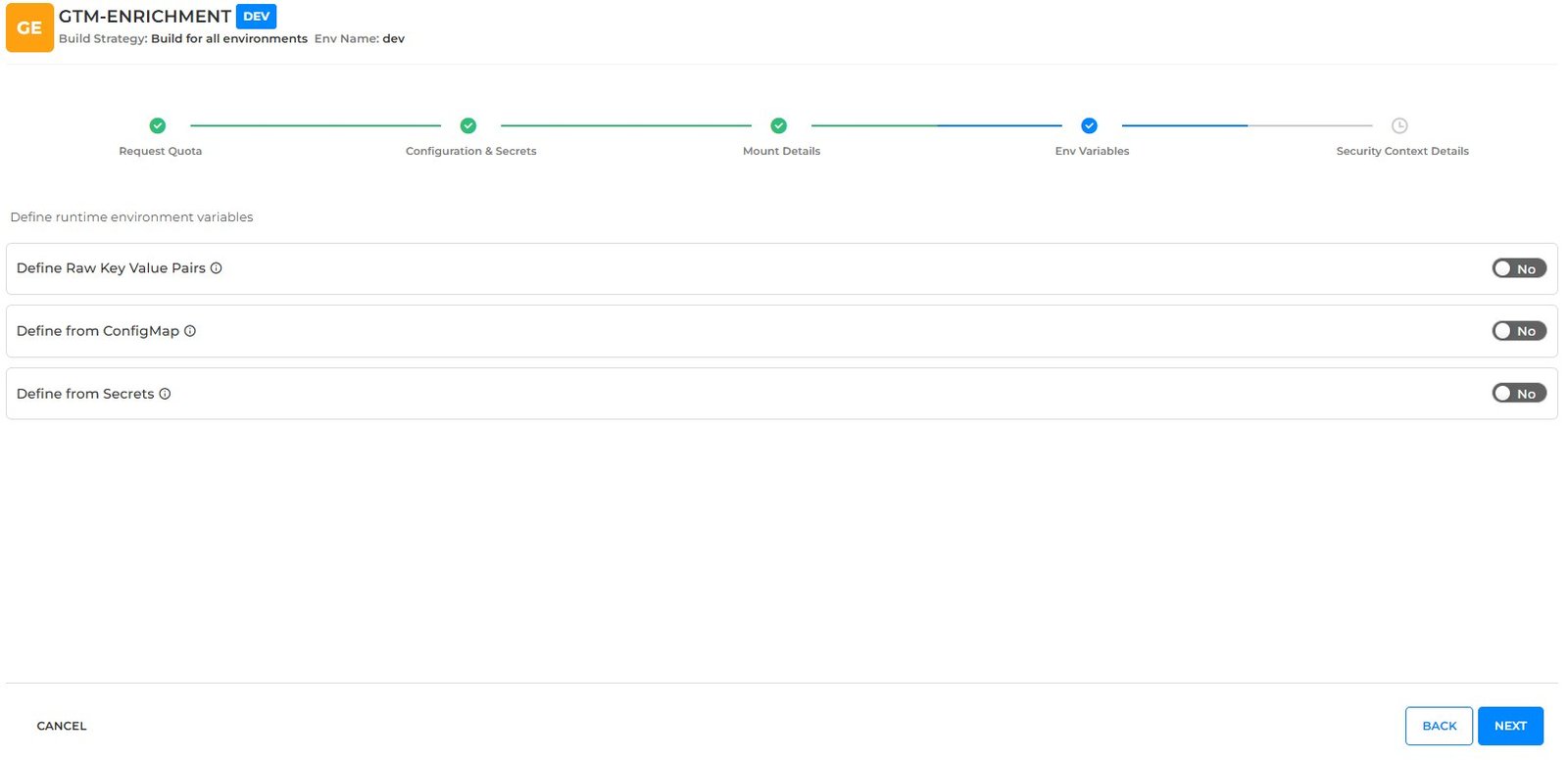
Figure 5: Sidecar or Init Container – Env Variables
| Field Name | Field Type | Description / Requirement |
|---|---|---|
| Define Raw Key Value Pairs | Non-Mandatory | Pass key–value pairs as environment variables inside the container. |
| Define from ConfigMap | Non-Mandatory | Use an existing ConfigMap onboarded on BP as environment variables inside the container. |
| Define from Secrets | Non-Mandatory | Use an existing Secret onboarded on BP as environment variables inside the container. |
Click NEXT to go to the next step.
Security Context Details #
The last step (Security & Context) has one toggle, set to No by default.

Figure 6: Sidecar or Init Container – Security Context Details
| Field Name | Field Type | Description / Requirement |
|---|---|---|
| Init Container security context | Non-Mandatory | Enable to define a container-level security context for this container. These settings apply only to this container and override or tighten the Pod-level rules, e.g. ReadOnly Root Filesystem (prevents writes to the container’s core disk), Allow Privilege Escalation (controls if a process can gain more power than its parent) and Add / Drop Capabilities (strips unnecessary kernel permissions). |
Click SUBMIT to save the container configuration.
The Init & Sidecar container is created and added under the stable configuration.

Figure 7: Init & Sidecar Container Added
| Field Name | Field Type | Description / Requirement |
|---|---|---|
| Container name | Display | The name given in Container Name (e.g. salary-dev-dev-main), shown under the stable configuration it belongs to. |
| Container type and status | Display | Shows the container type and configuration (e.g. Init Container – Stable Configuration) with an IN USE badge when it is active. |
| Created On | Display | When the container configuration was created. |
| Edit / Delete | Action | Edit reopens the container form to change its configuration. Delete removes the container from the deployment. |
| Sidecars Or Init Container – CONFIGURE | Action | Add another init or sidecar container to the same deployment. |